

The Assets page
Content > Assets lists every image and file your workspace holds, grouped by where it lives, with the tools to upload, generate, publish and tidy them. When Shopify is connected, a second view, Products, shows your synced catalog.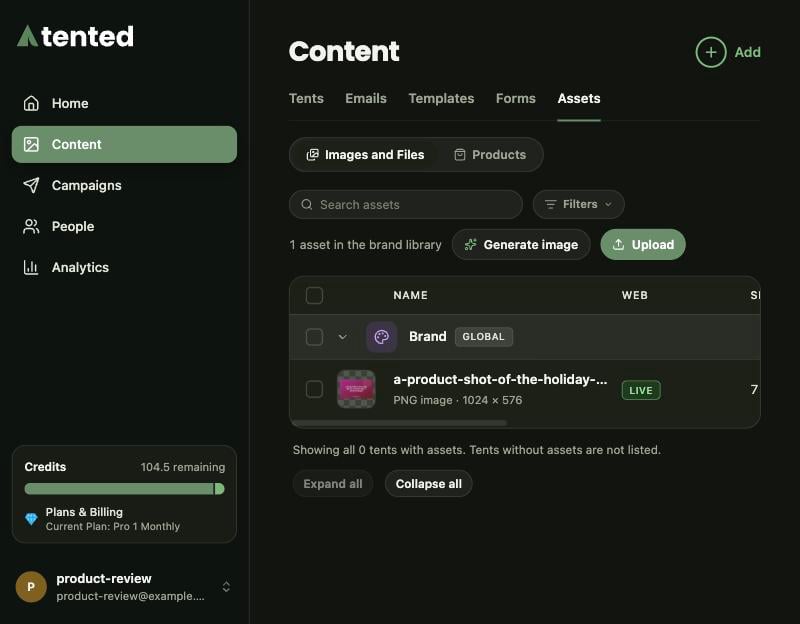
Images and Files
Assets are grouped:- Brand comes first: your logo and icon from Settings, plus the brand library, which holds files that belong to the workspace rather than to one tent.
- Each tent that has assets follows, with everything uploaded to it or generated for it.
Working with a file
Hover a row for the quick actions, or open its menu for everything:- Preview opens the file large, with previous and next and the file’s details.
- Open on the web opens the public link.
- Copy URL copies that link, so you can paste it into a prompt or anywhere else.
- Download saves the original.
- Rename changes the display name.
- Unpublish or Publish controls whether the file is on the web (below).
- Delete removes the file for good.
On the web, or not
The Web column says whether a file is reachable by its public link:- LIVE: the link works.
- NOT LIVE: the file is published, but the tent it belongs to isn’t, so its link won’t work until the tent is published.
- UNPUBLISHED: you took the file off the web. It stays in your assets and you can still preview and download it, but its public link stops working and Copy URL is off until you publish it again.
Unpublishing really takes the file off the web: the file is moved out of public storage. Publishing puts it back at the same link.
Upload
Click Upload, choose where the files go (the brand library or a tent), and pick the files. Each one shows its progress. Leave Publish to the web on to give the files public links right away, or turn it off to keep them private until you need them.Generate an image
You can ask the Image Agent for images here, without opening an editor. Click Generate image, describe the image, and choose:- Save to: the brand library or a tent.
- How many: one to five images.
- Shape: landscape, portrait or square.
- Use brand context: your colors, logo and guidelines shape the result.
- Publish to the web: give each image a public link as soon as it’s ready.
Products
With Shopify connected, the Products view lists your synced catalog grouped by collection, with each product’s price and status: Active, Draft, Archived or Out of stock.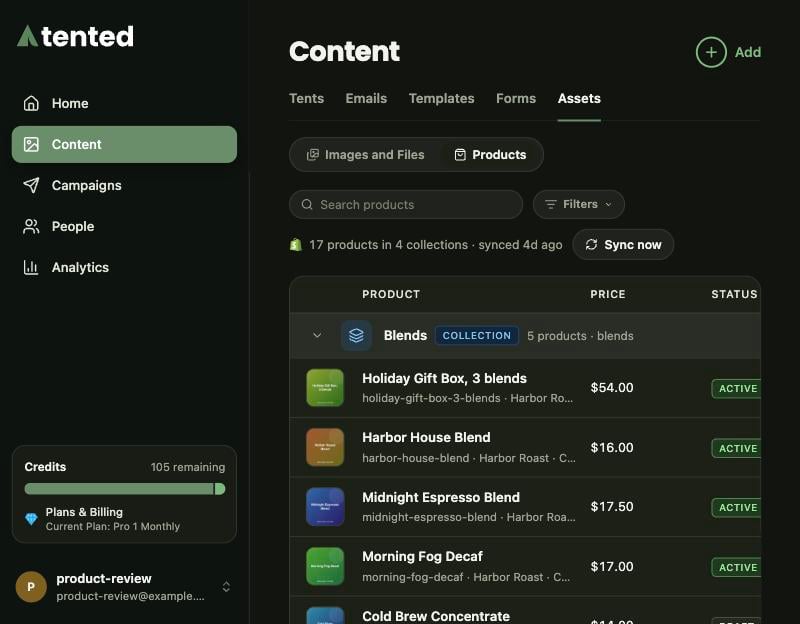
In the editor
The editor’s Manage Assets window (the image icon in the top bar) still shows the files of the tent or email you’re working on, including whether each one is on the web. To create new images, ask in the chat or use the /images command.Next: Adding Products from Shopify
Ask for products in chat and confirm the matches.