

Emails, the Tented way
If you’ve built a tent, you already know how to build an email: describe what you want, iterate in chat, and watch the preview update live. Every email Tented generates uses battle-tested HTML — bulletproof tables, MSO conditionals for Outlook, dark-mode hooks — so it renders cleanly across Gmail, Outlook, Apple Mail, Yahoo, and friends.Create your first email
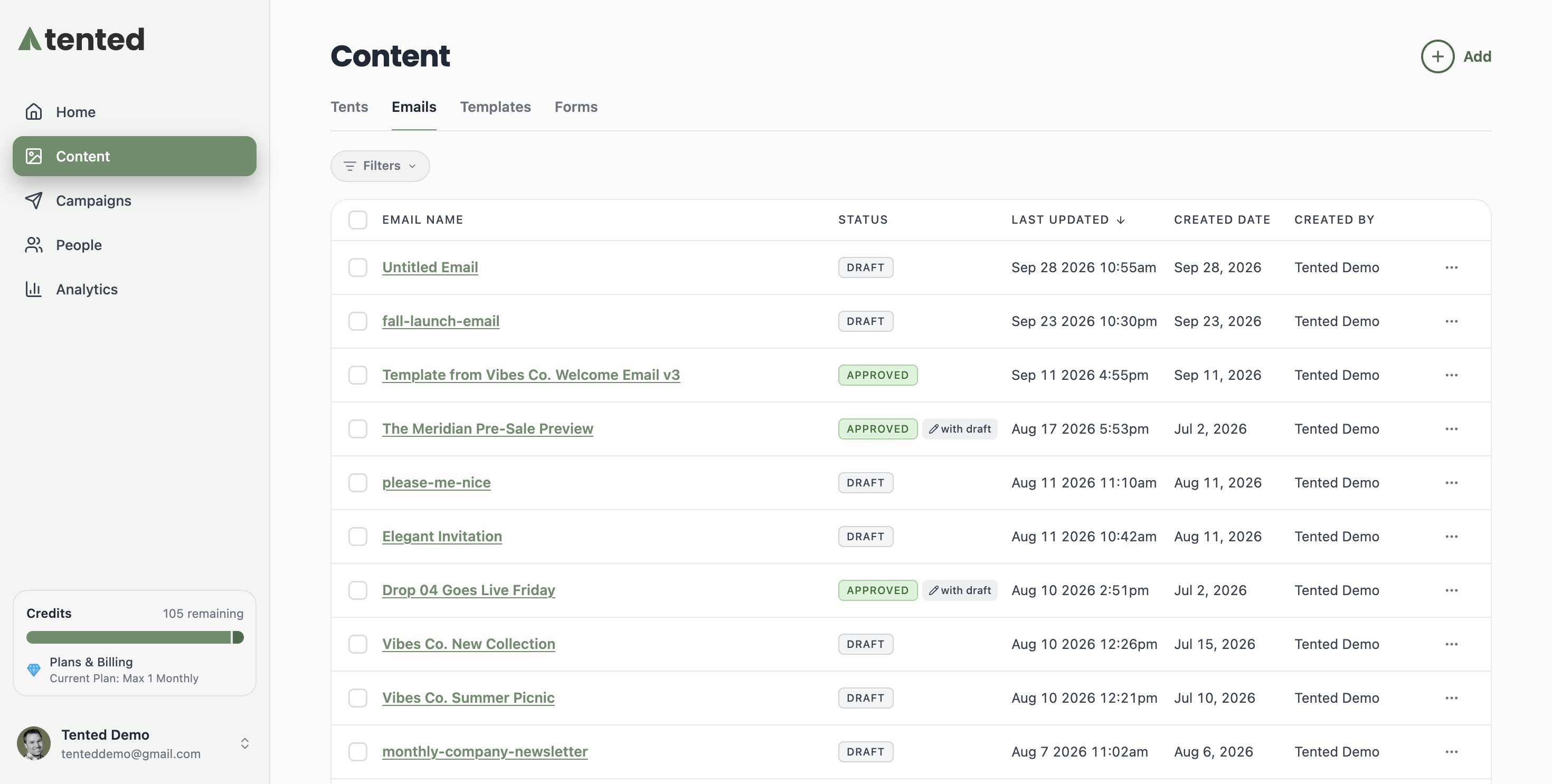
- Go to Content in the sidebar.
- Click Add > Create Email.
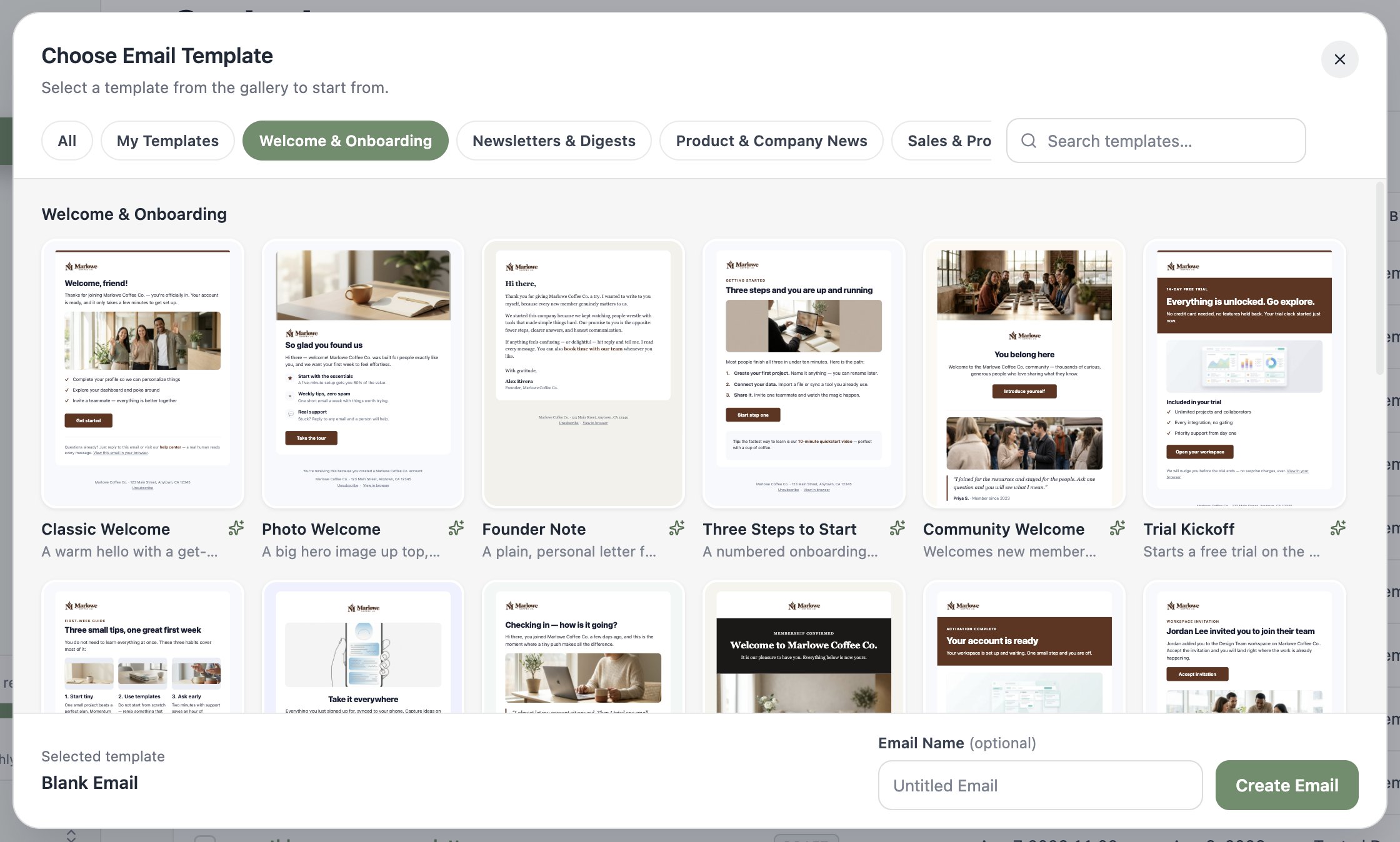
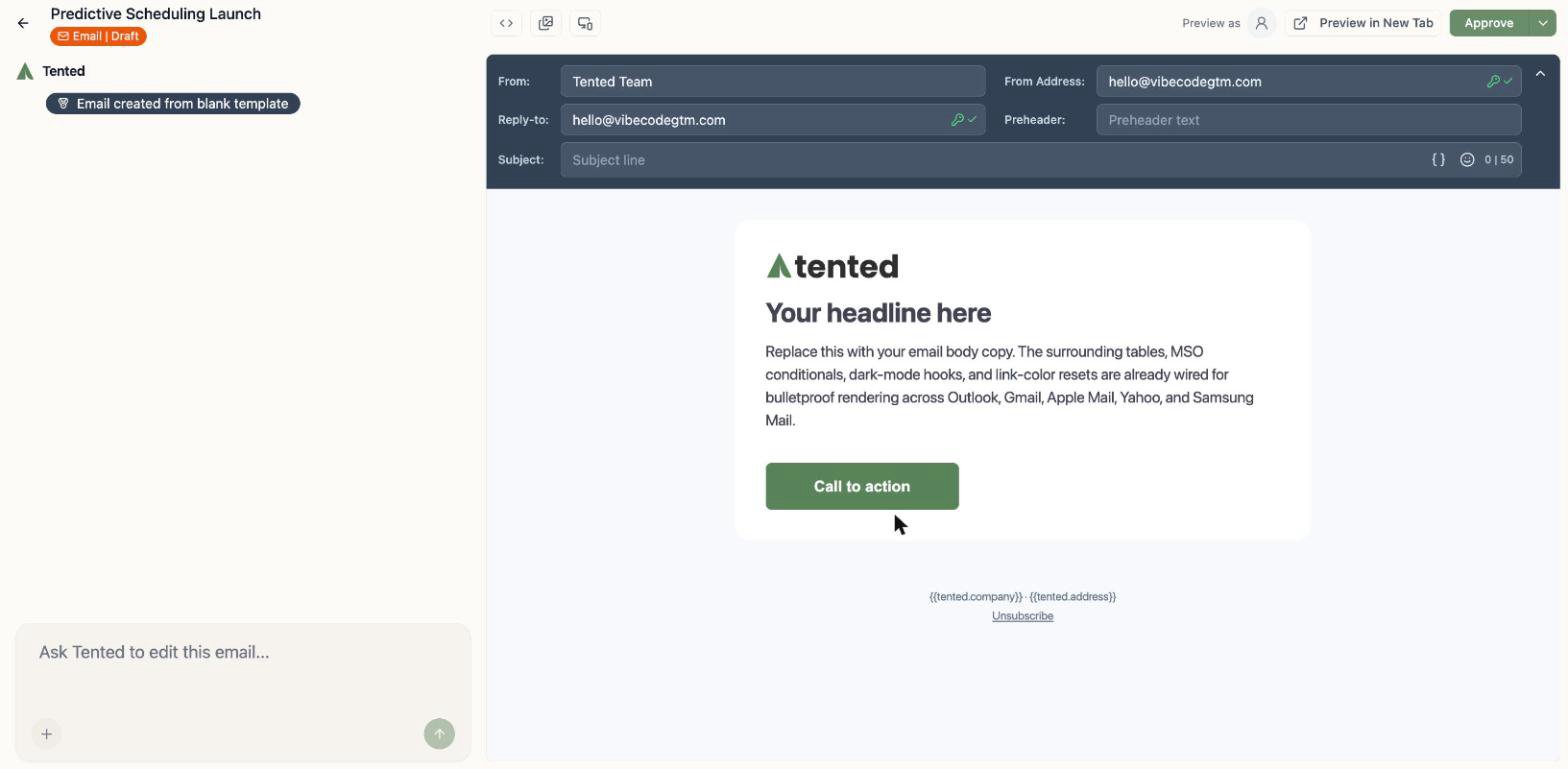
- The Choose Email Template gallery opens. Pick a starting point: a design from the Tented example template collection (every one already rendered in your branding), one of your own approved templates, or Blank Email for a clean branded scaffold.
- Name your email and click Create Email.
Tented Example Templates
The gallery’s headline act is the Tented example template collection: dozens of professionally designed emails covering welcomes, newsletters, product news, promotions, receipts, events, and win-backs. The collection automatically enables your branding. Before you touch a prompt, every design in the gallery renders with the logo, brand color, and company details from your workspace settings, so nothing in it looks like a placeholder. Browse by category (Welcome & Onboarding, Newsletters & Digests, Sales & Promotions, and more), search by name, or click Preview on any card to see it full size. You can also reach the collection any time under Content > Templates (select Email Templates), in the Tented Starter Templates row: hover a card and click Use to start a new email from it on the spot.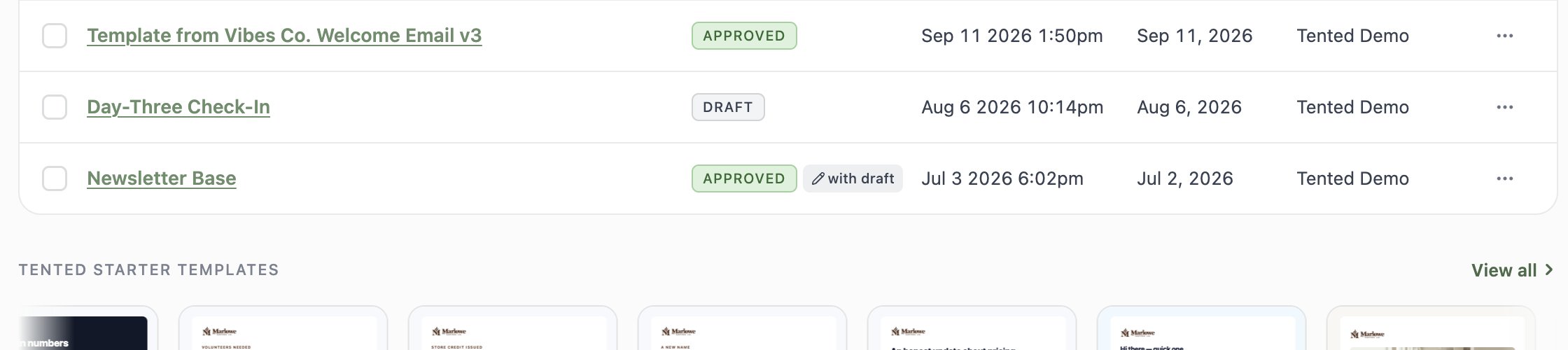
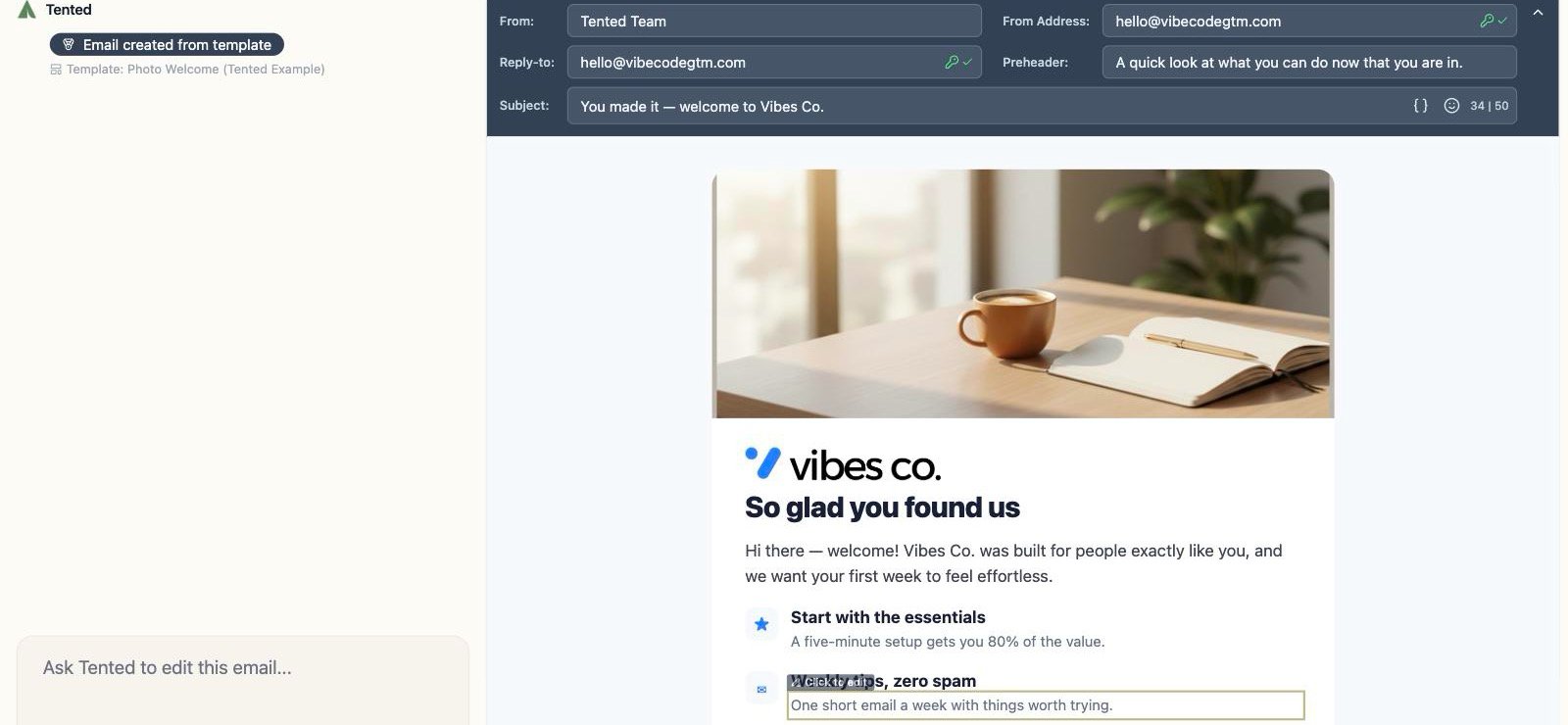
- The template’s full design, rendered with your logo, brand color, and company footer already in place
- Your default from name, from address, and reply-to prefilled from email settings
- A chat pill recording which template the email started from
Creating an email from an example template spends no generation credits. Credits are only used when you ask the AI to generate or edit content.
Ask for what you want
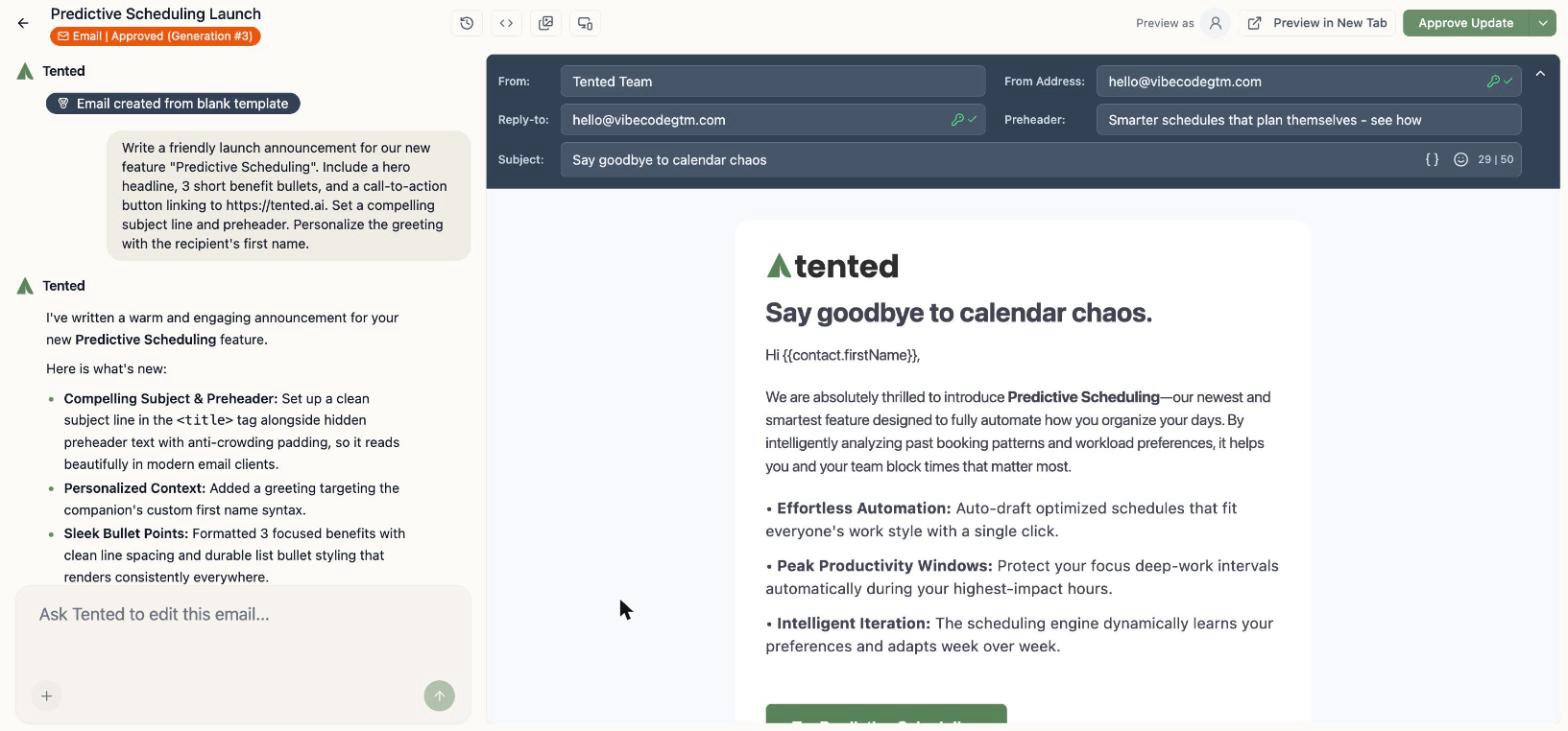
Describe the email in the chat box, the same way you’d brief a colleague:“Write a friendly launch announcement for our new feature ‘Predictive Scheduling’. Include a hero headline, 3 short benefit bullets, and a call-to-action button linking to our site. Personalize the greeting with the recipient’s first name.”
Edit sections directly
Hover over any part of the email and you’ll see Click to edit — handy for quick text tweaks without a round-trip through the AI.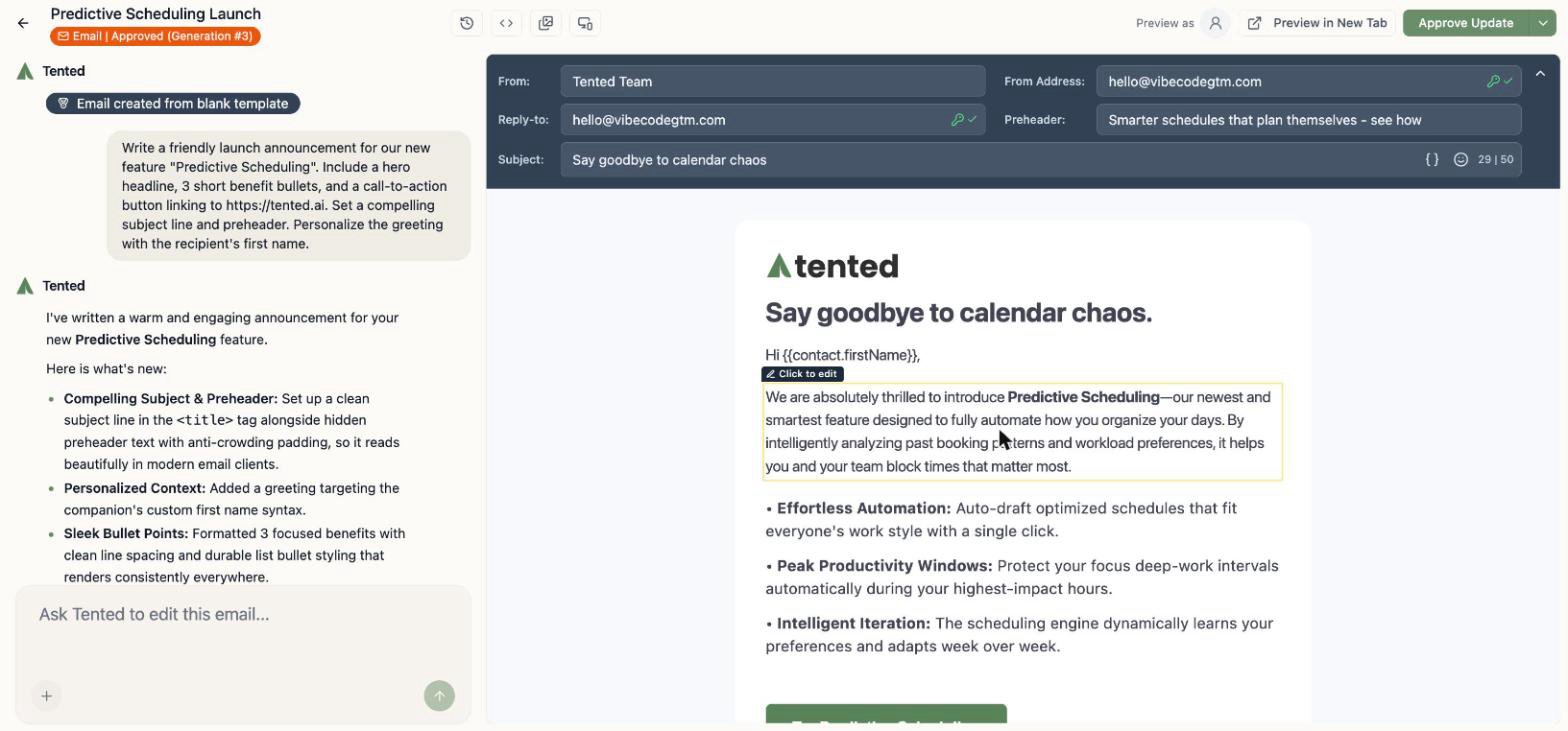
Subject lines, preheaders, and personalization
Fill in the Subject and Preheader fields in the header bar. A few niceties built in:- The subject field has a 50-character guide — stay under it and your subject won’t get clipped on mobile.
- The
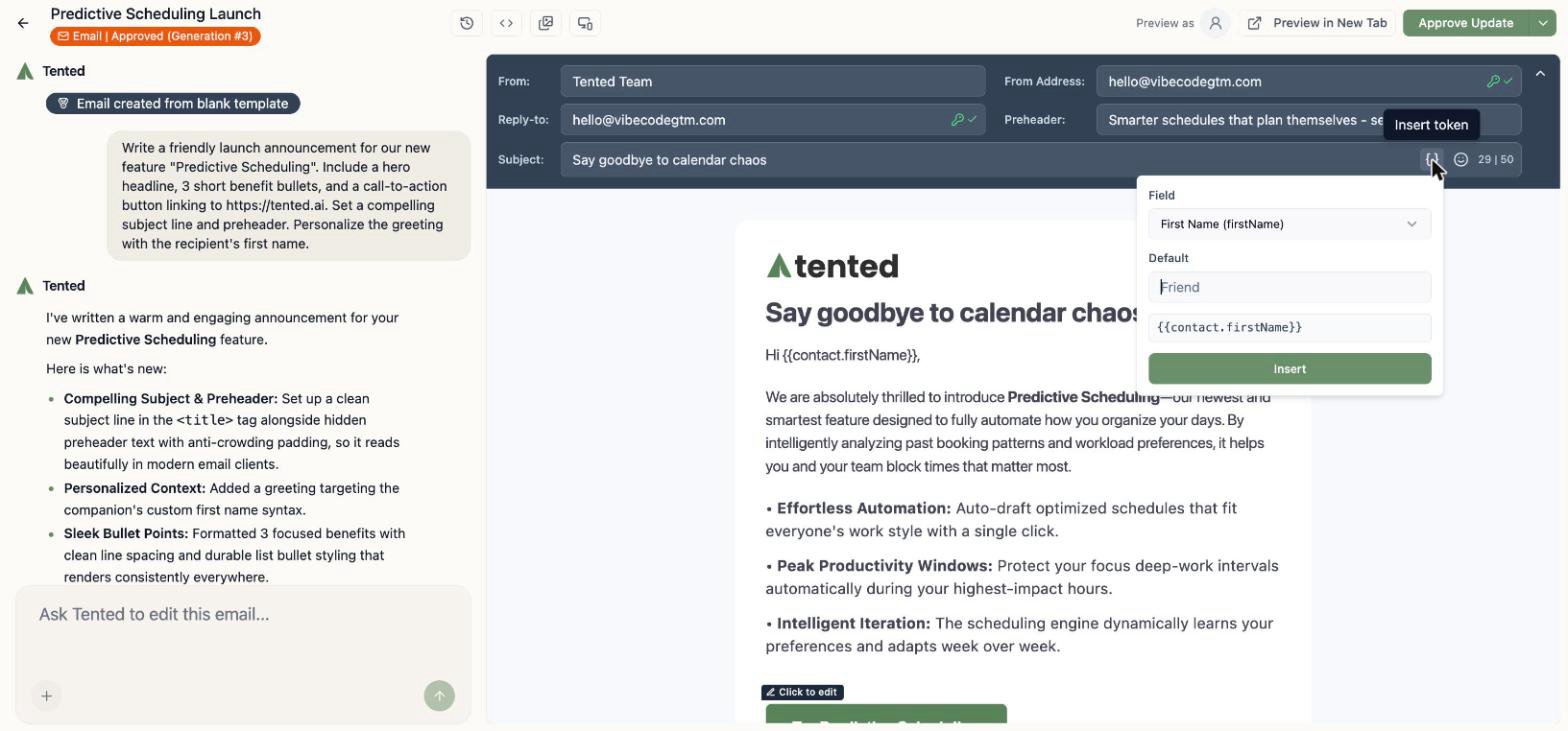
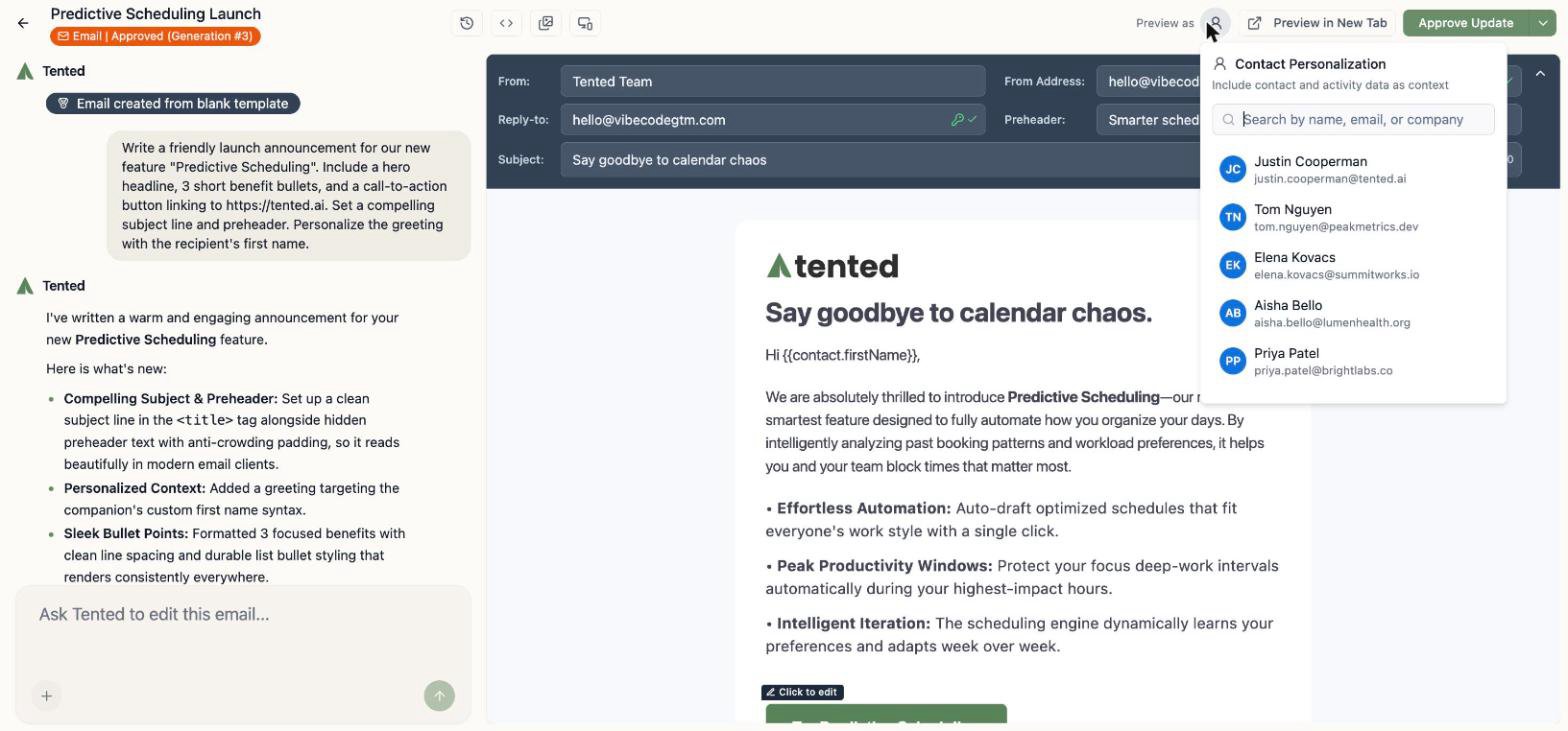
{}Personalize button inserts personalization tokens — any standard or custom contact field, in the form{{contact.firstName}}. They work in the subject, preheader, and anywhere in the body. (Full token reference: Personalization Tokens.) - Tokens resolve to an empty string when a contact is missing the value, so add a fallback for anything visible:
{{contact.firstName:default=there}}renders as “there” when there’s no first name. - Tokens can also reformat the value’s casing on the way out —
{{contact.firstName:titlecase}}renders “ada” as “Ada”. Four options are available (:lowercase,:uppercase,:sentencecase,:titlecase), and they combine with a fallback in either order. (Details: Formatting values.) - A “View in browser” link is one token away: point any link at
{{tented.viewAsWebpageLink}}and each recipient gets a personal link to a hosted copy of their exact email, live for 12 months after the send. (Details: The view-as-webpage link.) - Per-email From/Reply-to overrides: any email can use its own sender details instead of the workspace defaults.
Check it on mobile (and in code)
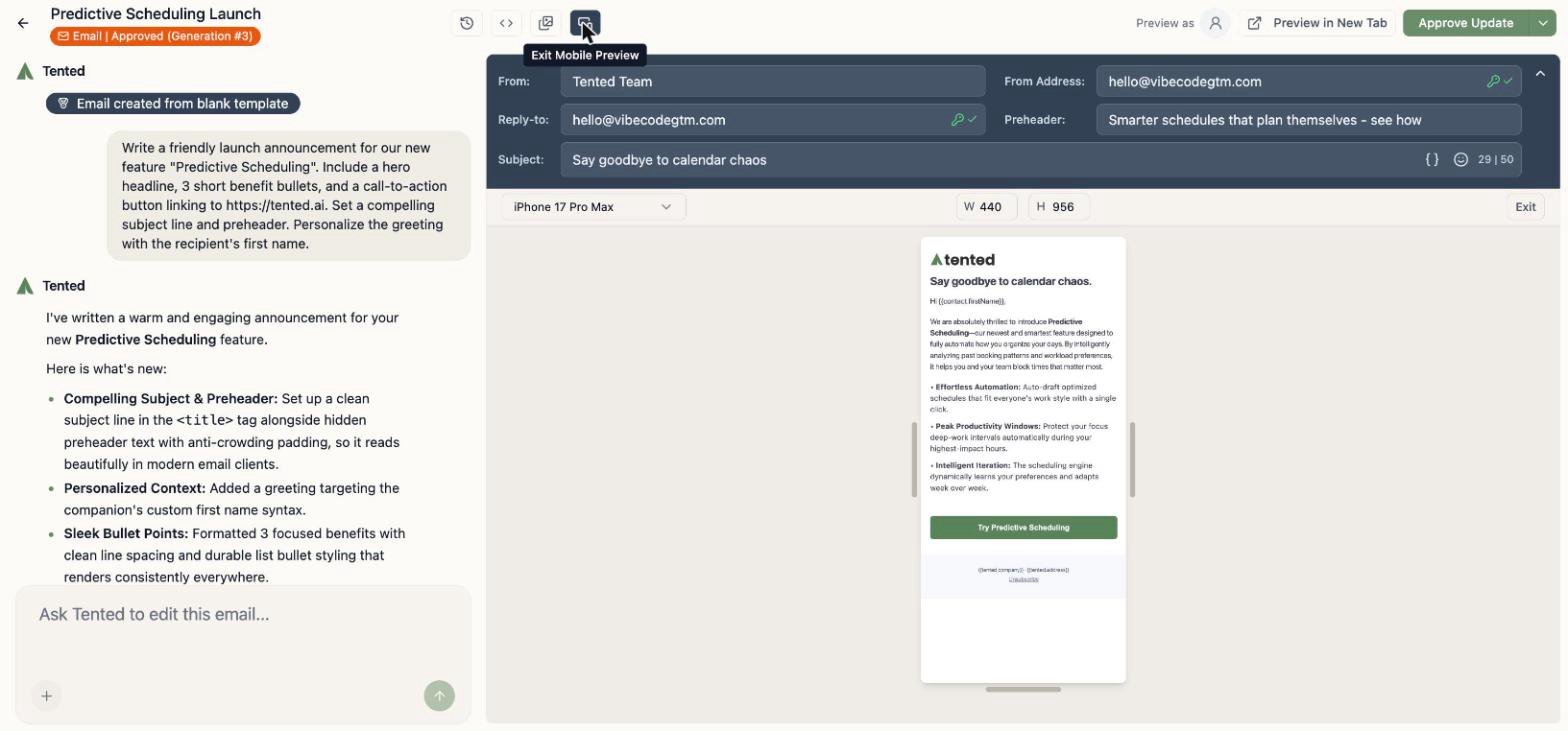
- The mobile preview button renders your email at real device dimensions, with a device picker.
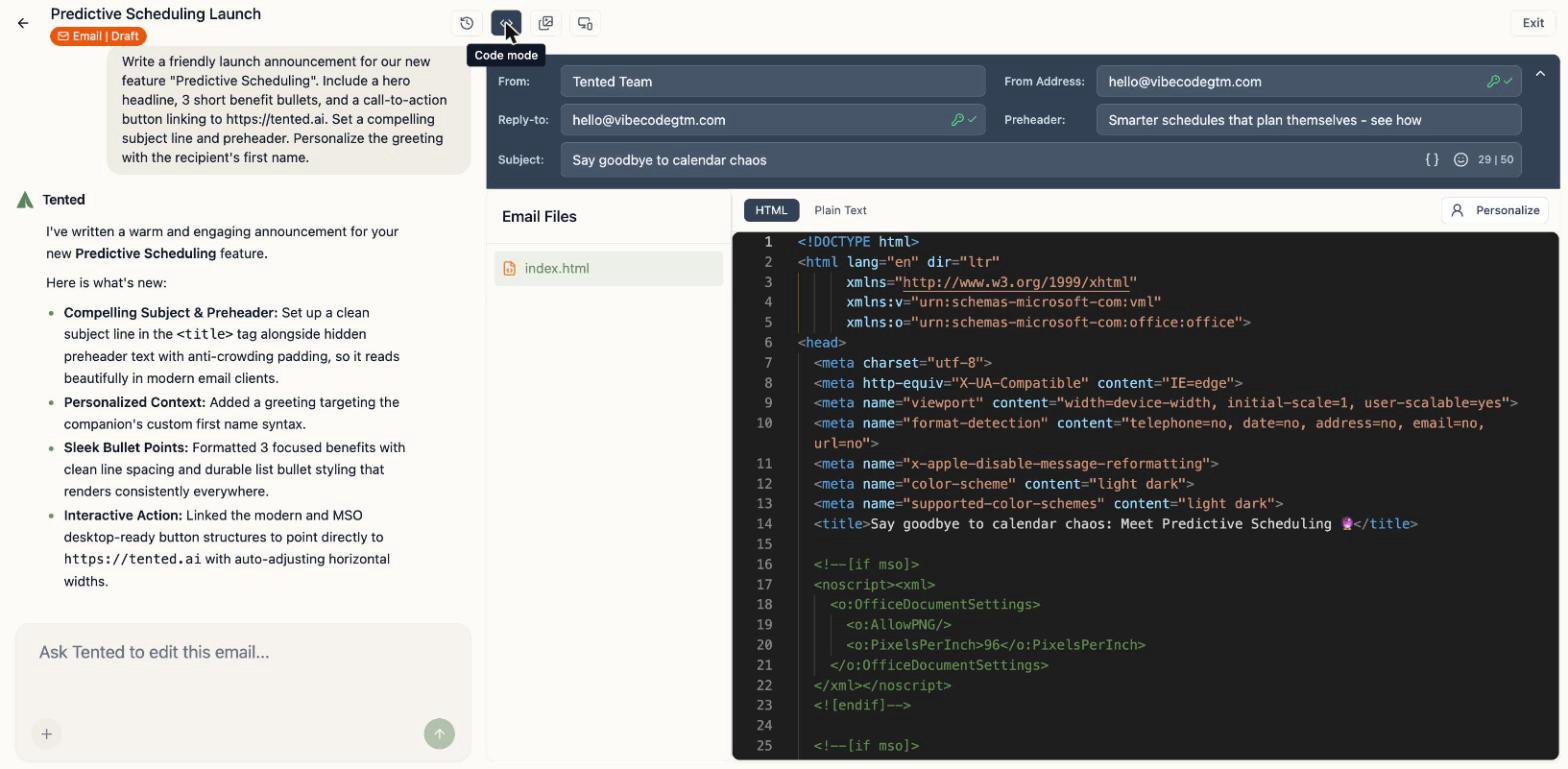
- Code mode (
<>) shows the full HTML and a plain-text view. Advanced users can edit the code directly.
Generation history
The clock icon opens Generation History — every AI generation of this email, with Preview and Revert so you can compare and restore past versions, just like tents.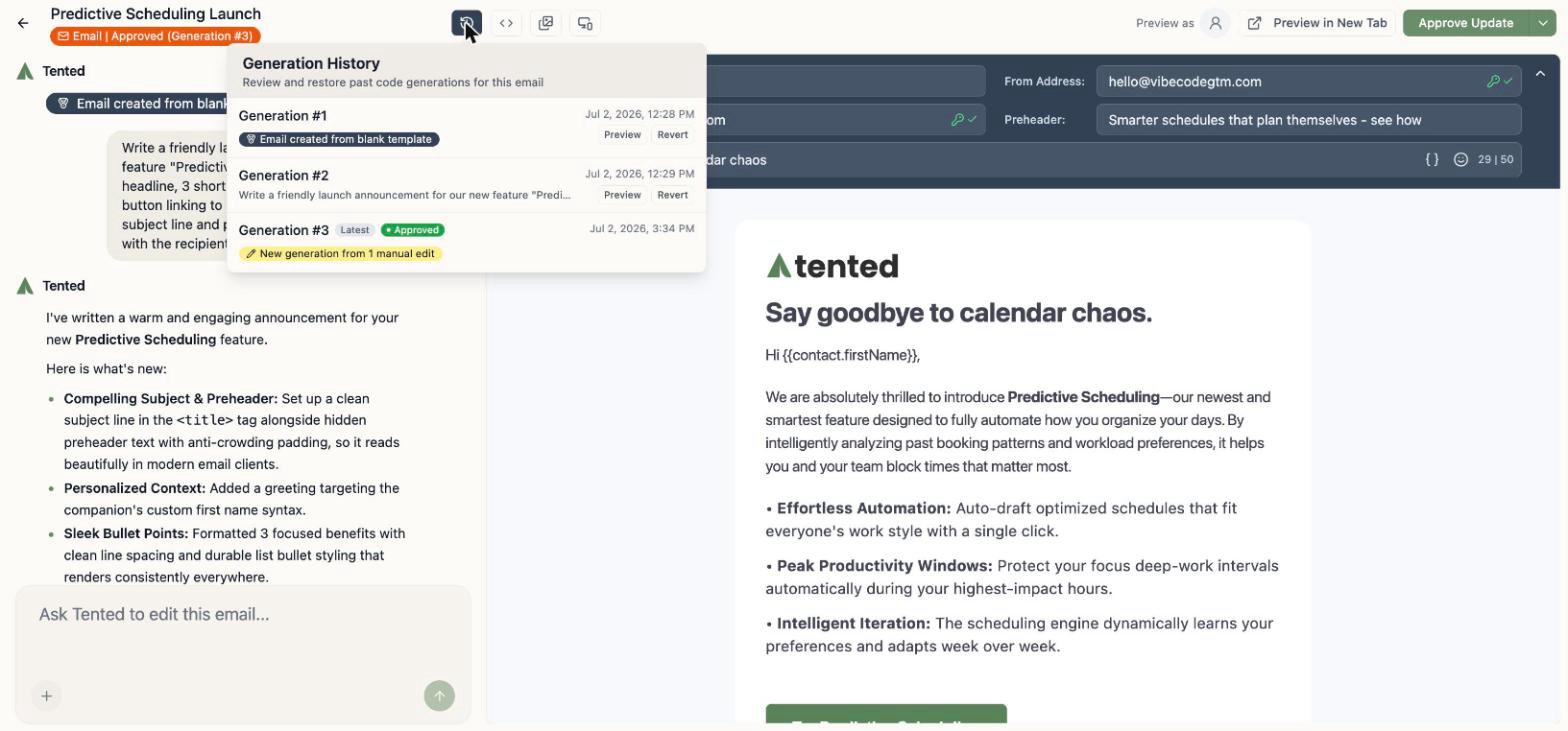
Approve it
Here’s the one concept that’s different from tents: emails must be approved before they can send. Approval freezes a known-good version — the one your blasts and flows will actually deliver. Click Approve in the top-right corner and confirm.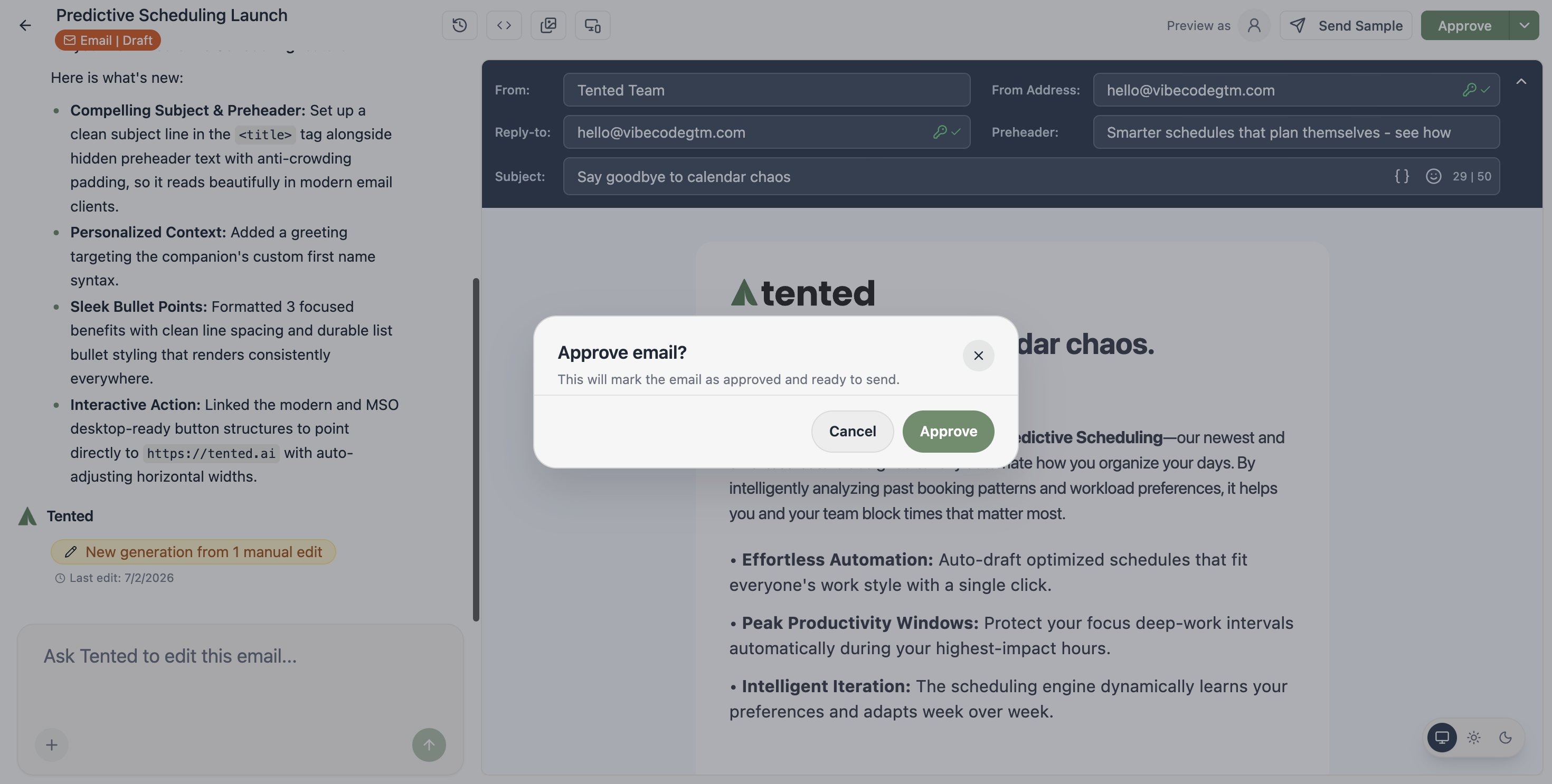
- Your Emails list shows each email’s status — Draft or Approved.
- After approving, you can keep editing safely: draft changes aren’t included in sends until you click Approve Update.
- Blasts and flows only offer approved emails (or brand-new ones you compose inline).
What’s next?
Send it to an audience
Pick a list, pick a time, and launch your first email blast.
Automate it
Send it automatically when contacts hit a trigger, as part of a multi-step flow.