

Inviting Users Overview
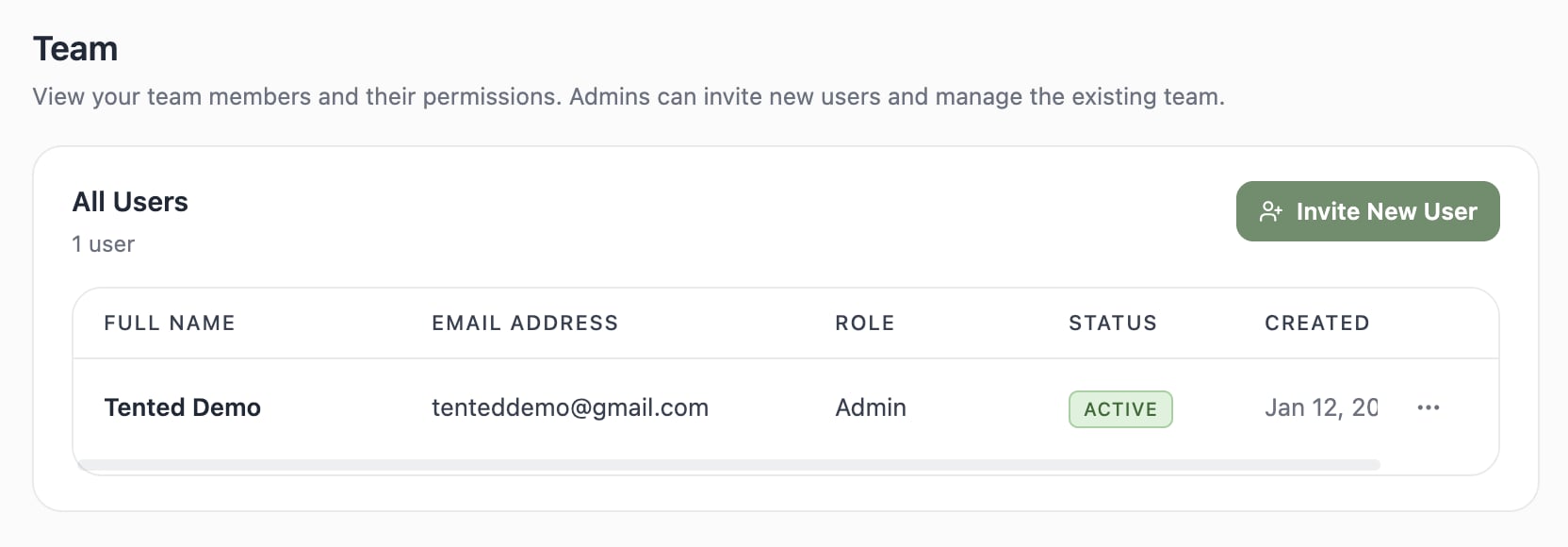
Tented workspaces are built for teams — invite as many teammates as you need (every plan includes unlimited users). Admins handle invitations from Settings > Team.Sending an Invitation
- Click your profile in the bottom-left corner and select Settings.
- Choose Team in the settings menu.
- Click Invite New User.
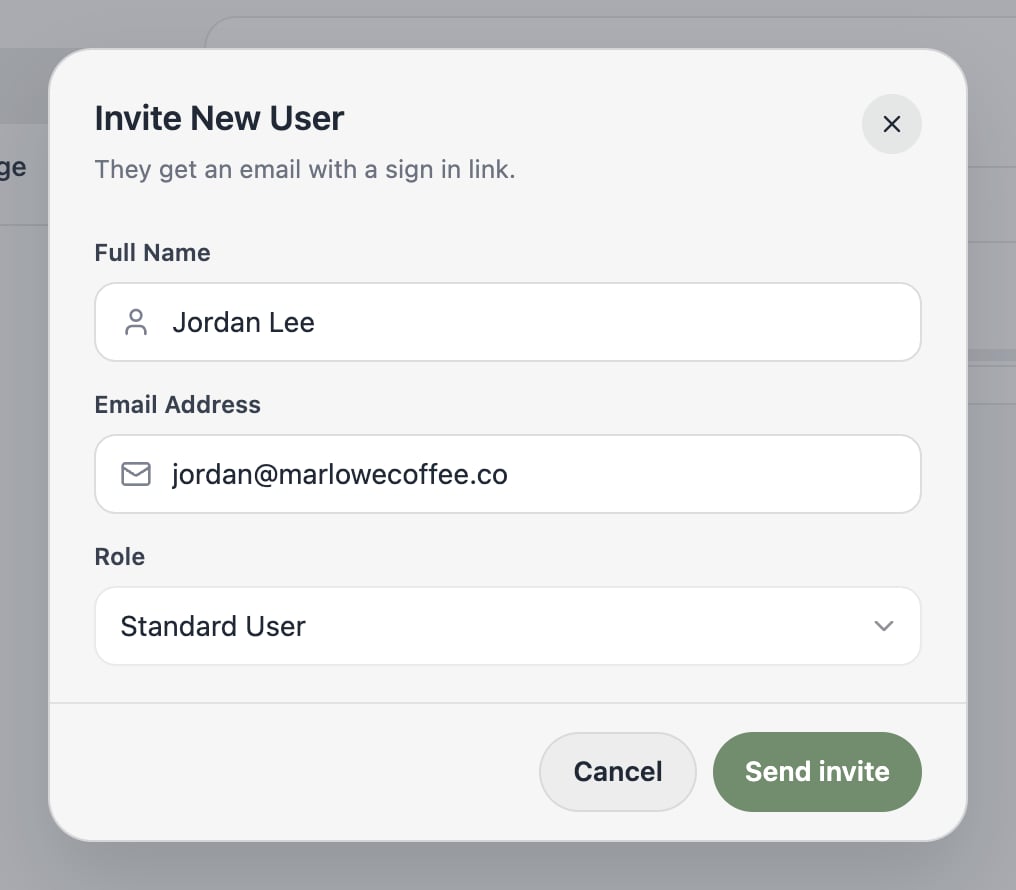
- Fill in the invitation:
- Full name — how they’ll appear in the workspace
- Email address — where the invitation is sent
- Role — Standard User or Admin (see User Permissions)
- Click Send invite.
After the Invite
New users appear in the All Users table with their role and status. From there you can manage them — change their role with Edit User in the row’s ⋯ menu.Next: Managing Users
Learn how to manage existing users in your workspace.