

Why send a sample?
The editor’s preview is faithful, but nothing beats the real thing: your actual mail client, your actual dark mode, your actual spam filter. Send Sample delivers one copy of an email — or an email template — to any address you choose, so you can look it over in a real inbox before a blast or flow sends it to people who matter.Where to find it
The same dialog is available wherever you work with emails and templates. For emails:- Email editor — the Send Sample button in the top bar, next to Approve.
- Emails list — open the ⋯ menu on the email’s row and choose Send Sample.
- Email details page — the Email Actions dropdown, top-right.

- Template editor — the Send Sample button in the top bar.
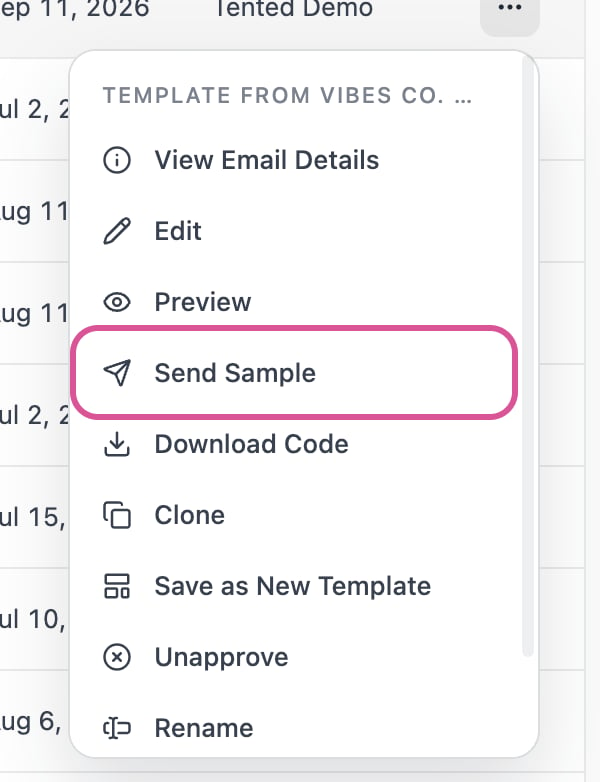
- Templates list — open the ⋯ menu on the template’s row and choose Send Sample.
Send a sample
- Send to — enter any email address. It doesn’t need to belong to a contact.
- Version — defaults to the latest generation. Pick any past generation from the dropdown; your approved version is marked Approved.
- Personalize as contact (optional) — search by name, email, or phone — or paste a contact ID — and personalization tokens render with that contact’s real values. The sample still goes only to the Send to address, never to the contact.
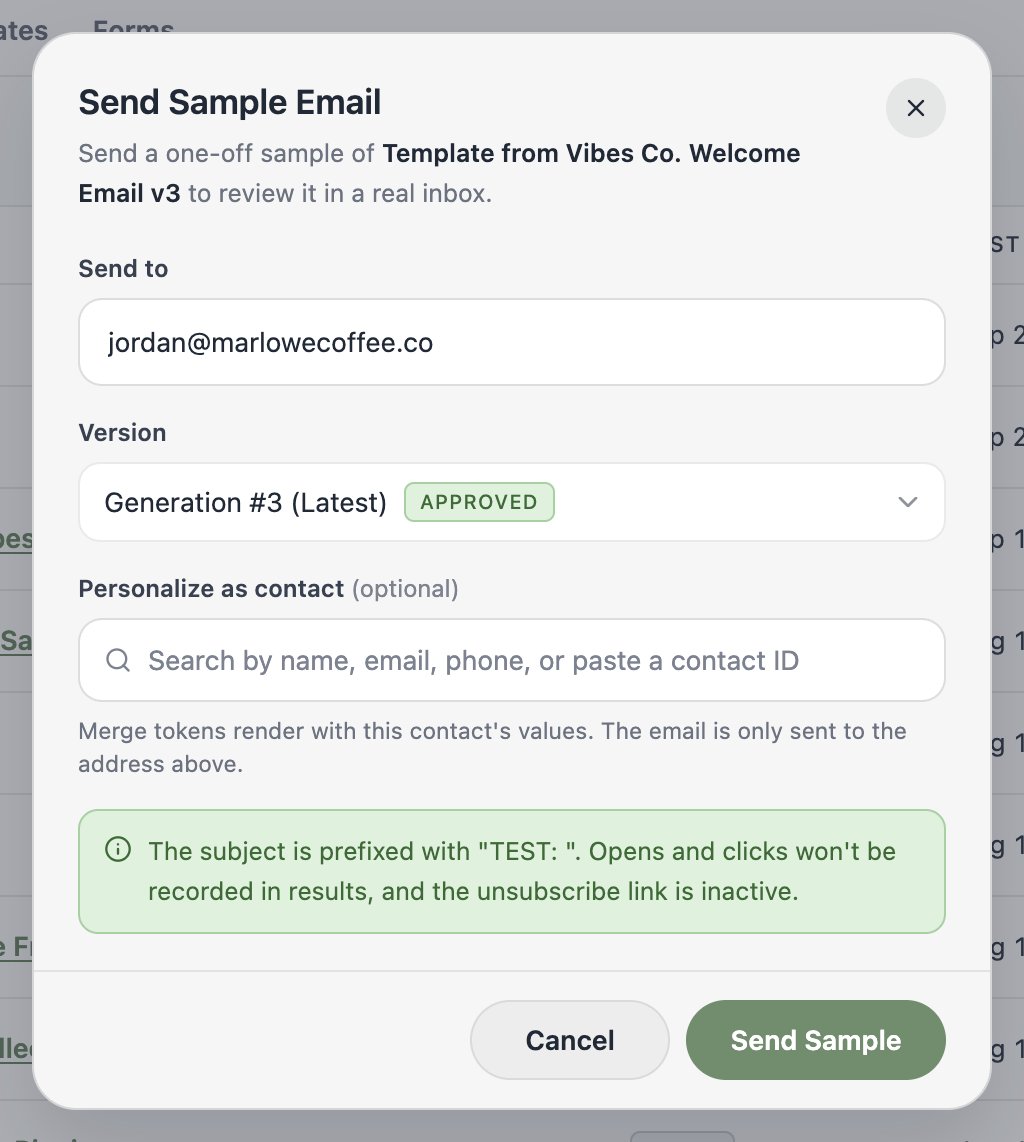
{{contact.firstName:default=there}} kick in, and everything else renders blank.
Click Send Sample, and go check the inbox.
Drafts welcome
Samples work for drafts and approved emails alike — no need to approve first. Two things to know:- If a draft doesn’t have a from address yet, the sample falls back to your workspace’s default email headers.
- A verified sending domain is still required. Samples travel the same delivery pipeline as real sends — that’s what makes them a meaningful test — so an unverified domain blocks them too. See Setting Up Email.
Sampling a template
Templates don’t send to audiences, but a sample is a great way to check how one renders in a real inbox before your team builds emails on top of it. Since a template only carries optional default headers, the sample resolves its subject and sender in two steps:- The template’s own defaults — default subject, from name, from address, and reply-to — are used wherever you’ve set them.
- Your workspace’s default email headers fill in anything left blank.
How a sample differs from a real send
A sample is built to match a real send as closely as possible — same footer, same link handling, same rendering. If the email includes a view-as-webpage link, it works for real: the sample’s link opens a hosted copy of that exact sample. The differences:- The subject is prefixed with “TEST: ” so nobody mistakes it for the real thing.
- Opens and clicks are never recorded. Links are still rewritten through your click-tracking domain — so you can verify they work end to end — but nothing ever shows up in a results dashboard.
- The unsubscribe link is inert. It’s present and clickable, but leads to a page explaining that unsubscribe is not supported for sample emails. Clicking it never unsubscribes anyone.
- Nothing is counted. Samples don’t count toward your send usage, and they never appear in campaign metrics.
What’s next?
Ready for a real audience?
Pick a list, pick a time, and launch your first email blast.