

Editing Workflow
Editing tents is designed to be intuitive and conversational. You can make changes through natural language, see updates in real-time, and iterate quickly to perfect your landing page. To edit an existing tent, open it in the tent editor:- From Content > Tents, click on the tent you want to edit to open the Tent Details page.
- Select Edit at the top right to open the tent editor.
- In the chat input area, describe the changes you want to make. Be as specific as possible.
- Click the send icon to submit your request. Simple edits take a few seconds; bigger changes can take up to a minute.
Types of Edits
Content Edits
When generating a landing page with AI, you often need to refine the generated copy to better match your brand, optimize for conversions, or reflect current offers. Text Changes:- “Change the headline to ‘Transform Your Business Today’”
- “Update the pricing from 79 per month”
- “Add ‘Free 30-day trial’ to the call-to-action button”
- “Add a features section with 3 key benefits”
- “Include customer testimonials below the pricing”
- “Add a FAQ section at the bottom”
- “Remove the testimonials section”
- “Delete the pricing table”
- “Take out the social media links”
Design Changes
You might want to adjust the visual presentation to ensure it aligns with your design system and provides an excellent user experience. These commands focus on making high-level Layout Modifications, specifying Color and Styling changes, and refining the Typography Updates across the page. Layout Modifications:- “Make the hero section full-screen height”
- “Center all content on the page”
- “Add more white space between sections”
- “Change the primary color to #2563eb”
- “Make the background gradient from blue to purple”
- “Update all buttons to use rounded corners”
- “Increase the headline font size to 48px”
- “Change the body font to Inter”
- “Make the subheadings bold”
Functional Changes
Beyond static content and visual design, the AI can also handle the implementation of complex logic and interactivity. Functional changes may involve modifying existing interactive elements, updating forms to capture specific data, and enhancing site navigation to improve user flow and data collection capabilities. Form Modifications:- “Add a phone number field to the contact form”
- “Change the form submit button text to ‘Get Started’”
-
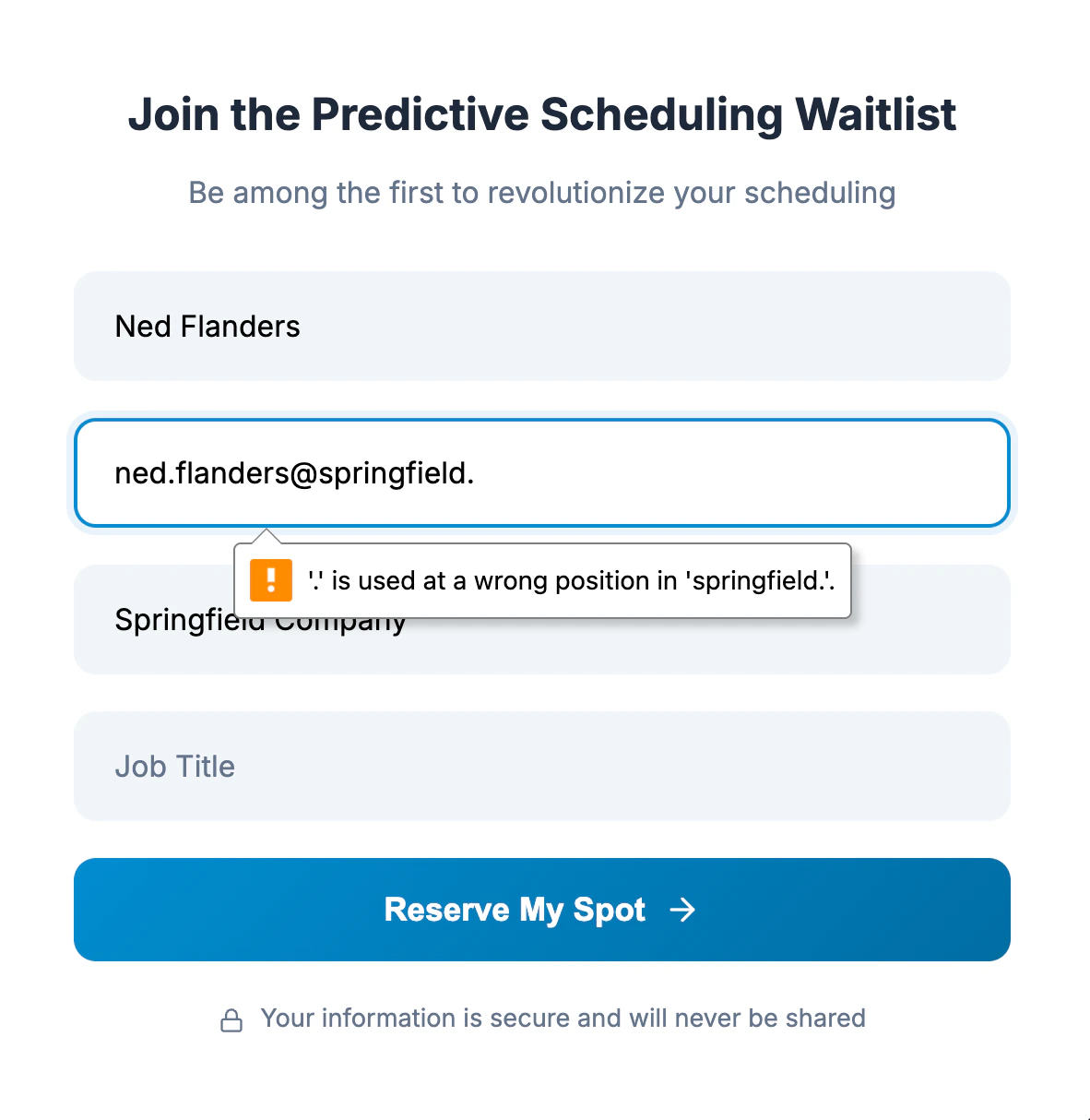
“Add form validation for email addresses”
- “Add a smooth scroll to the pricing section”
- “Include hover effects on all buttons”
- “Add a loading animation to the form”
- “Add a sticky navigation bar”
- “Include anchor links to each section”
- “Add a back-to-top button”
Advanced Editing Techniques
The following strategies help you manage complexity, resolve unexpected behaviors, and ensure the AI builds exactly what you intend, especially for larger, multi-step projects.Iterative Refinement
Consider guiding the AI through a series of small, focused commands rather than one large, complicated request. This systematic approach is critical for maintaining control and ensuring the quality of the output. When you build incrementally, the key is to make one change at a time, test each change before proceeding, and only then build complexity gradually.Visual References
To ensure the AI produces designs that meet your aesthetic standards, you can provide visual references either by uploading files or by describing specific design styles. This is extremely helpful for guiding the AI on branding, layout, and overall look and feel. These references might be screenshots of designs you like, your official brand guidelines or style guides, or even visuals from reference websites or competitors. Alternatively, you can describe visual elements to the AI using specific instructions like, “Make it look like the Apple website,” “Use a design similar to Stripe’s landing page,” or “Add shadows like in Material Design.”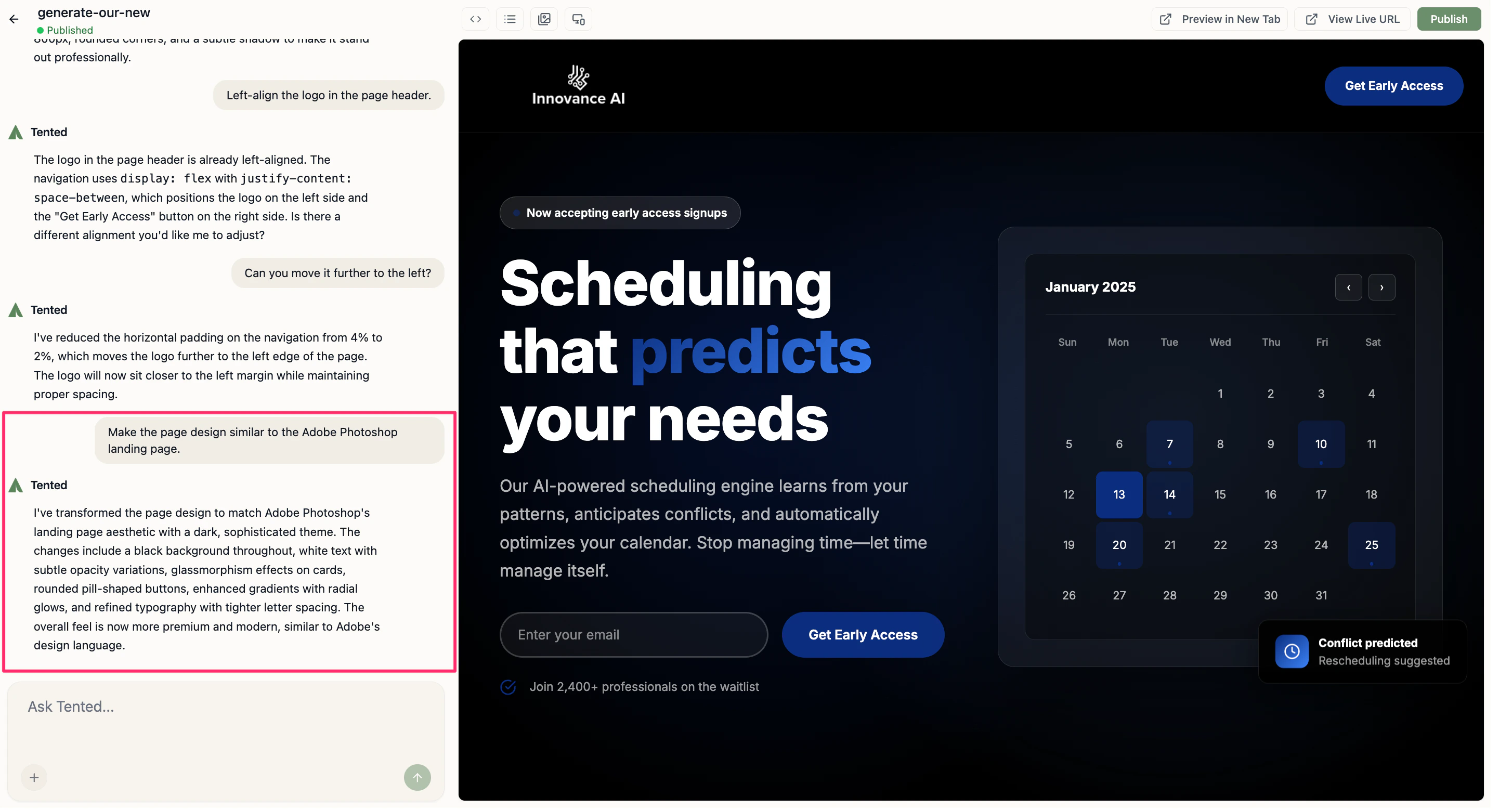
Context-Aware Editing
Context-Aware Editing leverages the AI’s understanding of previously generated elements, allowing you to establish and maintain a cohesive design system by referencing existing components and styles across the page. Here are some example prompts:- “Make the pricing buttons match the hero button style”
- “Use the same font as the headline for subheadings”
- “Apply the same color scheme throughout”
Troubleshooting Edits
When Changes Don’t Apply
If you encounter issues where the AI’s output isn’t what you expected, the first step is to check your request. To get better results, always ensure your instructions are clear and specific, and provide sufficient context about the desired outcome. If the initial request fails, try to rephrase your request using different language, or use more specific terminology to clarify your intent to the AI. Next, ask the AI to verify its work. Telling it to THINK HARD adds reasoning to its workflow. Here are some examples:- “Please review the last change and ensure it was applied correctly”
- “Please double-check the layout adjustments I requested”
- “Please THINK HARD and remove the predictive-scheduling dashboard image from the hero section; I still see it even after you recent attempt to remove it”
Next: Reverting to Previous Generations
Learn how to revert to previous versions of your tent.