{{tented_url}}.
This guide covers connecting the two, turning on live sync, using the link in a campaign or agent, and what to expect afterwards.
Prerequisites
Before you begin, make sure you have:- Admin access to your Tented workspace. Connecting, changing settings, and disconnecting are admin-only.
- An approved tent template in Tented. Pages are generated from a template’s approved version. See Templates if you don’t have one yet.
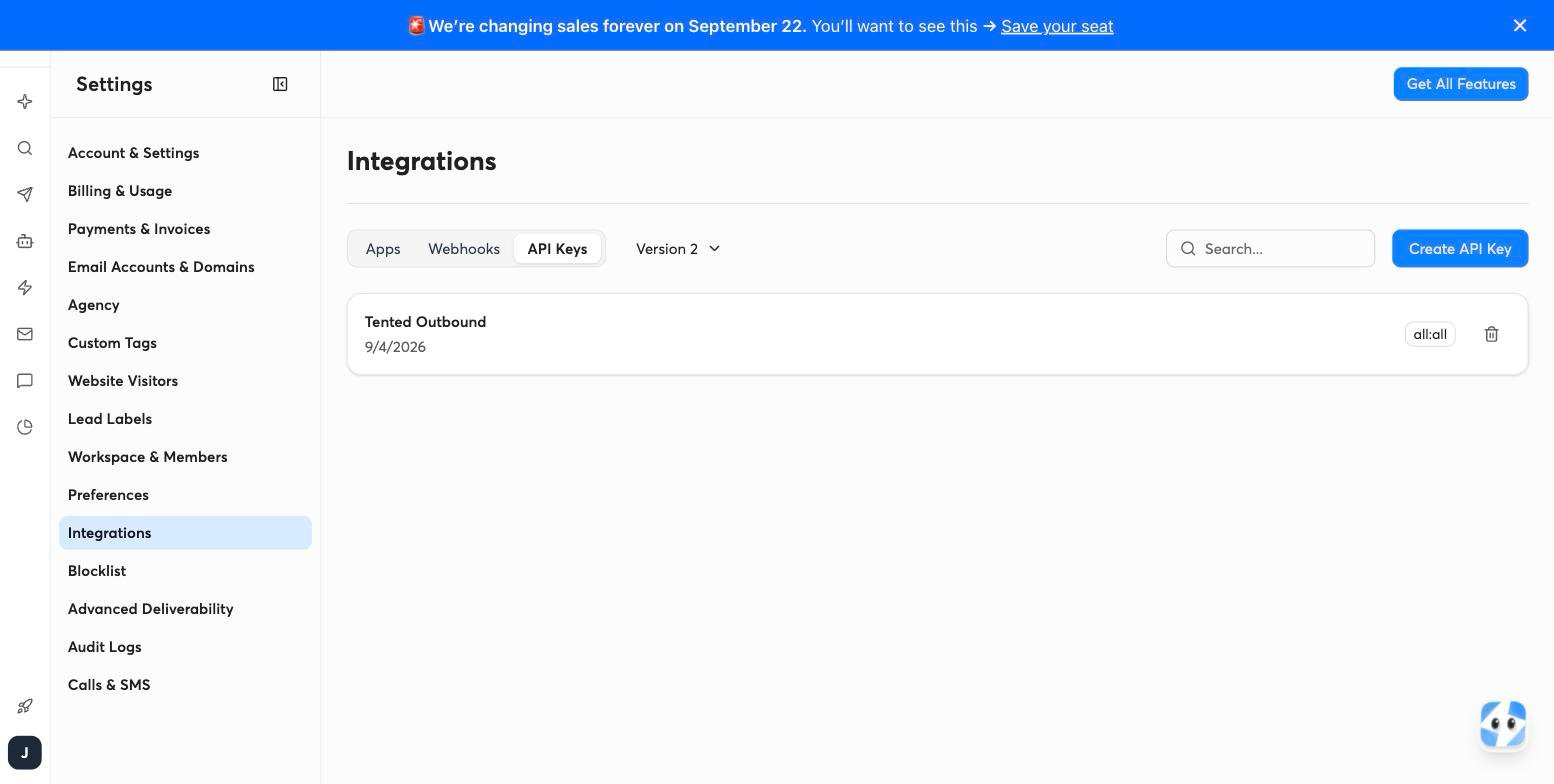
- An Instantly API key. In Instantly, go to Settings → Integrations → API keys and create a key with these scopes: Campaigns (read and update), Leads (all), AI Agents (read and update), Webhooks (all), and Workspaces (read). A key with the
all:allscope also works. - AI credits. Each generated page uses half a credit.
Step 1: Connect Instantly
- In Tented, open Settings → Integrations.
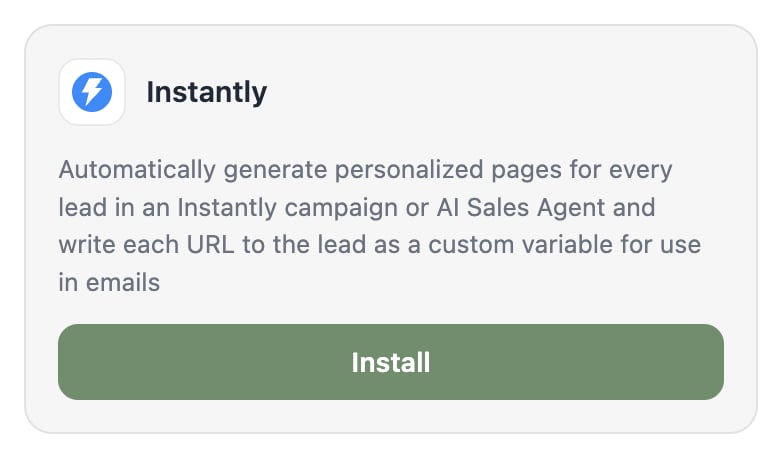
- On the Instantly tile, select Install.
- Paste your Instantly API key and select Continue. Tented checks the key with Instantly before moving on.
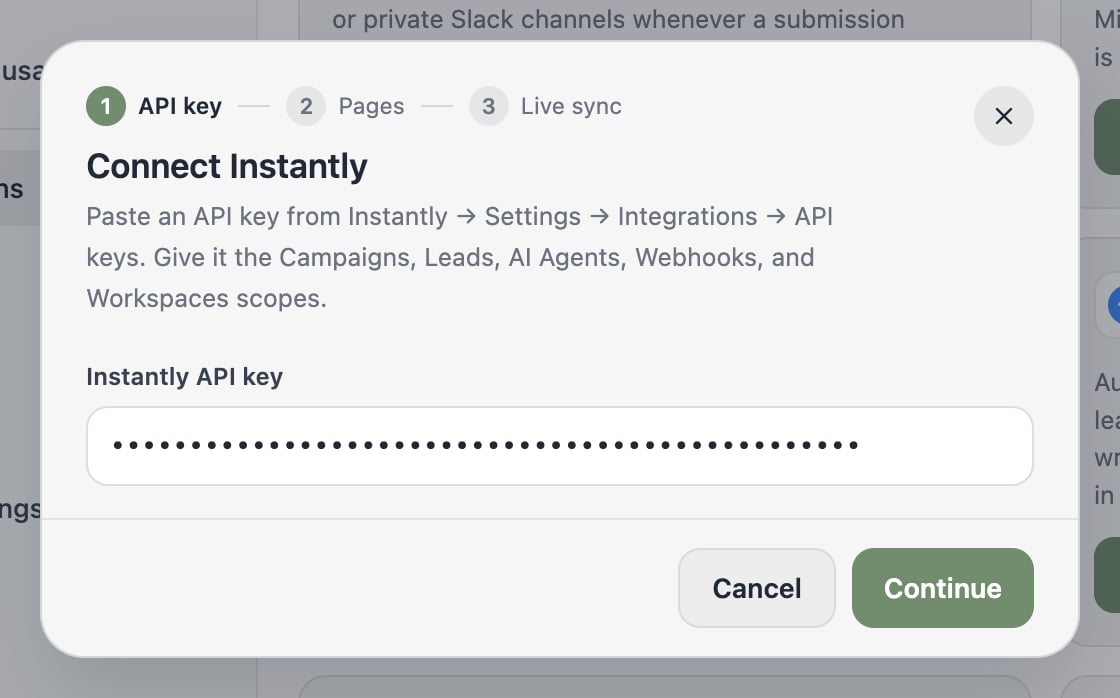
Step 2: Choose what to generate
Pick the campaign or agent to work from and the template to build pages with.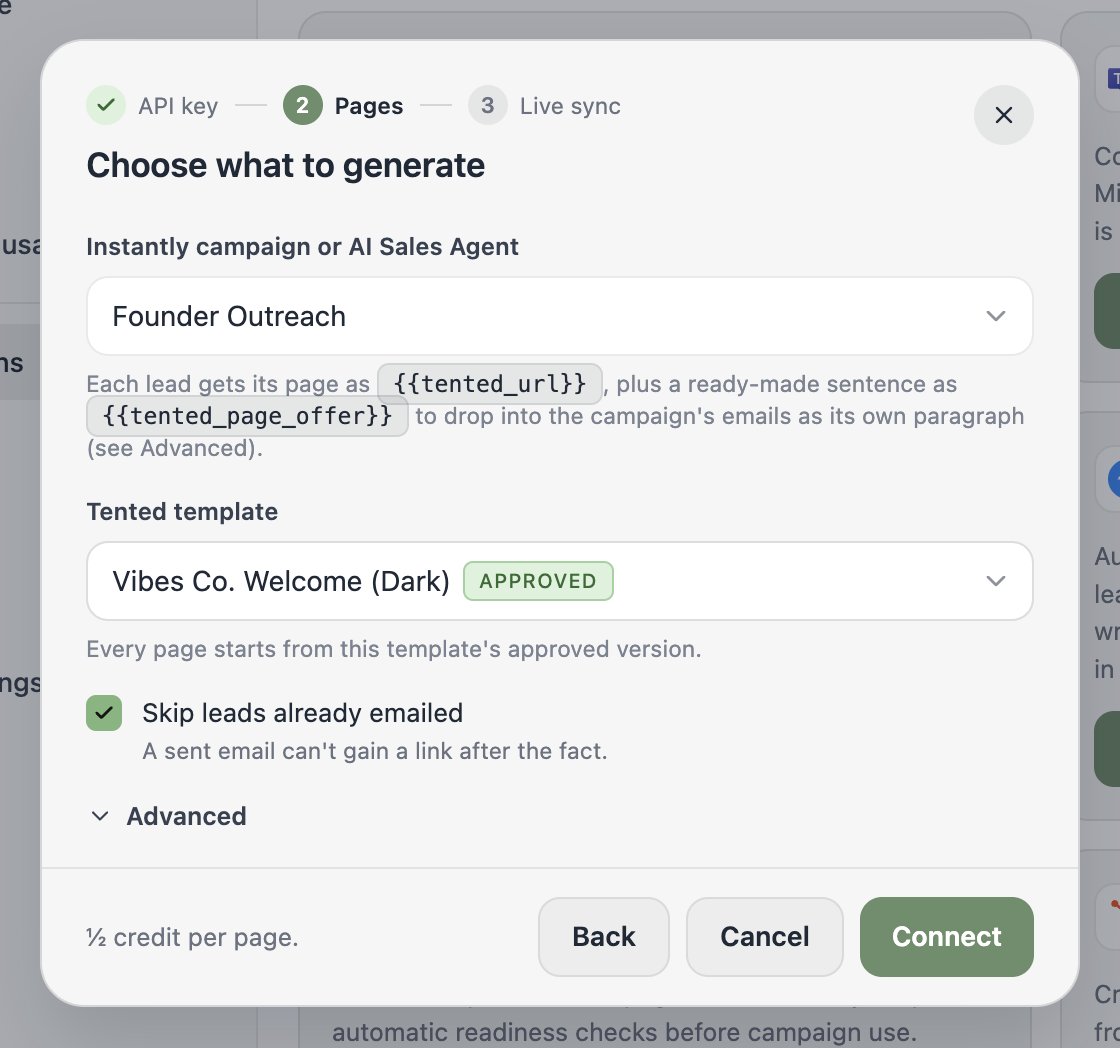
- Instantly campaign or AI Sales Agent: the leads that should get pages.
- Pick a campaign to cover every lead in that campaign, including leads added later.
- Pick an AI Sales Agent to cover every campaign the agent runs, including campaigns it creates later. Agent-managed campaigns are not listed separately; choose the agent instead.
- Tented template: the approved template each page starts from. The page is personalized to the lead’s company, role, and industry using the lead’s fields and custom variables.
- Skip leads already emailed: on by default. A lead the campaign has already sent a step to never gets a page, because a sent email can’t gain a link after the fact. Turn this off if your later steps should carry the link too.
- Tell the agent to link the page (agents only): on by default. Tented adds a guidance rule to the agent that instructs it to include
{{tented_url}}in the first email. Your existing rules are left as they are.
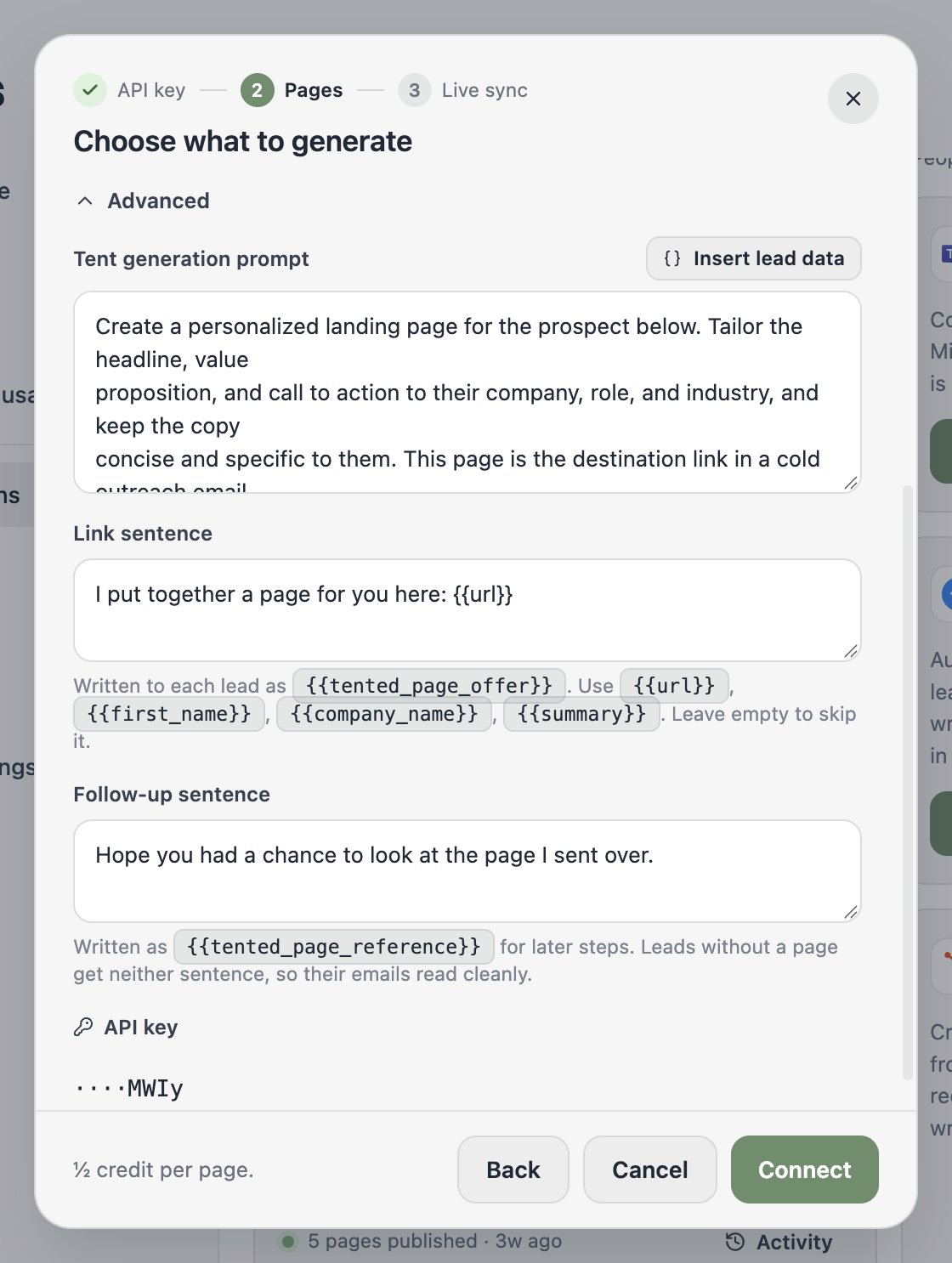
- Tent generation prompt: the instructions Tented gives the model for each page.
{{instantly.rowData}}is replaced with the lead’s data; use Insert lead data to place it. - Link sentence: the sentence Tented writes to each lead as
{{tented_page_offer}}, for exampleI put together a page for you here: {{url}}. You can use{{url}},{{summary}},{{first_name}},{{company_name}}, and{{job_title}}. - Follow-up sentence: the sentence written as
{{tented_page_reference}}, for later steps that refer back to the page.
Each page uses half an AI credit. If your workspace runs out of credits, the integration pauses and resumes on its own once credits are available again.
Step 3: Turn on live sync
Without live sync, Tented checks for new leads every 15 minutes. With live sync, Instantly tells Tented as soon as a campaign starts emailing new leads, so a sync runs right away. If your API key has the Webhooks scope, Tented registers the webhook itself and this step shows Live sync is on. Otherwise, the easiest fix is to disable the integration and connect again with a key that has the scope. You can also add the webhook by hand: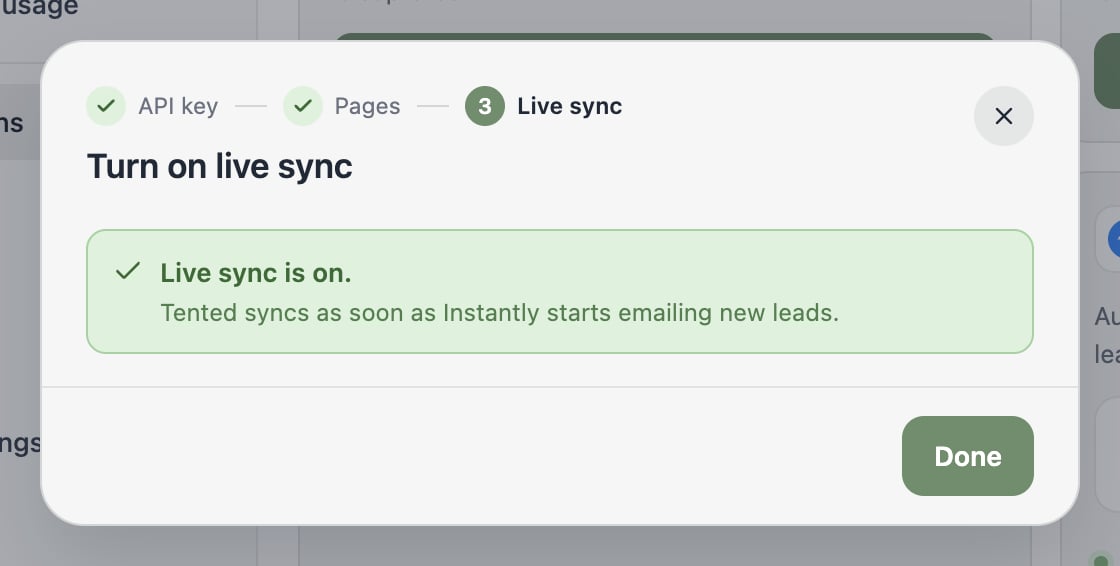
- In Instantly, go to Settings → Integrations → Webhooks and add a webhook for the Email Sent event.
- Paste the webhook URL shown in Tented (use the Copy button).
- Add a custom header named
x-tented-webhook-secretwhose value is the secret Tented shows, then select Save in Tented. Instantly sends this header with every delivery; it is how Tented knows the call is genuine. - In Instantly, select Test on the webhook. Tented sees the delivery and the step changes to Live sync is on.
Using the link in your emails
Tented fills four custom variables on every lead it builds a page for:
In a campaign, place
{{tented_page_offer}} on its own line in the first step and {{tented_page_reference}} where a follow-up refers back to the page. Instantly has no way to hide text when a variable is empty, so using the whole-sentence variables means a lead without a page simply gets an empty line instead of a broken link. Use {{tented_url}} directly only where every lead is guaranteed a page.
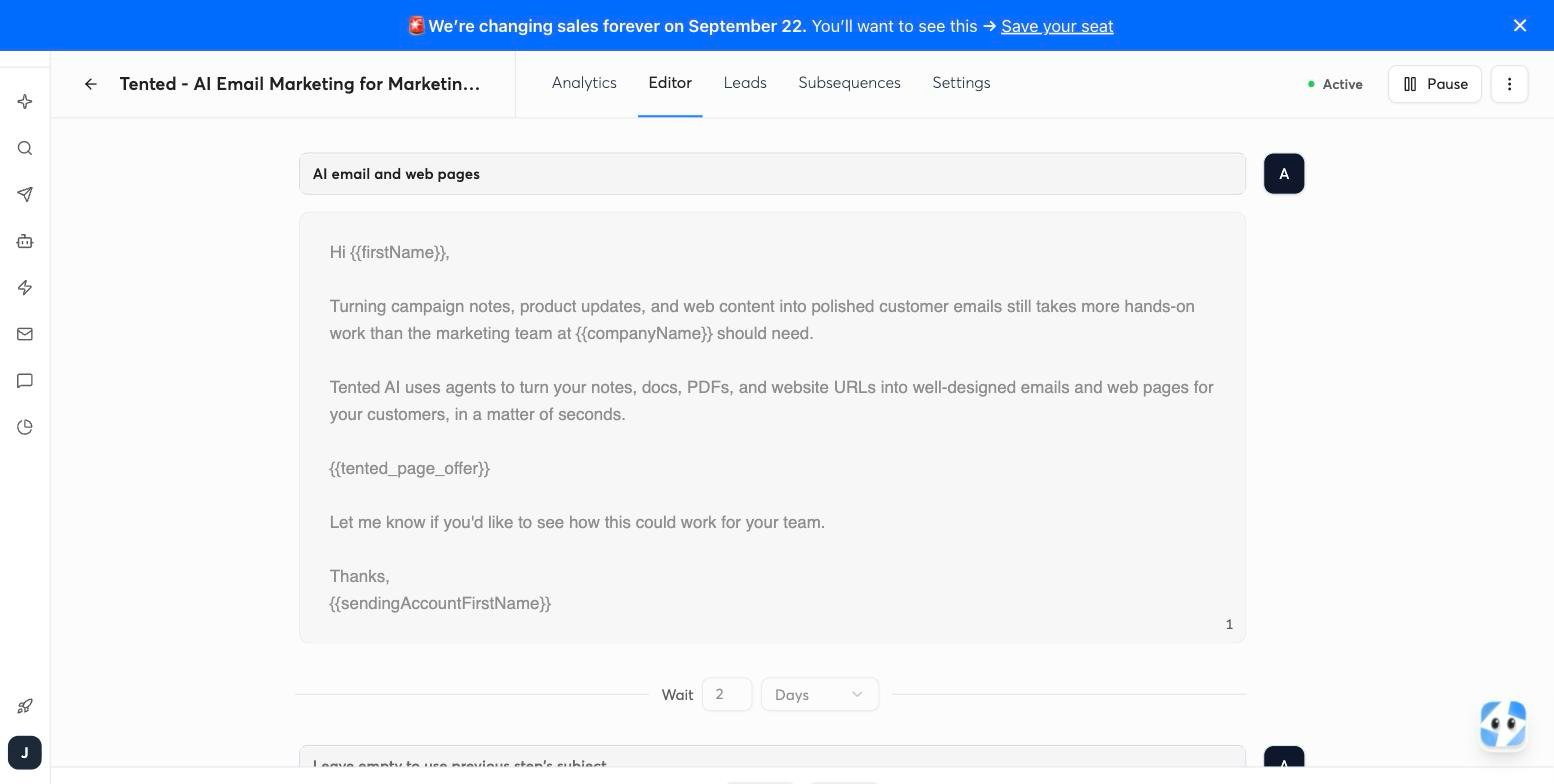
{{tented_url}} into its first email and to leave the link out when a lead has no value yet. You can edit or remove the rule under the agent’s Memory at any time.
Pages are generated within 15 minutes of a lead being added (sooner with live sync). If a campaign sends a lead’s first email before the page exists, that email goes out without the link and the lead is skipped from then on. For campaigns that start sending immediately, add the leads first and launch the campaign after the first sync completes, or keep the campaign paused for a few minutes after uploading.
What happens after connecting
The Instantly tile shows the connected campaign or agent, the last sync, and a View activity link.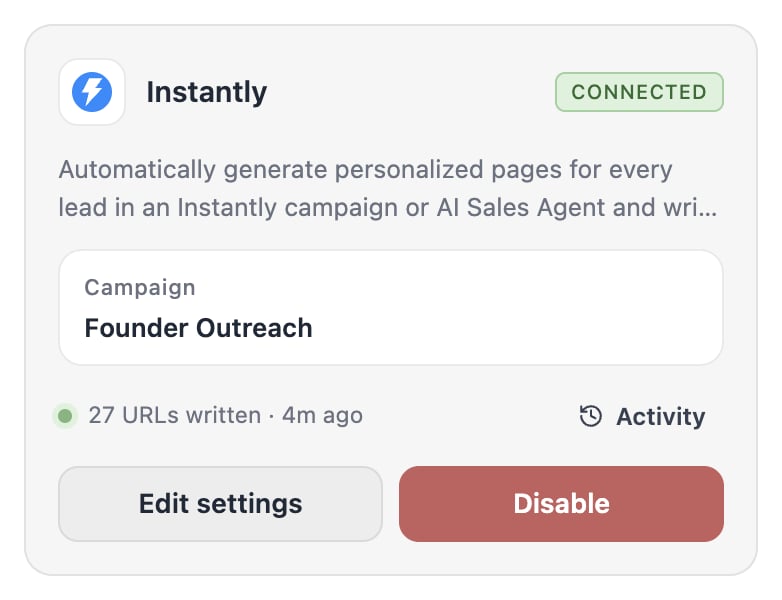
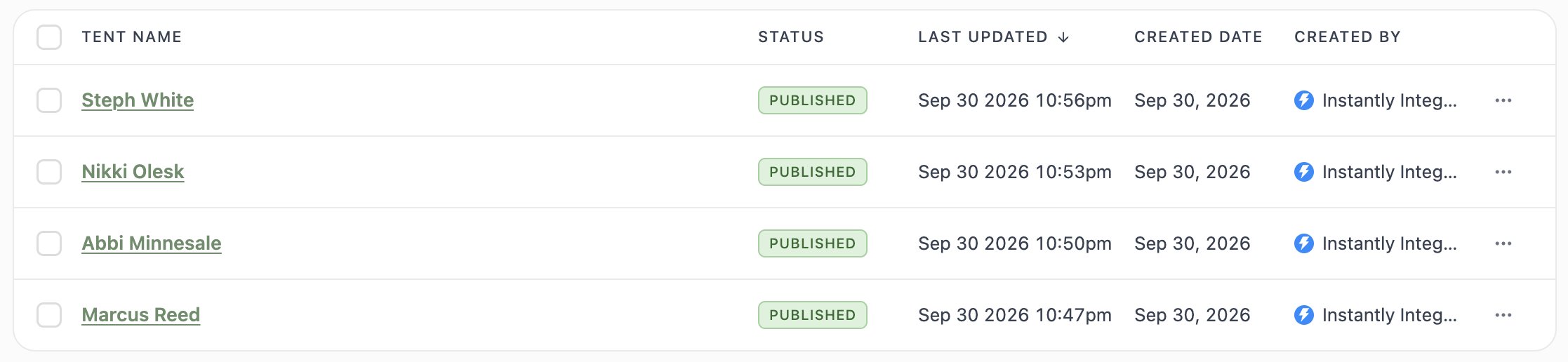
https://your-domain/for-bryan-from-acme-co. When a lead has no company, the path uses the first and last name instead.
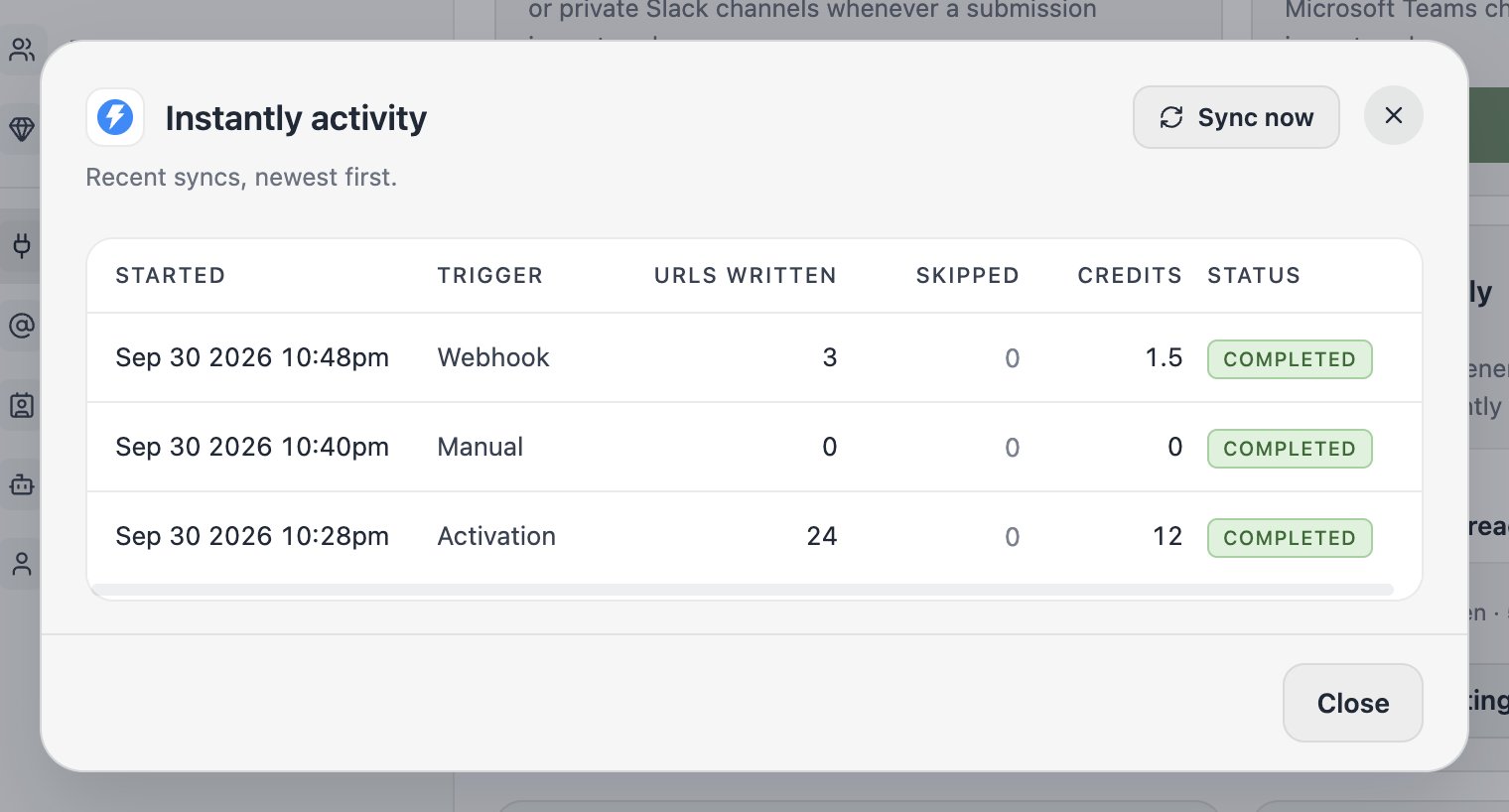
Activity lists each sync run with the URLs written, leads skipped, and credits used. Select a skipped count to see which leads were skipped and why. Sync now starts a run immediately.