

Tented makes images, too
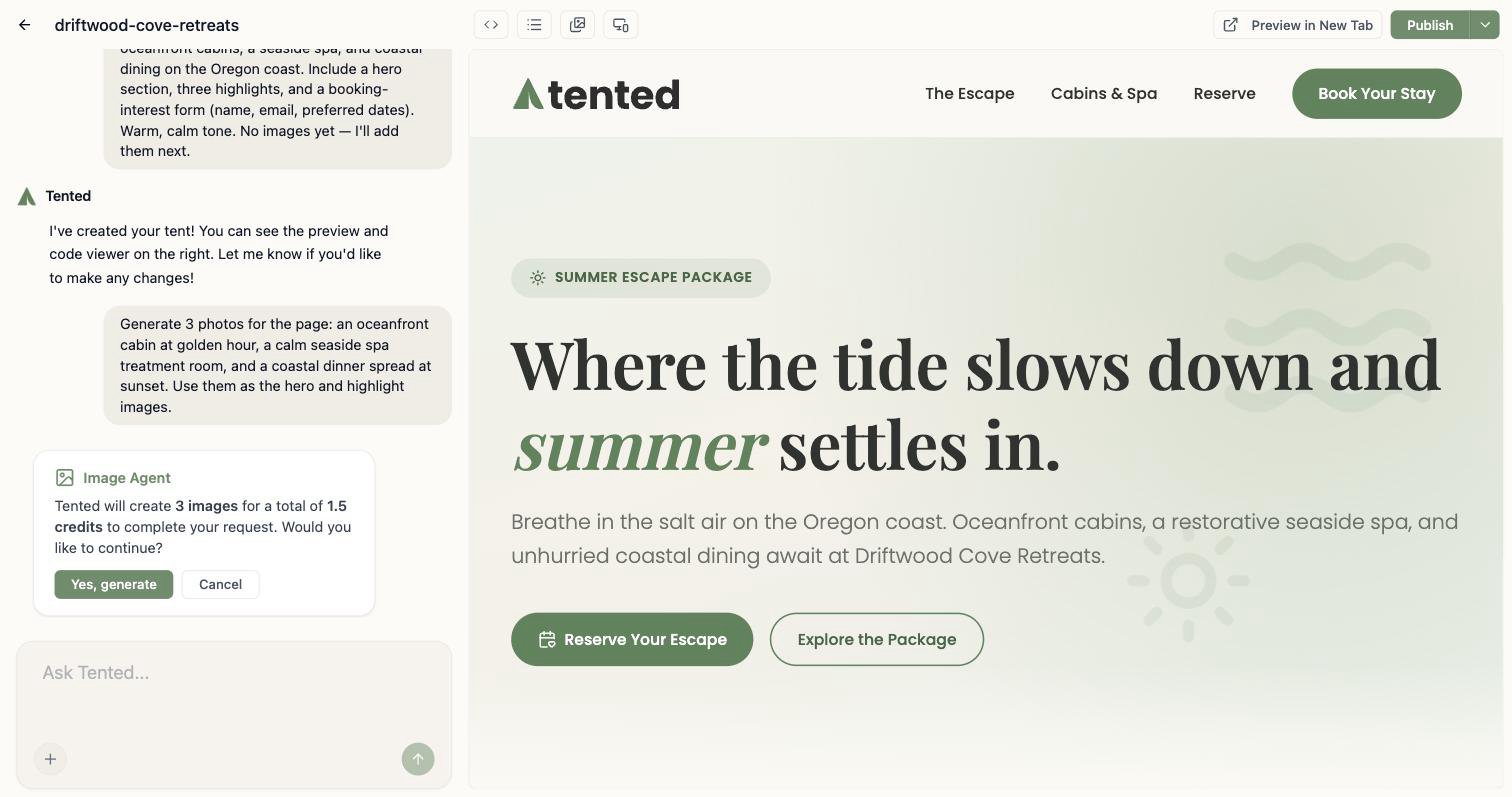
The same chat that writes your copy and codes your pages can generate original images: hero photos, product shots, textures, illustrations — whatever your page or email needs. Just describe the image in your prompt, the way you’d describe anything else:Add a hero image of an oceanfront cabin at golden hour, and give the dining section a photo of a coastal dinner spread.Tented’s image agent generates each image, saves it to your assets, and weaves it into the design. It works everywhere you chat with Tented: the tent editor, the email editor, and both template editors.
What it costs
Image generation uses AI credits, separate from the code generation that places the images:- 0.5 credits per image
- Up to 5 images per request
Where the images go
Generated images appear right in the chat as they finish, and the follow-up generation codes them into your design: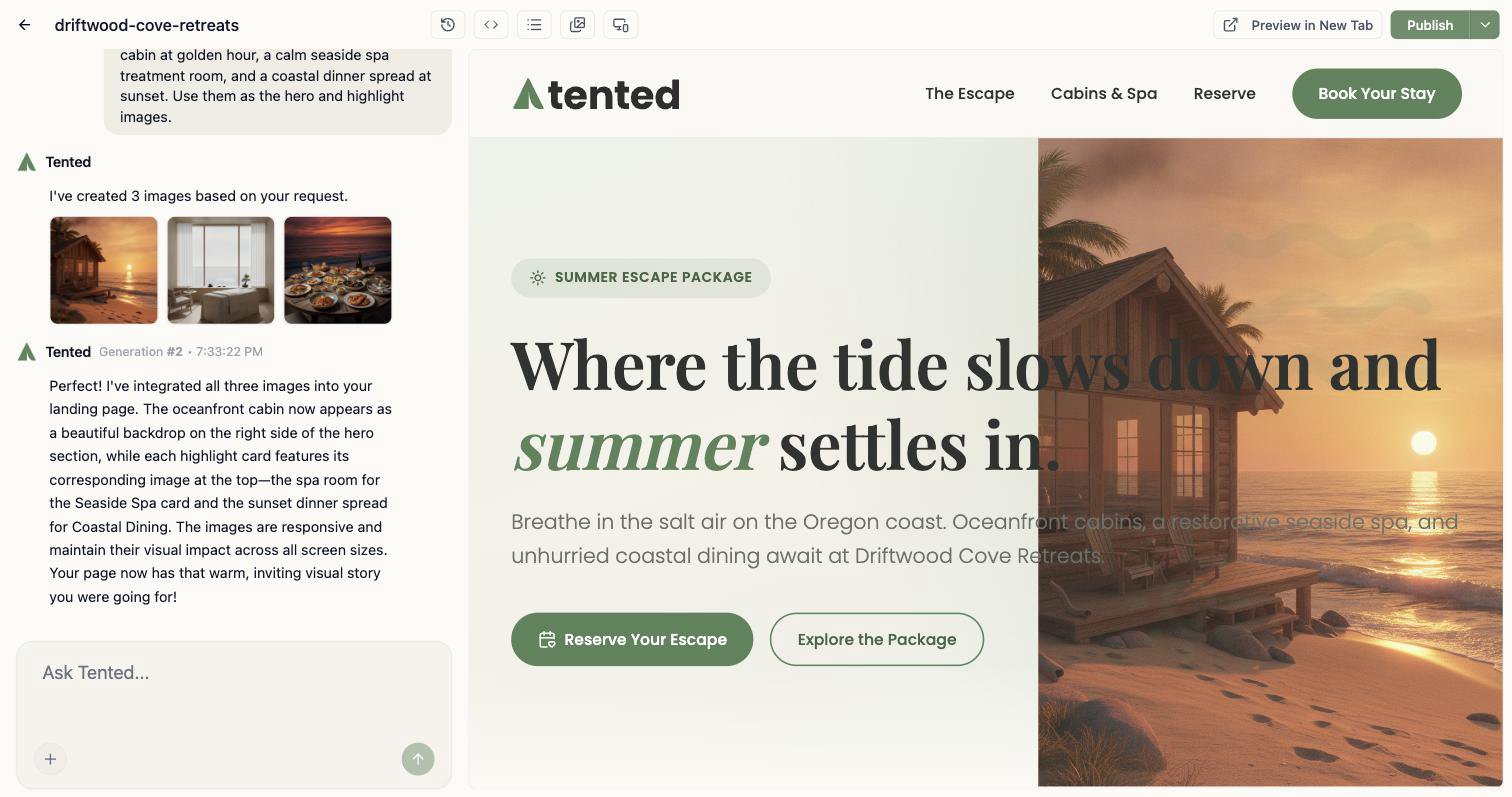
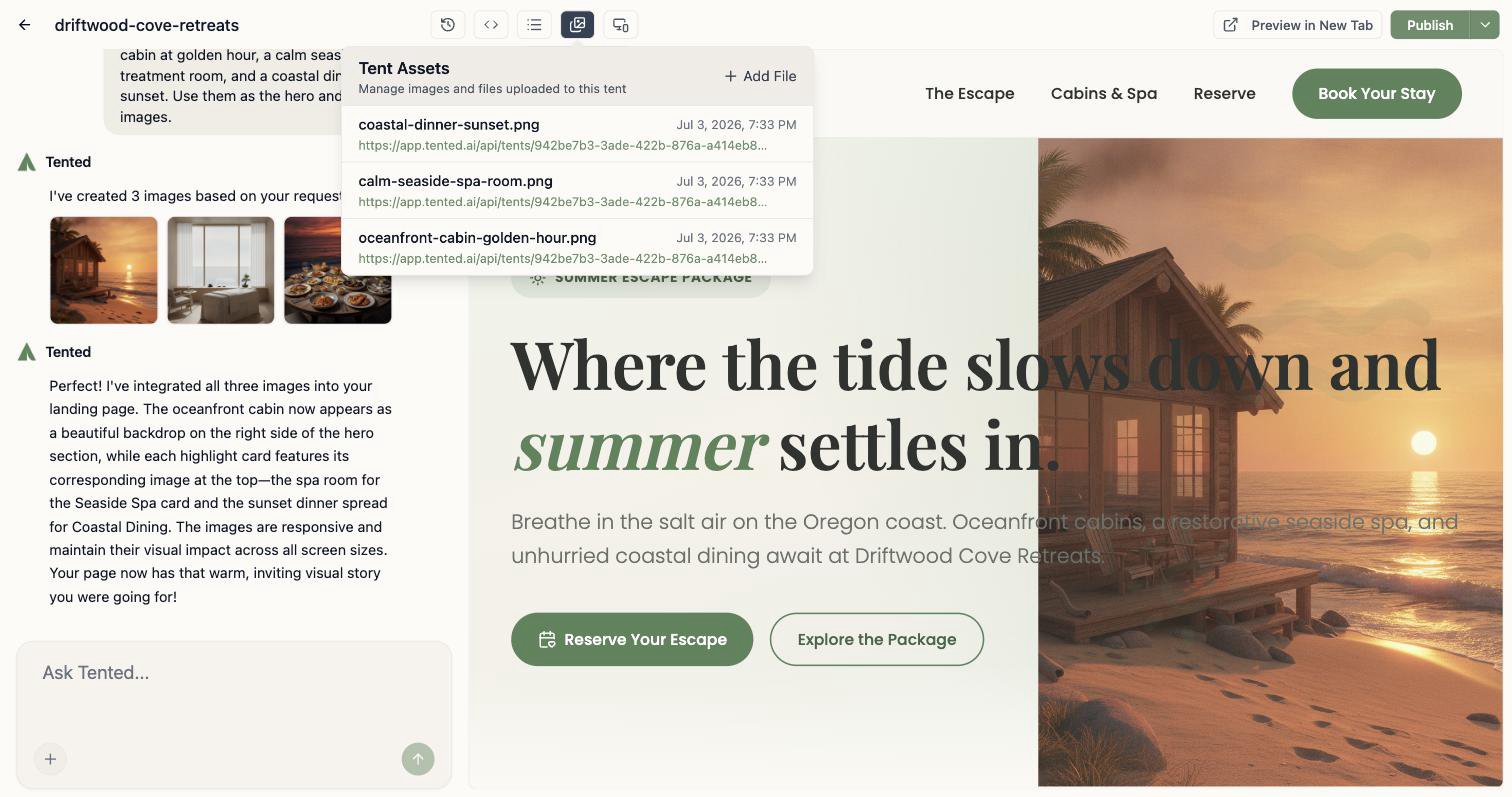
Generate a photo of a seaside spa treatment room and save it to my assets. Don’t change the page.
Generated vs. uploaded images
Two ways to get images into your work, and they play well together:- Generate when you need something custom that doesn’t exist yet — Tented creates it from your description.
- Upload (the + button in the chat, or the assets window) when you have the real thing — your product photos, your logo, your team headshots.
Image generations are tracked in Analytics alongside initial and iterative generations, so you can see how your credits are being spent.
Tips for better images
- One subject per image. Five focused requests beat one crowded collage prompt.
- Name the style. “Editorial photography,” “flat illustration,” “watercolor,” “3D render” — the agent follows style cues closely.
- Match your brand. Mention your palette or mood (“warm neutrals, soft morning light”) so generated images sit naturally next to your brand colors.
- Iterate like everything else. Don’t like a result? Ask for a variation: “regenerate the hero image, but at dusk and with no people.”
Next: Best Practices for AI Prompting
Sharpen the prompts behind your pages, emails, and images.