

What are form automations?
Every published tent can capture form submissions. Form automations make sure those submissions go somewhere useful the moment they arrive — a Slack channel, a Teams channel, your inbox, or any webhook endpoint — plus scheduled digest emails of your form data. You can see every form and its automations across all your tents in one place: Content > Forms.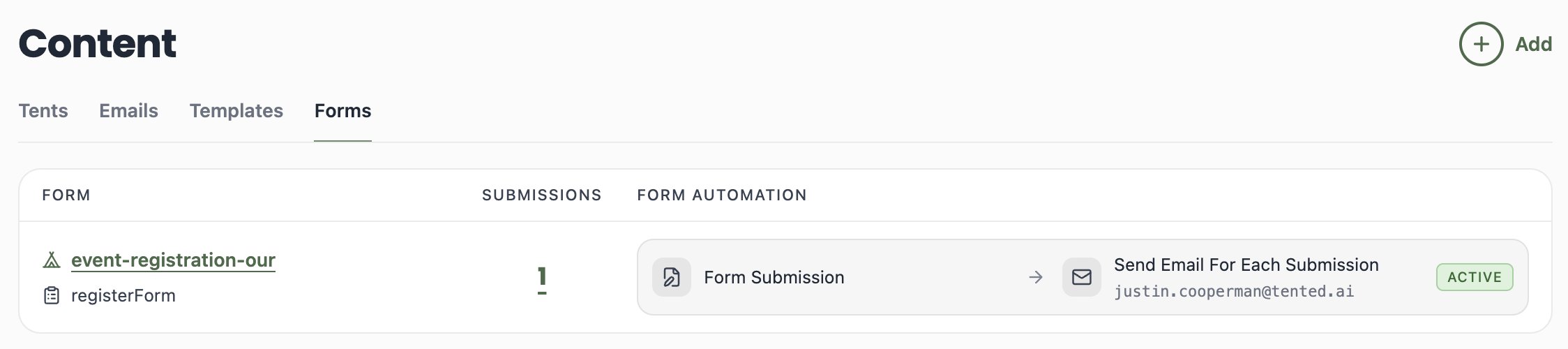
Adding an automation
Automations are set up per tent:- Open your tent’s details page (Content > Tents, then click the tent name).
- On the Automations card, click Add Automation (or Manage Automations if you already have some — it’s also in the Tent Actions menu).
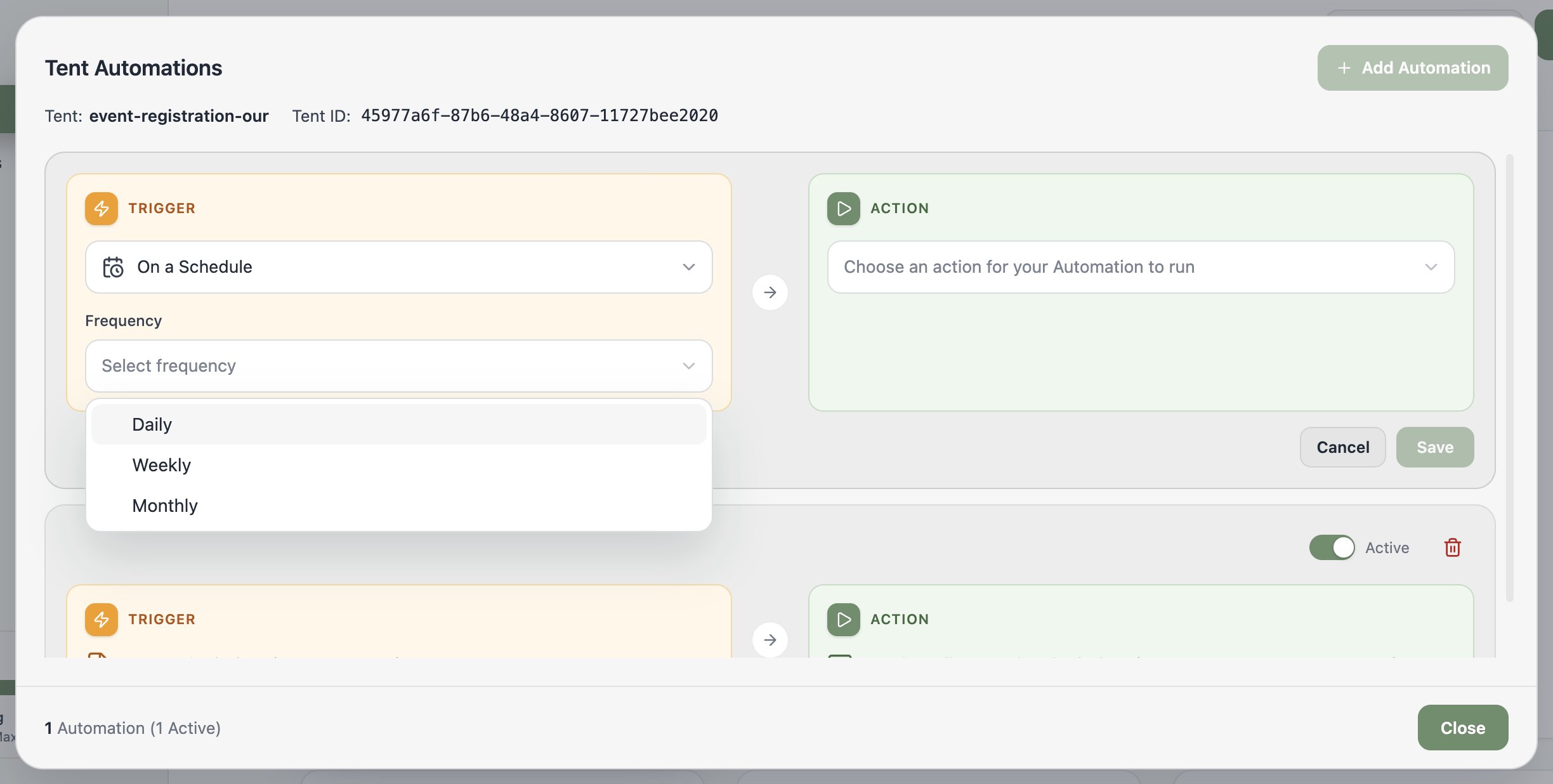
- In the Tent Automations window, click Add Automation.
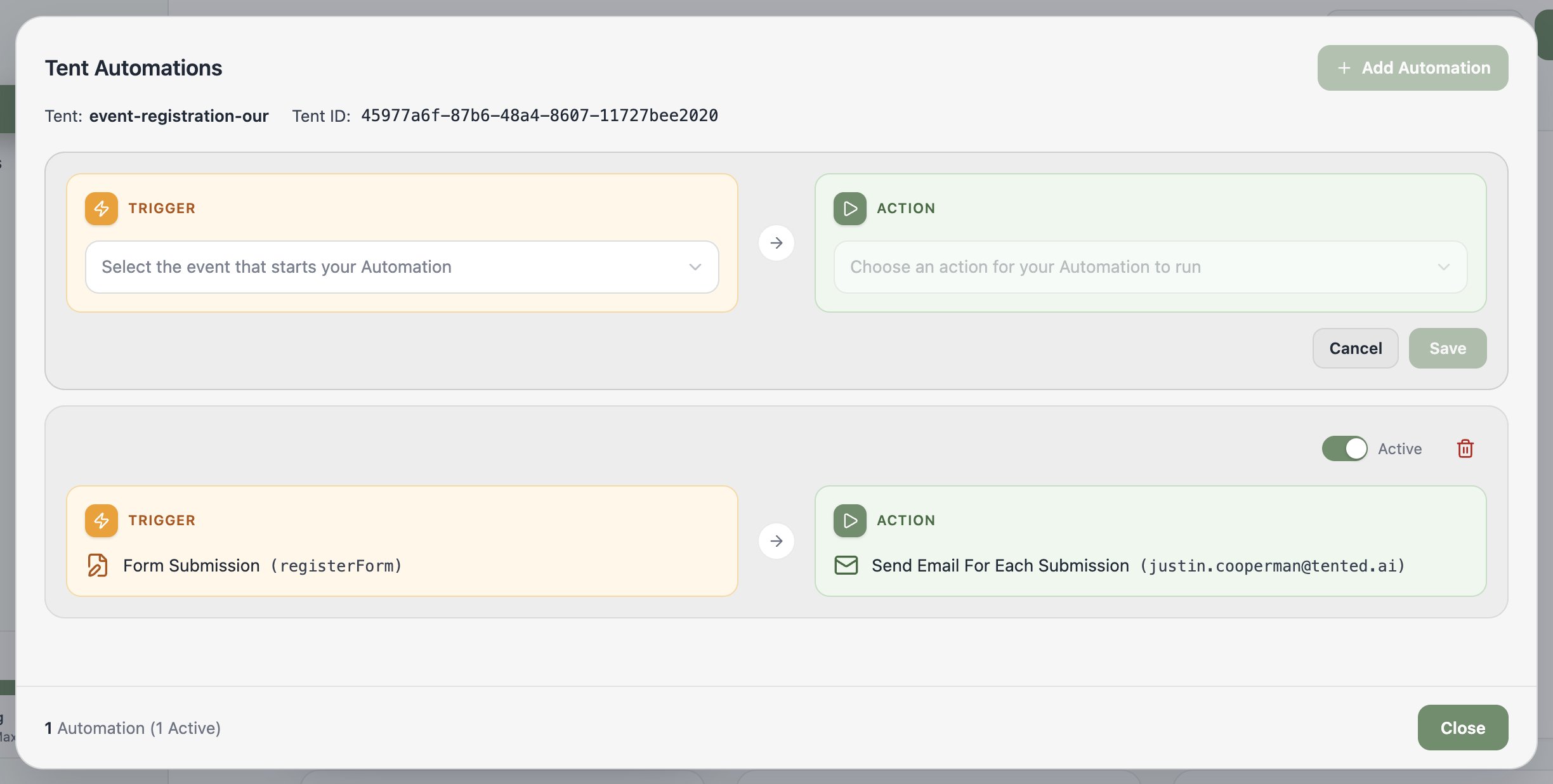
Trigger: Form Submission
Fires immediately, every time someone submits a form. Choose which of the tent’s forms to watch, then pick an action: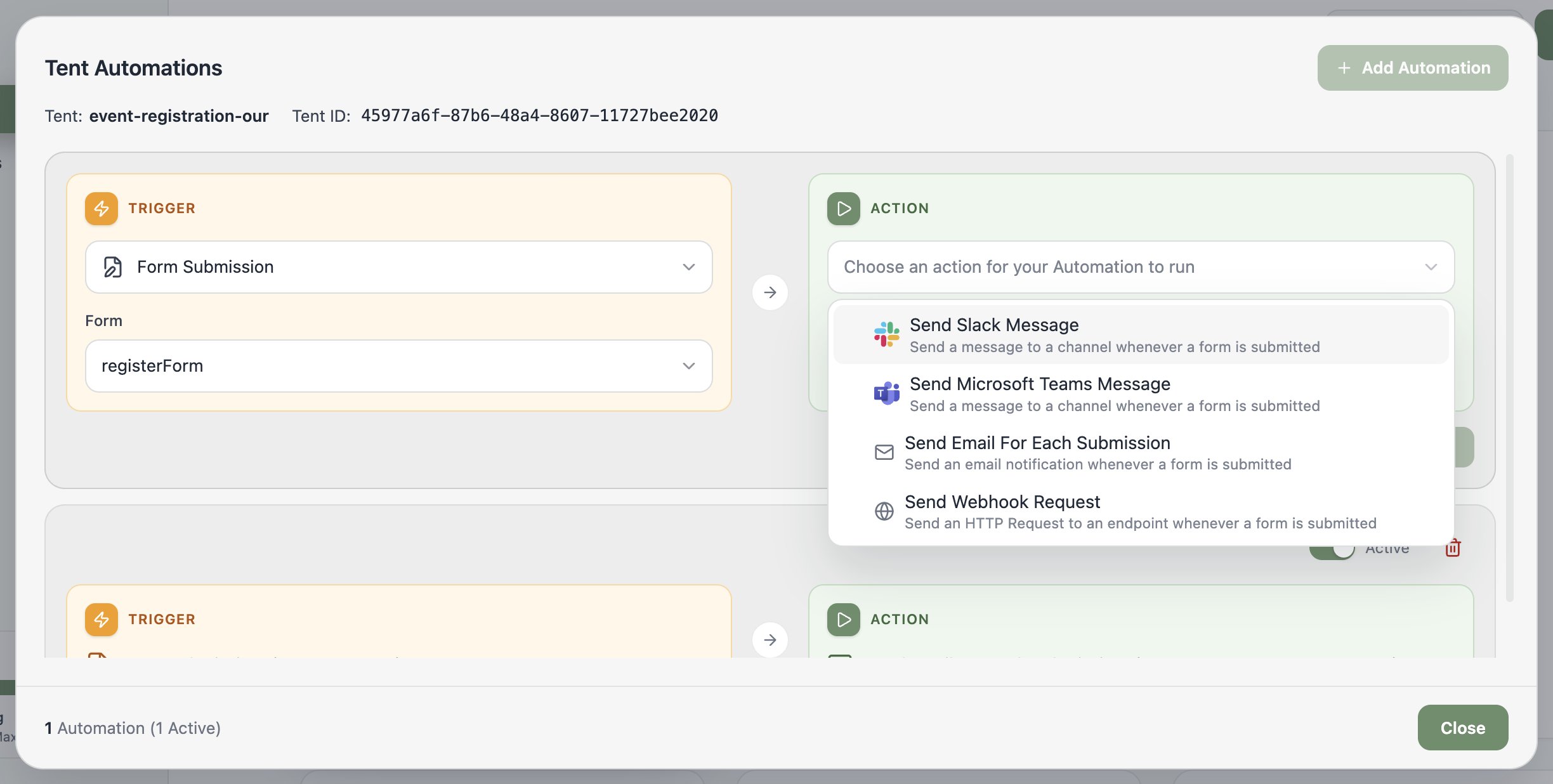
- Send Slack Message — post to a public or private channel (requires the Slack connector)
- Send Microsoft Teams Message — same idea, for Teams (see Connecting Microsoft Teams)
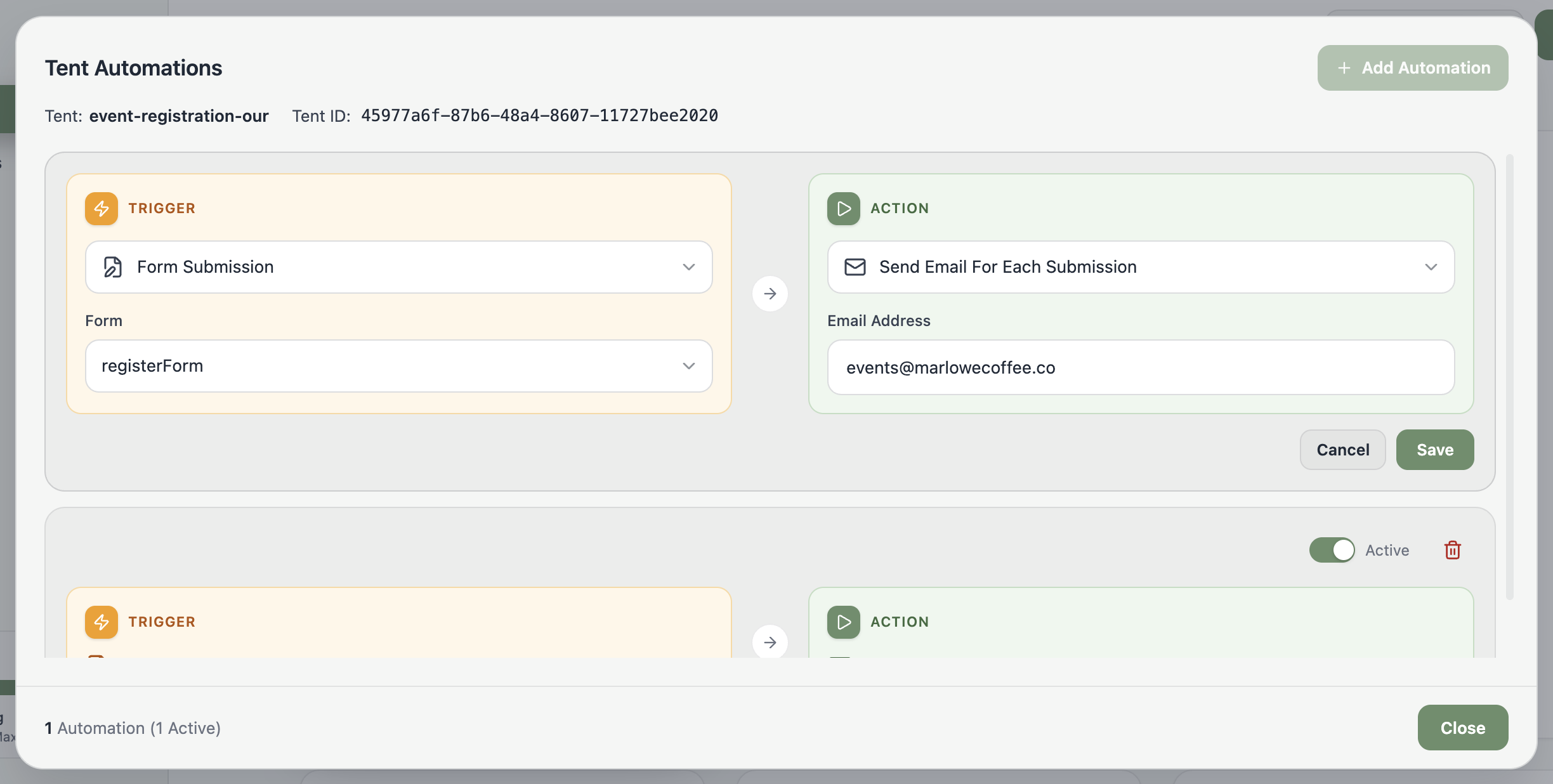
- Send Email For Each Submission — an email notification to any address, per submission
- Send Webhook Request — an HTTP request to your endpoint, for CRMs and custom pipelines
Trigger: On a Schedule
Prefer a digest? The On a Schedule trigger sends recurring summaries instead of one-at-a-time pings:- Frequency: Daily, Weekly, or Monthly (with handy presets like first/middle/last day of the month), at the time you pick — in your workspace’s timezone.
- Action: Send Email With Form Data CSV — a scheduled email with your form data attached as a CSV.
Managing automations
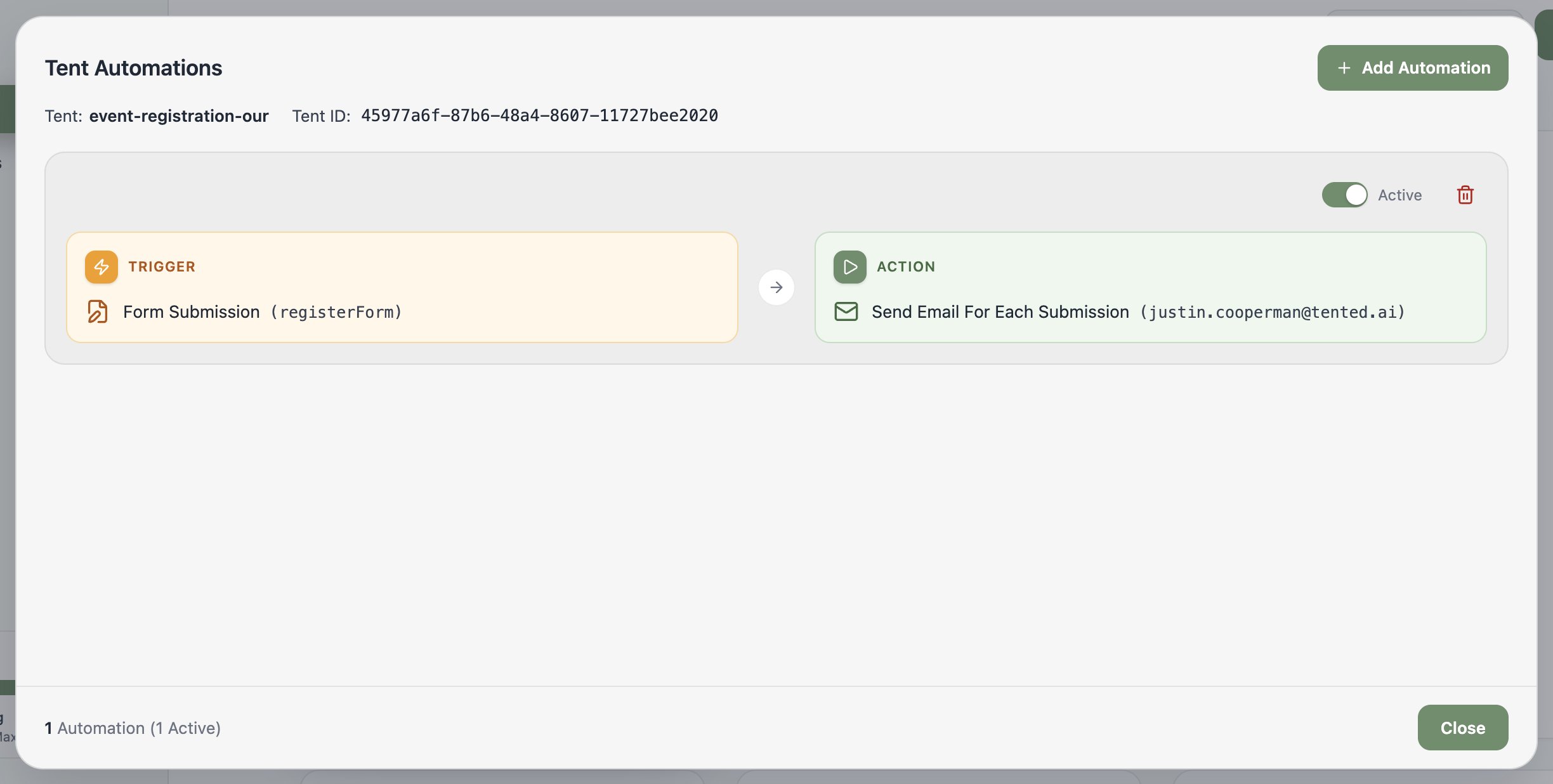
Click Save and your automation is live — no separate activation step. From the Tent Automations window you can:- Toggle any automation between Active and paused
- Delete automations you no longer need
- See the count of total and active automations at a glance
What’s next?
Next: Viewing Form Submissions
See, search, and export the form data your tents collect.