

Where fields live
Every contact in your People database is built from fields. Tented ships with a rich set of standard fields, and you can extend them with up to 200 custom fields of your own. Manage them all in one place: Settings > People. From here you can also Export your full field schema.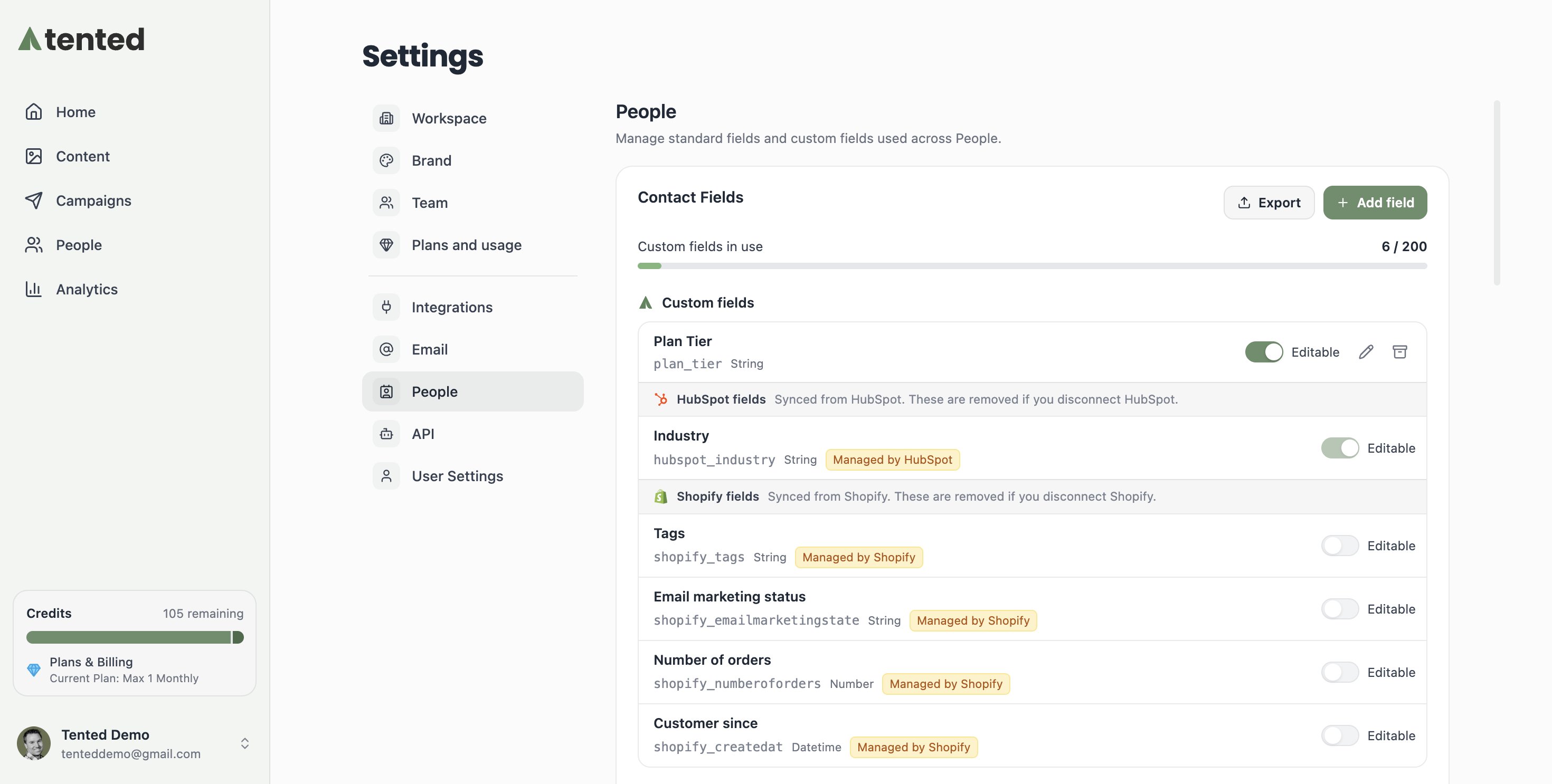
Standard fields
Standard fields are built in — they can’t be renamed or removed, and every contact has them: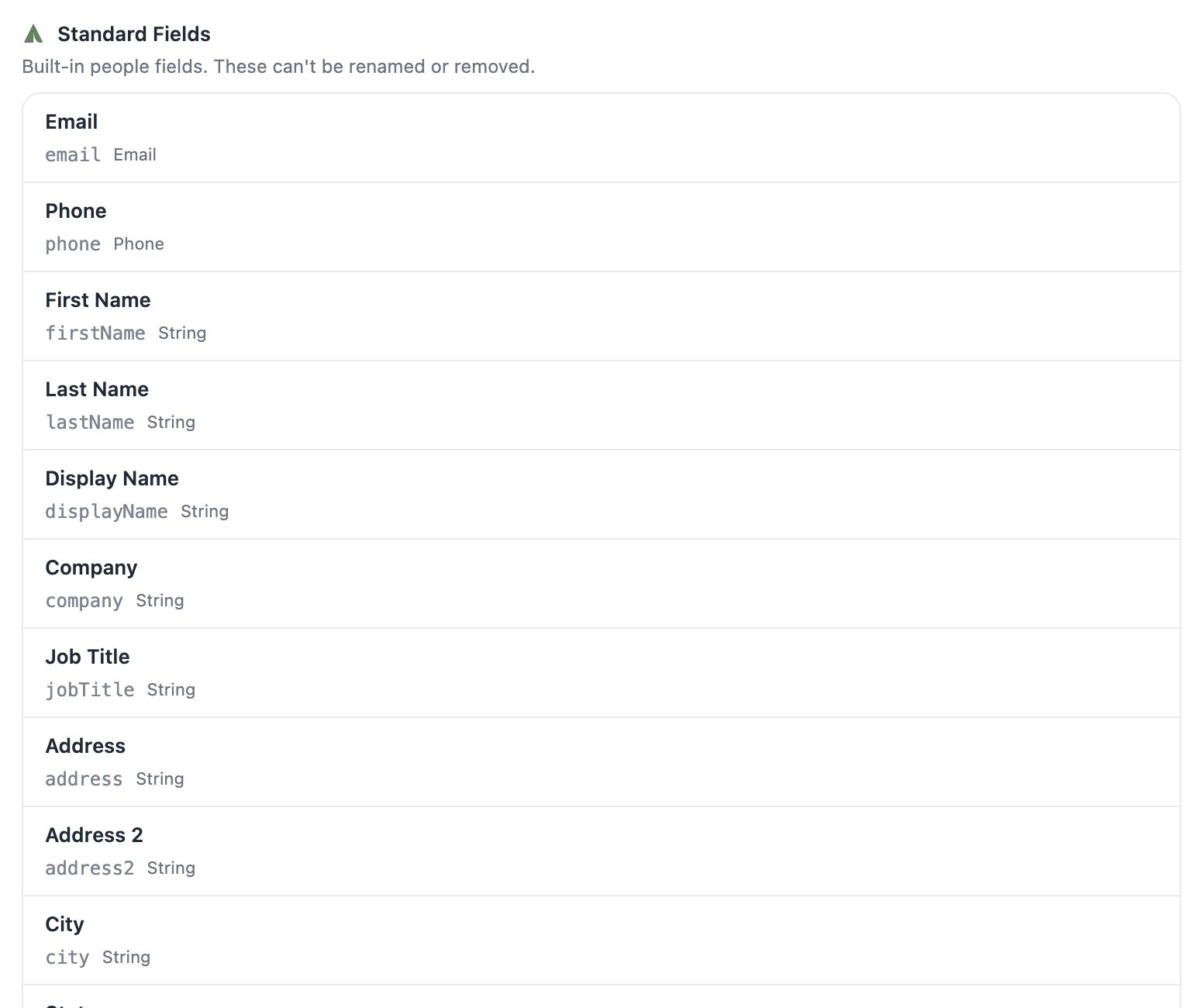
Each field has an API name (like
firstName or lifecycleStage) you’ll use with the API, see in CSV exports, and reference in email personalization tokens — {{contact.firstName}}.
The subscription fields (like Unsubscribed) are managed by Tented’s email pipeline — they update automatically when contacts unsubscribe, and marketing sends respect them without any work on your part.
Custom fields
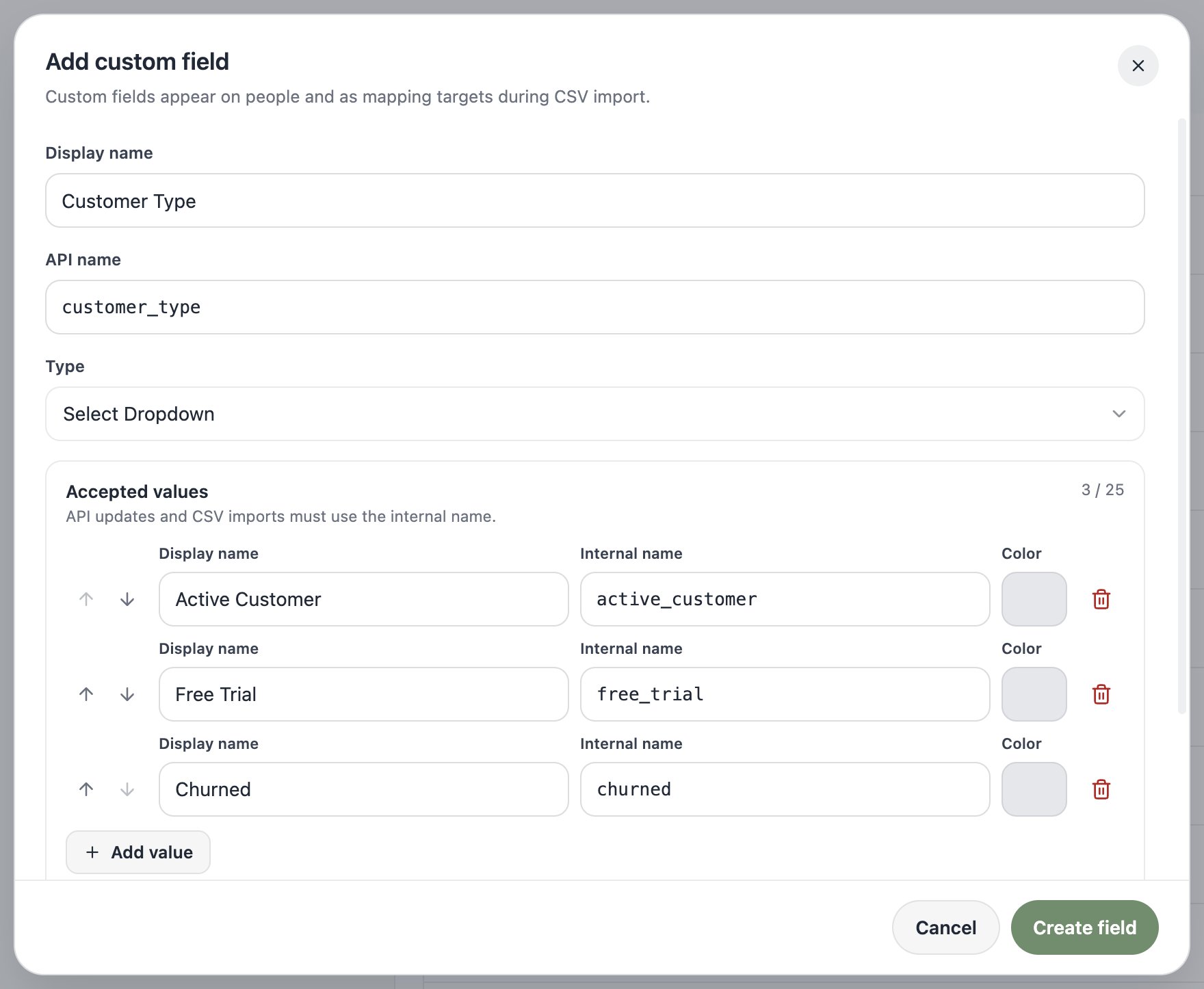
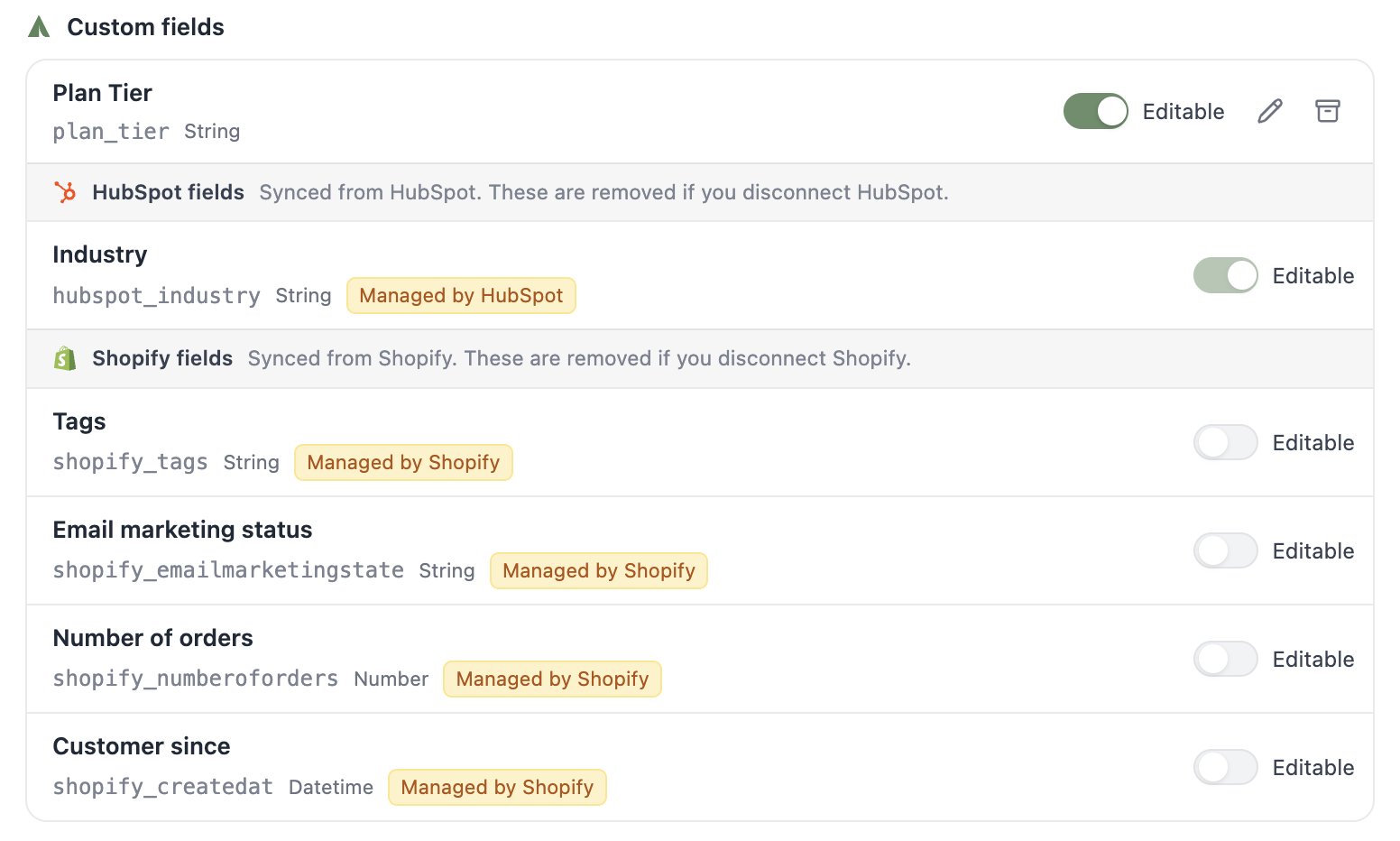
Anything your business cares about that isn’t standard — plan tier, account owner, renewal date — becomes a custom field. Custom fields show up on contact profiles, as mapping targets during CSV import, and in audience rules for filters and dynamic lists. To add one, click Add field:- Give it a display name — Tented auto-generates the API name (e.g., “Plan Tier” →
plan_tier). - Pick a type: String, Email, Phone, Number, Boolean, Date, Date & time, or Select Dropdown. Email and Phone validate the value’s format, and Date & time stores a full timestamp where Date is just a calendar day.
- Decide if it’s editable in the Tented UI — turn this off for fields that should only be written by imports or the API, and they’ll show as read-only on contact profiles. The Editable toggle only locks manual edits: the API, CSV imports, and automations can always write the field, so integration-managed values stay safe from hand-edits without ever blocking the integration itself.
active_customer, not “Active Customer”. You can reorder options, give each a color, choose a default for newly created people, and edit the set later from the field’s pencil icon.
What’s next?
Next: Importing Contacts via CSV
Put your fields to work with a bulk import.