

Preview Overview
Previewing your tent is a crucial step before publishing. Tented’s preview system allows you to test your landing page across different devices, verify functionality, and ensure everything works perfectly before going live.How to Preview Your Tent on the Web
There are two ways to preview how a tent will look on the web:-
Open the tent in the tent editor and click Preview in New Tab at the top of the screen.
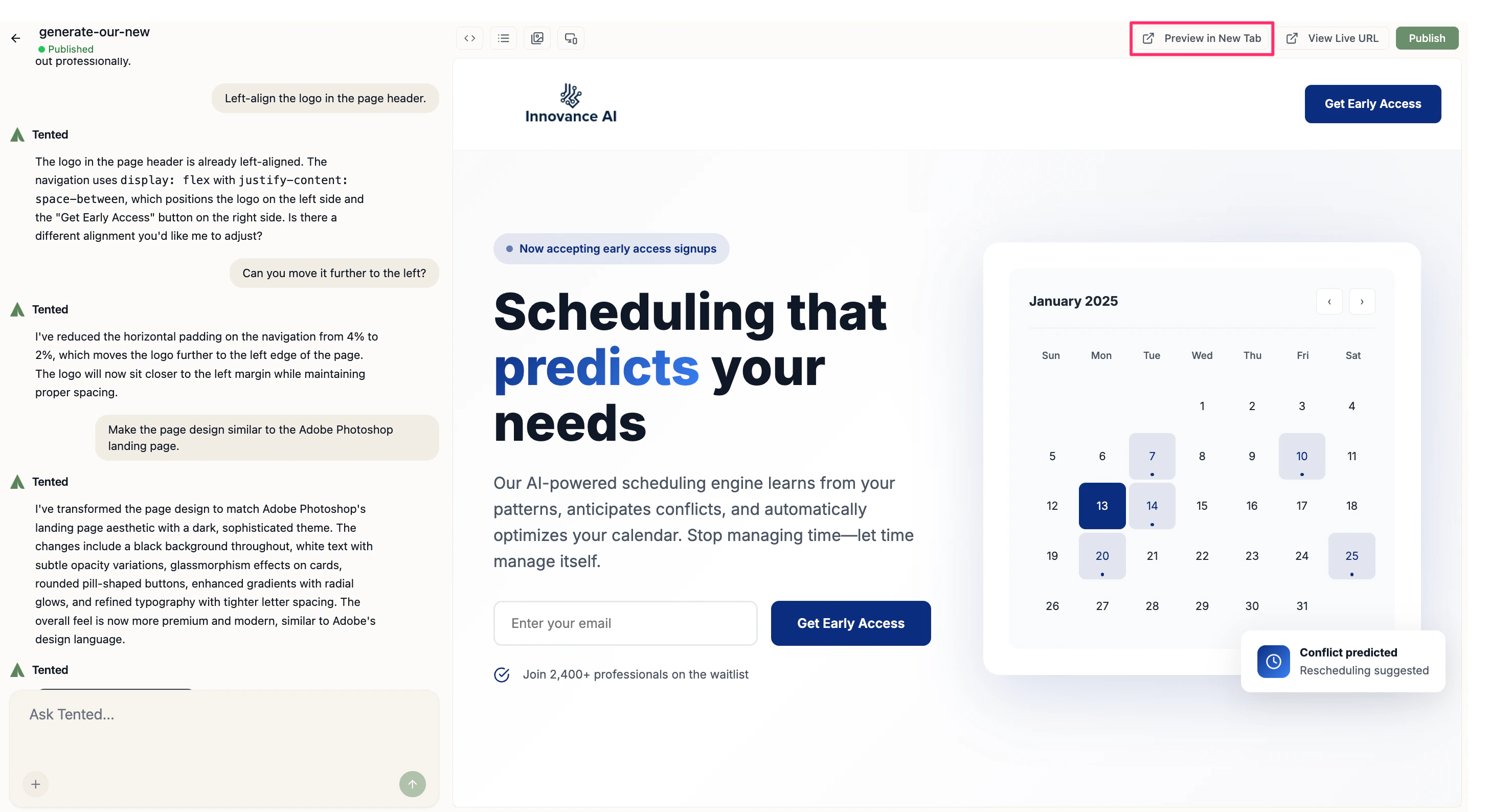
-
Open the tent details page, hover over the preview tile, and click the Open Preview button that appears.
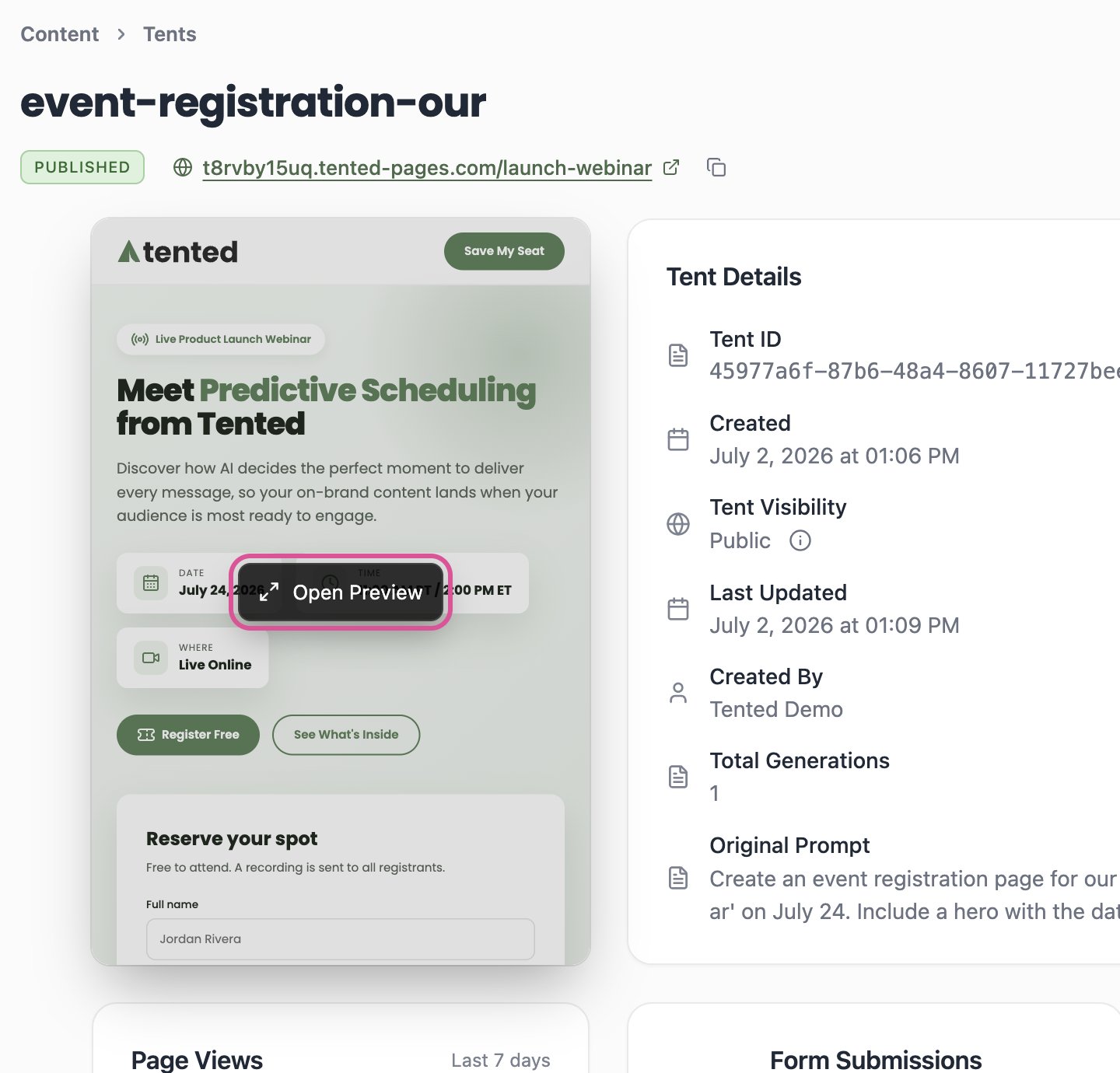
How to Preview Your Tent on Mobile Devices
To preview how a tent will look on a mobile device:- In the tent editor, click the mobile preview icon.
- The mobile preview defaults to the iPhone 17 Pro Max. To switch to a different device, select the drop-down arrow next to the device name.
- When you’re done previewing on mobile, click the mobile preview icon again to return to the standard tent editor view.
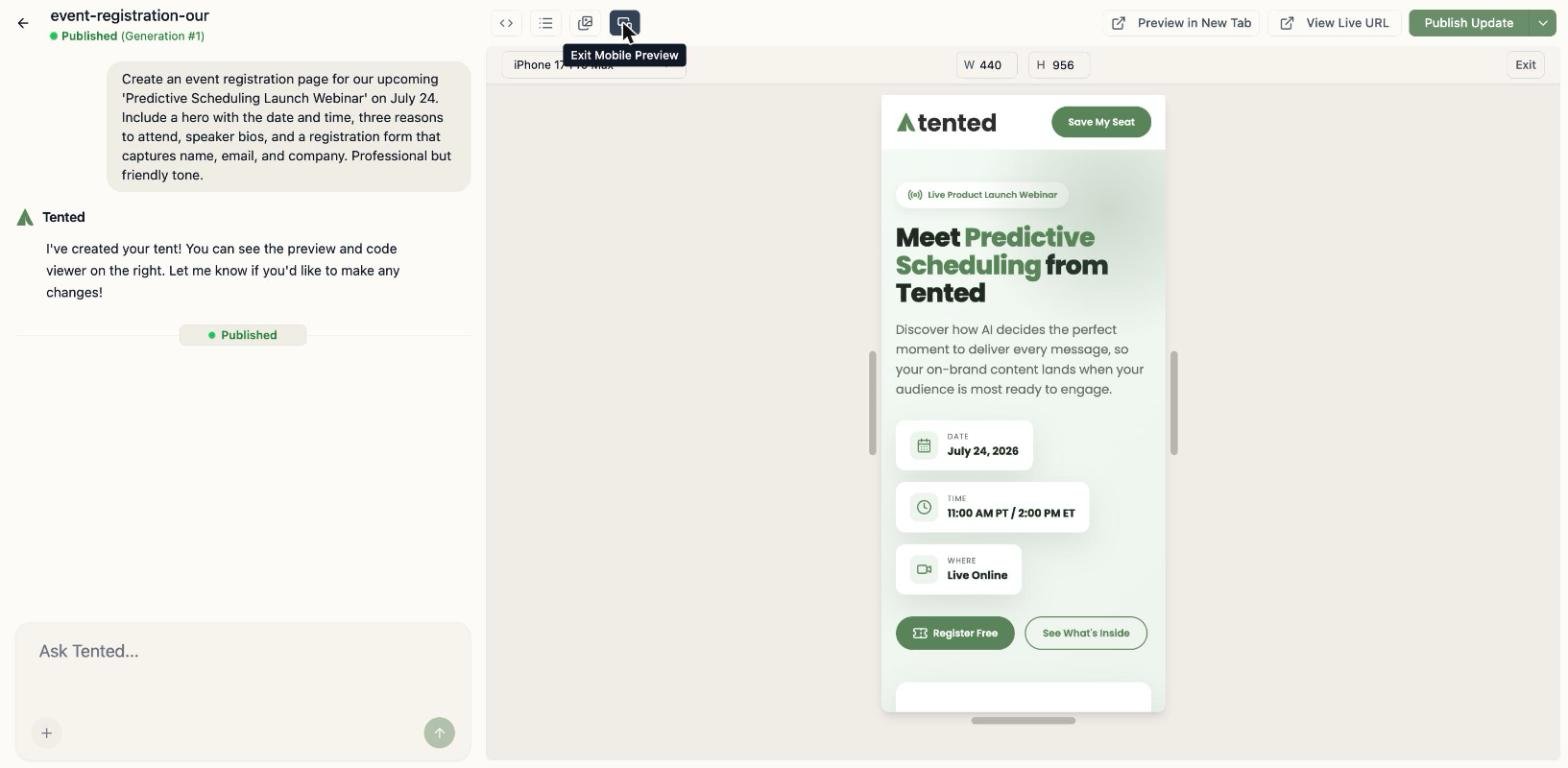
Interactive Testing
Before publishing your tent, it’s crucial to test all interactive elements to ensure they function correctly. Fill out your forms with test data to check their layout and field validation for fields like email and phone numbers. Make sure to click through all links and buttons on the page.Form submissions are disabled in the preview. Clicking a form’s submit button won’t send or store anything. To test a real submission end to end, publish the tent and submit the form on your live page.
Next: Publishing Tents
Learn how to publish your tent and make it live on the web.