

Prerequisites
Before you begin, ensure you have:- Admin access to your Tented workspace
- Permission to install apps in your Slack workspace (or access to request app installation from your Slack admin)
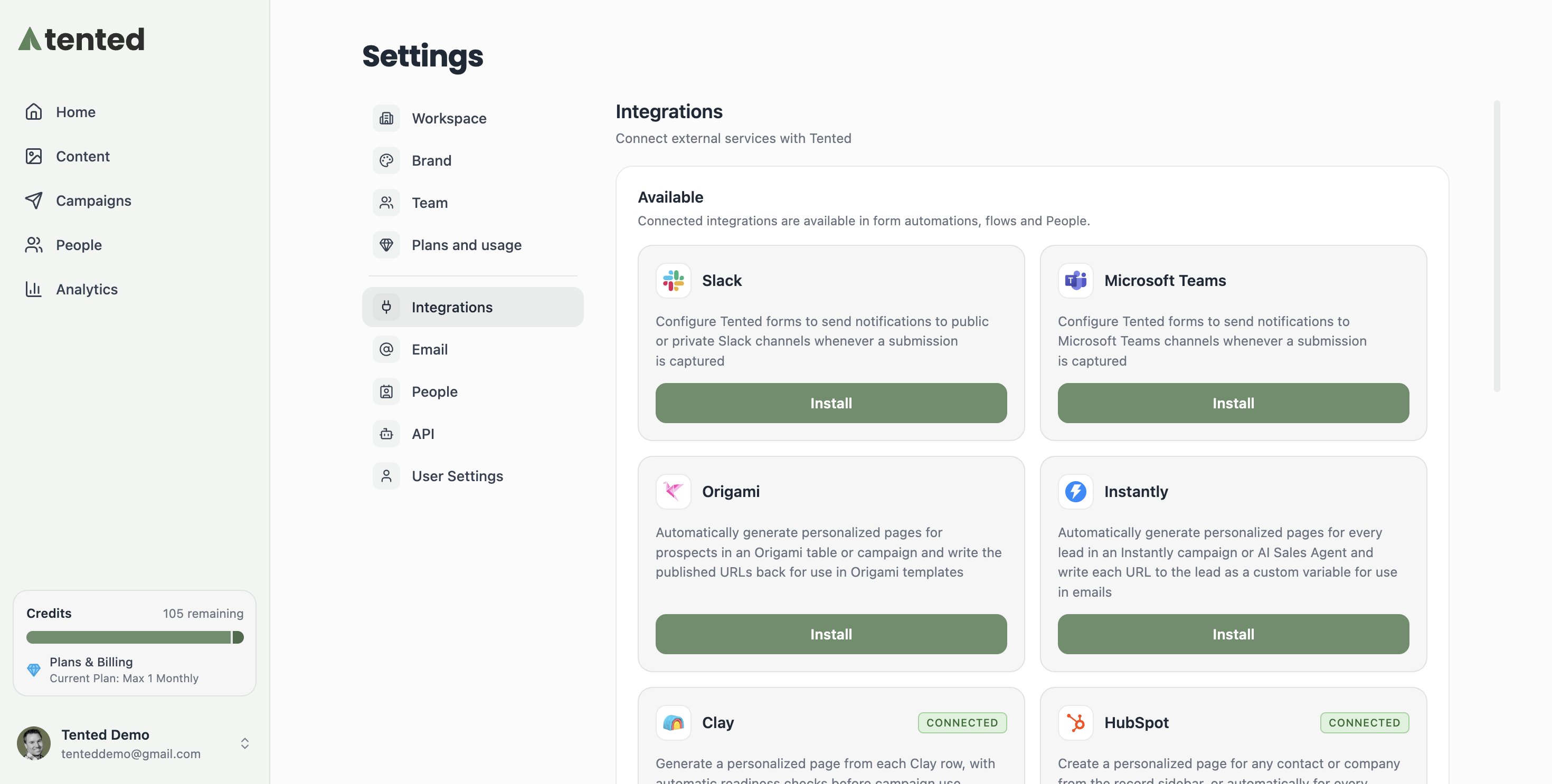
Step 1: Connect Slack in Integrations Settings
- In Tented, click your profile in the bottom-left corner.
- Select Integrations from the menu.
- On the Integrations page, select Install on the Slack tile.
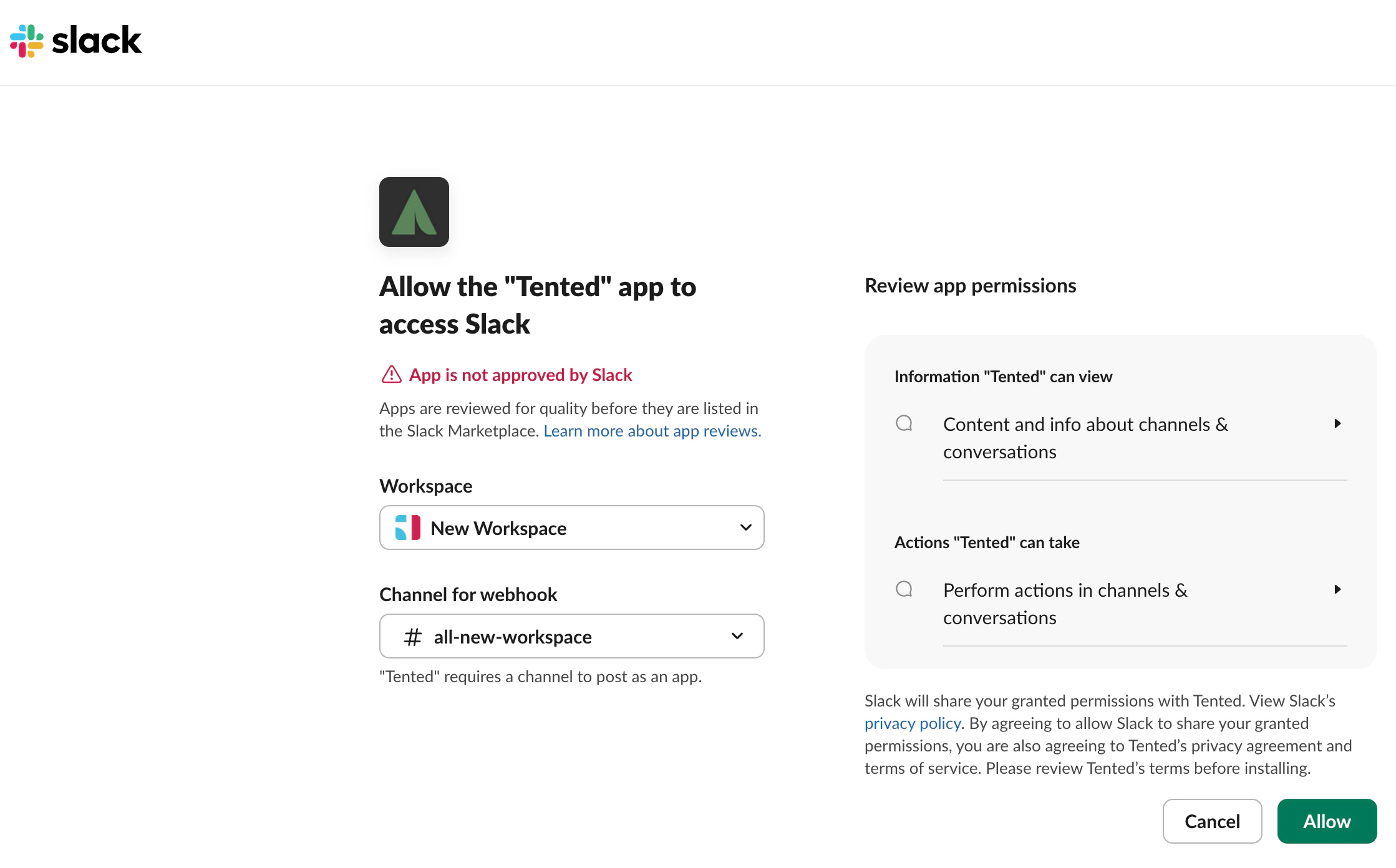
- A Slack page opens in a new tab. Select the Slack workspace and channel the notifications should go to.
- Review the permissions information and select Allow if you agree.
- A confirmation message that Slack is connected to Tented appears. Close the tab and return to Tented.
Step 2: Set Up a Slack Automation in Your Tent
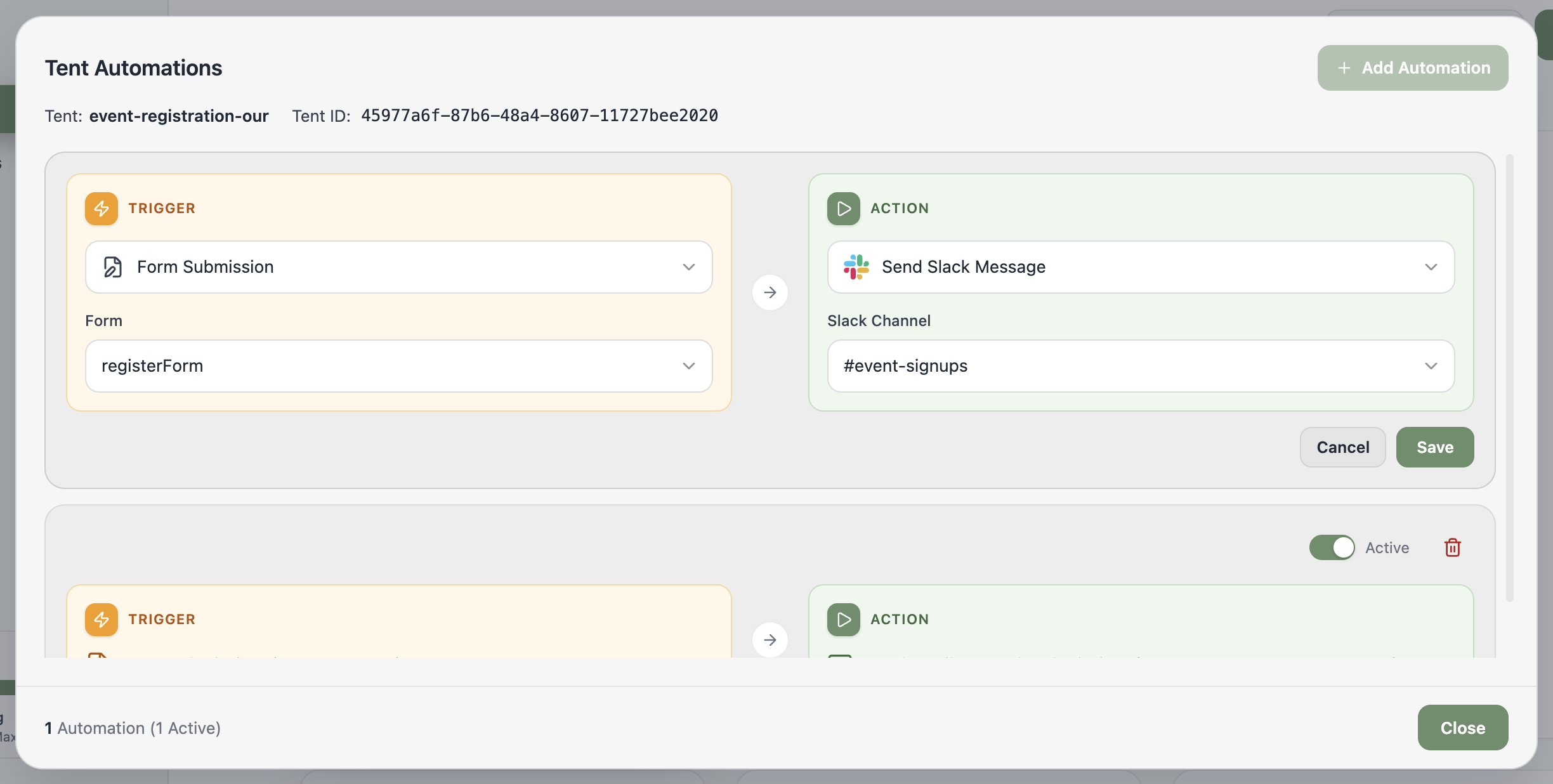
Now that Slack is connected to your Tented workspace, set up a form automation to send notifications for form submissions. Set Up Form Submission Notifications:- From the Tent Details page of the tent you want to set up notifications for, select the Add Automation button. (If you already set up an automation, the button says Manage Automations.)
- In the Tent Automations window, select Add Automation.
- On the left, under Trigger, select Form Submission.
- Under the trigger, select the form you want notifications for from the dropdown list. The list shows all forms in the tent.
- On the right, under Action, select Send Slack Message.
- Select the Slack Channel you want notifications sent to.
- Select Save to finish.
- Select Close to exit the Tent Automations window.
Need help? Contact us at support@tented.ai.
Next: Setting Up Email Notifications
Learn how to set up email notifications for form submissions.