What’s a blast?

An email blast is a one-time send to an audience: product launches, newsletters, event invites, announcements. You pick who gets it, what they get, and when — Tented handles delivery, unsubscribes, and the results dashboard.
First time sending? Make sure your sending domain is verified — see Setting Up Email.

Head to Email > Campaigns and click Create Email Blast. Name your blast (this is just for your team — recipients never see it), and you’re dropped into a three-step wizard: Audience → Email → Schedule. Your progress saves automatically as you go. A screenshot of the Campaigns tab with cards for Create Email Blast and Create Triggered Flow.

Step 1: Pick the audience

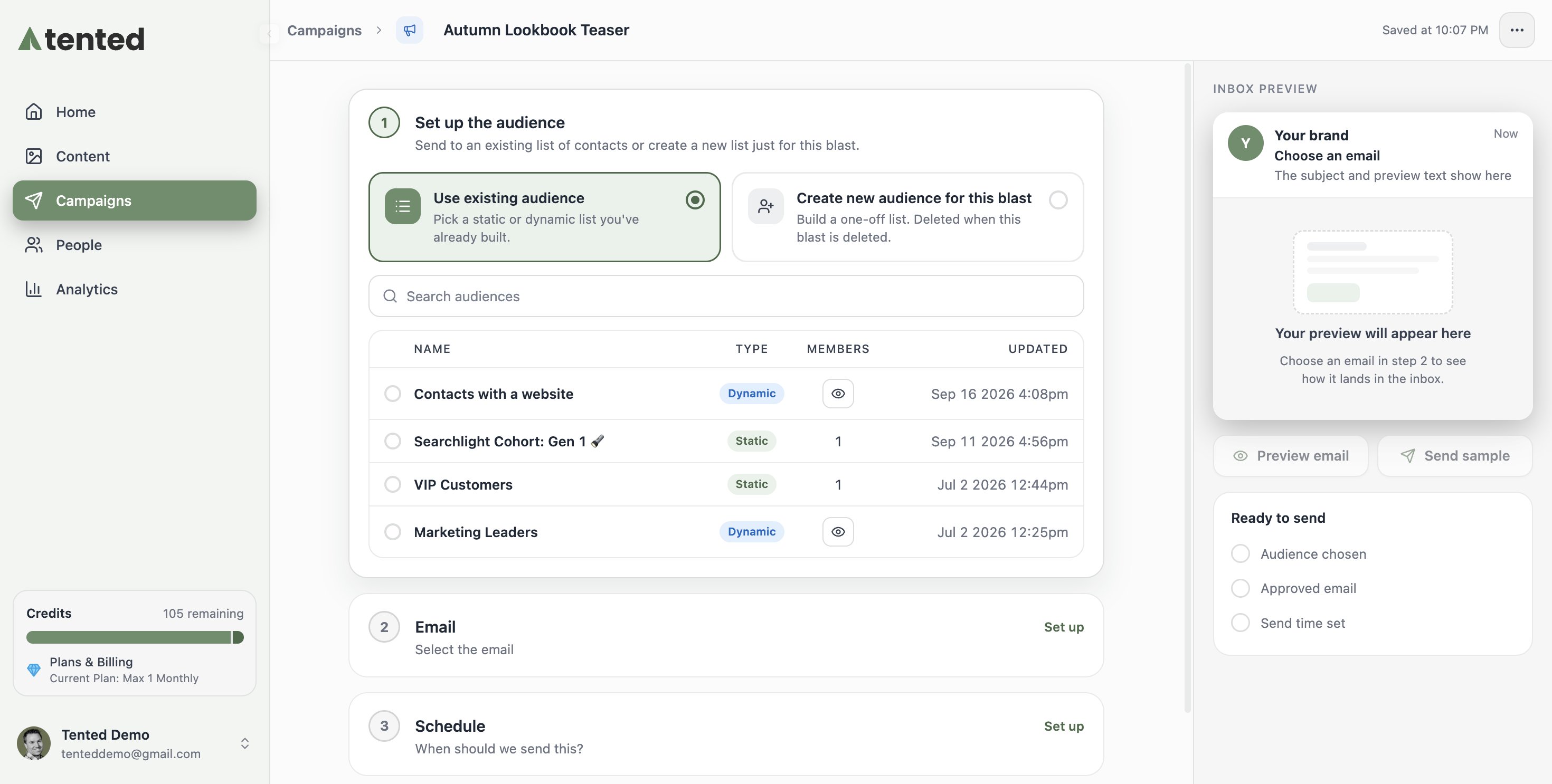
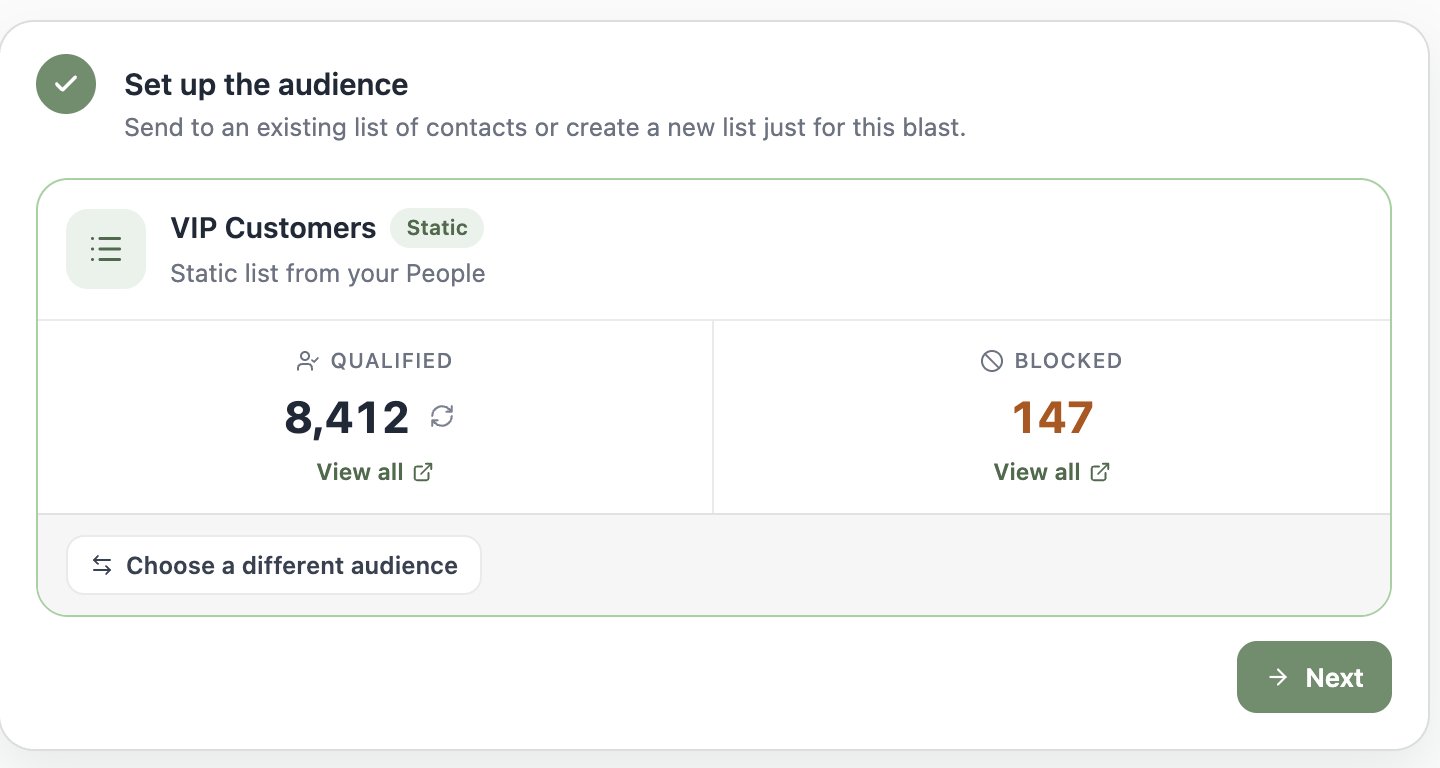
Choose an existing static or dynamic list, or build a one-off list just for this blast (it’s deleted along with the blast, keeping your Lists page tidy). A screenshot of the audience step showing the choice between using an existing audience and creating a new one, with a list picker below. Once you pick a list, Tented shows you the qualified count (people who will actually receive the email) and the blocked count (people excluded because they’ve unsubscribed). Click View all to inspect exactly who qualifies. A screenshot of a selected audience showing 8,412 qualified contacts and 147 blocked.
Step 2: Pick the email

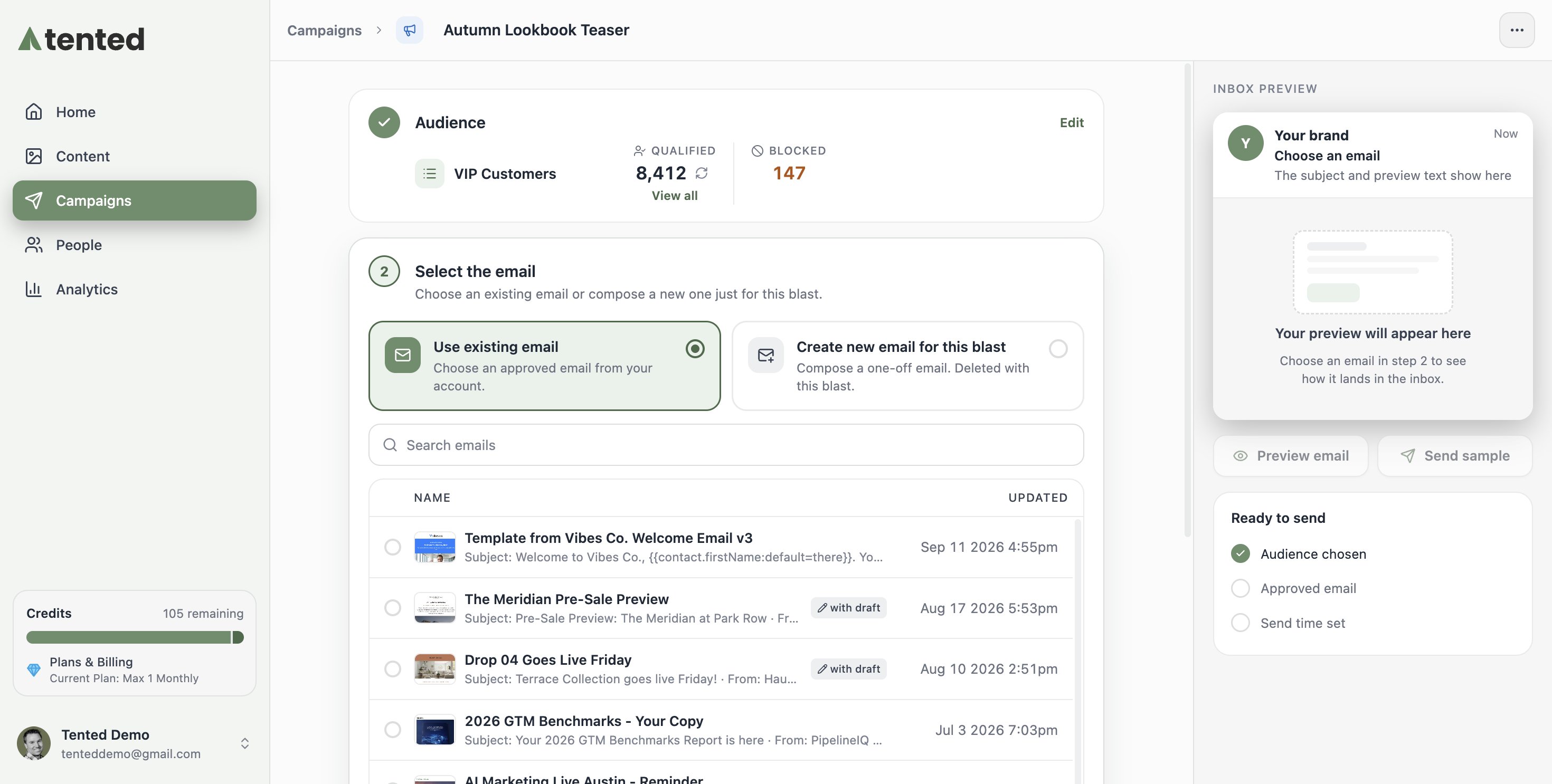
Use an existing approved email, or compose a one-off email inline just for this blast. A screenshot of the email step showing the choice between using an existing approved email and creating a new one for this blast.
Blasts send the approved version of an email. If you’ve made draft edits since approving, they won’t go out until you click Approve Update on the email.

Step 3: Schedule it (or don’t)

Two ways to launch:
  • Schedule send — pick a day and time; the blast is approved now and sends automatically.
  • Send now — confirm, and it goes to everyone qualified immediately. This can’t be undone, so the confirmation shows you the exact recipient count first.
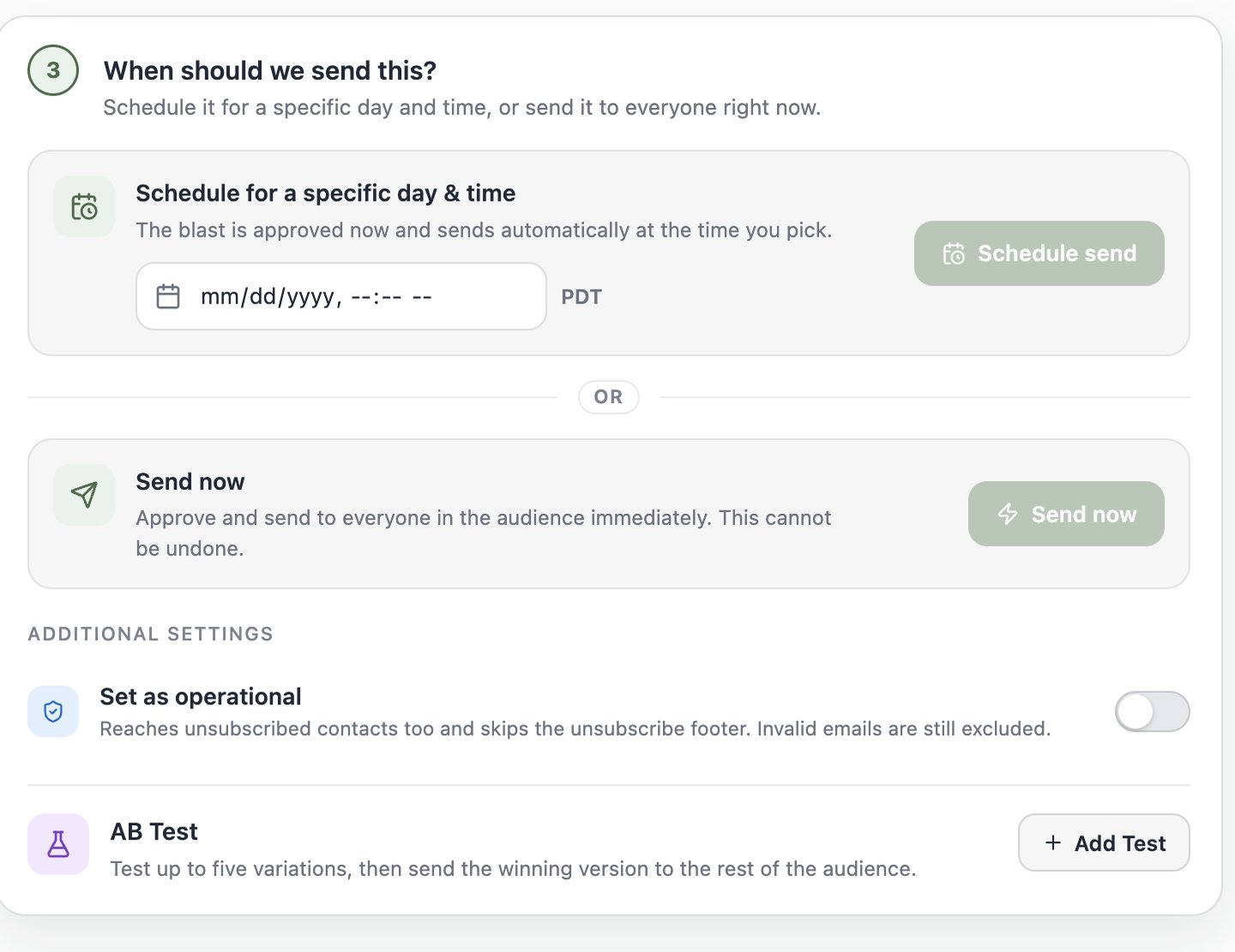
A screenshot of the schedule step with options to schedule for a specific day and time or send now, plus Additional Settings with the Set as operational toggle and the AB Test section.
Set as operational is for service notices — password resets, security announcements, terms changes. Operational sends go to unsubscribed contacts too and skip the unsubscribe footer — though contacts whose email was marked invalid by a hard bounce are still excluded (that address can’t receive mail). Never use it for marketing.

Or make it a test

Not sure which subject line (or send time, or sender) will win? The AB Test section under Additional Settings turns the blast into an experiment: up to five variations go to a sample of the audience, and the winner is sent to everyone else. See A/B Testing.
Scheduled the wrong thing? A scheduled blast can be unscheduled any time before it sends — it returns to draft (with your original send time remembered) so you can edit the audience or email and reschedule.
A single blast can reach up to 250,000 recipients. If your audience is larger, the schedule step warns you before you launch — trim the list or split the send.
Free plan: you can send up to 100 emails per day. The Audience and Schedule steps remind you of this — and it’s checked again when a scheduled blast actually fires. If at that moment the recipient count exceeds what’s left of the day’s allotment (or your People database is over the free plan’s 1,000-contact allowance), the blast is automatically cancelled and nothing is sent: the campaigns list shows it as Cancelled with “0 sent (Daily Usage Limit)”, and its Results card explains what happened with an upgrade option. Send now is friendlier — it warns you up front instead of cancelling anything.

Watch the results roll in

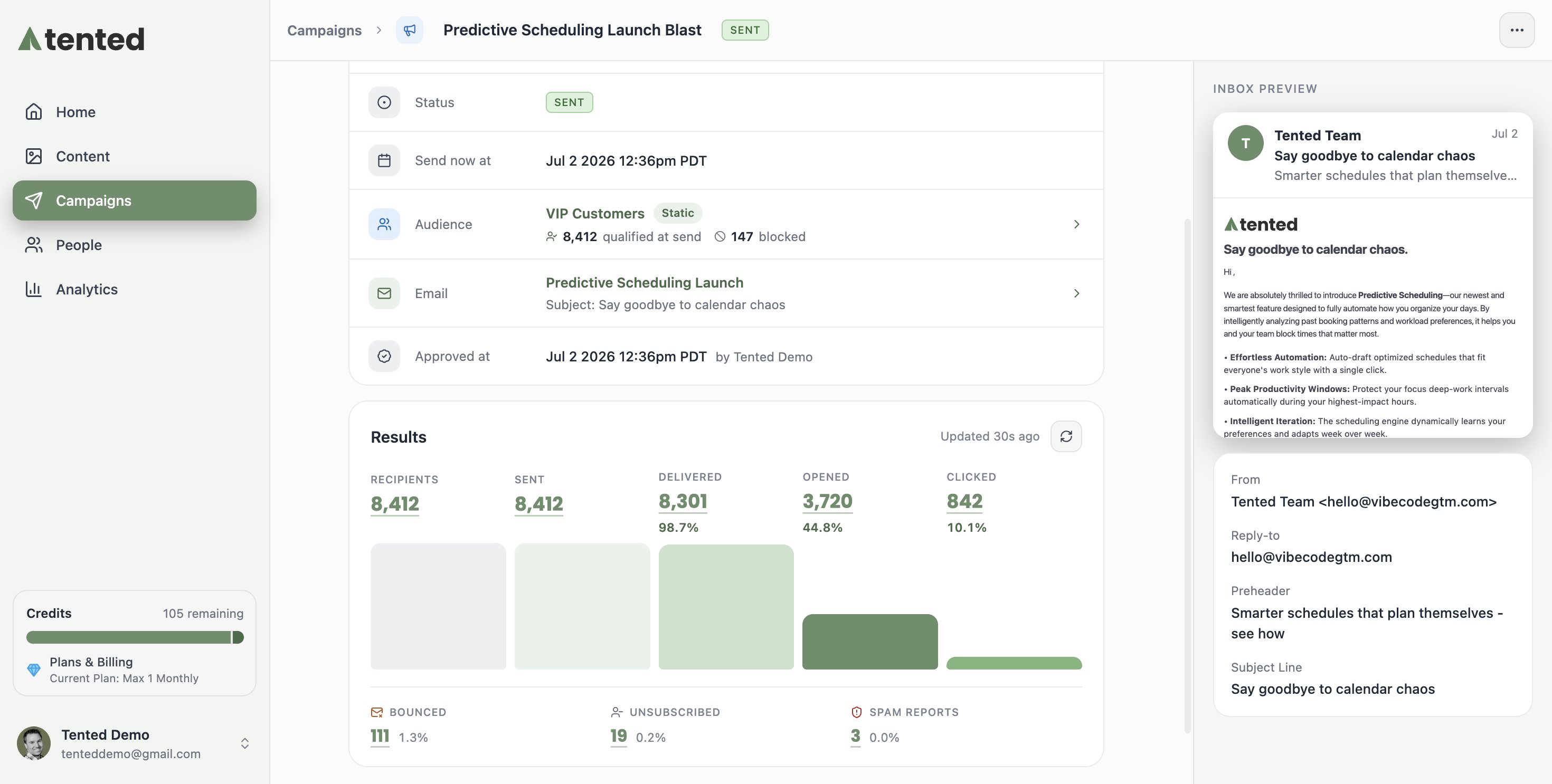
The moment a blast sends, its page becomes a live results dashboard: recipients, sent, delivered, opened, clicked, bounced, unsubscribed, and spam reports. A screenshot of a completed blast showing its status, audience, email, and a results dashboard with sent and delivery metrics.
Drill into any metric

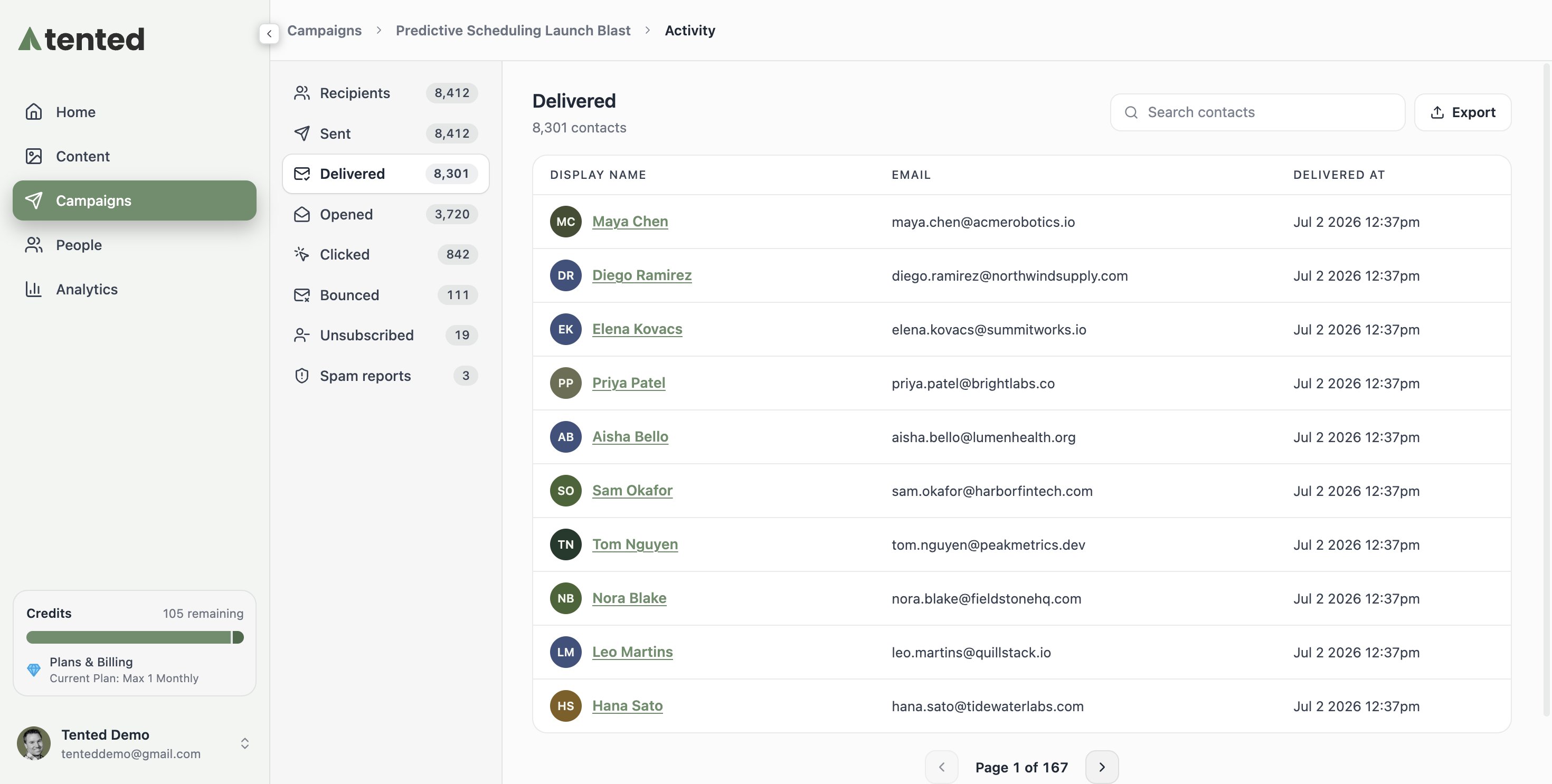
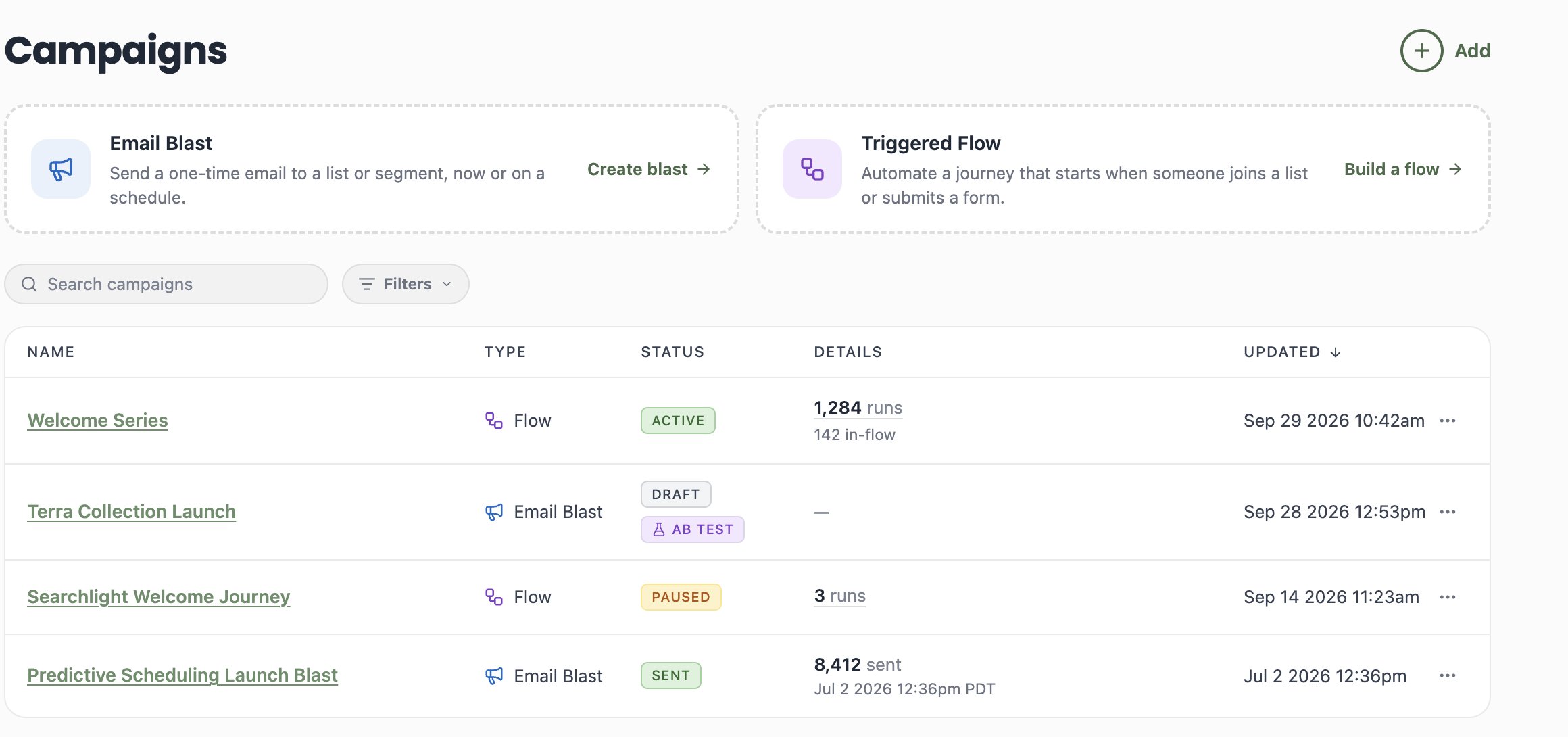
Every number on the dashboard is clickable. Click a metric — say Delivered or Bounced — to open the Activity view: the exact contacts in that bucket, with timestamps (delivered at, opened at, and so on). A left-hand rail lets you jump between buckets, and there’s a search box to find a specific person. A screenshot of the blast Activity view showing the Delivered bucket with one contact, the metric rail on the left, and an Export button. Click Export to download the contacts in the current bucket as a CSV — handy for pulling your bounced addresses for cleanup, or your openers for a follow-up. All your blasts (and flows) live together on the Campaigns tab, with status and headline results at a glance. A screenshot of the Campaigns list showing a completed email blast with 1 sent.
Clone a blast

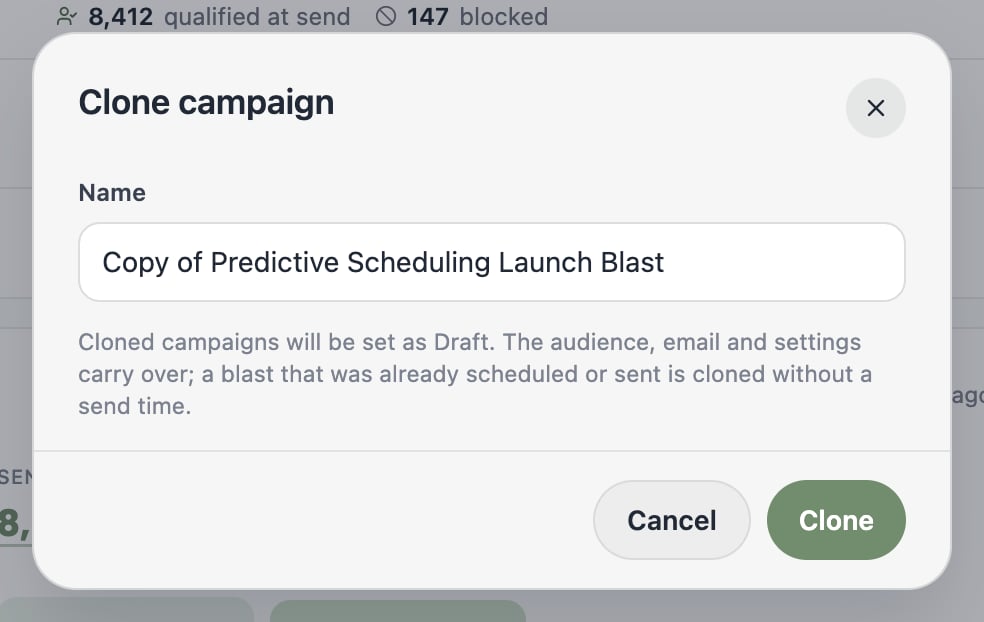
Running the same newsletter every month? Clone last month’s instead of rebuilding it: hover a blast in the Campaigns list and click the Clone icon, or use the ⋯ menu > Clone campaign inside the blast. A screenshot of the Clone Blast dialog with a New Blast Name field prefilled with Copy of Terra Collection Launch and a note that cloned blasts always start as drafts. Cloned blasts always start as drafts — the audience, email, and settings carry over, but a blast that was already scheduled or sent is cloned without a send time, so nothing fires until you schedule it. Cloning works from any state, including completed and archived blasts, and drops you straight into the new draft.
Archive a campaign

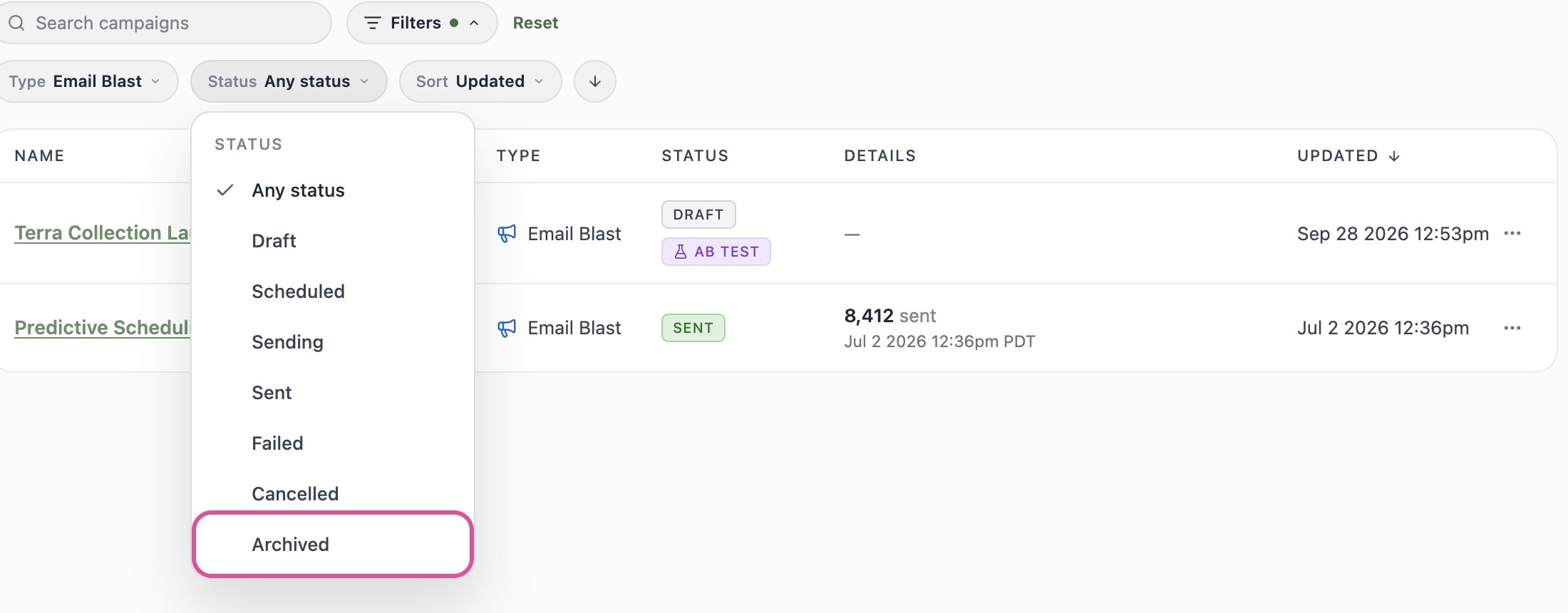
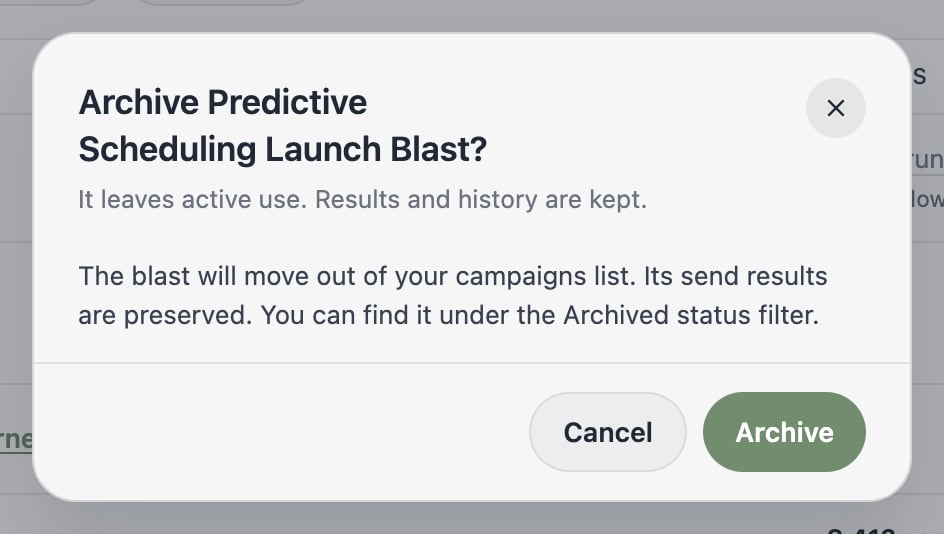
Campaigns that have actually run aren’t deleted — they’re archived, so their send history stays intact. Hover a completed (or failed) blast in the Campaigns list and click the Archive Campaign icon, or use ⋯ menu > Archive campaign on the campaign’s page. A screenshot of the Campaigns list with the Archive Campaign tooltip showing on a completed blast's hover action. Confirm, and the campaign moves out of your campaigns list — its results are preserved and it stays reachable forever: A screenshot of the Archive confirmation dialog explaining that the blast will move out of the campaigns list and its send results are preserved. To find archived campaigns, open Filter, pick a Type first, then choose Archived under Status: A screenshot of the campaigns Filter dropdown with Type set to Email Blast and the Status list showing the Archived option. A few rules worth knowing:

  • Drafts delete, ran-campaigns archive. A blast that never sent (and a flow nobody entered) offers Delete instead — there’s no history to preserve.
  • In-flight blasts offer neither. A scheduled blast must be unscheduled first, and a blast that’s mid-send can’t be touched.
  • Flows archive too — a triggered flow that has run contacts is archived once it’s paused. Active flows must be paused first.
  • Archiving is permanent. There’s no unarchive — but everything about the campaign stays viewable under the Archived filter, and you can clone an archived blast into a fresh draft any time.

What’s next?

Next: Triggered Flows

Go beyond one-time sends — build multi-step journeys that run automatically.