

Understanding Generation History
Every tent maintains a complete history of all generations. Each time you create a tent or make significant changes, a new generation is created. This allows you to explore different directions and return to a previous version if needed.What is a Generation?
A generation is a complete snapshot of your tent at a specific point in time. There are three types of generations in Tented:- Initial Generation: The first version created from your original prompt
- Iteration Generation: Updates made through chat-based editing
- Reverted Generation: When you go back to a previous version
Viewing Generation History
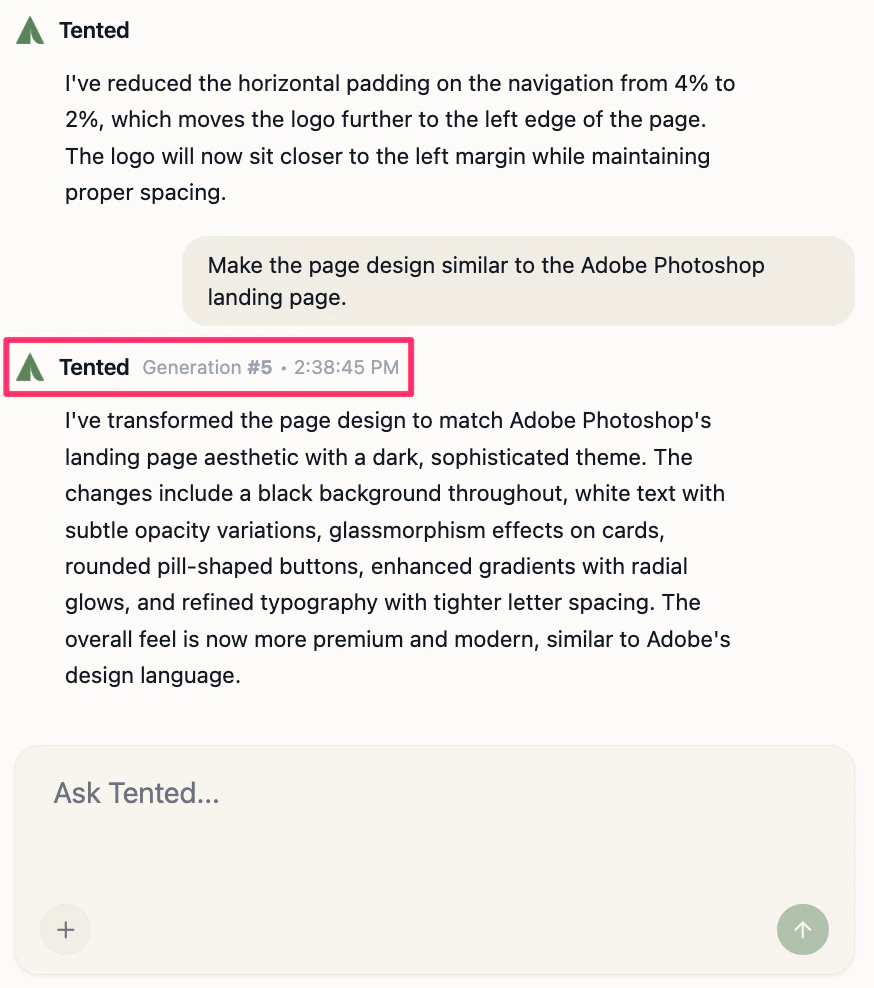
The entire generation history for a tent is retained in the tent editor chat interface. You can open it at any time. To access the generation history for a tent:- In the dashboard, select Content from the sidebar (the Tents tab opens by default).
- Click the link for the tent you want to view.
- On the Tent Details page, select Edit at the top right.
Reverting to a Previous Generation
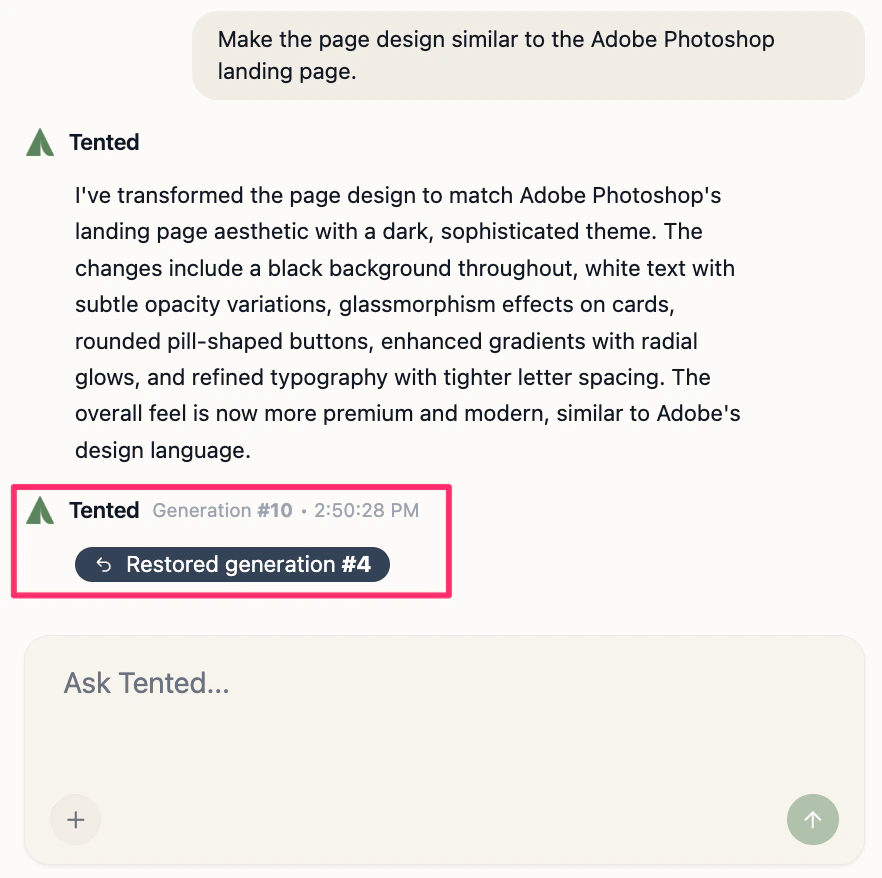
If you want to go back to a previous version of your tent, you can easily revert to any prior generation from the chat history. When you do this, rest assured that all form submission data from all generations is preserved, analytics remain intact, and any published URLs continue to work seamlessly, ensuring continuity regardless of the version you restore.Step-by-Step Process
Follow these steps to revert to a previous generation:- Browse through the generation history for the tent.
- Hover over the the confirmation message from Tented for the generation you want to revert to.
- Click on the generation number that appears.
- Confirm that you want to revert the tent.
Next: Best Practices for AI Prompting
Learn how to write effective prompts for better AI-generated results.