

Why templates?
Built a tent whose layout and style you’ll want again — a webinar registration page, a product waitlist, a case-study layout? Save it as a template and every new tent can start from that design instead of a blank page. Great for keeping a consistent look across campaigns, or handing your team a proven starting point. Templates live under Content > Templates (select Tent Templates), alongside the built-in Tented example template collection, which automatically renders every starter design in your branding.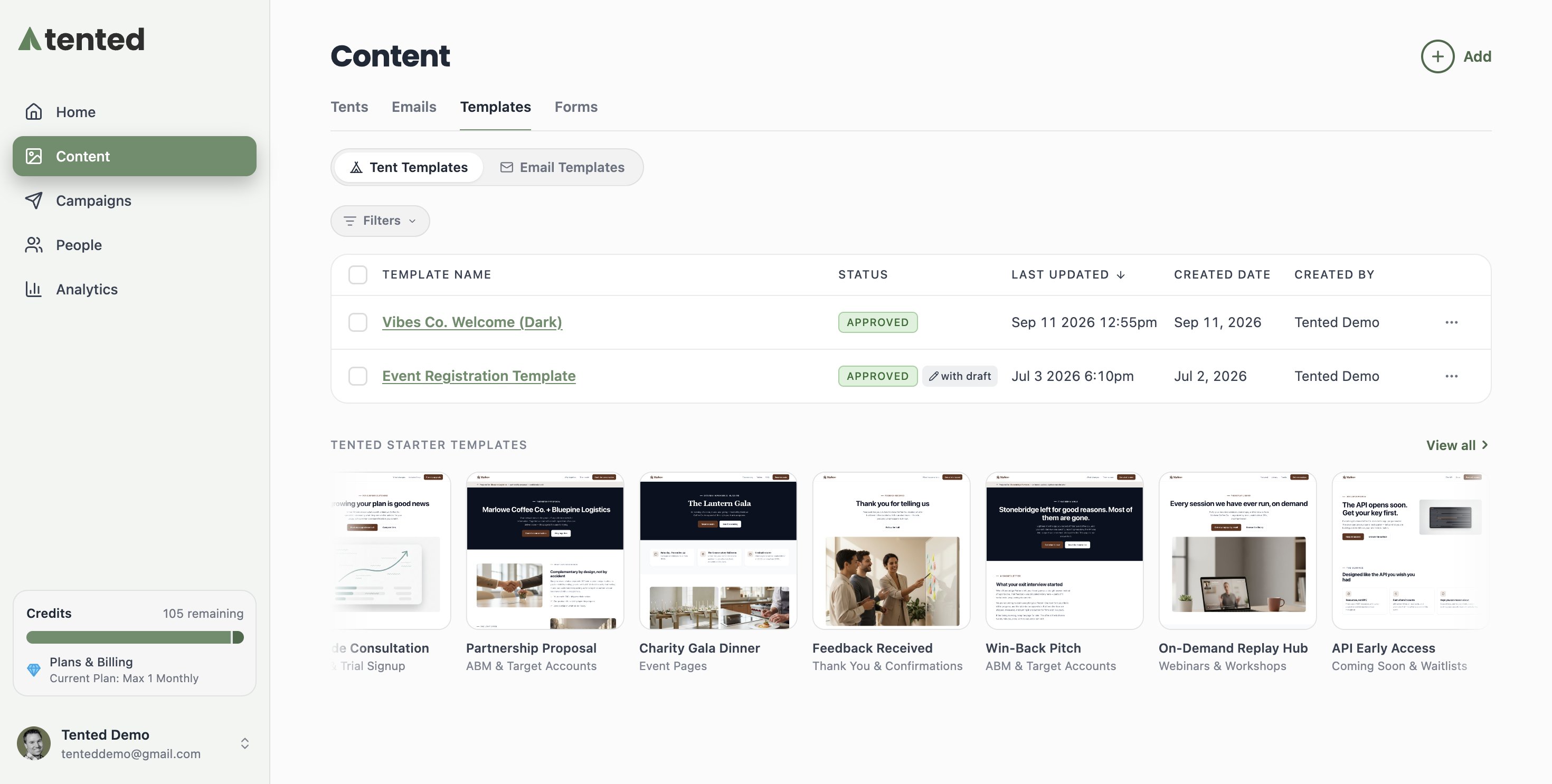
Creating a template
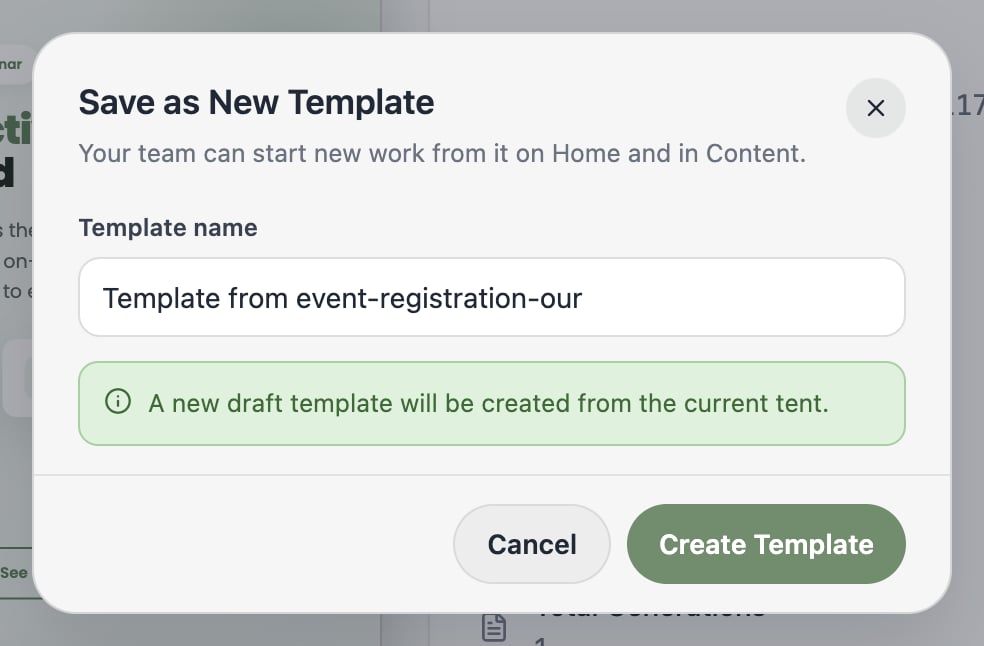
The easiest way is to save an existing tent:- Open the tent’s Tent Details page.
- Choose Tent Actions > Save as New Template.
- Name it and click Create Template.
Editing and approving
A template opens in the same editor as a tent: chat to refine it, or edit the code directly.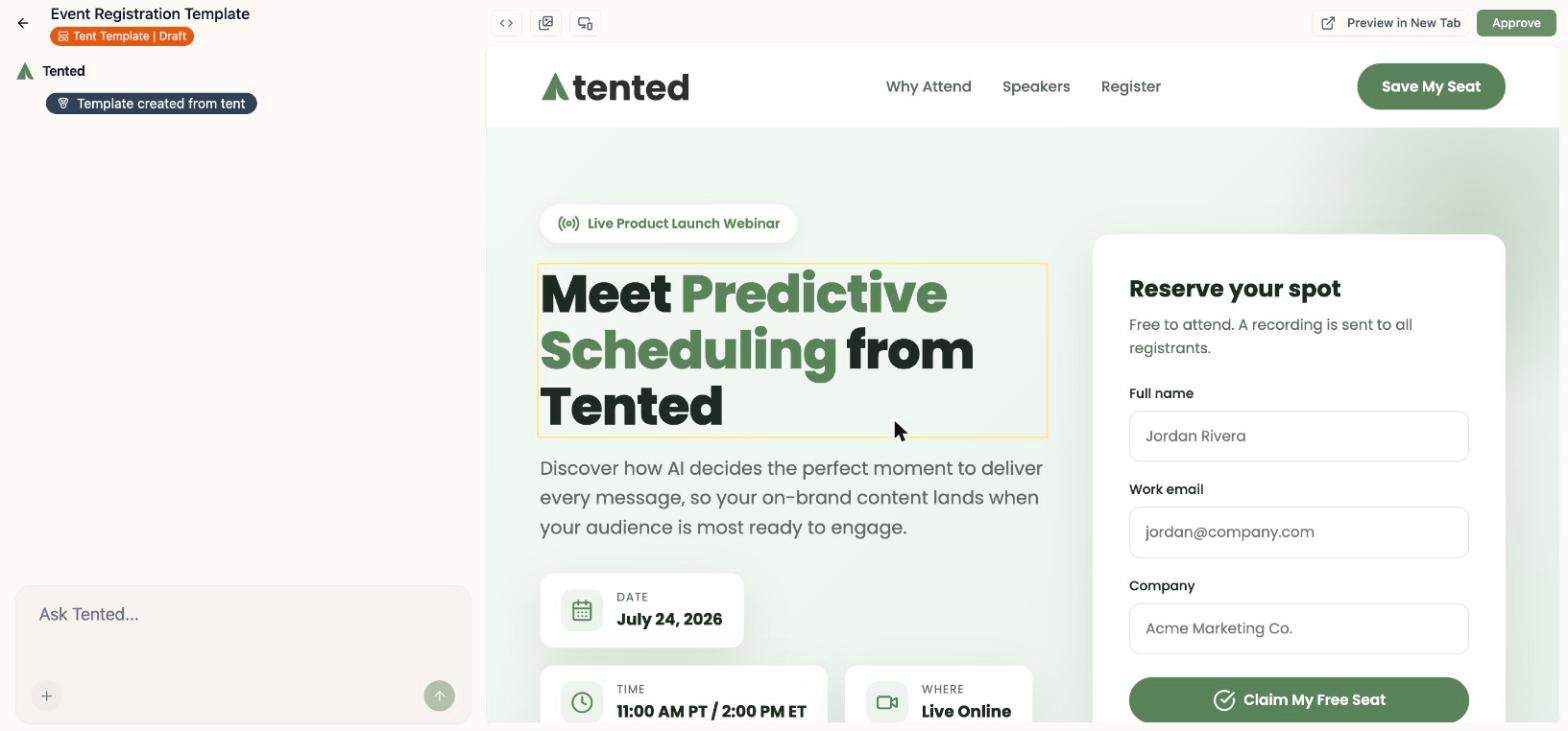
Using a template
When you create a tent (Content > Add > Create Tent), the Choose Tent Template gallery opens. Your approved templates appear in its My Templates section, next to Tented’s example templates. Pick one, name the tent, and click Create Tent. Your new tent starts from that design, and you customize it with chat, leaving the template untouched.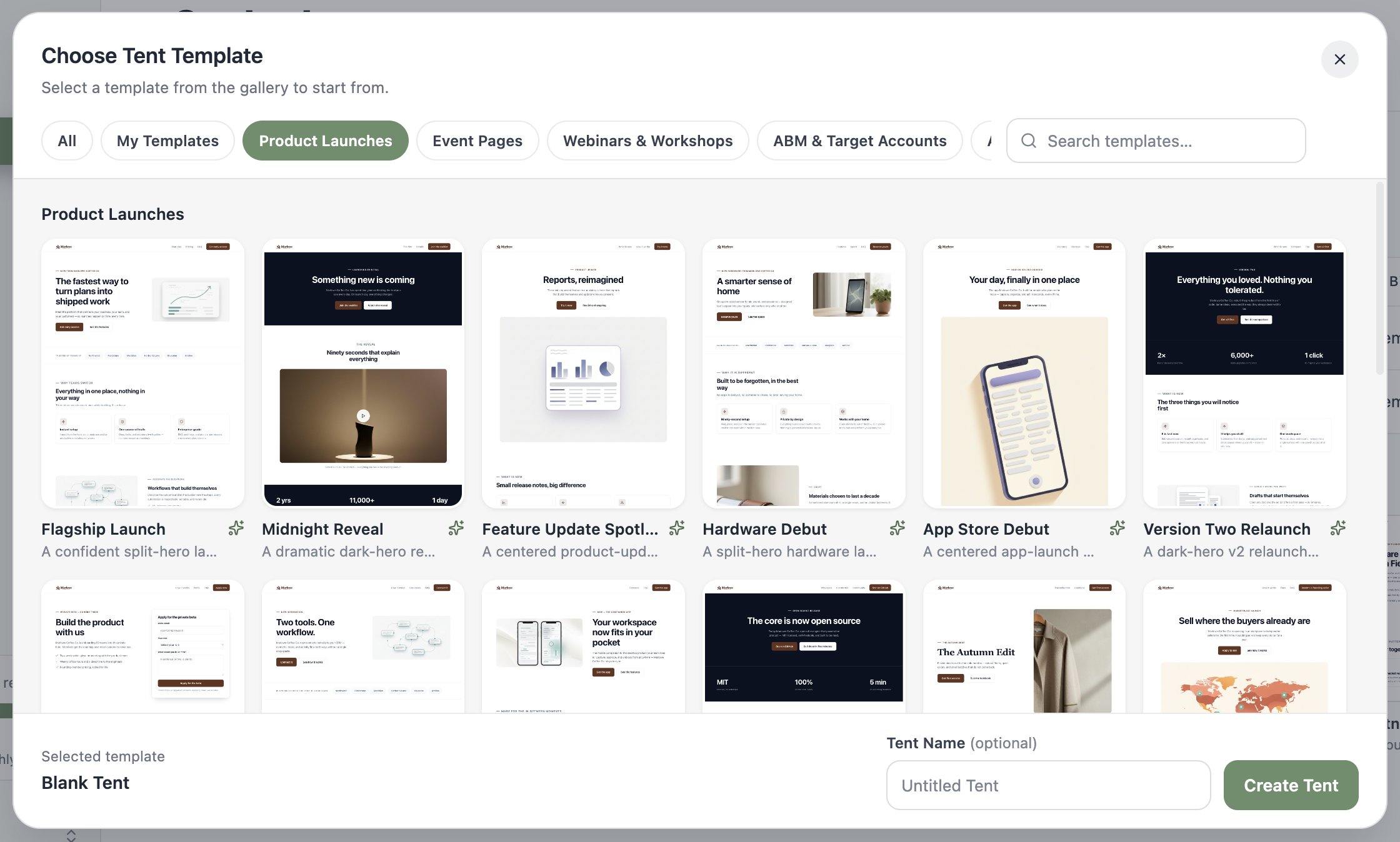
Next: Editing Tents
Master the chat-based editing workflow.