

Workspace Settings Overview
Workspace settings control your company information, branding, team, integrations, and Tented plan: everything shared by your whole workspace. Click your profile in the bottom-left corner, then select Settings from the menu that opens.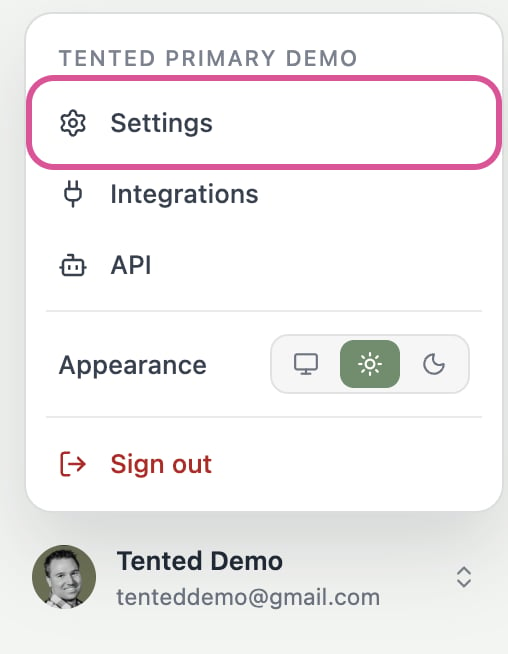
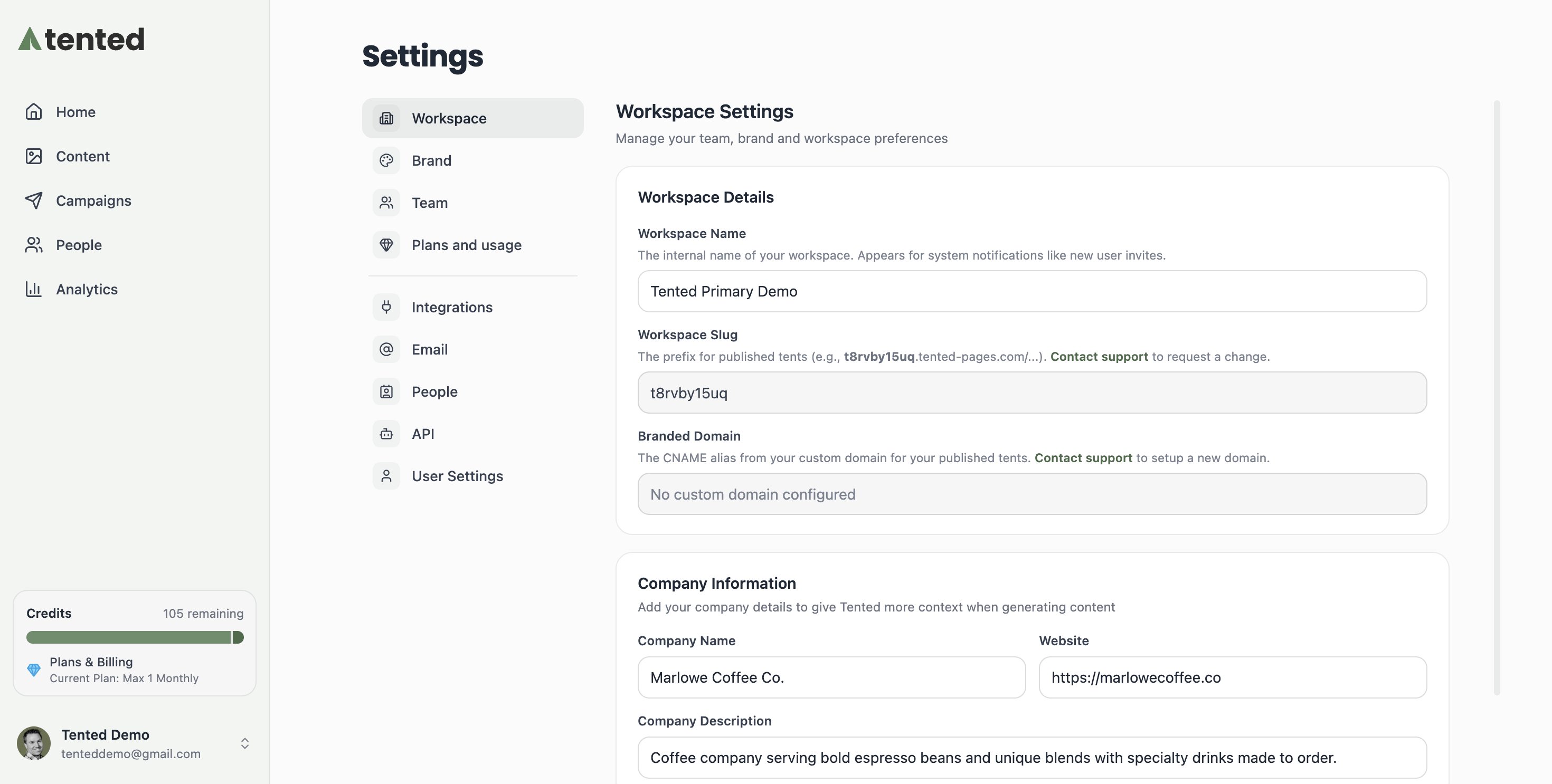
- Workspace: workspace details and company information (below).
- Brand: your logo, icon, color, and brand guidelines (below).
- Team: invite and manage teammates. See Managing Users.
- Plans and usage: your plan, what you’ve used this period, and the plans you can move to. See Managing Your Subscription.
- Integrations: connect Slack, Microsoft Teams, HubSpot, Clay, and more.
- Email: sending domain, sender profile, default headers, and unsubscribe footer. See Setting Up Email.
- People: standard and custom contact fields.
- API: API keys and usage. See API Keys & Usage.
- User Settings: your own profile. See User Settings.
Workspace Details
- Workspace Name: The internal name of your workspace, used in system notifications like user invites.
- Workspace Slug: A unique identifier used as the prefix for your published tents (e.g.,
t8rvby15uq.tented-pages.com/...). Contact support to request a change. - Branded Domain: The CNAME alias from your custom domain for published tents. See Custom Domains.
Company Information
Give Tented context for on-brand AI generation:- Company Name and Website
- Company Description: A brief description of what your company does.
Brand
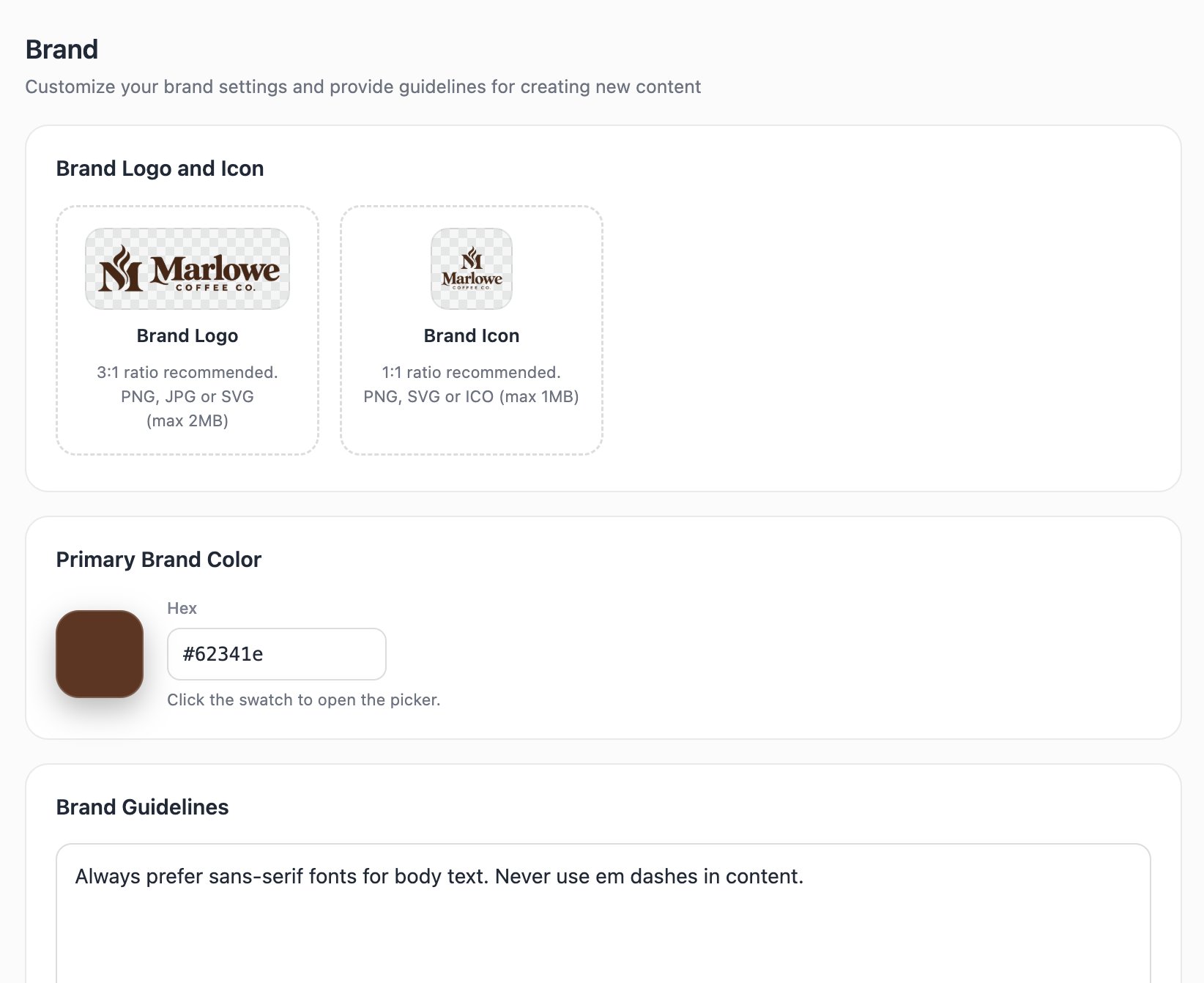
- Primary Brand Color: Your main brand color (used for buttons and accents).
- Brand Logo: PNG, JPG, or SVG with a 3:1 aspect ratio and transparent background (max 2MB).
- Brand Icon: PNG, SVG, or ICO with a 1:1 (square) aspect ratio (max 1MB).
- Brand Guidelines: Free-text guidance the AI follows when generating content — fonts to prefer, tone, things to avoid.
Next: Custom Domains
Serve your published tents from your own branded domain.