

Select everyone, not just this page
The checkbox at the top of the People table selects the people on the page you’re looking at. When a view holds more people than fit on one page, a Select all [N] button appears next to the selection count. Click it and the whole view is selected: every page, not only what’s loaded.
- All People, including any filters and search you’ve applied
- A static or dynamic list, including its search and its blocked-contacts chip
With everyone selected, People Actions offers two things: Export as CSV and Delete all. To edit a field or change lists, clear the selection and pick people on a page.
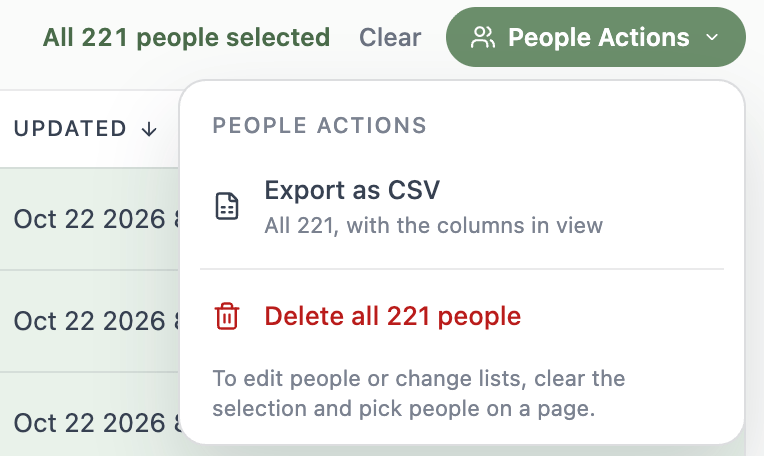
Export everyone
Choose People Actions > Export as CSV to export the whole view with the columns you have showing. In All People, the export follows your filters and search. A list export always includes every member of the list, so clear the list’s search or blocked-contacts chip before exporting.Delete everyone in a view
- Select everyone in the view (see above).
- Choose People Actions > Delete all [N] people.
- Read what will be deleted. The dialog spells out the view, for example Everyone in your People database will be deleted or Everyone in VIP Customers will be deleted from your workspace, not just removed from the list.
- Type the number of people to confirm, then click Delete [N] people.
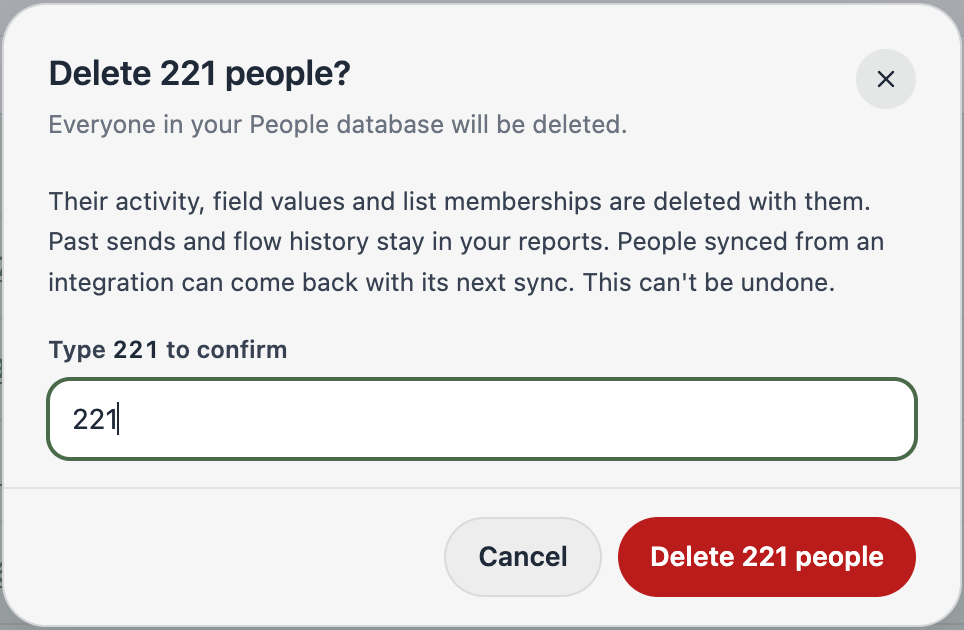
What gets deleted
- The people in the view, along with their activity, field values and list memberships
- Their spot in any triggered flow they’re partway through
- Past sends and flow history, so your email reports still add up
- Anyone who joins the view after it was counted, like a new form submission, an import, or someone added to the list. Only the people Tented counted are ever deleted (see If the view changes).
Following the delete
A big view takes a little while, so the delete runs in the background. A progress card at the top of People shows:- Getting ready to delete [N] people while Tented locks in exactly who will be deleted
- Deleting [N] people, with how many are done so far
Stopping a delete
Admins can click Stop on the progress card. Everyone already deleted stays deleted, and everyone else stays in your workspace.If the view changes
When you open Delete all, Tented counts the view at that moment and notes exactly who is in it. Those are the people you’re confirming.- People added after that moment (a new form submission, an import, someone newly added to a static list) aren’t part of the count, so they won’t be deleted and don’t change the number you type.
- People already in your workspace who move into or out of the view before you confirm (a field edit, an integration sync, someone else deleting people) make Tented tell you the view changed and count it again. Type the number again to go ahead. It can be the same number with different people behind it.
- The same kind of change after you confirm but before deleting starts makes Tented delete nobody and ask you to check the view and start again.
If a delete can’t finish
A banner on People tells you how far it got, for example The delete stopped after 1,300 of 2,600 people. Everyone not yet deleted is still here. Start the delete again to remove the rest.In the iOS app
The Tented iOS app works the same way. Select people, tap Select all [N], then open People Actions to export or (for admins) delete everyone in the view. Progress shows at the top of People, with Stop for admins. An export from the app is prepared for you to download from People on the web.What’s next?
Next: Working with Lists
Organize your contacts into static and dynamic lists, the audiences behind your campaigns.