> ## Documentation Index
> Fetch the complete documentation index at: https://docs.tented.ai/llms.txt
> Use this file to discover all available pages before exploring further.
# Tent Templates
> Turn a tent you love into a reusable starting point for future pages
## Why templates?
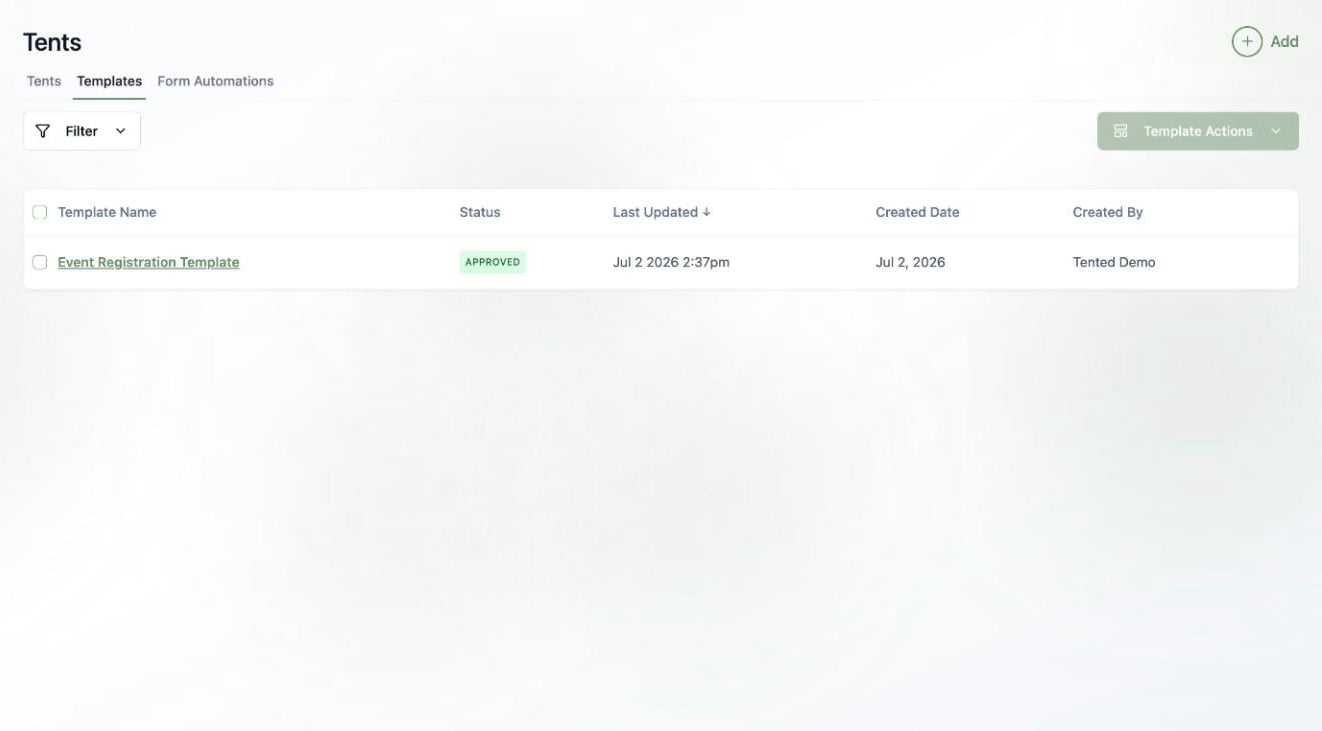
Built a tent whose layout and style you'll want again — a webinar registration page, a product waitlist, a case-study layout? Save it as a **template** and every new tent can start from that design instead of a blank page. Great for keeping a consistent look across campaigns, or handing your team a proven starting point.
Templates live under **Tents > Templates**.
 ## Creating a template
The easiest way is to save an existing tent:
1. Open the tent's **Tent Details** page.
2. Choose **Tent Actions > Save as New Template**.
3. Name it and click **Create Template**.
## Creating a template
The easiest way is to save an existing tent:
1. Open the tent's **Tent Details** page.
2. Choose **Tent Actions > Save as New Template**.
3. Name it and click **Create Template**.
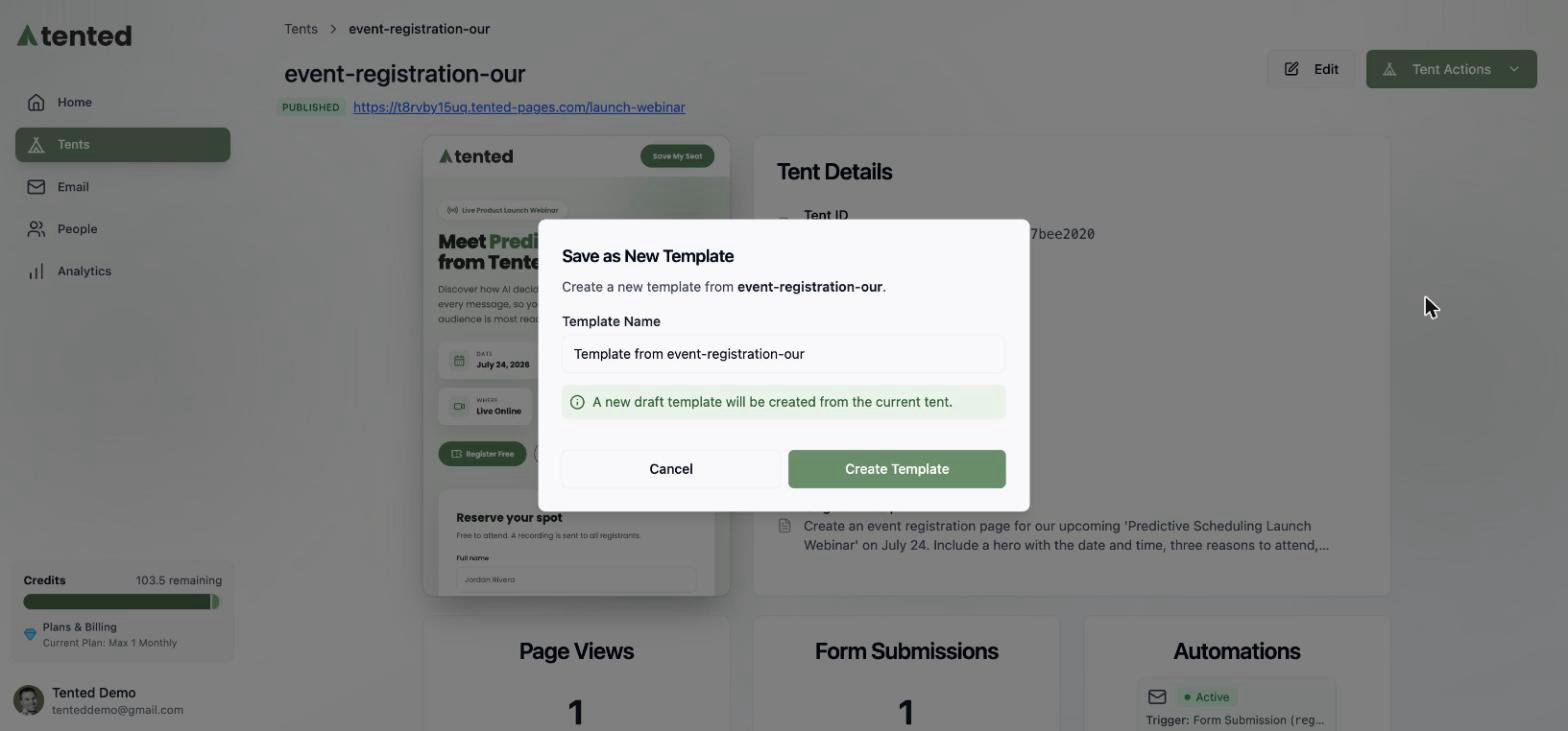 This creates a new **draft** template — a full copy of the tent's design that you can refine independently.
## Editing and approving
A template opens in the same editor as a tent: chat to refine it, or edit the code directly.
This creates a new **draft** template — a full copy of the tent's design that you can refine independently.
## Editing and approving
A template opens in the same editor as a tent: chat to refine it, or edit the code directly.
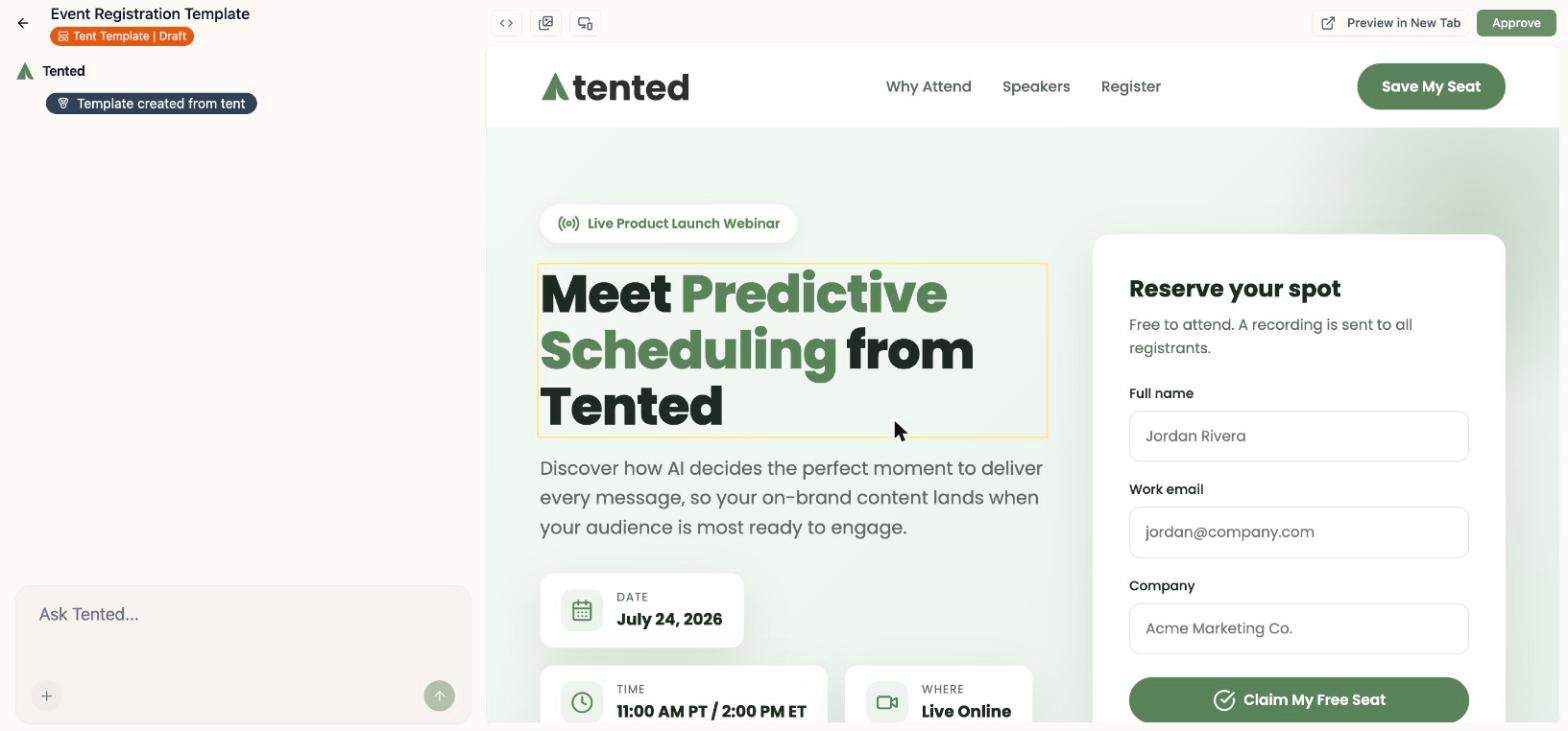 Like emails, templates use an **approval** step: click **Approve** when it's ready. Only **approved** templates appear in the "start from a template" picker — so you can keep works-in-progress as drafts without cluttering everyone's options.
## Using a template
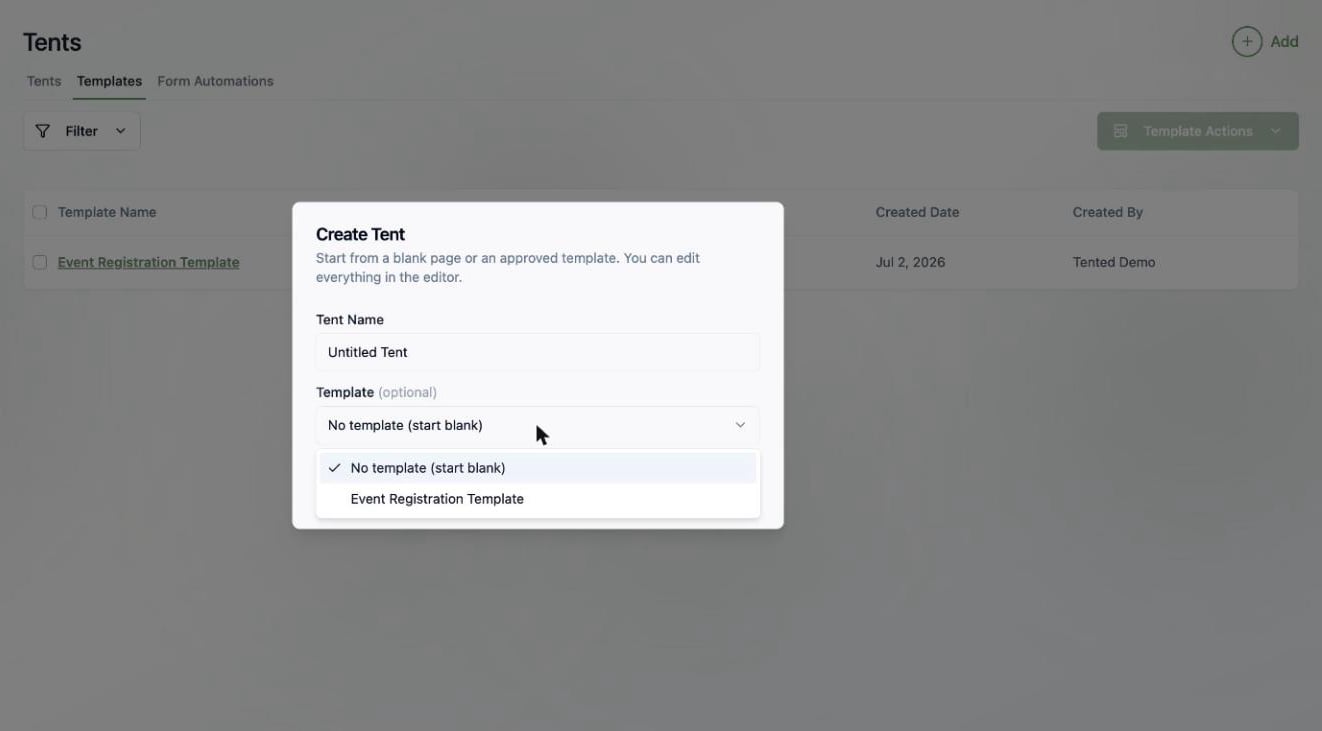
When you create a tent (**Tents > Add > Create Tent**, or **+ Add** from anywhere), the **Template** dropdown lists your approved templates. Pick one and your new tent starts from that design — then customize it with chat, leaving the template untouched.
Like emails, templates use an **approval** step: click **Approve** when it's ready. Only **approved** templates appear in the "start from a template" picker — so you can keep works-in-progress as drafts without cluttering everyone's options.
## Using a template
When you create a tent (**Tents > Add > Create Tent**, or **+ Add** from anywhere), the **Template** dropdown lists your approved templates. Pick one and your new tent starts from that design — then customize it with chat, leaving the template untouched.
 Templates also power the **Create Tent** step in [triggered flows](/email/triggered-flows#the-create-tent-step) — choose **From template** there to spin up a personalized page per contact without spending generation credits.
Master the chat-based editing workflow.
Templates also power the **Create Tent** step in [triggered flows](/email/triggered-flows#the-create-tent-step) — choose **From template** there to spin up a personalized page per contact without spending generation credits.
Master the chat-based editing workflow.