> ## Documentation Index
> Fetch the complete documentation index at: https://docs.tented.ai/llms.txt
> Use this file to discover all available pages before exploring further.
# Managing Tents
> Rename, delete, clone, and manage your tents
## Tent Management Overview
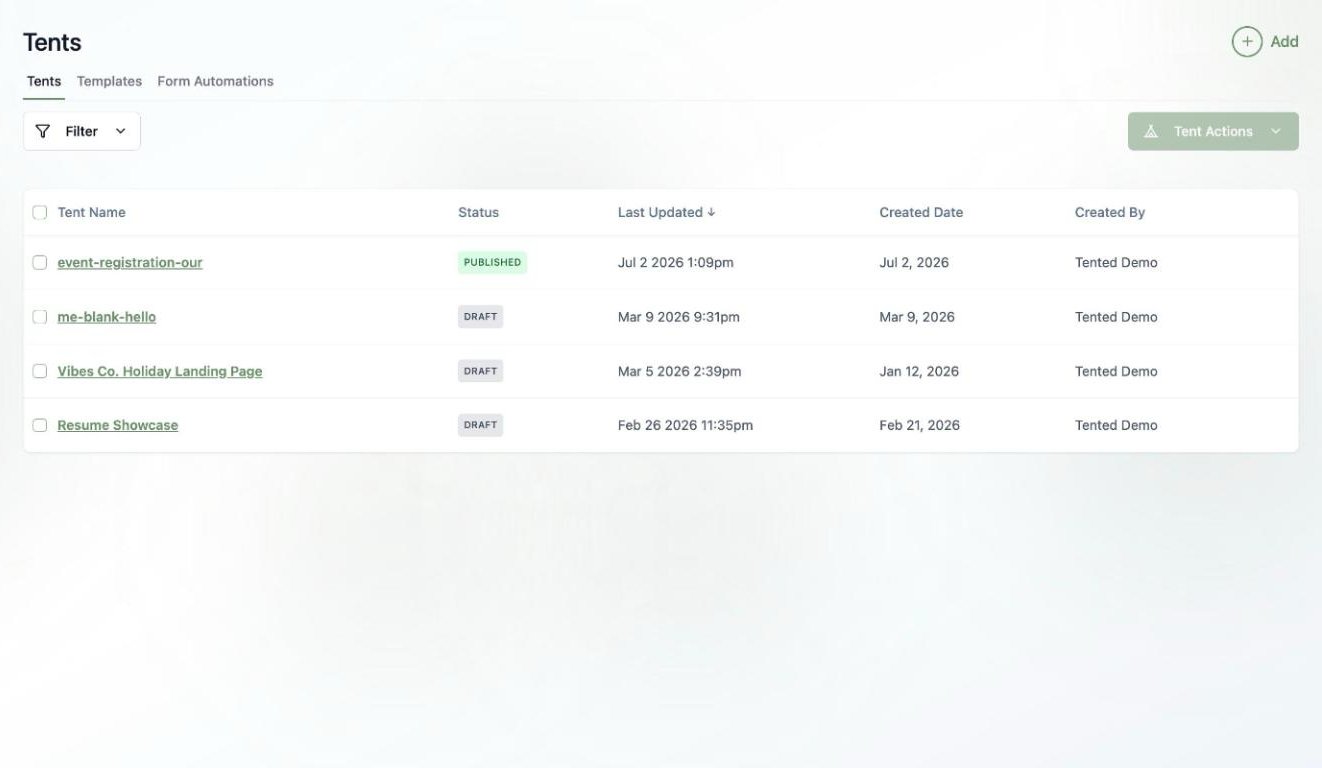
Managing your tents effectively is crucial for maintaining an organized workspace and optimizing your landing page campaigns. Tented provides tools for all aspects of tent lifecycle management. You can find all of your tents in the **Tents** page of your workspace, alongside two sibling tabs: **[Templates](/working-with-tents/tent-templates)** (reusable starting points you create via **Tent Actions > Save as New Template**) and **Form Automations** (every [automation](/working-with-tents/form-automations) across your tents, in one view). The tent list includes each tent's status, last updated date, and creation date. If you have many tents, you can use the search and filter options to quickly find the tent you need.
* Sort by: **Tent Name**, **Last Updated**, and **Created Date**
* Filter by status: **Any**, **Draft**, **Published**
 ## Basic Tent Operations
### Renaming Tents
You can change the autogenerated name for a tent to better reflect its purpose or campaign association. This option is available from multiple locations within the Tented interface.
**From the tent editor or Tent Details page:**
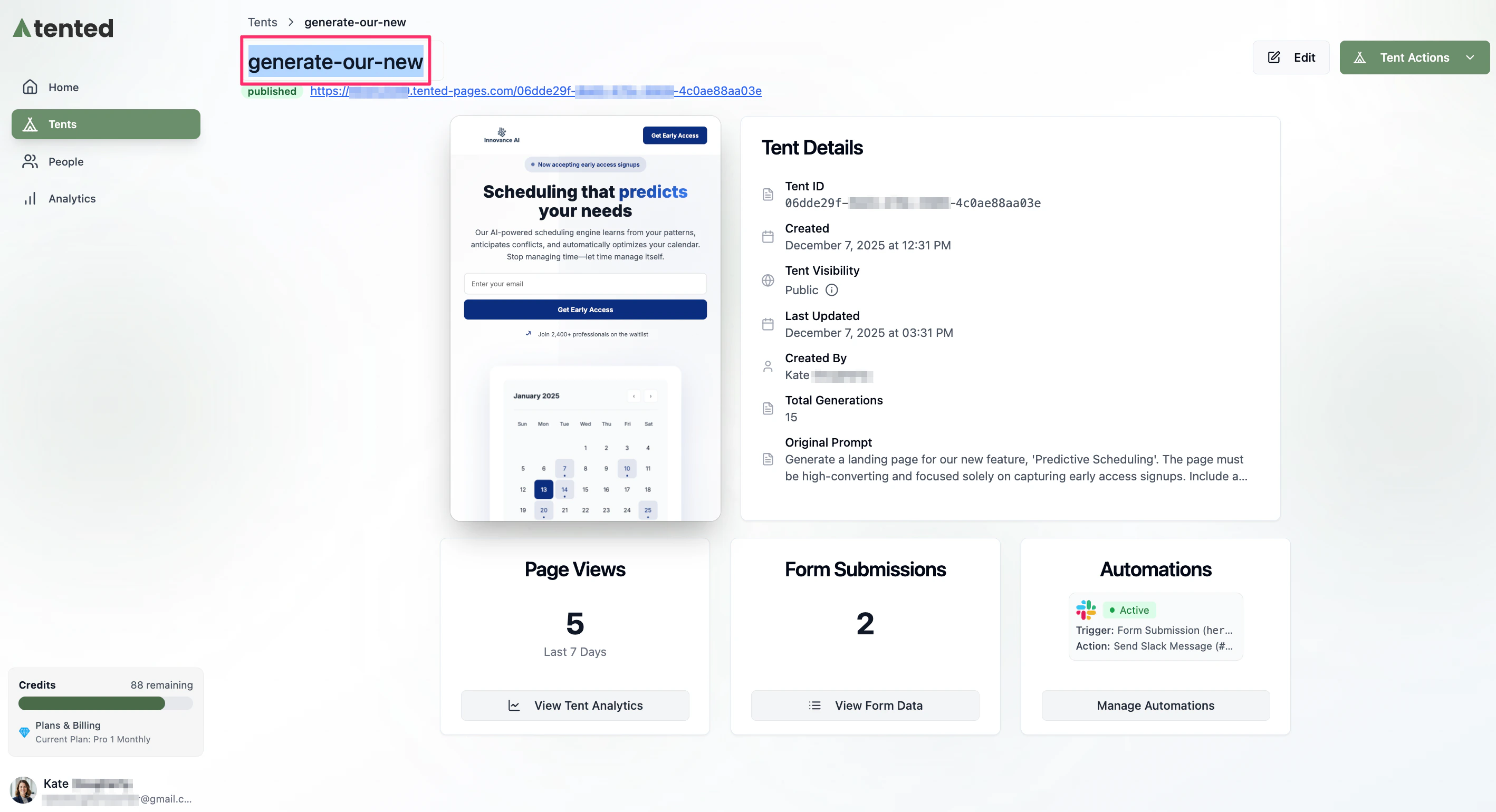
1. Double-click on the tent name to make it editable.
2. Type the new name.
3. Press **Enter/Return** or click outside the field to save your change.
## Basic Tent Operations
### Renaming Tents
You can change the autogenerated name for a tent to better reflect its purpose or campaign association. This option is available from multiple locations within the Tented interface.
**From the tent editor or Tent Details page:**
1. Double-click on the tent name to make it editable.
2. Type the new name.
3. Press **Enter/Return** or click outside the field to save your change.
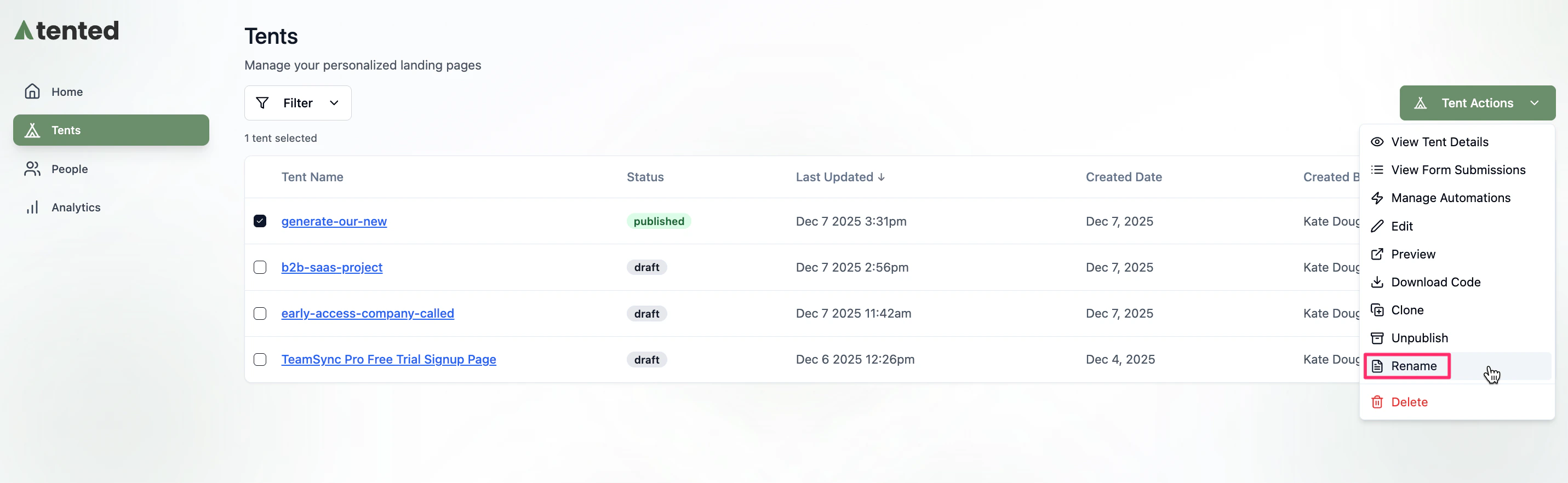
 You can also Click **Tent Actions > Rename** at the top right of the **Tent Details** page.
**From the tent list:**
1. Navigate to the **Tents** page.
2. Select the checkbox next to the tent name.
3. Click **Tent Actions > Rename** at the top right.
4. In the **Rename Tent** window that opens, type the new name and click **Save**.
You can also Click **Tent Actions > Rename** at the top right of the **Tent Details** page.
**From the tent list:**
1. Navigate to the **Tents** page.
2. Select the checkbox next to the tent name.
3. Click **Tent Actions > Rename** at the top right.
4. In the **Rename Tent** window that opens, type the new name and click **Save**.
 ### Deleting Tents
If you no longer want to keep a tent in your account, you can delete any tent regardless of its status. Keep in mind that if you've shared the live URL of a published tent, that it will no longer be available on the internet when you delete it. If you're ready to delete, follow these steps.
Deleting a tent is permanent and cannot be undone. All associated data, including form submissions and analytics, will be lost forever. Be sure to export any important data before proceeding. Consider using the [clone feature](#cloning-tents) for backups.
**From the Tent Details page:**
1. Click **Tent Actions > Delete** at the top right.
2. Confirm the deletion in the dialog box.
**From the tent list:**
1. Navigate to the **Tents** page.
2. Select the checkbox next to the tent name.
3. Click **Tent Actions > Delete** at the top right.
4. Confirm the deletion in the dialog box.
**What Gets Deleted:**
* Tent code and content
* Generation history
* Form submission data
* Analytics data
* Published URL (becomes inactive)
### Cloning Tents
You can clone a tent to create variations of your landing page for A/B testing, or for other reasons. Here are some other use cases for cloning tents:
* Creating variations for different audiences
* Seasonal campaign updates
* Regional or language variations
Note that form submission data, analytics, and the published URL are not cloned. The cloned tent will have a status of **Draft** and will not be live until you [publish](/working-with-tents/publishing-tents) it.
**From the Tent Details page:**
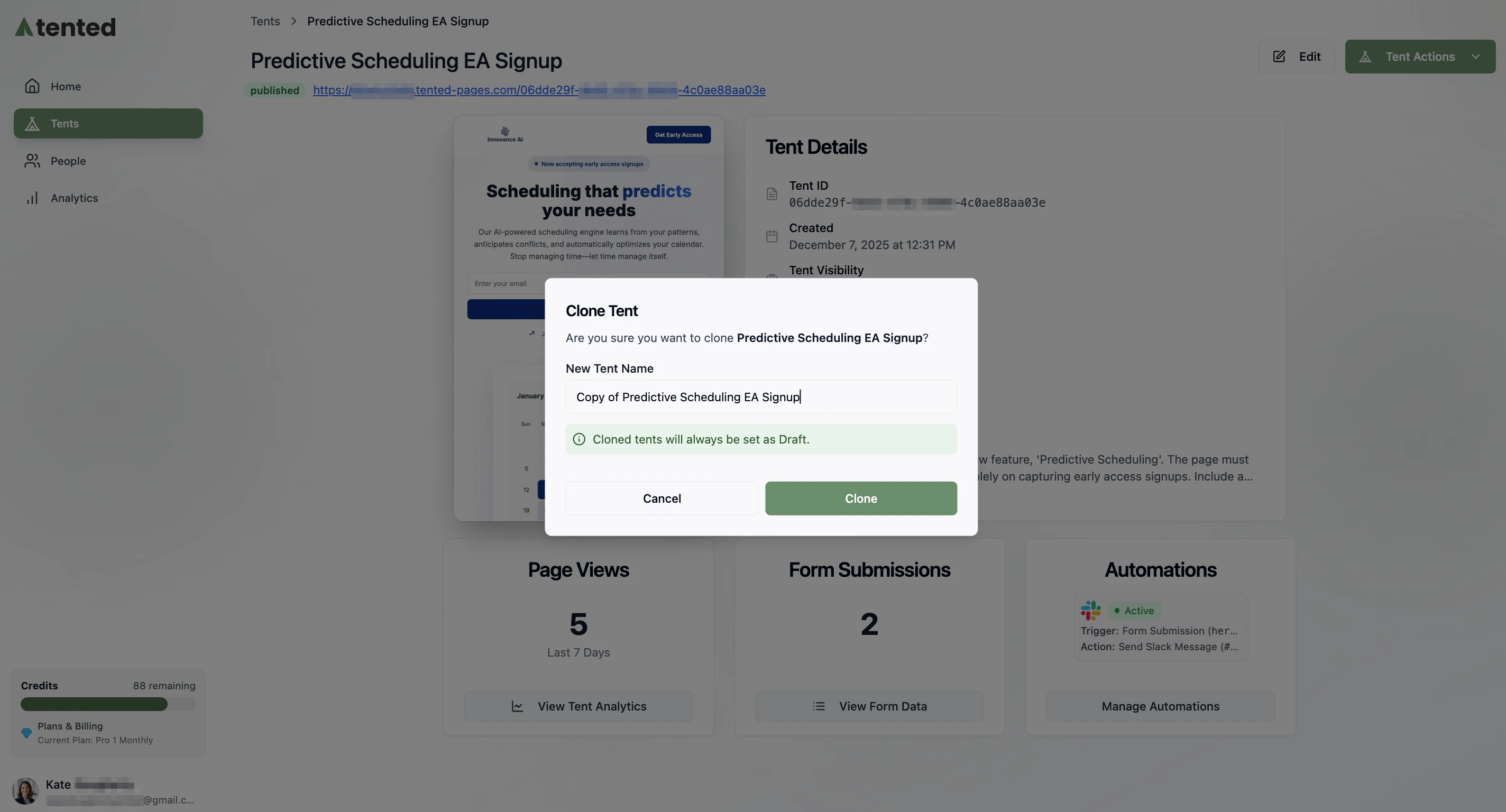
1. Click **Tent Actions > Clone** at the top right.
2. In the **Clone Tent** window, enter a name for the new tent and click **Clone**.
The tent is cloned and appears in your tent list. It will have a status of **Draft**.
### Deleting Tents
If you no longer want to keep a tent in your account, you can delete any tent regardless of its status. Keep in mind that if you've shared the live URL of a published tent, that it will no longer be available on the internet when you delete it. If you're ready to delete, follow these steps.
Deleting a tent is permanent and cannot be undone. All associated data, including form submissions and analytics, will be lost forever. Be sure to export any important data before proceeding. Consider using the [clone feature](#cloning-tents) for backups.
**From the Tent Details page:**
1. Click **Tent Actions > Delete** at the top right.
2. Confirm the deletion in the dialog box.
**From the tent list:**
1. Navigate to the **Tents** page.
2. Select the checkbox next to the tent name.
3. Click **Tent Actions > Delete** at the top right.
4. Confirm the deletion in the dialog box.
**What Gets Deleted:**
* Tent code and content
* Generation history
* Form submission data
* Analytics data
* Published URL (becomes inactive)
### Cloning Tents
You can clone a tent to create variations of your landing page for A/B testing, or for other reasons. Here are some other use cases for cloning tents:
* Creating variations for different audiences
* Seasonal campaign updates
* Regional or language variations
Note that form submission data, analytics, and the published URL are not cloned. The cloned tent will have a status of **Draft** and will not be live until you [publish](/working-with-tents/publishing-tents) it.
**From the Tent Details page:**
1. Click **Tent Actions > Clone** at the top right.
2. In the **Clone Tent** window, enter a name for the new tent and click **Clone**.
The tent is cloned and appears in your tent list. It will have a status of **Draft**.
 **From the tent list:**
1. Navigate to the **Tents** page.
2. Select the checkbox next to the tent name.
3. Click **Tent Actions > Clone** at the top right.
4. Confirm the action in the dialog box.
The tent is cloned and appears in your tent list. It will have a status of **Draft**.
## Publishing Management
### Unpublishing a Tent
A tent can be unpublished at any time so that it's no longer available on the web.
**From the Tent Details page:**
1. Select **Tent Actions > Unpublish** at the top right.
2. Confirm that you want to unpublish the tent.
The tent becomes private. The URL is inactive and the tent status returns to **Draft**.
You can [republish](/working-with-tents/publishing-tents) the tent later if needed.
## Data Management
### Viewing and Exporting Tent Data
For information on form submission data and analytics, see:
* [Viewing Form Submissions](/working-with-tents/viewing-form-submissions)
* [Viewing Current Usage](/billing-subscriptions/viewing-usage)
Learn how to configure workspace settings and preferences.
**From the tent list:**
1. Navigate to the **Tents** page.
2. Select the checkbox next to the tent name.
3. Click **Tent Actions > Clone** at the top right.
4. Confirm the action in the dialog box.
The tent is cloned and appears in your tent list. It will have a status of **Draft**.
## Publishing Management
### Unpublishing a Tent
A tent can be unpublished at any time so that it's no longer available on the web.
**From the Tent Details page:**
1. Select **Tent Actions > Unpublish** at the top right.
2. Confirm that you want to unpublish the tent.
The tent becomes private. The URL is inactive and the tent status returns to **Draft**.
You can [republish](/working-with-tents/publishing-tents) the tent later if needed.
## Data Management
### Viewing and Exporting Tent Data
For information on form submission data and analytics, see:
* [Viewing Form Submissions](/working-with-tents/viewing-form-submissions)
* [Viewing Current Usage](/billing-subscriptions/viewing-usage)
Learn how to configure workspace settings and preferences.