> ## Documentation Index
> Fetch the complete documentation index at: https://docs.tented.ai/llms.txt
> Use this file to discover all available pages before exploring further.
# Managing Contacts
> Build and manage your contact database in the People area
## Meet the People area
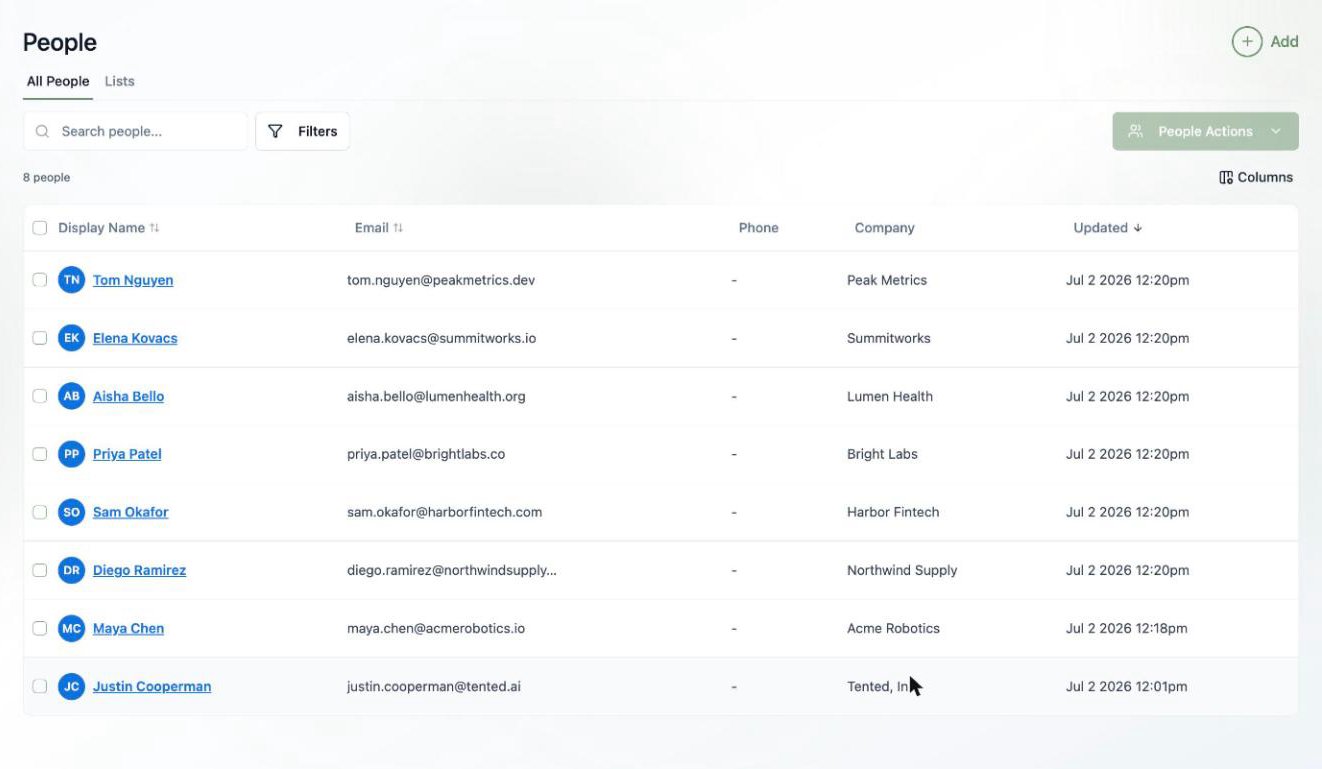
The **People** area is your contact database inside Tented. Every person you market to — leads from tent forms, imported lists, customers you add by hand — lives here, ready to be organized into lists and reached through [email blasts](/email/email-blasts) and [triggered flows](/email/triggered-flows).
Click **People** in the sidebar to see everyone in your database. You can sort by any column, search by name or email, and customize which columns appear with the **Columns** button.
 ## Adding contacts
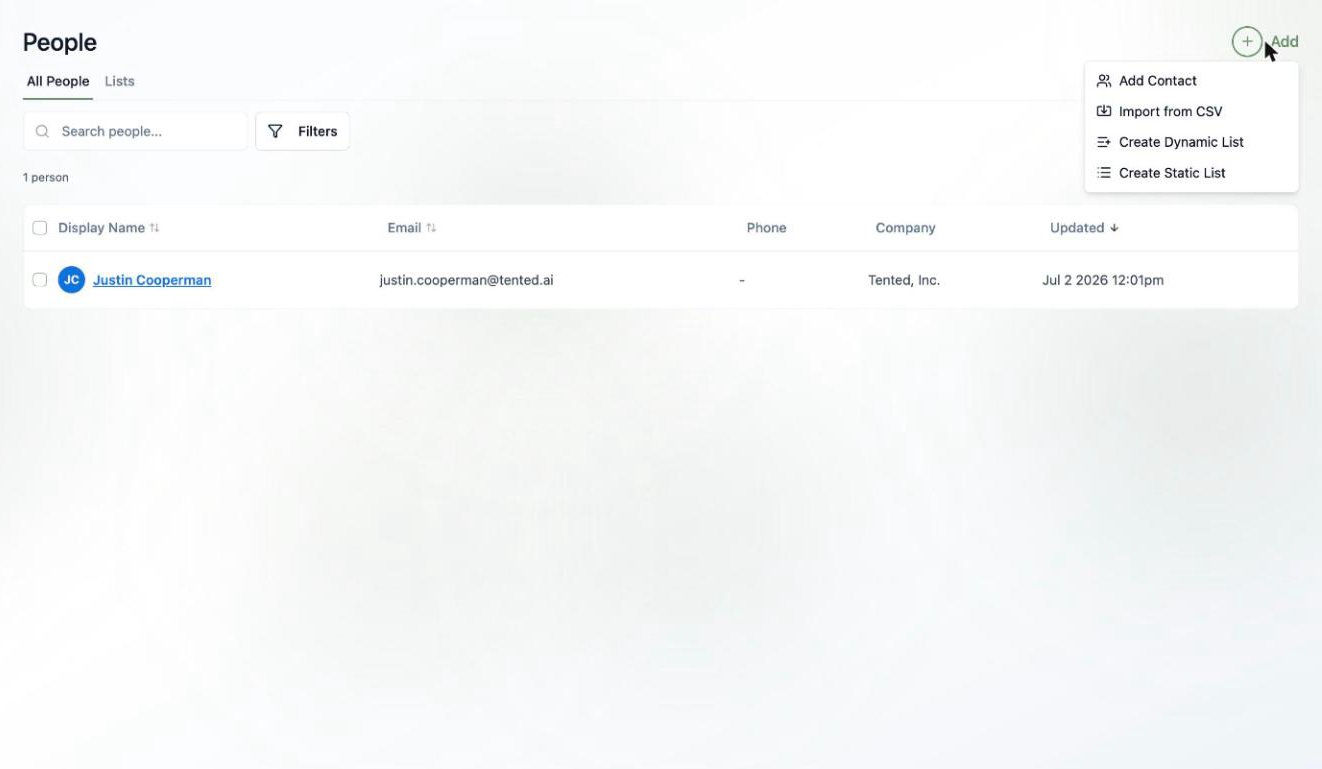
Click the **Add** button in the top-right corner to see your options:
## Adding contacts
Click the **Add** button in the top-right corner to see your options:
 ### Quick Add
Perfect for adding one person at a time. An email *or* phone number is required — everything else is optional:
* **Email** and **Phone**
* **First Name** and **Last Name**
* **Company** and **Job Title**
### Quick Add
Perfect for adding one person at a time. An email *or* phone number is required — everything else is optional:
* **Email** and **Phone**
* **First Name** and **Last Name**
* **Company** and **Job Title**
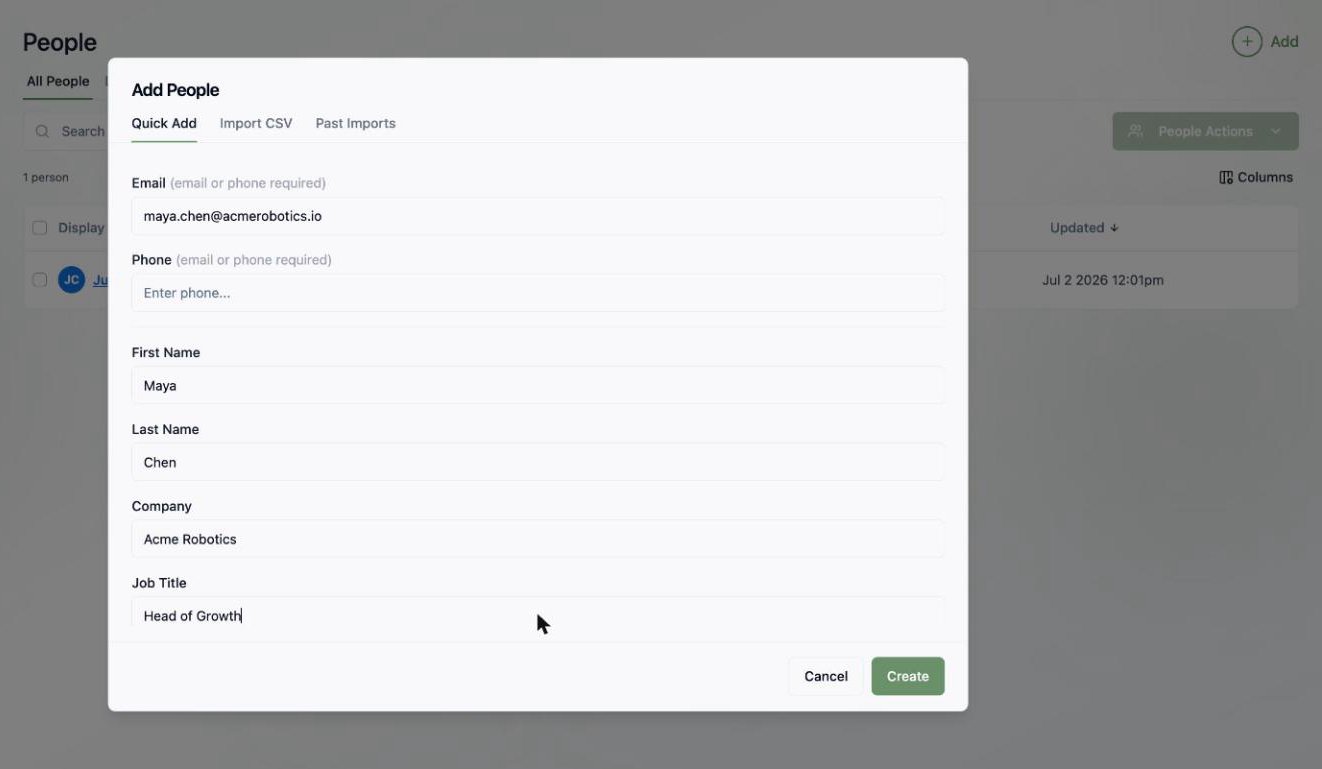 Click **Create** and the contact appears in your database instantly.
### Import from CSV
Got a whole list? Choose **Import from CSV** and drag in your file. Tented reads your column headers, auto-maps them to contact fields, and gives you a row-by-row report when it's done.
Click **Create** and the contact appears in your database instantly.
### Import from CSV
Got a whole list? Choose **Import from CSV** and drag in your file. Tented reads your column headers, auto-maps them to contact fields, and gives you a row-by-row report when it's done.
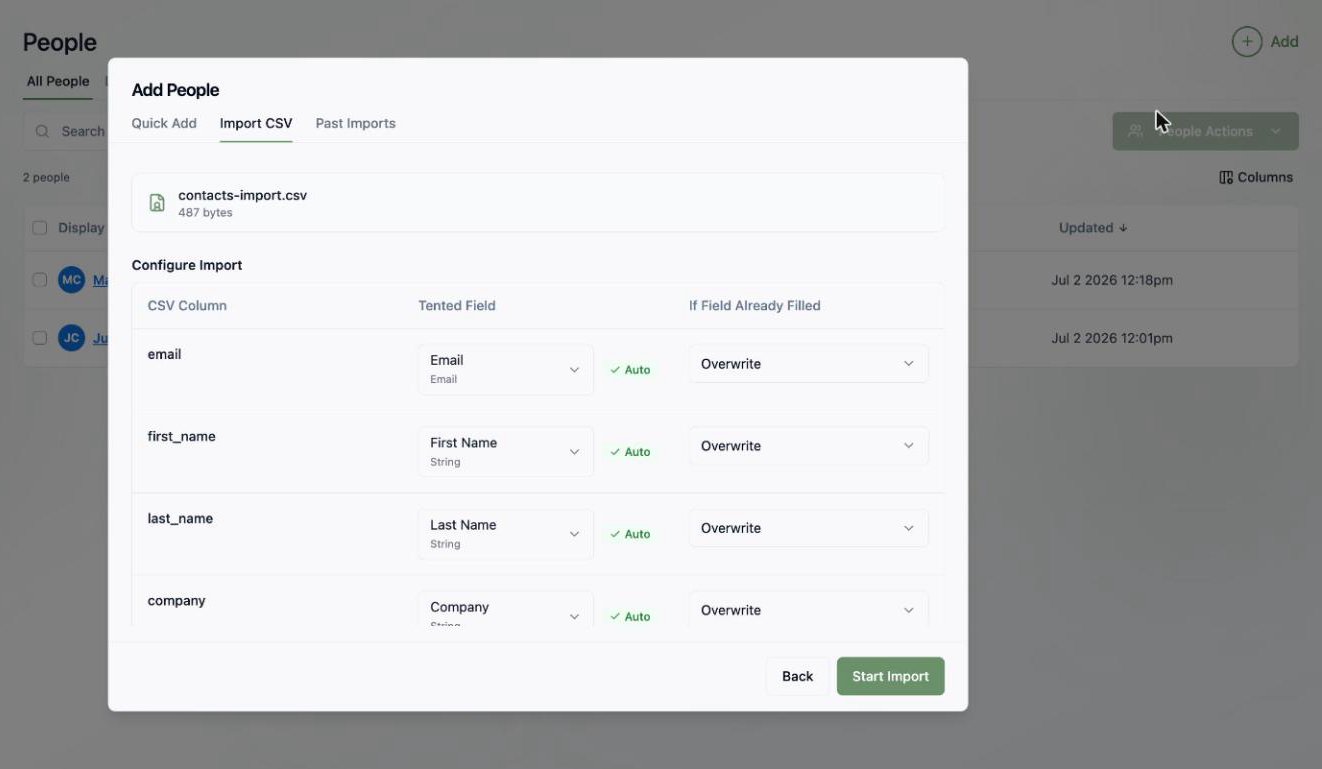 For the full walkthrough — column mapping, overwrite behavior, custom fields, and import history — see [Importing Contacts via CSV](/people/importing-contacts).
## Viewing a contact
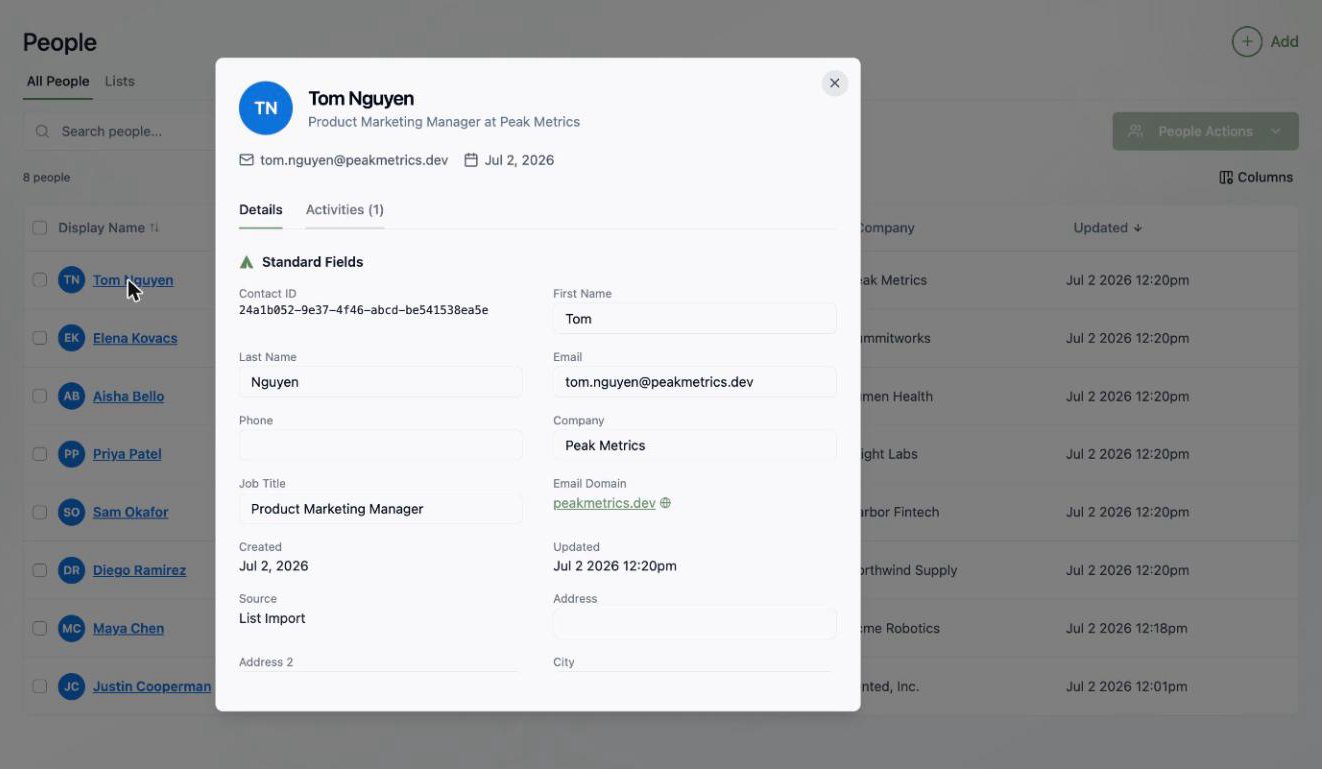
Click any contact's name to open their profile. The **Details** tab shows all their [standard and custom fields](/people/contact-fields) — name, email, company, job title, address, lead status, lifecycle stage, and their **Unsubscribed** status for email marketing. You'll also see which [lists](/people/working-with-lists) they belong to and any [triggered flows](/email/triggered-flows) they're enrolled in.
For the full walkthrough — column mapping, overwrite behavior, custom fields, and import history — see [Importing Contacts via CSV](/people/importing-contacts).
## Viewing a contact
Click any contact's name to open their profile. The **Details** tab shows all their [standard and custom fields](/people/contact-fields) — name, email, company, job title, address, lead status, lifecycle stage, and their **Unsubscribed** status for email marketing. You'll also see which [lists](/people/working-with-lists) they belong to and any [triggered flows](/email/triggered-flows) they're enrolled in.
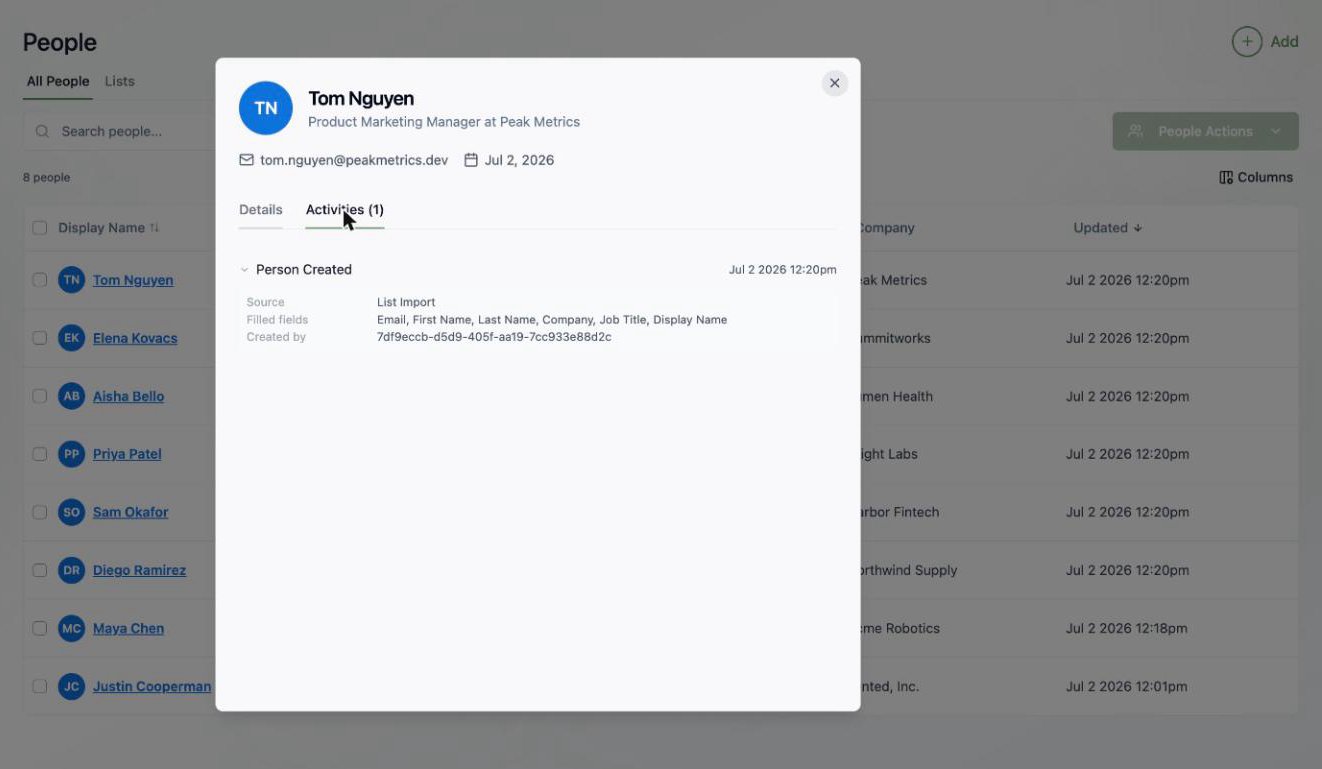
 The **Activities** tab is a running timeline of everything that's happened with this contact — when they were created, which fields were updated, forms they submitted, and lists they joined or left.
 ## Filtering people
Click **Filters** to slice your database with audience rules. Rules can match on:
* **Contact property** — any standard field, like *Job Title contains "Marketing"*
* **Activity** — things that happened, like *Form Submitted in the last 7 days*
* **List membership** — whether someone is (or isn't) on a specific list
Combine multiple rules and groups to get as specific as you need.
## Filtering people
Click **Filters** to slice your database with audience rules. Rules can match on:
* **Contact property** — any standard field, like *Job Title contains "Marketing"*
* **Activity** — things that happened, like *Form Submitted in the last 7 days*
* **List membership** — whether someone is (or isn't) on a specific list
Combine multiple rules and groups to get as specific as you need.
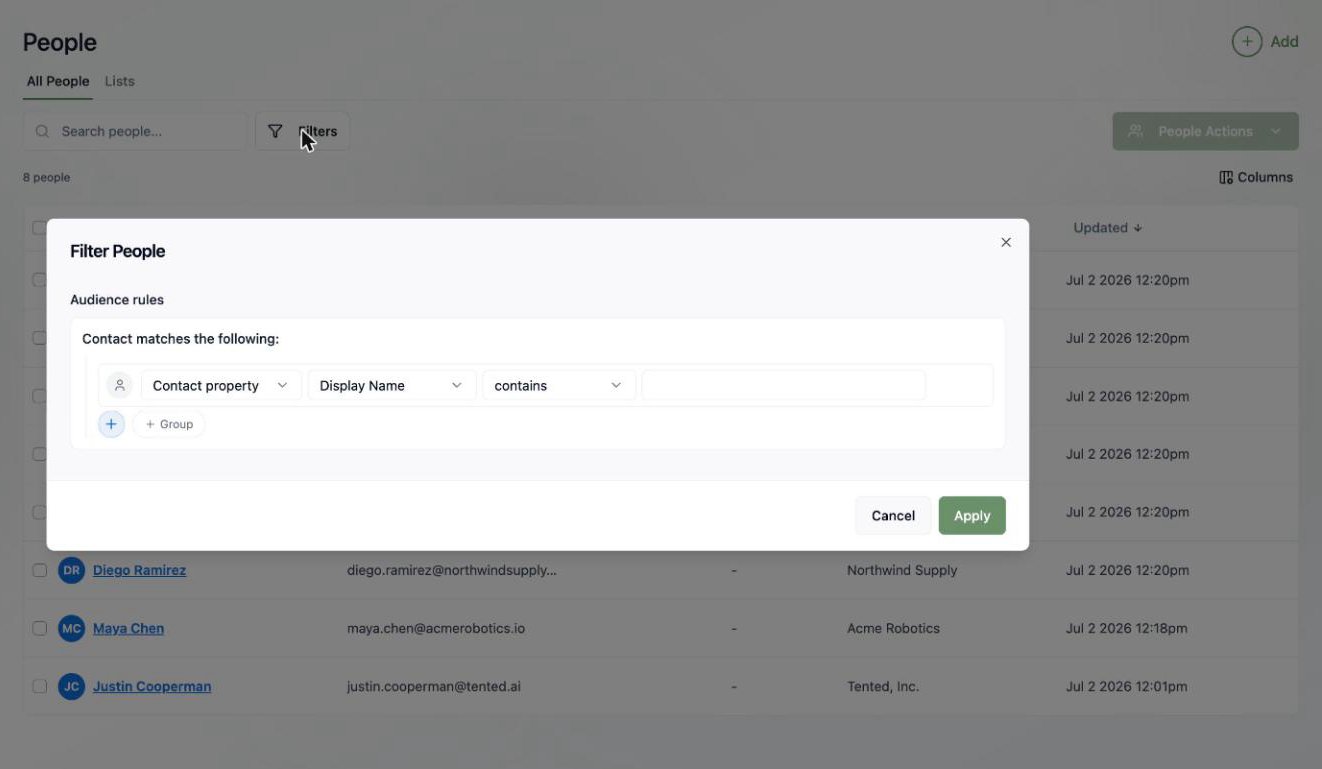 These are the same audience rules used to build [dynamic lists](/people/working-with-lists#dynamic-lists) — so if you find yourself applying the same filter over and over, save it as a dynamic list instead.
## Bulk actions
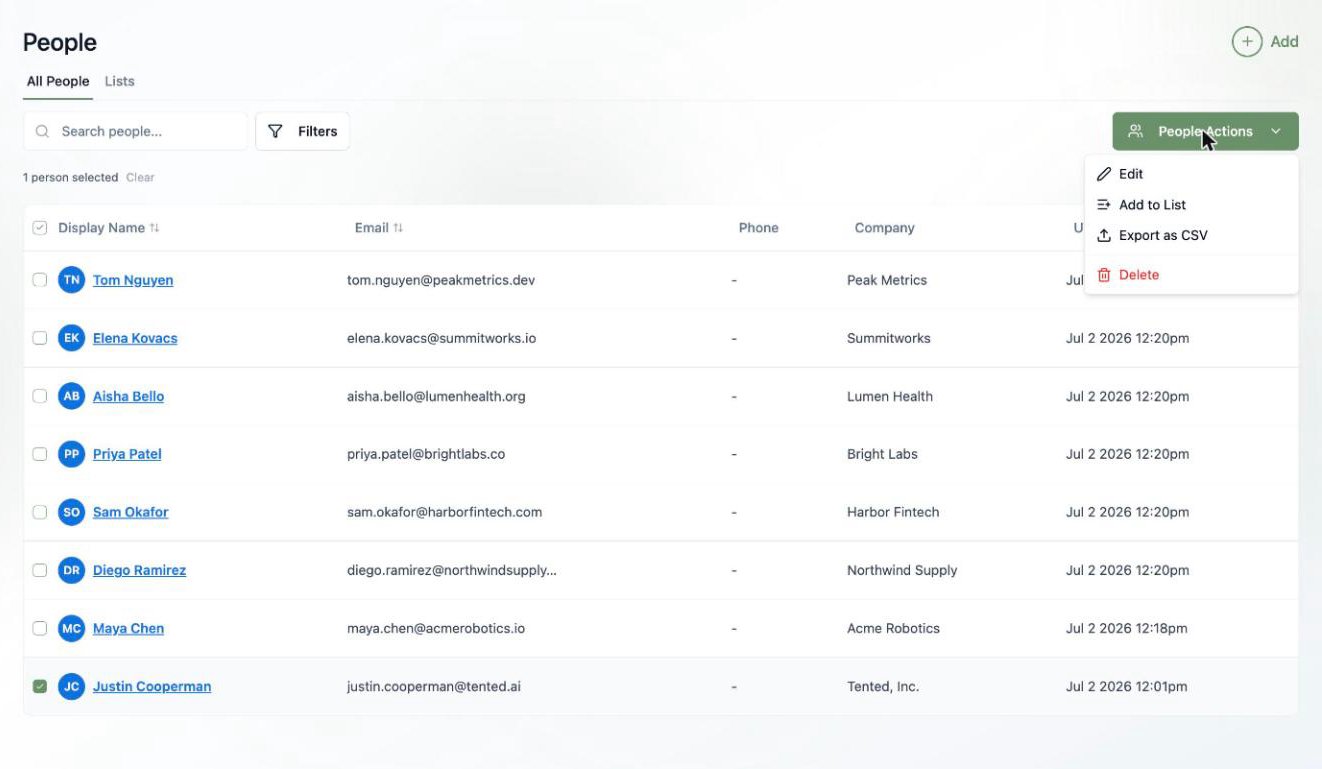
Select one or more contacts with the checkboxes and the **People Actions** menu lights up. From there you can:
* **Edit** — bulk-update a field across every selected contact (see below)
* **Add to List** — drop them into an existing static list or create a new one on the spot
* **Export as CSV**
* **Delete** contacts you no longer need
These are the same audience rules used to build [dynamic lists](/people/working-with-lists#dynamic-lists) — so if you find yourself applying the same filter over and over, save it as a dynamic list instead.
## Bulk actions
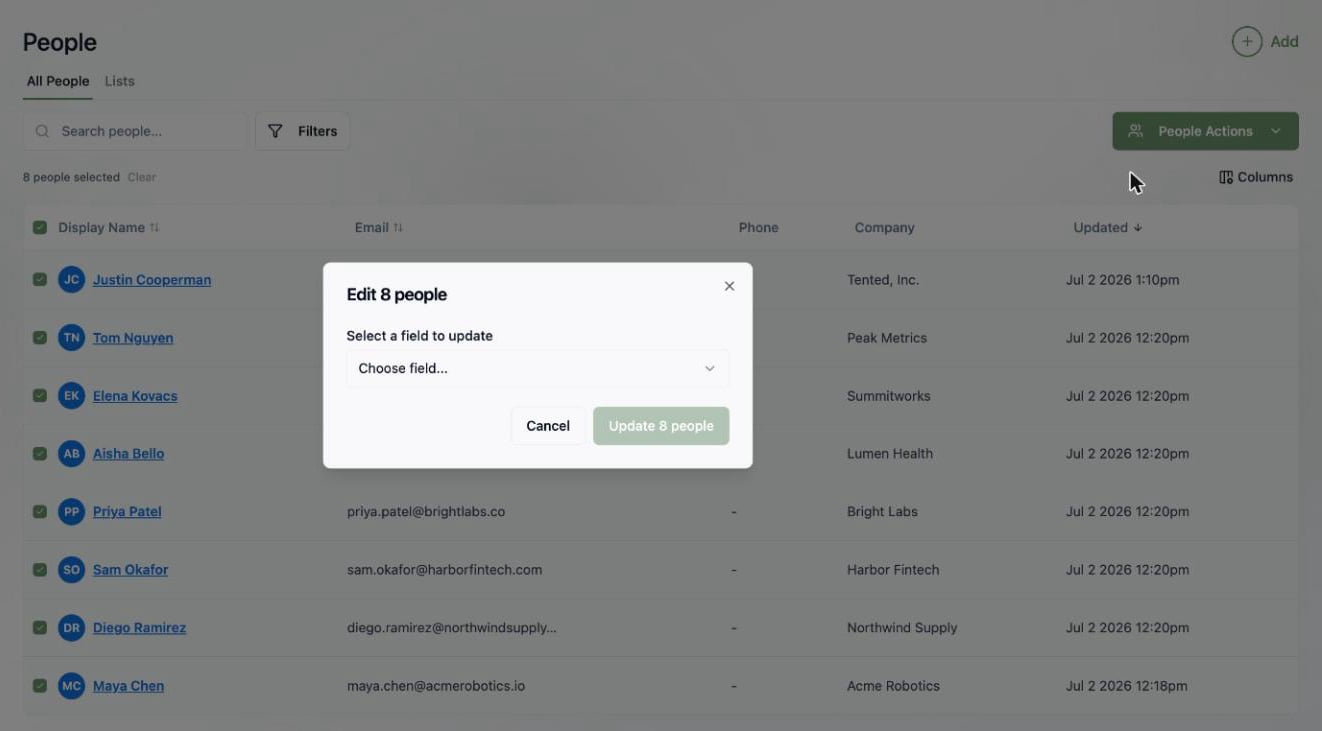
Select one or more contacts with the checkboxes and the **People Actions** menu lights up. From there you can:
* **Edit** — bulk-update a field across every selected contact (see below)
* **Add to List** — drop them into an existing static list or create a new one on the spot
* **Export as CSV**
* **Delete** contacts you no longer need
 ### Bulk-editing a field
Select your contacts, choose **People Actions > Edit**, pick a field (any [standard or custom field](/people/contact-fields)), enter a new value, and apply it to everyone in the selection at once. Perfect for setting a lifecycle stage or lead status on a whole segment.
### Bulk-editing a field
Select your contacts, choose **People Actions > Edit**, pick a field (any [standard or custom field](/people/contact-fields)), enter a new value, and apply it to everyone in the selection at once. Perfect for setting a lifecycle stage or lead status on a whole segment.
 ## What's next?
Organize your contacts into static and dynamic lists — the audiences behind your campaigns.
## What's next?
Organize your contacts into static and dynamic lists — the audiences behind your campaigns.