> ## Documentation Index
> Fetch the complete documentation index at: https://docs.tented.ai/llms.txt
> Use this file to discover all available pages before exploring further.
# Standard & Custom Fields
> Understand the contact fields Tented gives you — and add your own
## Where fields live
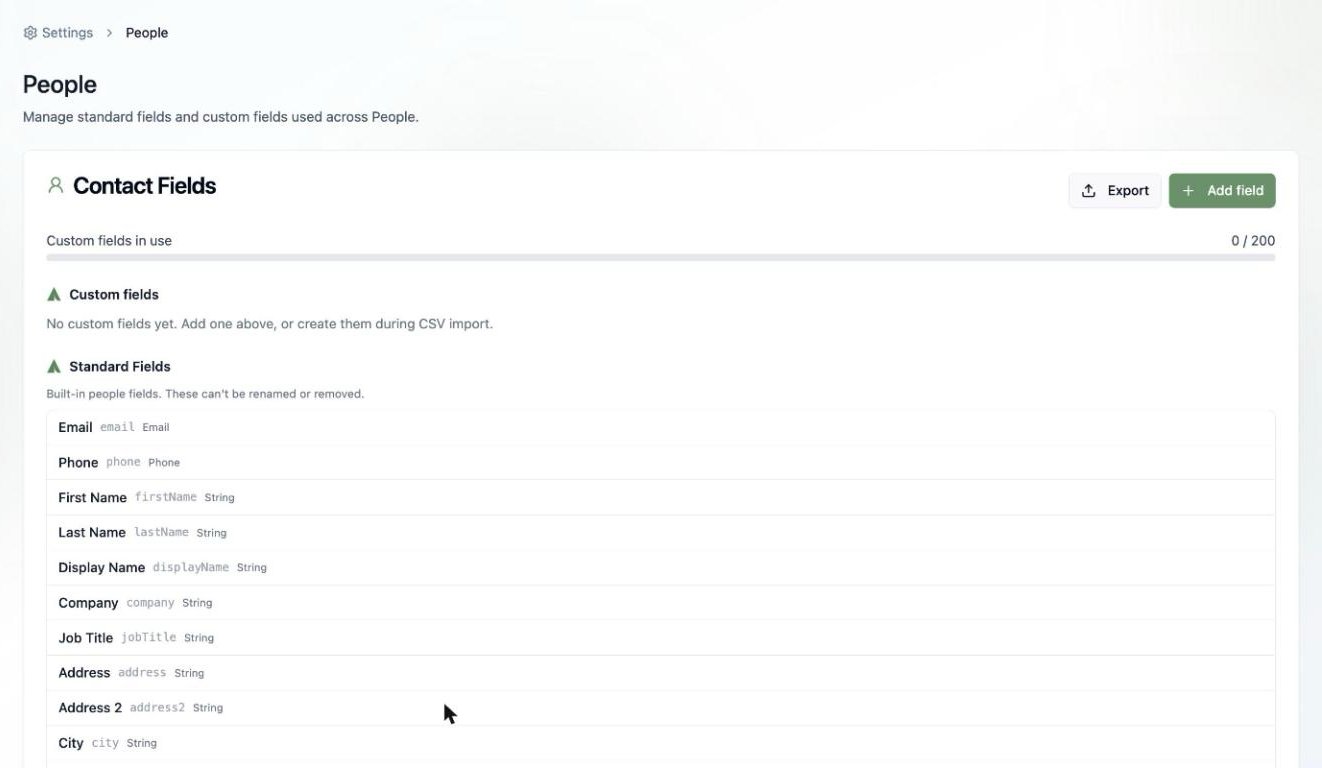
Every contact in your People database is built from **fields**. Tented ships with a rich set of standard fields, and you can extend them with up to **200 custom fields** of your own.
Manage them all in one place: **Workspace Settings > People > Manage Fields** (or **Settings > People**). From here you can also **Export** your full field schema.
 ## Standard fields
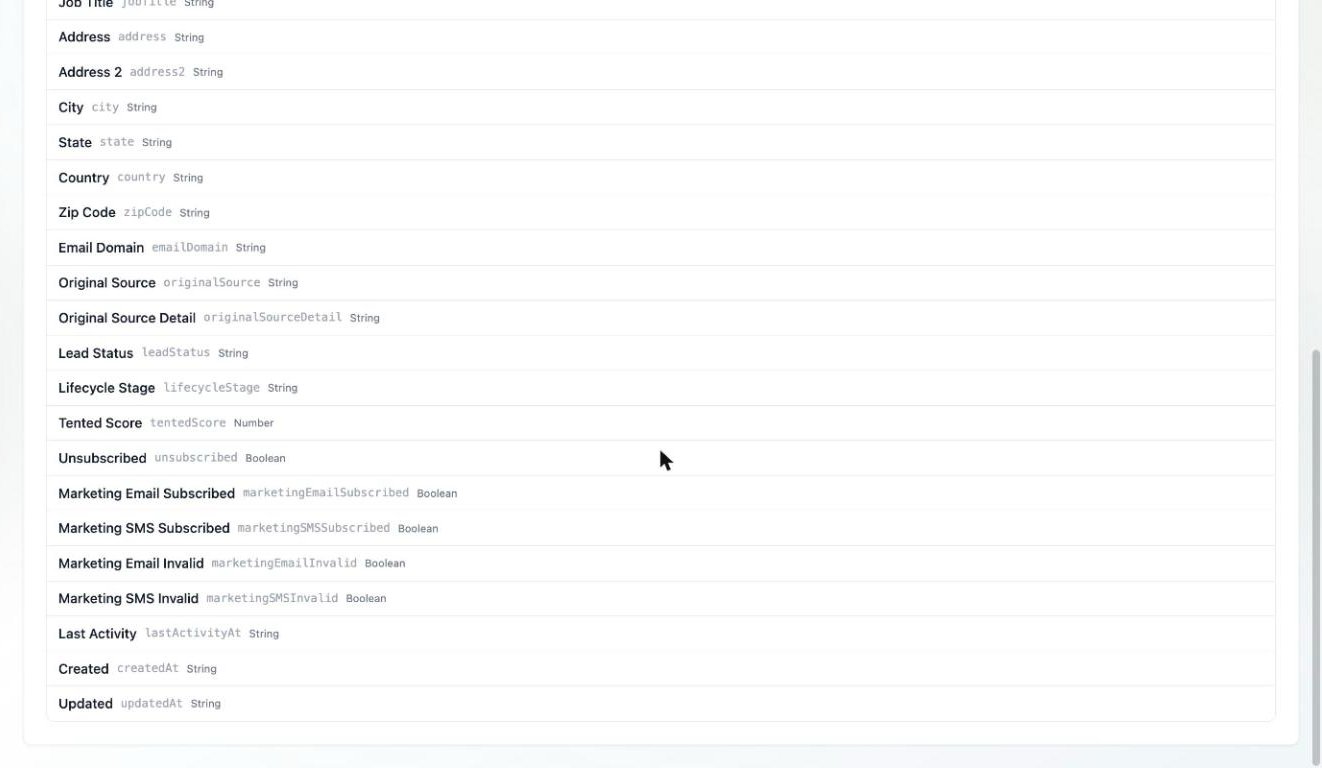
Standard fields are built in — they can't be renamed or removed, and every contact has them:
## Standard fields
Standard fields are built in — they can't be renamed or removed, and every contact has them:
 | Group | Fields |
| ----------------------- | ------------------------------------------------------------------------------------------------------------------ |
| **Identity** | Email, Phone, First Name, Last Name, Display Name, Company, Job Title |
| **Address** | Address, Address 2, City, State, Country, Zip Code |
| **Enrichment & source** | Email Domain, Original Source, Original Source Detail |
| **Lifecycle** | Lead Status, Lifecycle Stage, Tented Score |
| **Email & SMS status** | Unsubscribed, Marketing Email Subscribed, Marketing SMS Subscribed, Marketing Email Invalid, Marketing SMS Invalid |
| **Timestamps** | Last Activity, Created, Updated |
Each field has an **API name** (like `firstName` or `lifecycleStage`) you'll use with the [API](/api-reference/managing-contacts), see in CSV exports, and reference in [email personalization tokens](/email/creating-emails#subject-lines-preheaders-and-personalization) — `{{contact.firstName}}`.
The subscription fields (like **Unsubscribed**) are managed by Tented's email pipeline — they update automatically when contacts unsubscribe, and marketing sends respect them without any work on your part.
## Custom fields
Anything your business cares about that isn't standard — plan tier, account owner, renewal date — becomes a custom field. Custom fields show up on contact profiles, as mapping targets during [CSV import](/people/importing-contacts), and in [audience rules](/people/working-with-lists) for filters and dynamic lists.
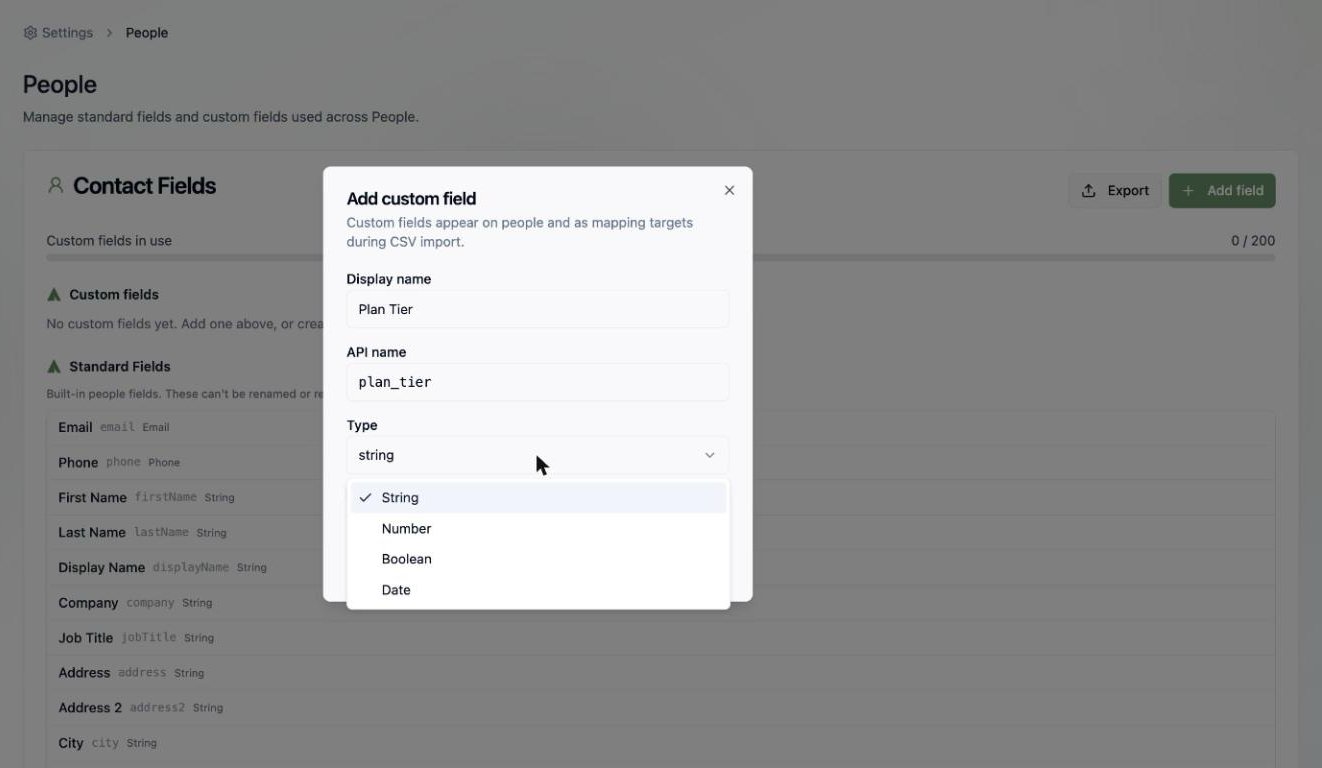
To add one, click **Add field**:
1. Give it a **display name** — Tented auto-generates the API name (e.g., "Plan Tier" → `plan_tier`).
2. Pick a **type**: String, Number, Boolean, or Date.
3. Decide if it's **editable in the Tented UI** — turn this off for fields that should only be written by imports or the API, and they'll show as read-only on contact profiles.
| Group | Fields |
| ----------------------- | ------------------------------------------------------------------------------------------------------------------ |
| **Identity** | Email, Phone, First Name, Last Name, Display Name, Company, Job Title |
| **Address** | Address, Address 2, City, State, Country, Zip Code |
| **Enrichment & source** | Email Domain, Original Source, Original Source Detail |
| **Lifecycle** | Lead Status, Lifecycle Stage, Tented Score |
| **Email & SMS status** | Unsubscribed, Marketing Email Subscribed, Marketing SMS Subscribed, Marketing Email Invalid, Marketing SMS Invalid |
| **Timestamps** | Last Activity, Created, Updated |
Each field has an **API name** (like `firstName` or `lifecycleStage`) you'll use with the [API](/api-reference/managing-contacts), see in CSV exports, and reference in [email personalization tokens](/email/creating-emails#subject-lines-preheaders-and-personalization) — `{{contact.firstName}}`.
The subscription fields (like **Unsubscribed**) are managed by Tented's email pipeline — they update automatically when contacts unsubscribe, and marketing sends respect them without any work on your part.
## Custom fields
Anything your business cares about that isn't standard — plan tier, account owner, renewal date — becomes a custom field. Custom fields show up on contact profiles, as mapping targets during [CSV import](/people/importing-contacts), and in [audience rules](/people/working-with-lists) for filters and dynamic lists.
To add one, click **Add field**:
1. Give it a **display name** — Tented auto-generates the API name (e.g., "Plan Tier" → `plan_tier`).
2. Pick a **type**: String, Number, Boolean, or Date.
3. Decide if it's **editable in the Tented UI** — turn this off for fields that should only be written by imports or the API, and they'll show as read-only on contact profiles.
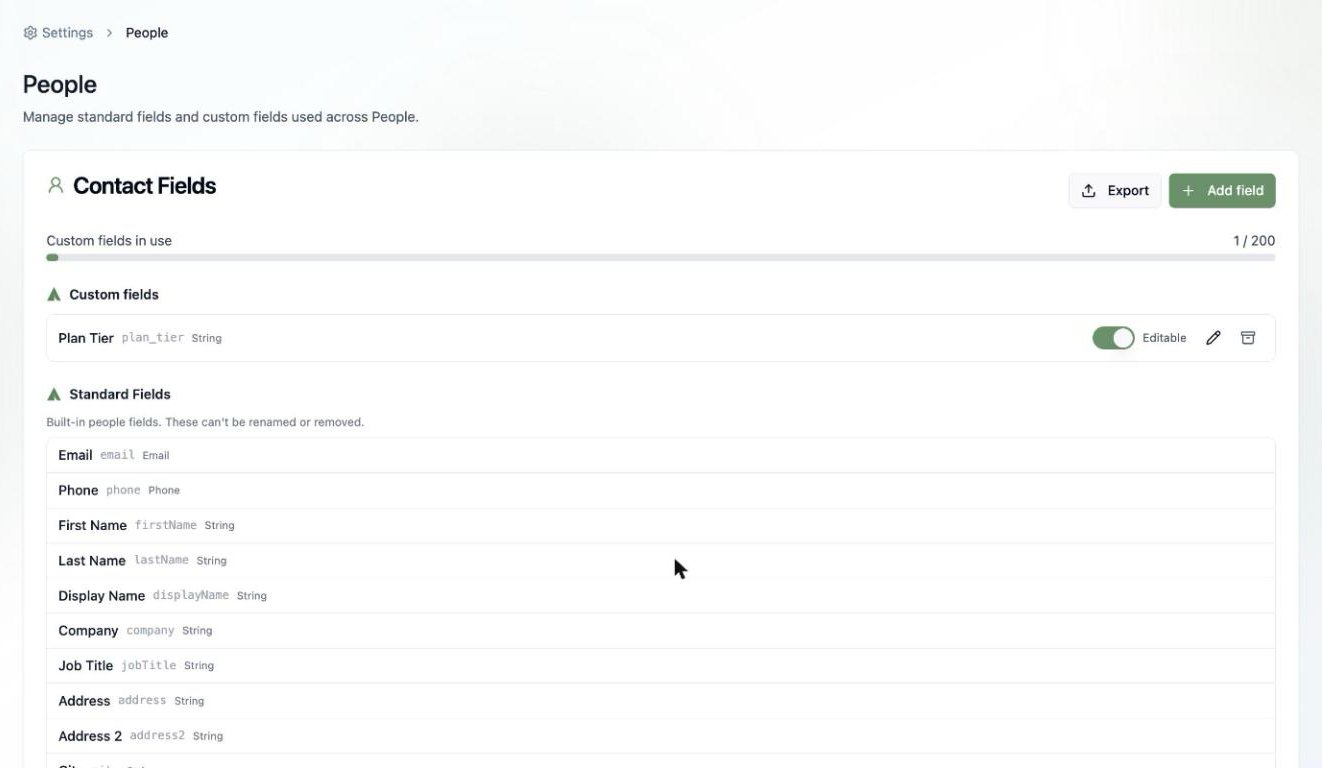
 Your custom fields appear at the top of the fields page, where you can rename them, toggle editability, or archive ones you no longer use.
 You can also create custom fields on the fly during a [CSV import](/people/importing-contacts) — map an unmatched column to a new field without leaving the import flow.
## What's next?
Put your fields to work with a bulk import.
You can also create custom fields on the fly during a [CSV import](/people/importing-contacts) — map an unmatched column to a new field without leaving the import flow.
## What's next?
Put your fields to work with a bulk import.