> ## Documentation Index
> Fetch the complete documentation index at: https://docs.tented.ai/llms.txt
> Use this file to discover all available pages before exploring further.
# Connecting Slack
> Learn how to connect Slack to your Tented workspace for automated form submission notifications
Tented integrates with Slack to send real-time notifications when forms are submitted on your published tents. This guide walks you through connecting your Slack workspace to Tented and configuring a Slack automation.
## Prerequisites
Before you begin, ensure you have:
* **Admin access** to your Tented workspace
* **Permission to install apps** in your Slack workspace (or access to request app installation from your Slack admin)
## Step 1: Connect Slack in Integrations Settings
1. In Tented, click on your **profile icon** in the bottom-left corner.
2. Select **Integrations** from the menu.
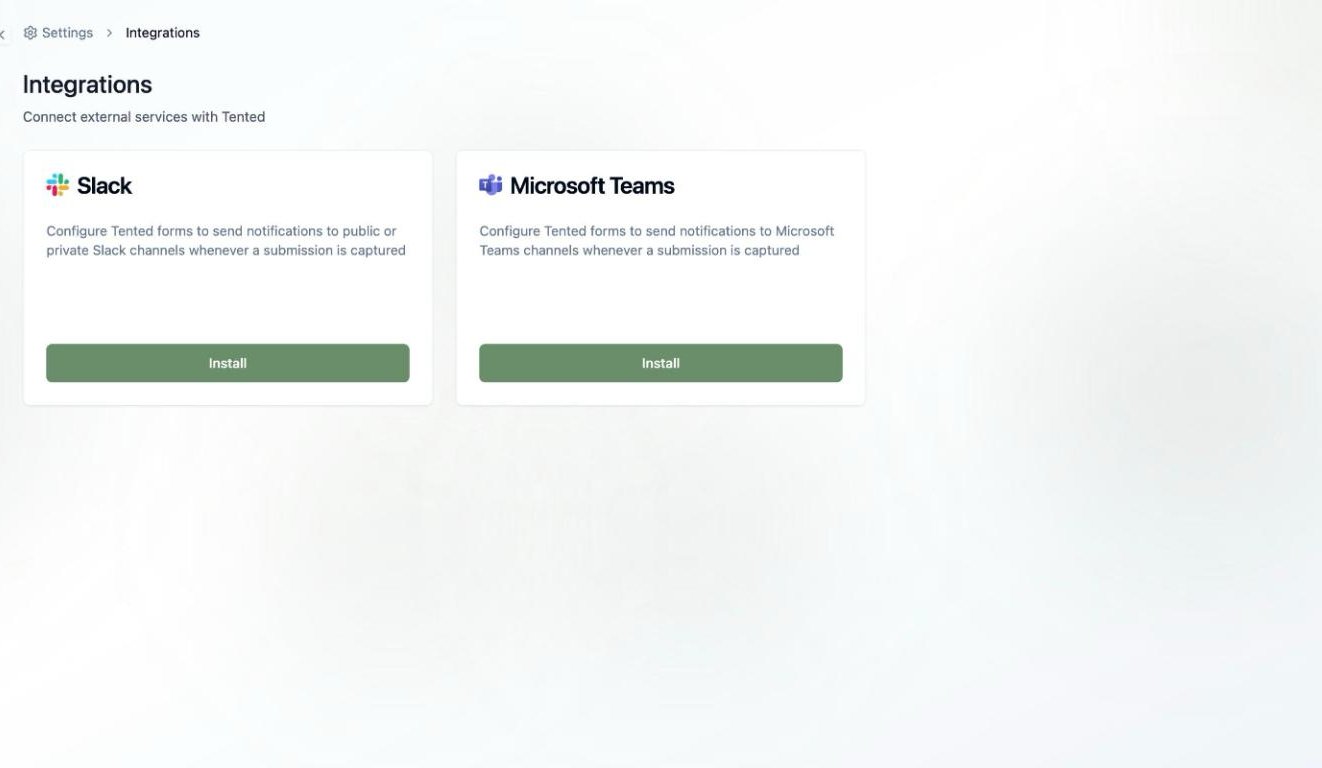
3. On the **Integrations** page, select **Install** on the **Slack** tile.
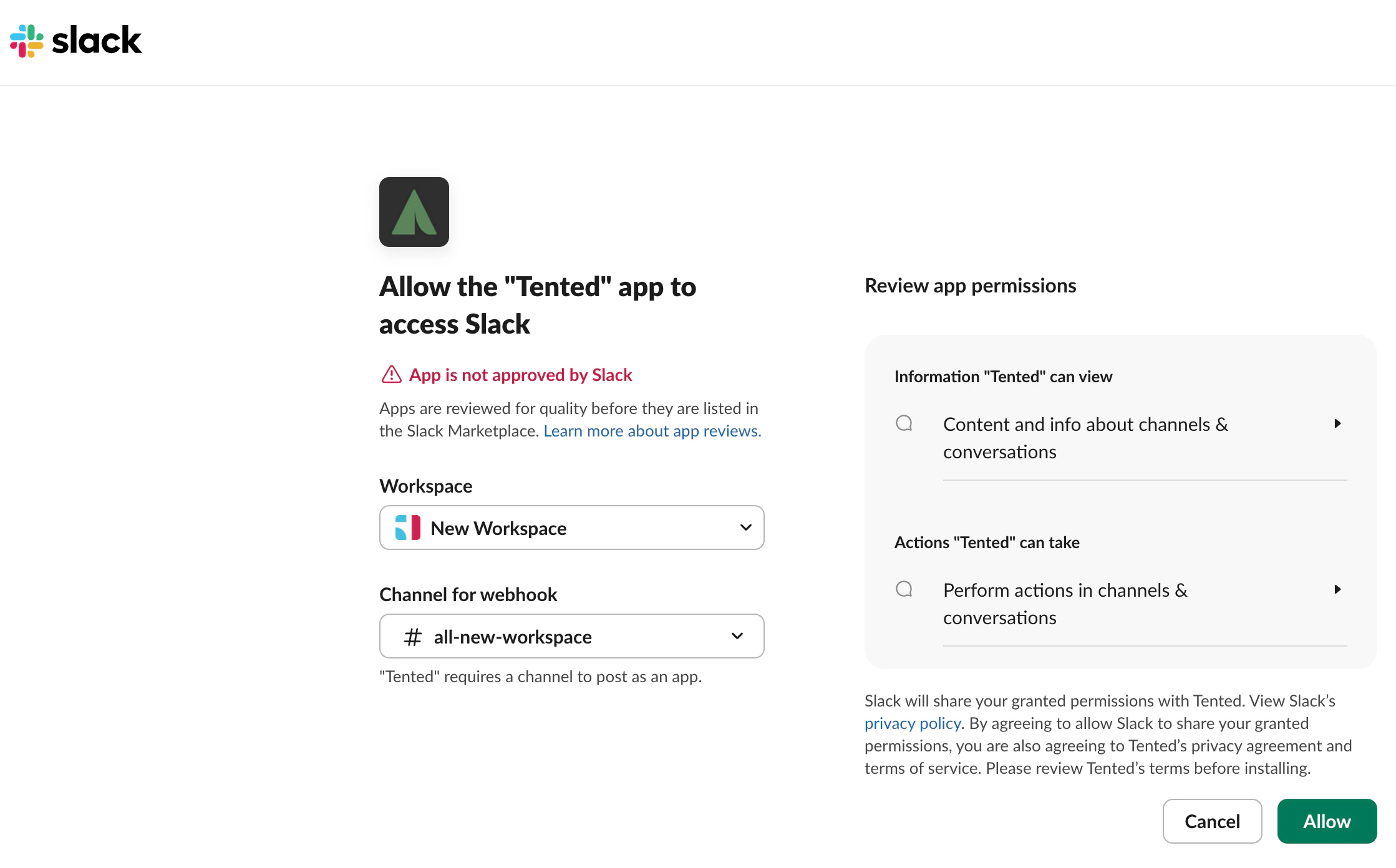
 4. A Slack page opens in a new tab. Select the Slack workspace and channel the notifications should go to.
5. Review the permissions information and select **Allow** if you agree.
4. A Slack page opens in a new tab. Select the Slack workspace and channel the notifications should go to.
5. Review the permissions information and select **Allow** if you agree.
 6. A confirmation message that Slack is connected to Tented appears. Close the tab and return to Tented.
You can also connect Slack when setting up an automation for a specific tent. If Slack is not yet connected to your Tented workspace, you will be prompted to connect it during the automation setup process.
## Step 2: Set Up a Slack Automation in Your Tent
Now that Slack is connected to your Tented workspace, set up a [form automation](/working-with-tents/form-automations) to send notifications for form submissions.
**Set Up Form Submission Notifications:**
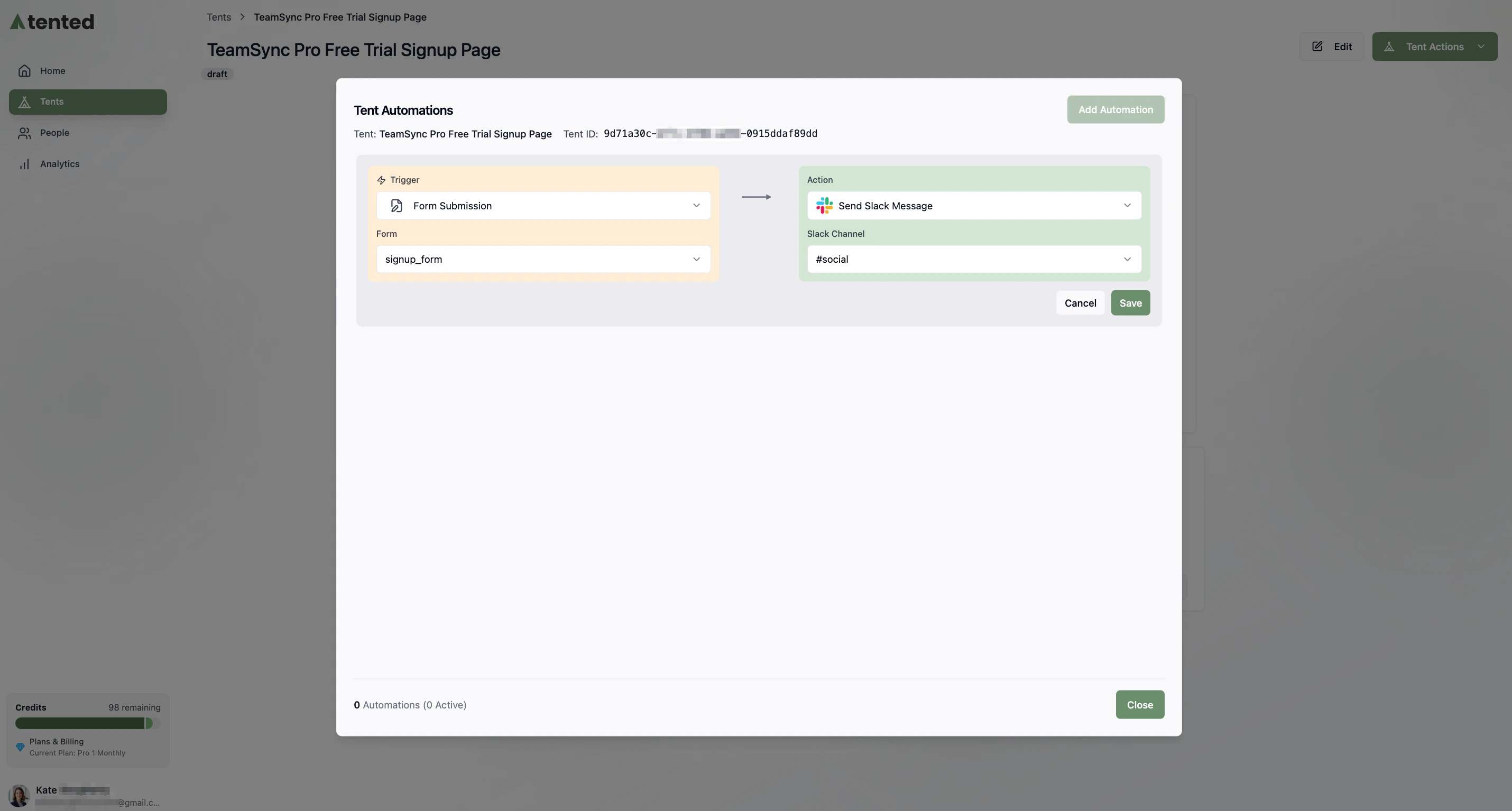
1. From the **Tent Details** page of the tent you want to set up notifications for, select the **Add Automation** button. (If you already set up an automation, the button says **Manage Automations**.)
2. In the **Tent Automations** window, select **Add Automation**.
3. On the left, under **Trigger**, select **Form Submission**.
4. Under the trigger, select the form you want notifications for from the dropdown list. The list shows all forms in the tent.
5. On the right, under **Action**, select **Send Slack Message**.
6. Select the **Slack Channel** you want notifications sent to.
7. Select **Save** to finish.
8. Select **Close** to exit the **Tent Automations** window.
6. A confirmation message that Slack is connected to Tented appears. Close the tab and return to Tented.
You can also connect Slack when setting up an automation for a specific tent. If Slack is not yet connected to your Tented workspace, you will be prompted to connect it during the automation setup process.
## Step 2: Set Up a Slack Automation in Your Tent
Now that Slack is connected to your Tented workspace, set up a [form automation](/working-with-tents/form-automations) to send notifications for form submissions.
**Set Up Form Submission Notifications:**
1. From the **Tent Details** page of the tent you want to set up notifications for, select the **Add Automation** button. (If you already set up an automation, the button says **Manage Automations**.)
2. In the **Tent Automations** window, select **Add Automation**.
3. On the left, under **Trigger**, select **Form Submission**.
4. Under the trigger, select the form you want notifications for from the dropdown list. The list shows all forms in the tent.
5. On the right, under **Action**, select **Send Slack Message**.
6. Select the **Slack Channel** you want notifications sent to.
7. Select **Save** to finish.
8. Select **Close** to exit the **Tent Automations** window.
 ***
Need help? Contact us at [support@tented.ai](mailto:support@tented.ai).
Learn how to set up email notifications for form submissions.
***
Need help? Contact us at [support@tented.ai](mailto:support@tented.ai).
Learn how to set up email notifications for form submissions.