> ## Documentation Index
> Fetch the complete documentation index at: https://docs.tented.ai/llms.txt
> Use this file to discover all available pages before exploring further.
# Connecting HubSpot
> Create a personalized Tented page for any HubSpot contact or company, from the record or automatically from a list, and use the link in sequences and emails
Tented connects to [HubSpot](https://www.hubspot.com) so any contact or company can get a personalized landing page built from one of your approved templates. A rep creates a page straight from the record with the Tented card in the sidebar, or Tented creates pages automatically for every record that joins a list you choose. Either way, Tented writes the page link, a short summary, and two ready-made sentences back to the record, so sequences and emails can use them as personalization tokens.
This guide covers connecting the two, choosing what to generate, automating with lists, using the card, and what to expect afterwards.
## Prerequisites
Before you begin, make sure you have:
* **Admin access** to your Tented workspace. Connecting, changing settings, and disconnecting are admin-only.
* **An approved tent template** in Tented. Pages are generated from a template's approved version. See [Templates](/working-with-tents/tent-templates) if you don't have one yet.
* **Permission to install apps in HubSpot**. Super admins have it; other users need the **App Marketplace access** permission.
* **AI credits**. Each generated page uses half a credit.
## Step 1: Connect HubSpot
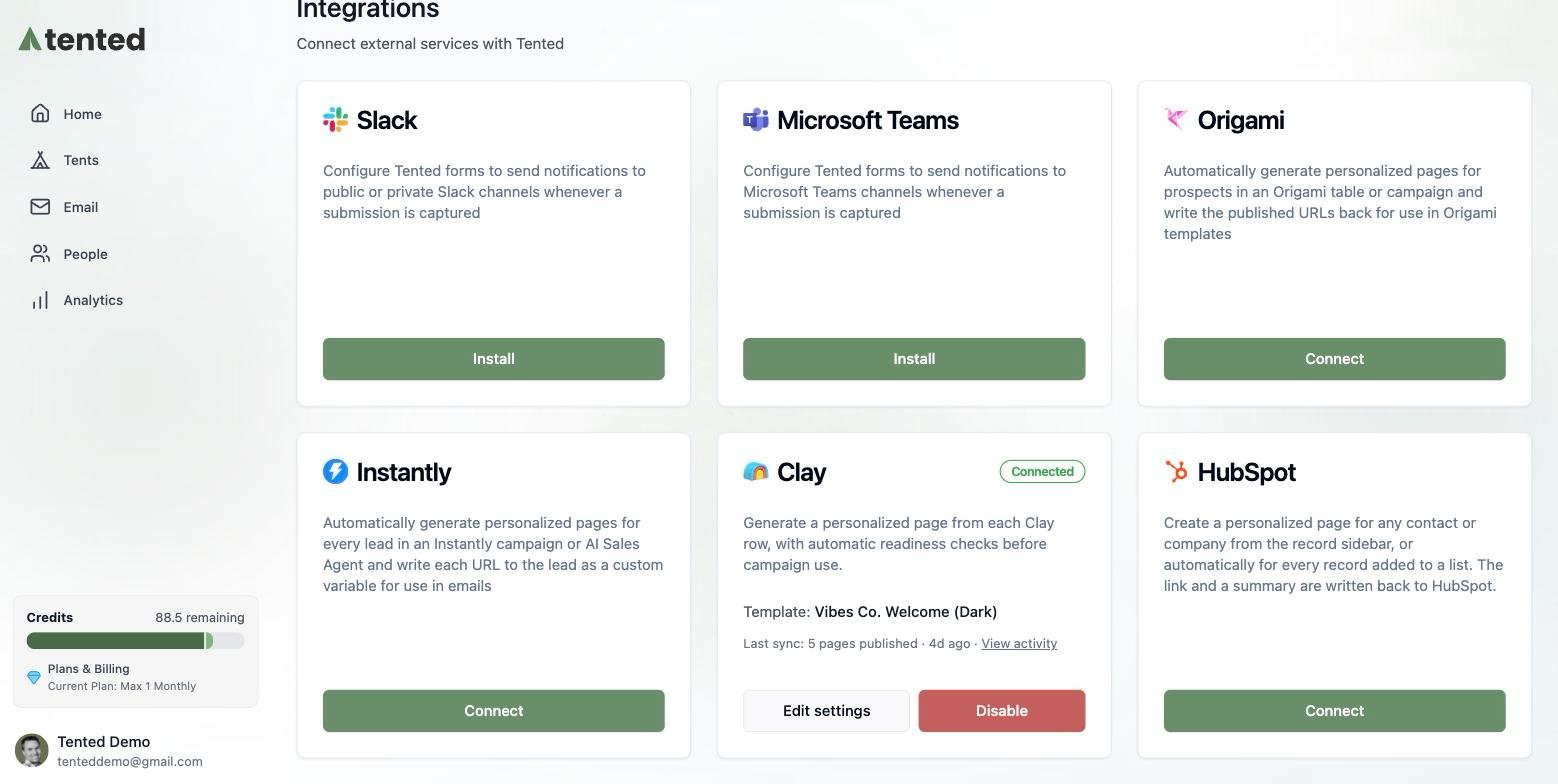
1. In Tented, open **Settings → Integrations**.
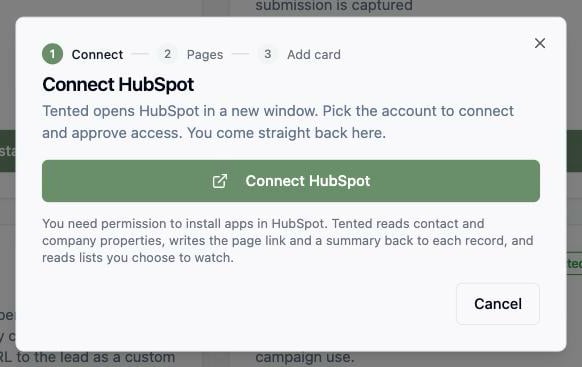
2. On the **HubSpot** tile, select **Connect**, then **Connect HubSpot**.
3. HubSpot opens in a new window. Pick the account to connect and approve access. The window closes on its own and Tented moves to the next step.
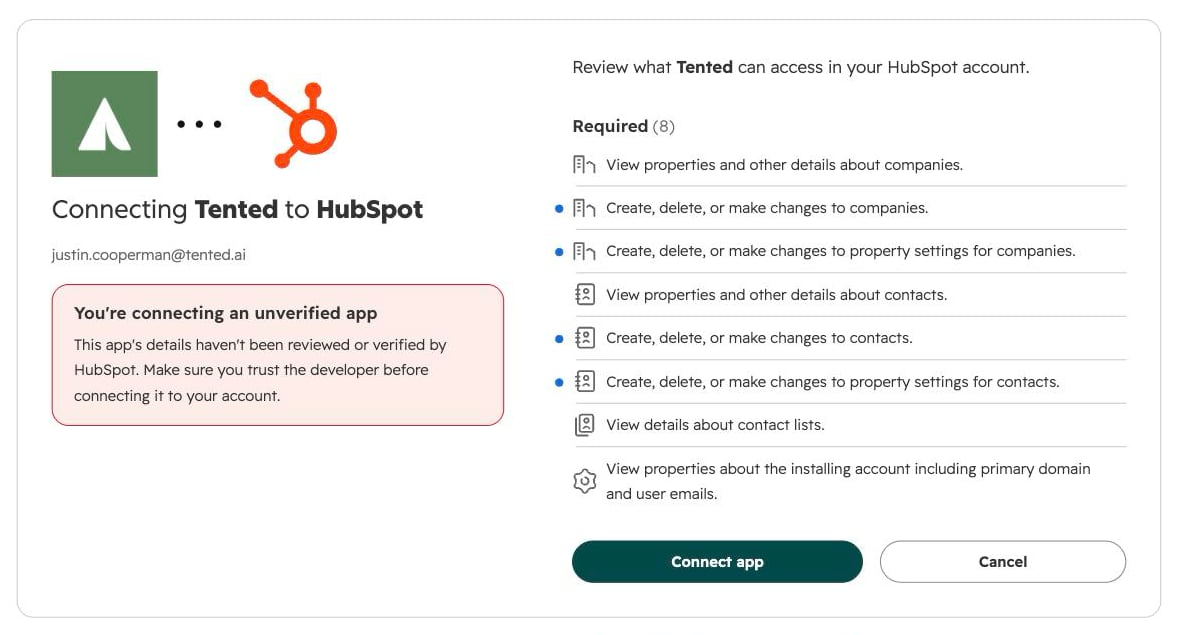 Tented asks for permission to read contact and company properties, write the page link and summary back to each record, create the six Tented properties, and read the lists you choose to watch.
If you installed Tented from the HubSpot App Marketplace instead, HubSpot sends you to this same page in Tented with the connection already made. Sign in as a workspace admin to finish setup.
## Step 2: Choose what to generate
Tented asks for permission to read contact and company properties, write the page link and summary back to each record, create the six Tented properties, and read the lists you choose to watch.
If you installed Tented from the HubSpot App Marketplace instead, HubSpot sends you to this same page in Tented with the connection already made. Sign in as a workspace admin to finish setup.
## Step 2: Choose what to generate
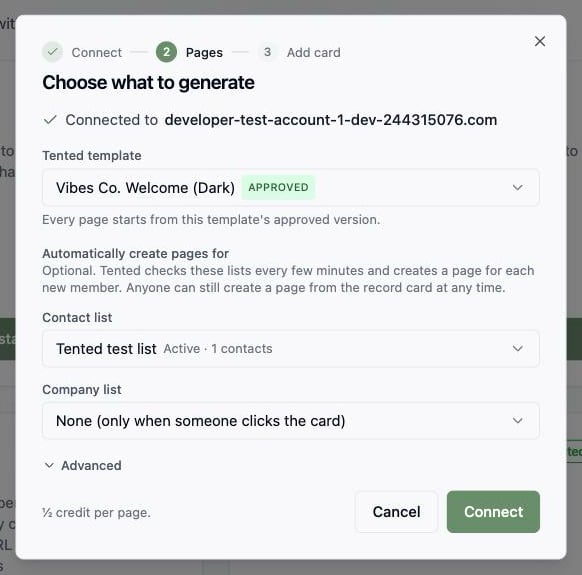 * **Tented template**: the approved template each page starts from. Tented picks your most recently approved template; change it if you like. Every page is personalized to the record using all of its properties, and for a contact, its company's properties too.
* **Automatically create pages for**: optional. Pick a **contact list** and/or a **company list**. Tented checks them about every 15 minutes (or straight away when you select **Sync now** on the tile) and creates a page for every new member. Leave both on **None** to create pages only when someone clicks the card on a record.
### Advanced
* **Tented template**: the approved template each page starts from. Tented picks your most recently approved template; change it if you like. Every page is personalized to the record using all of its properties, and for a contact, its company's properties too.
* **Automatically create pages for**: optional. Pick a **contact list** and/or a **company list**. Tented checks them about every 15 minutes (or straight away when you select **Sync now** on the tile) and creates a page for every new member. Leave both on **None** to create pages only when someone clicks the card on a record.
### Advanced
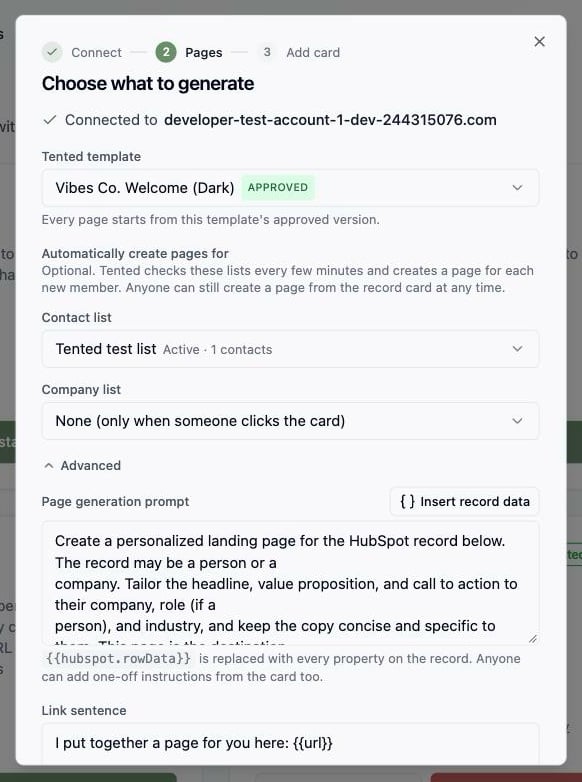 Expand **Advanced** to change the copy Tented works from:
* **Page generation prompt**: the instructions the page is generated with. `{{hubspot.rowData}}` is replaced with every property on the record. Reps can also add one-off instructions from the card for a single page.
* **Link sentence**: written to the record as `tented_page_offer`. Use `{{url}}`, `{{first_name}}`, `{{company_name}}`, `{{job_title}}`, and `{{summary}}`. Leave it empty to skip it.
* **Follow-up sentence**: written as `tented_page_reference` for a later email or sequence step.
Select **Connect**. Tented adds a **Tented** property group with six properties to contacts and companies in your HubSpot account (see [Using the fields in HubSpot](#using-the-fields-in-hubspot)), then starts watching any lists you chose.
## Step 3: Add the Tented card to records
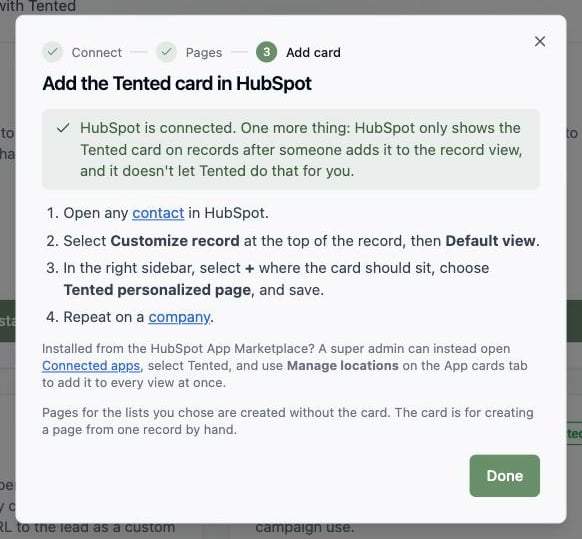
HubSpot only shows an app's card on records after someone adds it to the record view. Tented can't do this for you, so the last step of setup in Tented walks you through it:
1. Open any contact in HubSpot.
2. Select **Customize record** at the top of the record, then **Default view**.
3. In the right sidebar, select **+** where the card should sit, choose **Tented personalized page**, and save.
4. Repeat on a company.
Expand **Advanced** to change the copy Tented works from:
* **Page generation prompt**: the instructions the page is generated with. `{{hubspot.rowData}}` is replaced with every property on the record. Reps can also add one-off instructions from the card for a single page.
* **Link sentence**: written to the record as `tented_page_offer`. Use `{{url}}`, `{{first_name}}`, `{{company_name}}`, `{{job_title}}`, and `{{summary}}`. Leave it empty to skip it.
* **Follow-up sentence**: written as `tented_page_reference` for a later email or sequence step.
Select **Connect**. Tented adds a **Tented** property group with six properties to contacts and companies in your HubSpot account (see [Using the fields in HubSpot](#using-the-fields-in-hubspot)), then starts watching any lists you chose.
## Step 3: Add the Tented card to records
HubSpot only shows an app's card on records after someone adds it to the record view. Tented can't do this for you, so the last step of setup in Tented walks you through it:
1. Open any contact in HubSpot.
2. Select **Customize record** at the top of the record, then **Default view**.
3. In the right sidebar, select **+** where the card should sit, choose **Tented personalized page**, and save.
4. Repeat on a company.
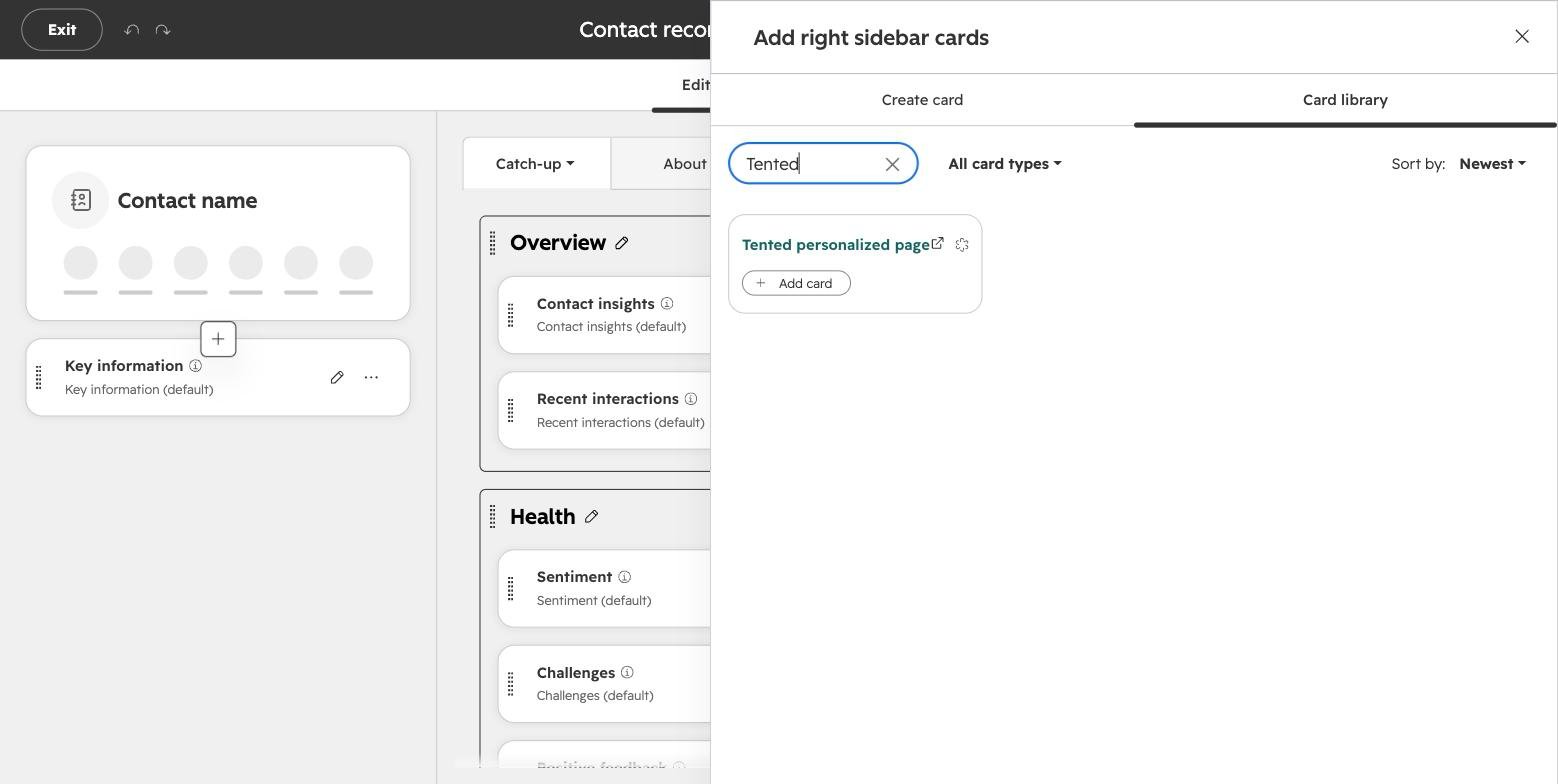 If you installed Tented from the HubSpot App Marketplace, a Super Admin can add it to every view at once instead: open **Settings → Integrations → Connected apps**, select **Tented**, open the **App cards** tab, and select **Manage locations**.
Pages for the lists you chose in Step 2 are created without the card. The card is for creating a page from one record by hand.
## Step 4: Create a page from a record
Open any contact or company in HubSpot. The **Tented personalized page** card sits in the right sidebar.
If you installed Tented from the HubSpot App Marketplace, a Super Admin can add it to every view at once instead: open **Settings → Integrations → Connected apps**, select **Tented**, open the **App cards** tab, and select **Manage locations**.
Pages for the lists you chose in Step 2 are created without the card. The card is for creating a page from one record by hand.
## Step 4: Create a page from a record
Open any contact or company in HubSpot. The **Tented personalized page** card sits in the right sidebar.
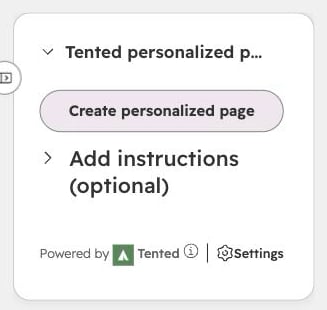 * Select **Create personalized page**. Expand **Add instructions** first if this page needs something specific, such as leading with a recent funding round.
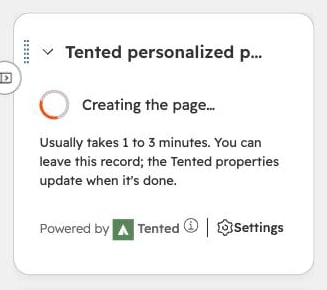
* The card shows **Creating the page…** while Tented works, usually one to three minutes. You can leave the record; the Tented properties update when it's done.
* When the page is ready, the card shows the link, the summary, and the link sentence to paste into an email.
* Select **Create personalized page**. Expand **Add instructions** first if this page needs something specific, such as leading with a recent funding round.
* The card shows **Creating the page…** while Tented works, usually one to three minutes. You can leave the record; the Tented properties update when it's done.
* When the page is ready, the card shows the link, the summary, and the link sentence to paste into an email.
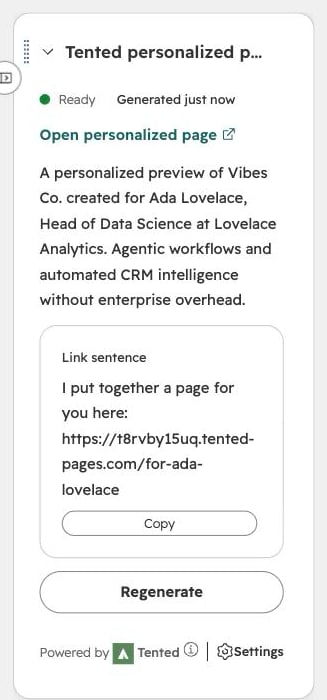 To replace a page, select **Regenerate** on the card. The record keeps its old link until the new page is ready.
Don't see the card? It hasn't been added to the record view yet. See [Step 3](#step-3-add-the-tented-card-to-records).
## Using the fields in HubSpot
Tented writes these properties to every contact or company it makes a page for:
| Property | What it holds |
| -------------------------- | ---------------------------------- |
| `tented_page_url` | The published page's link |
| `tented_page_summary` | A one-line description of the page |
| `tented_page_offer` | The link sentence, ready to paste |
| `tented_page_reference` | The follow-up sentence |
| `tented_page_status` | `Generating`, `Ready`, or `Failed` |
| `tented_page_generated_at` | When the page was last published |
Insert them as personalization tokens wherever HubSpot offers its **Personalize** menu, such as a sequence step, a sales email template, or a marketing email: pick the contact (or company) property named **Tented page offer**. Filter a list or branch a workflow on **Tented page URL is known** so only records with a live page get the step that links to it. Prefer the URL over **Tented page status is Ready**: while a page is being regenerated the status reads **Generating** for a few minutes even though the existing link still works.
To replace a page, select **Regenerate** on the card. The record keeps its old link until the new page is ready.
Don't see the card? It hasn't been added to the record view yet. See [Step 3](#step-3-add-the-tented-card-to-records).
## Using the fields in HubSpot
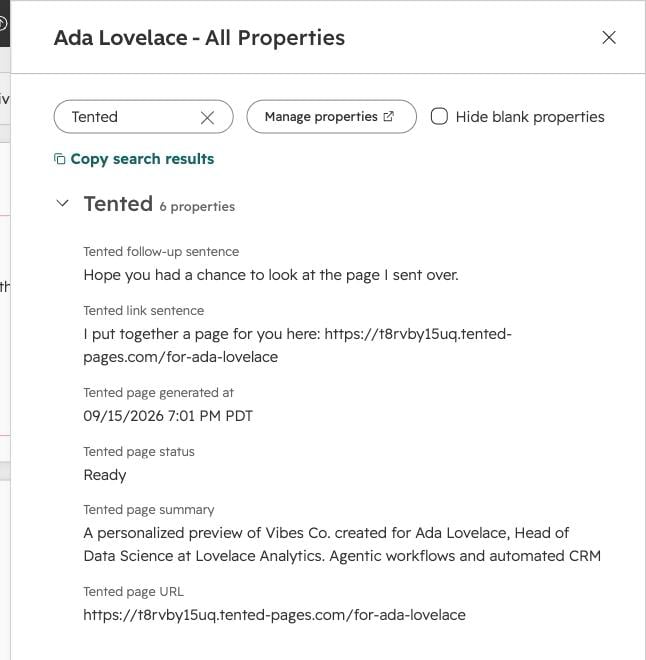
Tented writes these properties to every contact or company it makes a page for:
| Property | What it holds |
| -------------------------- | ---------------------------------- |
| `tented_page_url` | The published page's link |
| `tented_page_summary` | A one-line description of the page |
| `tented_page_offer` | The link sentence, ready to paste |
| `tented_page_reference` | The follow-up sentence |
| `tented_page_status` | `Generating`, `Ready`, or `Failed` |
| `tented_page_generated_at` | When the page was last published |
Insert them as personalization tokens wherever HubSpot offers its **Personalize** menu, such as a sequence step, a sales email template, or a marketing email: pick the contact (or company) property named **Tented page offer**. Filter a list or branch a workflow on **Tented page URL is known** so only records with a live page get the step that links to it. Prefer the URL over **Tented page status is Ready**: while a page is being regenerated the status reads **Generating** for a few minutes even though the existing link still works.
 ## What happens after connecting
* The HubSpot tile shows **Connected**, the account, and which lists create pages automatically.
* Pages are published at readable URLs under your Tented domain, such as `https://your-domain/for-ada-from-analytical-engines` for a contact or `https://your-domain/for-acme-co` for a company.
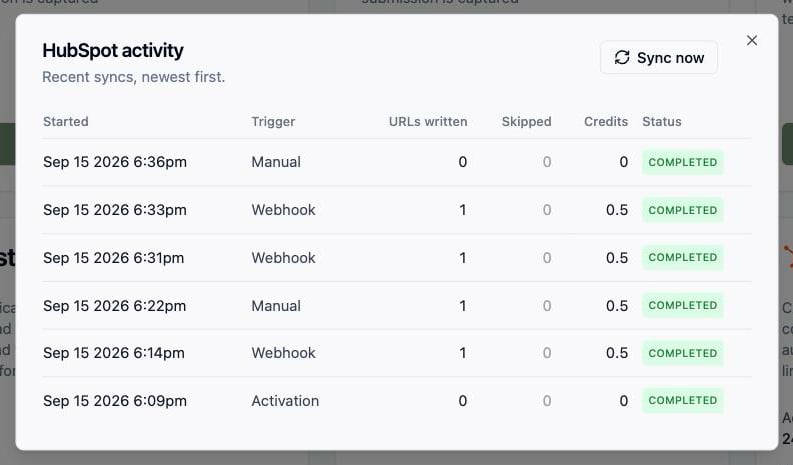
* Select **View activity** on the tile to see each sync, how many pages were created, and any records Tented skipped and why. **Sync now** checks your lists straight away instead of waiting for the next pass.
* Generated tents appear in your Tents list with **HubSpot Integration** as the creator. Use **Filter → Hide integration-created** to keep them out of the way.
## What happens after connecting
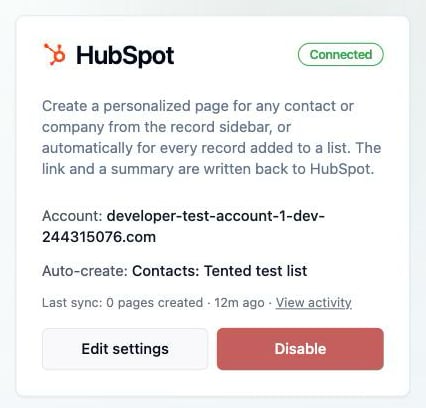
* The HubSpot tile shows **Connected**, the account, and which lists create pages automatically.
* Pages are published at readable URLs under your Tented domain, such as `https://your-domain/for-ada-from-analytical-engines` for a contact or `https://your-domain/for-acme-co` for a company.
* Select **View activity** on the tile to see each sync, how many pages were created, and any records Tented skipped and why. **Sync now** checks your lists straight away instead of waiting for the next pass.
* Generated tents appear in your Tents list with **HubSpot Integration** as the creator. Use **Filter → Hide integration-created** to keep them out of the way.
 ## Changing settings
Select **Edit settings** on the HubSpot tile to change the template, the watched lists, the prompt, or the sentences. Records that already have a page are not regenerated when settings change.
## Disconnecting
Select **Disable** on the HubSpot tile. Tented stops creating pages for new list members and the card in HubSpot shows as not connected. Pages already generated, and the Tented properties already written to your records, are not deleted.
Uninstalling the Tented app from HubSpot (**Settings → Integrations → Connected apps**) is noticed by Tented once HubSpot's current access token expires, usually within 30 to 45 minutes: the tile shows **Paused** with **HubSpot access was revoked**, and any requests that were waiting are kept until you select **Reconnect HubSpot**. To remove the connection entirely, select **Disable** in Tented as well.
Uninstalling the app in HubSpot also removes the Tented card from every record view. After you reconnect or reinstall, add the card again as in [Step 3](#step-3-add-the-tented-card-to-records); the pages and properties on your records are unaffected.
## Troubleshooting
| What you see | What it means | What to do |
| ------------------------------------------------------------------------- | ---------------------------------------------------------------------------- | -------------------------------------------------------------- |
| **Paused: out of AI credits** | Your workspace ran out of credits | Add credits; pages resume automatically |
| **Paused: published-tent limit reached** | Your plan's published page limit is full | Unpublish pages or upgrade |
| **Paused: HubSpot access was revoked** | The app was uninstalled in HubSpot, or the user who connected it lost access | Select **Reconnect HubSpot** on the tile |
| **Paused** with a settings message | The template or a watched list is no longer usable | Select **Review settings** |
| No Tented card on contact or company records | The card hasn't been added to the record view | Follow [Step 3](#step-3-add-the-tented-card-to-records) |
| The card says **Connect this HubSpot account to Tented** | This HubSpot account isn't connected to a Tented workspace | Connect from **Settings → Integrations** in Tented |
| **This HubSpot account is already connected to another Tented workspace** | One HubSpot account can only feed one workspace | Disconnect it there first |
| The card shows **Failed** | Generation didn't complete, or the record was deleted while it ran | Select **Try again**; check the Activity dialog for the reason |
| A list member didn't get a page | It already had one, or it joined before the list was chosen | Open the record and use the card |
## Changing settings
Select **Edit settings** on the HubSpot tile to change the template, the watched lists, the prompt, or the sentences. Records that already have a page are not regenerated when settings change.
## Disconnecting
Select **Disable** on the HubSpot tile. Tented stops creating pages for new list members and the card in HubSpot shows as not connected. Pages already generated, and the Tented properties already written to your records, are not deleted.
Uninstalling the Tented app from HubSpot (**Settings → Integrations → Connected apps**) is noticed by Tented once HubSpot's current access token expires, usually within 30 to 45 minutes: the tile shows **Paused** with **HubSpot access was revoked**, and any requests that were waiting are kept until you select **Reconnect HubSpot**. To remove the connection entirely, select **Disable** in Tented as well.
Uninstalling the app in HubSpot also removes the Tented card from every record view. After you reconnect or reinstall, add the card again as in [Step 3](#step-3-add-the-tented-card-to-records); the pages and properties on your records are unaffected.
## Troubleshooting
| What you see | What it means | What to do |
| ------------------------------------------------------------------------- | ---------------------------------------------------------------------------- | -------------------------------------------------------------- |
| **Paused: out of AI credits** | Your workspace ran out of credits | Add credits; pages resume automatically |
| **Paused: published-tent limit reached** | Your plan's published page limit is full | Unpublish pages or upgrade |
| **Paused: HubSpot access was revoked** | The app was uninstalled in HubSpot, or the user who connected it lost access | Select **Reconnect HubSpot** on the tile |
| **Paused** with a settings message | The template or a watched list is no longer usable | Select **Review settings** |
| No Tented card on contact or company records | The card hasn't been added to the record view | Follow [Step 3](#step-3-add-the-tented-card-to-records) |
| The card says **Connect this HubSpot account to Tented** | This HubSpot account isn't connected to a Tented workspace | Connect from **Settings → Integrations** in Tented |
| **This HubSpot account is already connected to another Tented workspace** | One HubSpot account can only feed one workspace | Disconnect it there first |
| The card shows **Failed** | Generation didn't complete, or the record was deleted while it ran | Select **Try again**; check the Activity dialog for the reason |
| A list member didn't get a page | It already had one, or it joined before the list was chosen | Open the record and use the card |