> ## Documentation Index
> Fetch the complete documentation index at: https://docs.tented.ai/llms.txt
> Use this file to discover all available pages before exploring further.
# Triggered Flows
> Build automated, multi-step email journeys on a visual canvas
## What's a triggered flow?
A **triggered flow** is marketing automation on autopilot: contacts enter when they match a trigger, then move through the steps you've laid out — sending emails, waiting, branching, updating fields — until they reach the end. Welcome series, onboarding sequences, re-engagement campaigns: this is where they live.
Head to **Email > Campaigns** and click **Create Triggered Flow**. Name it, and you land on the visual flow builder with three tabs: **Overview** (analytics), **Edit Flow** (the canvas), and **History**.
## Set the trigger
Click the **Trigger** node to choose how contacts enter:
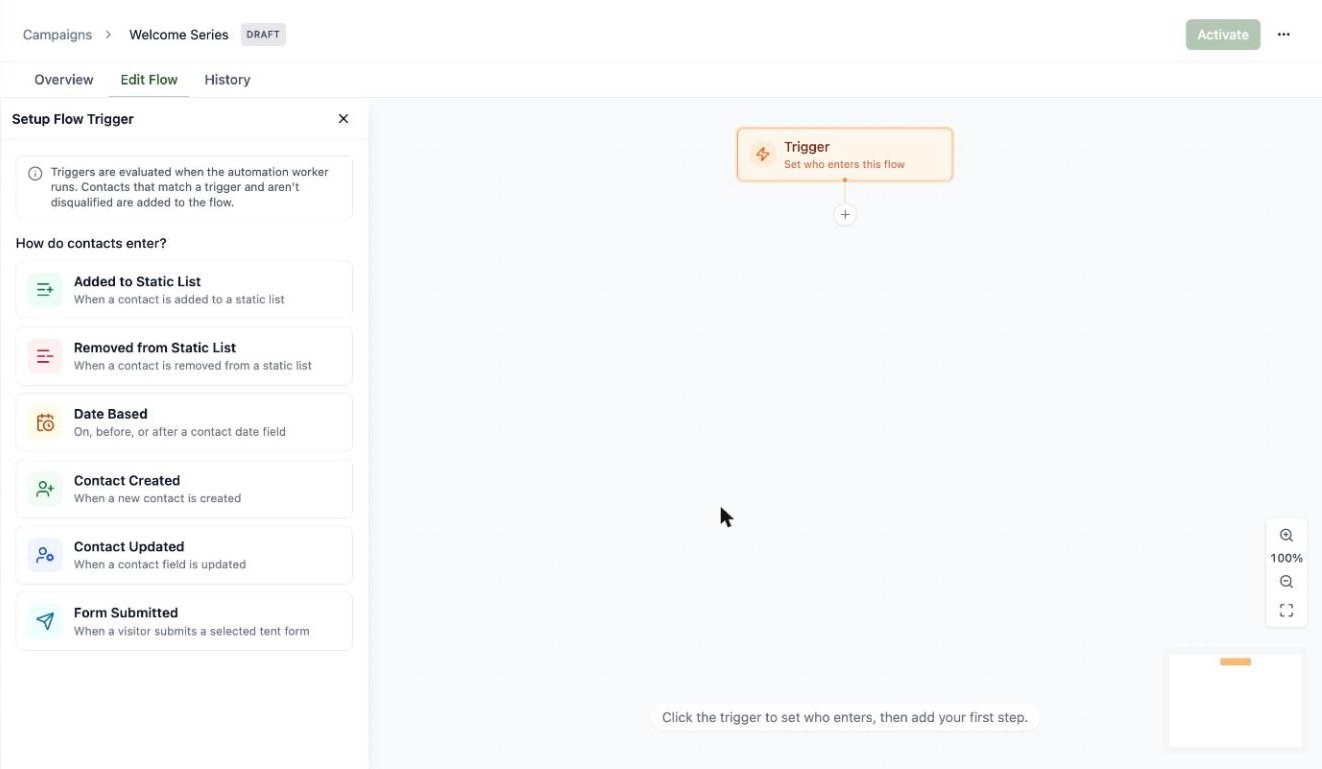 * **Added to Static List** — the classic welcome-series trigger
* **Removed from Static List**
* **Date Based** — on, before, or after a contact date field
* **Contact Created** — the moment someone new hits your database
* **Contact Updated** — when a contact field changes
* **Form Submitted** — when a visitor submits a form on one of your tents 🏕️
You can stack multiple triggers on one flow with **+ Add trigger**.
### Qualification rules
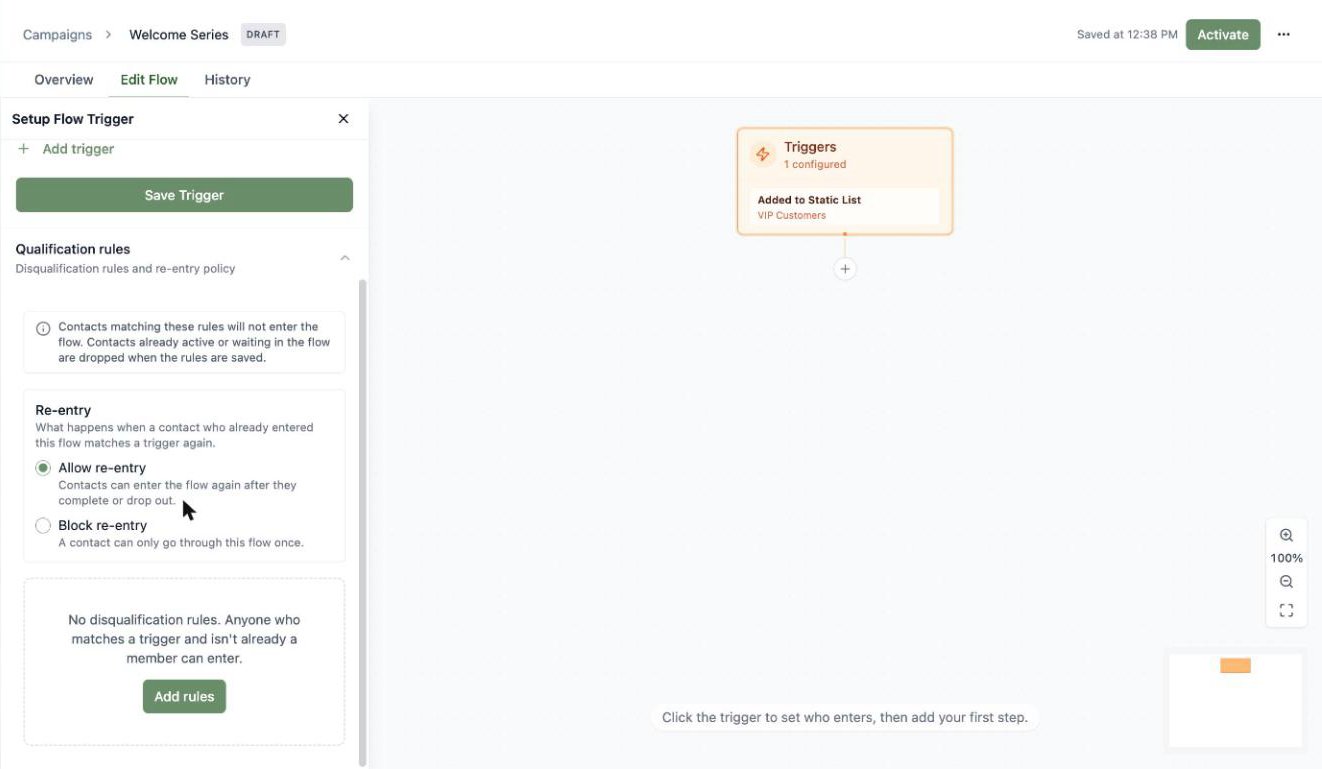
Below the triggers you'll find **Qualification rules** — the fine print of who gets in:
* **Re-entry policy**: allow contacts to go through the flow again after they finish (or block them to once ever).
* **Disqualification rules**: audience rules that keep matching contacts *out* — for example, exclude anyone whose lifecycle stage is already "Customer" from a lead-nurture flow.
* **Added to Static List** — the classic welcome-series trigger
* **Removed from Static List**
* **Date Based** — on, before, or after a contact date field
* **Contact Created** — the moment someone new hits your database
* **Contact Updated** — when a contact field changes
* **Form Submitted** — when a visitor submits a form on one of your tents 🏕️
You can stack multiple triggers on one flow with **+ Add trigger**.
### Qualification rules
Below the triggers you'll find **Qualification rules** — the fine print of who gets in:
* **Re-entry policy**: allow contacts to go through the flow again after they finish (or block them to once ever).
* **Disqualification rules**: audience rules that keep matching contacts *out* — for example, exclude anyone whose lifecycle stage is already "Customer" from a lead-nurture flow.
 ## Build the steps
Click **+** anywhere on the canvas to add a step. You've got a full automation toolkit:
## Build the steps
Click **+** anywhere on the canvas to add a step. You've got a full automation toolkit:
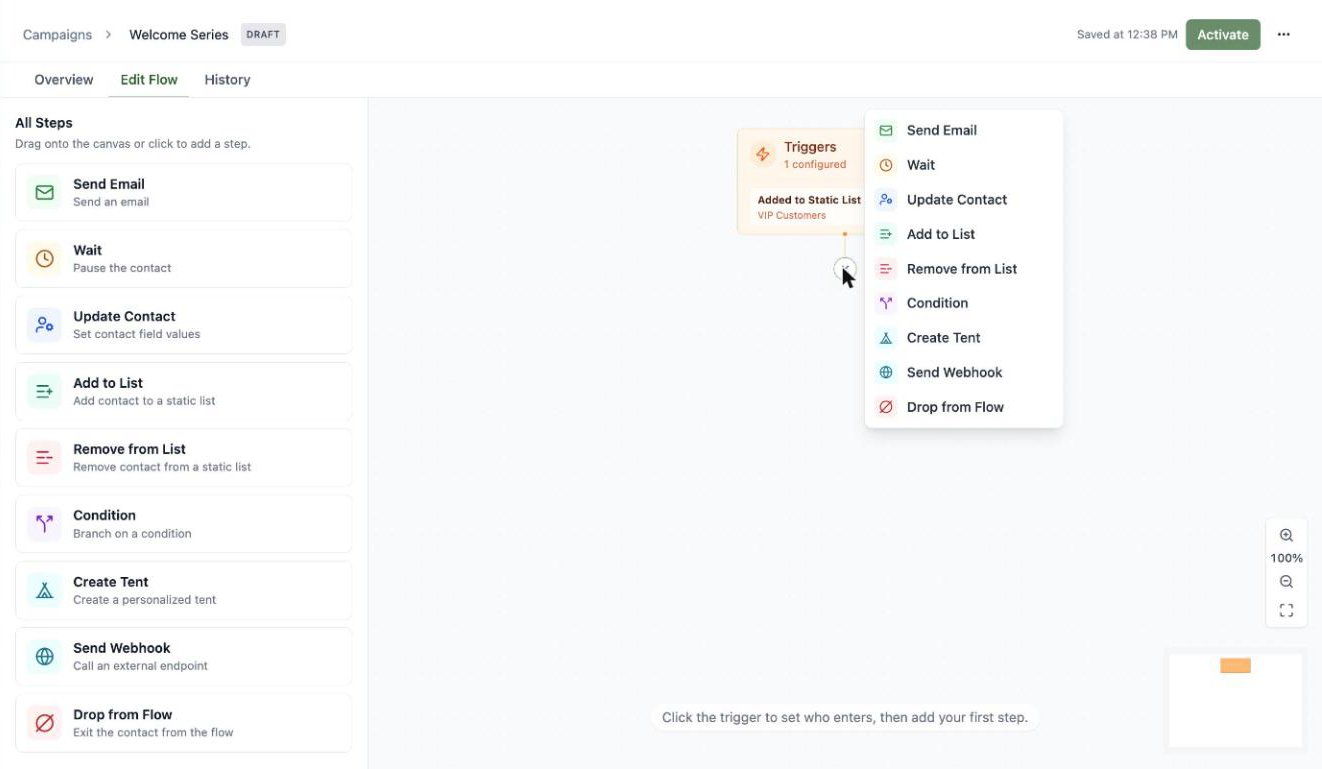 | Step | What it does |
| ---------------------------------- | ---------------------------------------------------- |
| **Send Email** | Send an approved (or inline) email |
| **Wait** | Pause for a duration, or until a contact date field |
| **Update Contact** | Set contact field values |
| **Add to List / Remove from List** | Manage static list membership |
| **Condition** | Branch the journey based on audience rules |
| **Create Tent** | Generate a personalized landing page for the contact |
| **Send Webhook** | Call an external endpoint |
| **Drop from Flow** | Exit the contact early |
For a Send Email step, pick any **approved** email — the same approval rule as blasts — or compose one inline. There's also an operational-send toggle for non-marketing notices.
| Step | What it does |
| ---------------------------------- | ---------------------------------------------------- |
| **Send Email** | Send an approved (or inline) email |
| **Wait** | Pause for a duration, or until a contact date field |
| **Update Contact** | Set contact field values |
| **Add to List / Remove from List** | Manage static list membership |
| **Condition** | Branch the journey based on audience rules |
| **Create Tent** | Generate a personalized landing page for the contact |
| **Send Webhook** | Call an external endpoint |
| **Drop from Flow** | Exit the contact early |
For a Send Email step, pick any **approved** email — the same approval rule as blasts — or compose one inline. There's also an operational-send toggle for non-marketing notices.
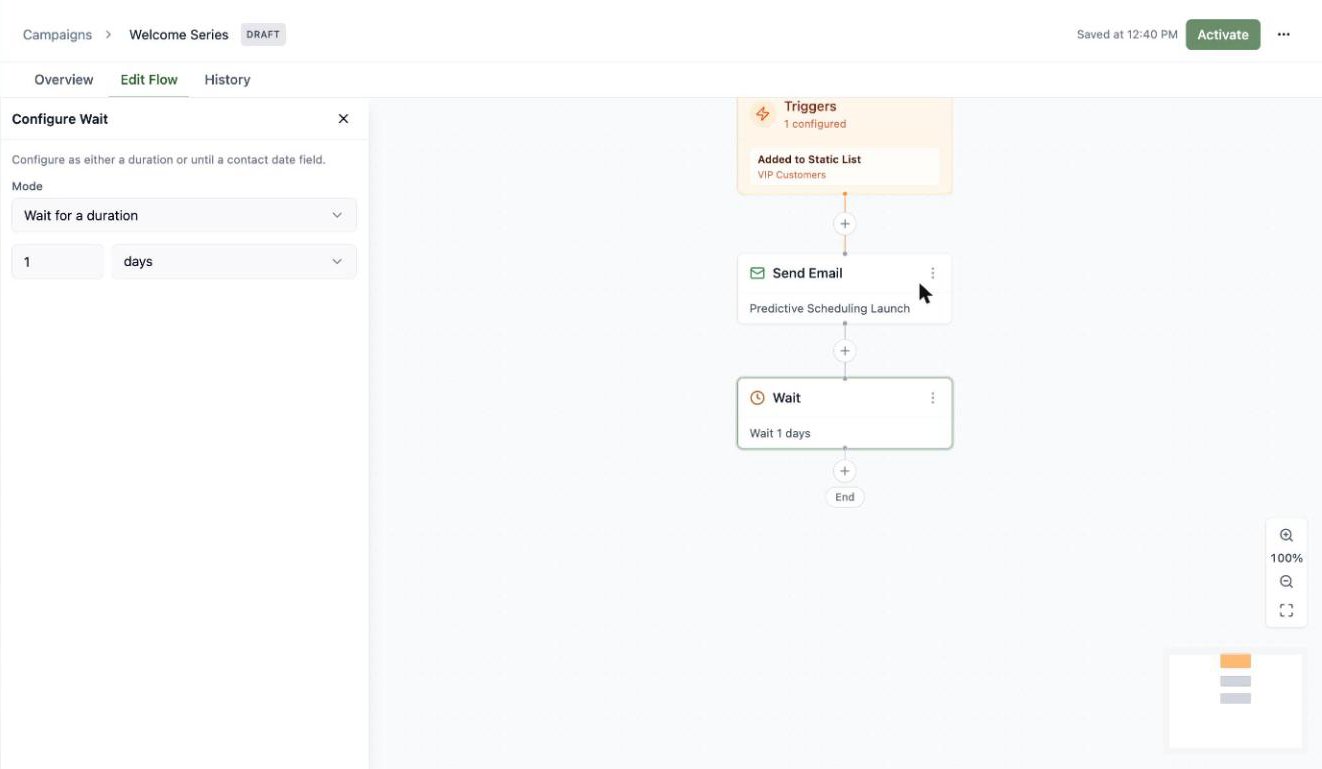
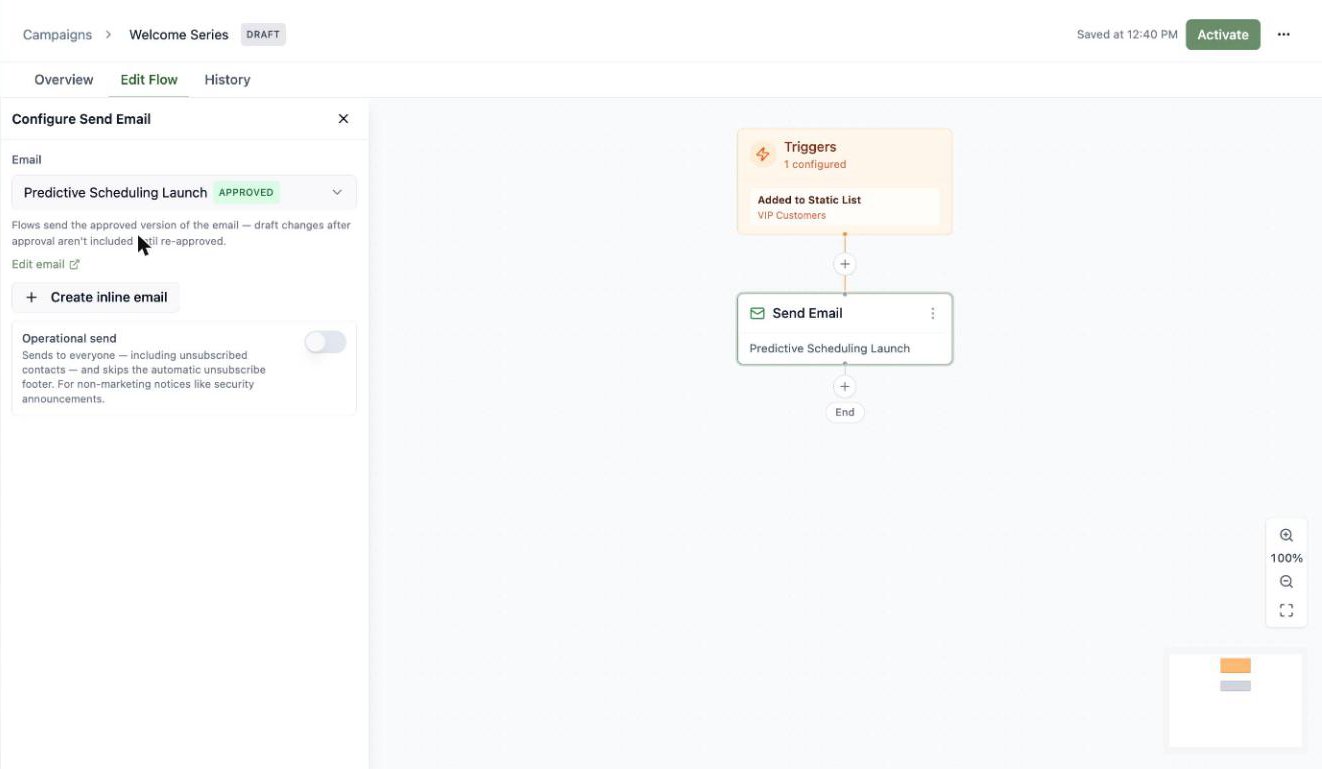 Wait steps keep journeys humane — space your sends out instead of firing everything at once:
 ### The Create Tent step
The **Create Tent** step generates a *personalized landing page for each contact* as they pass through the flow — a unique page per person, built from their contact data.
### The Create Tent step
The **Create Tent** step generates a *personalized landing page for each contact* as they pass through the flow — a unique page per person, built from their contact data.
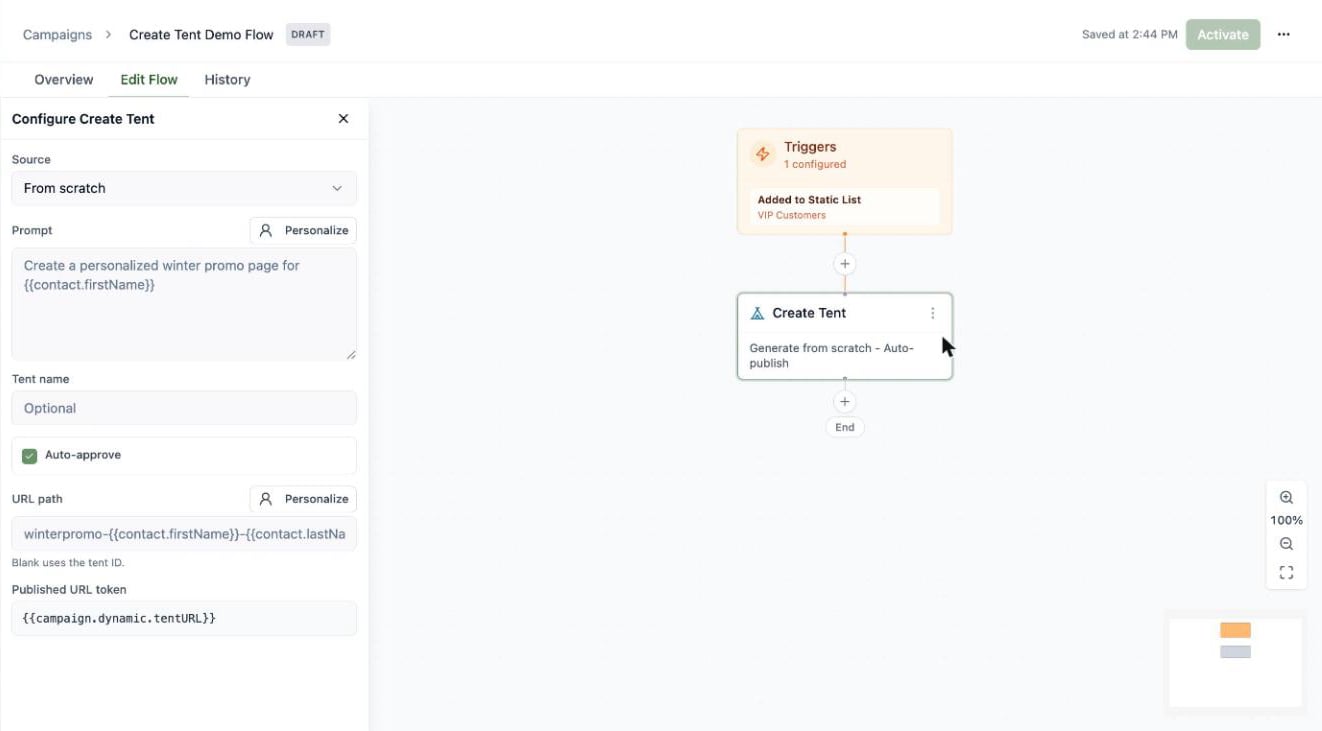 Configure it with:
* **Source** — **From scratch** (generate with AI from a prompt) or **From template** (copy an approved tent template, no generation credits).
Configure it with:
* **Source** — **From scratch** (generate with AI from a prompt) or **From template** (copy an approved tent template, no generation credits).
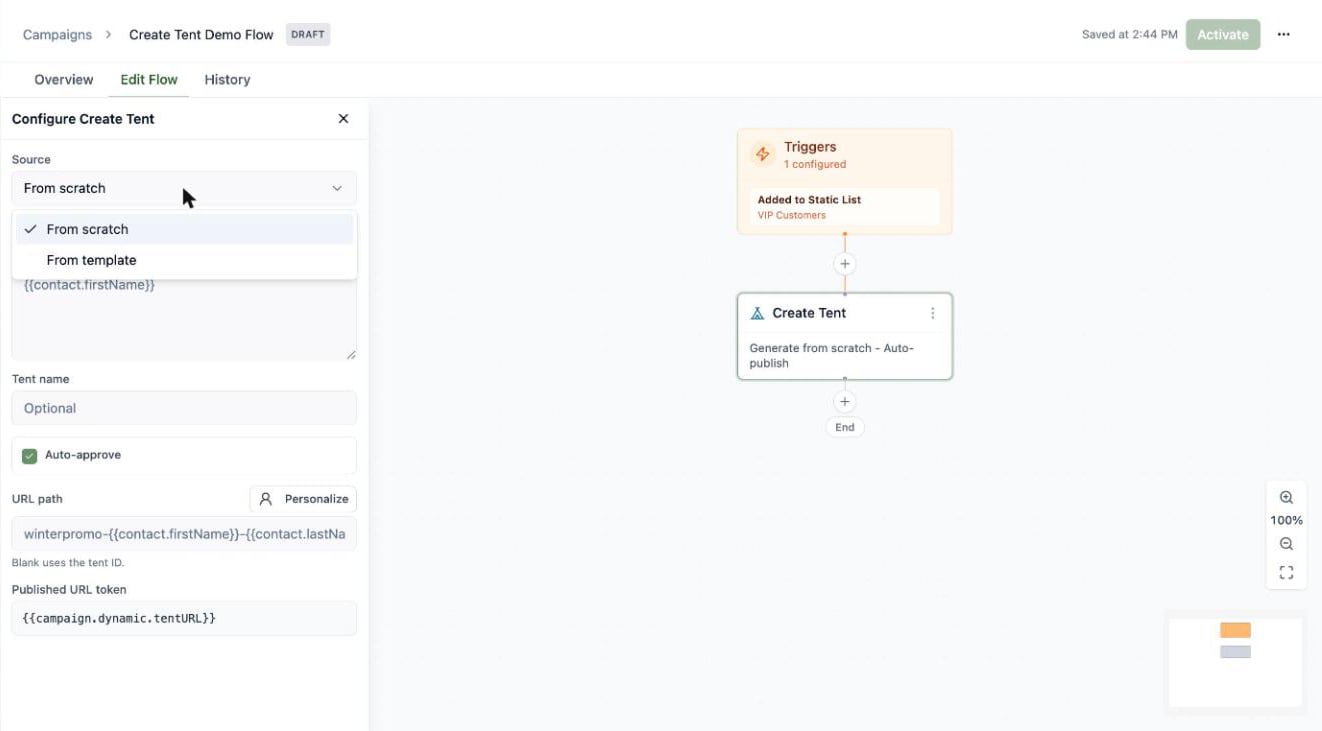 * **Prompt** — what to generate. Click **Personalize** to drop in [contact tokens](/email/creating-emails#subject-lines-preheaders-and-personalization) like `{{contact.firstName}}`, so every contact gets a page tailored to them.
* **Tent name** and **URL path** — both optional and both personalizable; a blank URL path falls back to the tent ID.
* **Auto-approve** — publish the generated tent automatically, so it's live the moment it's created.
**Use the new page's URL in a later email.** When **Auto-approve** is on, the step publishes the tent and stores its live URL in a token — shown in the panel as the **Published URL token**, `{{campaign.dynamic.tentURL}}`. Reference that token in any **Send Email** step *after* the Create Tent step, and each contact's email links to their own personalized page.
A typical shape: **Create Tent** (auto-approve, prompt personalized with `{{contact.firstName}}`) → **Send Email** whose CTA links to `{{campaign.dynamic.tentURL}}`. If you have more than one Create Tent step, the second becomes `{{campaign.dynamic.tentURL2}}`, and so on.
## Activate it
Click **Activate** and your flow goes live: from now on, contacts matching a trigger are enrolled automatically and start moving through the steps.
* **Prompt** — what to generate. Click **Personalize** to drop in [contact tokens](/email/creating-emails#subject-lines-preheaders-and-personalization) like `{{contact.firstName}}`, so every contact gets a page tailored to them.
* **Tent name** and **URL path** — both optional and both personalizable; a blank URL path falls back to the tent ID.
* **Auto-approve** — publish the generated tent automatically, so it's live the moment it's created.
**Use the new page's URL in a later email.** When **Auto-approve** is on, the step publishes the tent and stores its live URL in a token — shown in the panel as the **Published URL token**, `{{campaign.dynamic.tentURL}}`. Reference that token in any **Send Email** step *after* the Create Tent step, and each contact's email links to their own personalized page.
A typical shape: **Create Tent** (auto-approve, prompt personalized with `{{contact.firstName}}`) → **Send Email** whose CTA links to `{{campaign.dynamic.tentURL}}`. If you have more than one Create Tent step, the second becomes `{{campaign.dynamic.tentURL2}}`, and so on.
## Activate it
Click **Activate** and your flow goes live: from now on, contacts matching a trigger are enrolled automatically and start moving through the steps.
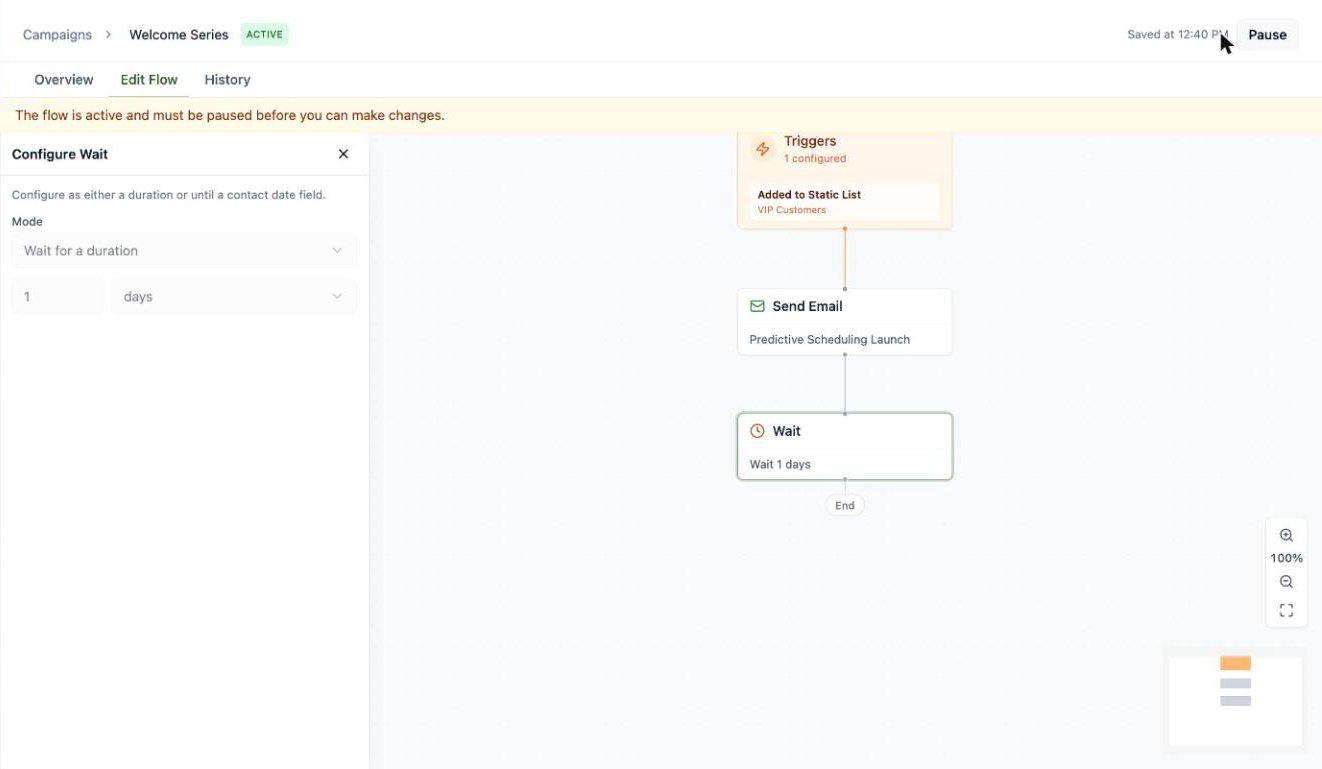 Active flows are locked for editing — hit **Pause** first if you need to make changes, then reactivate. Pausing doesn't kick anyone out: contacts already in the flow simply wait, and pick up where they left off when you reactivate. Triggers fire on *new* events after activation (evaluated about once a minute); contacts already on a list won't enter an "Added to Static List" flow retroactively.
## Track performance
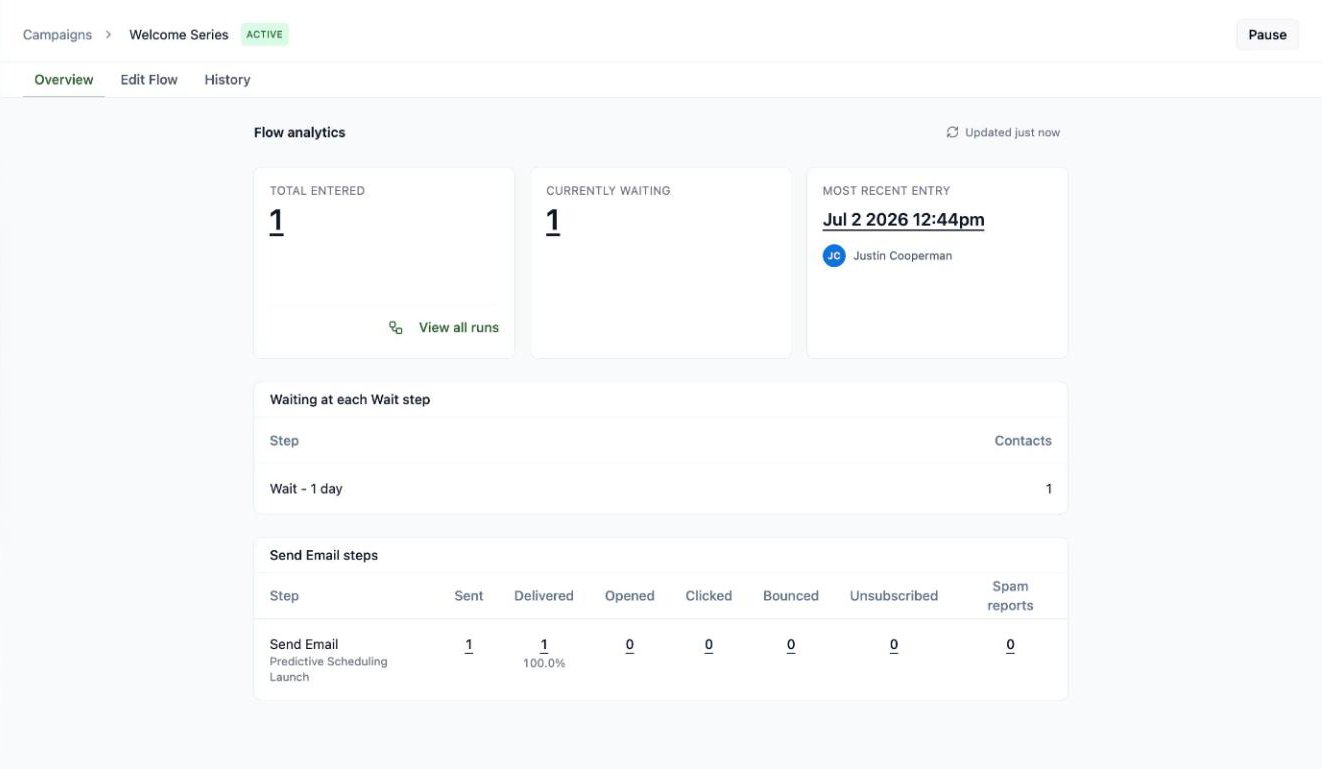
The **Overview** tab shows your flow's vitals: total contacts entered, how many are currently waiting, the most recent entry, who's parked at each Wait step, and per-email stats (sent, delivered, opened, clicked, bounced, unsubscribed, spam).
Active flows are locked for editing — hit **Pause** first if you need to make changes, then reactivate. Pausing doesn't kick anyone out: contacts already in the flow simply wait, and pick up where they left off when you reactivate. Triggers fire on *new* events after activation (evaluated about once a minute); contacts already on a list won't enter an "Added to Static List" flow retroactively.
## Track performance
The **Overview** tab shows your flow's vitals: total contacts entered, how many are currently waiting, the most recent entry, who's parked at each Wait step, and per-email stats (sent, delivered, opened, clicked, bounced, unsubscribed, spam).
 ### See every run
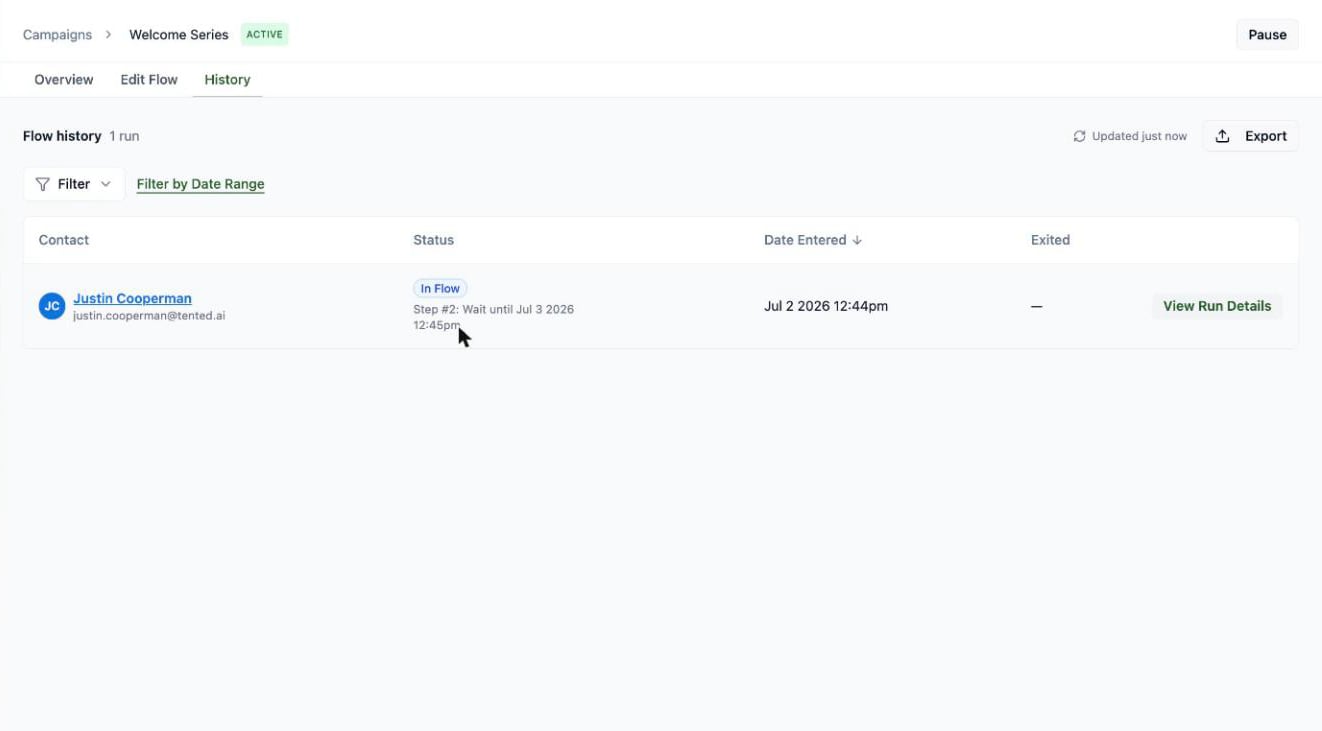
The **History** tab lists every contact who's been through the flow — their status (In Flow, Completed, Exited), when they entered, and when they left. Filter by status or date range, and click **Export** for a CSV.
### See every run
The **History** tab lists every contact who's been through the flow — their status (In Flow, Completed, Exited), when they entered, and when they left. Filter by status or date range, and click **Export** for a CSV.
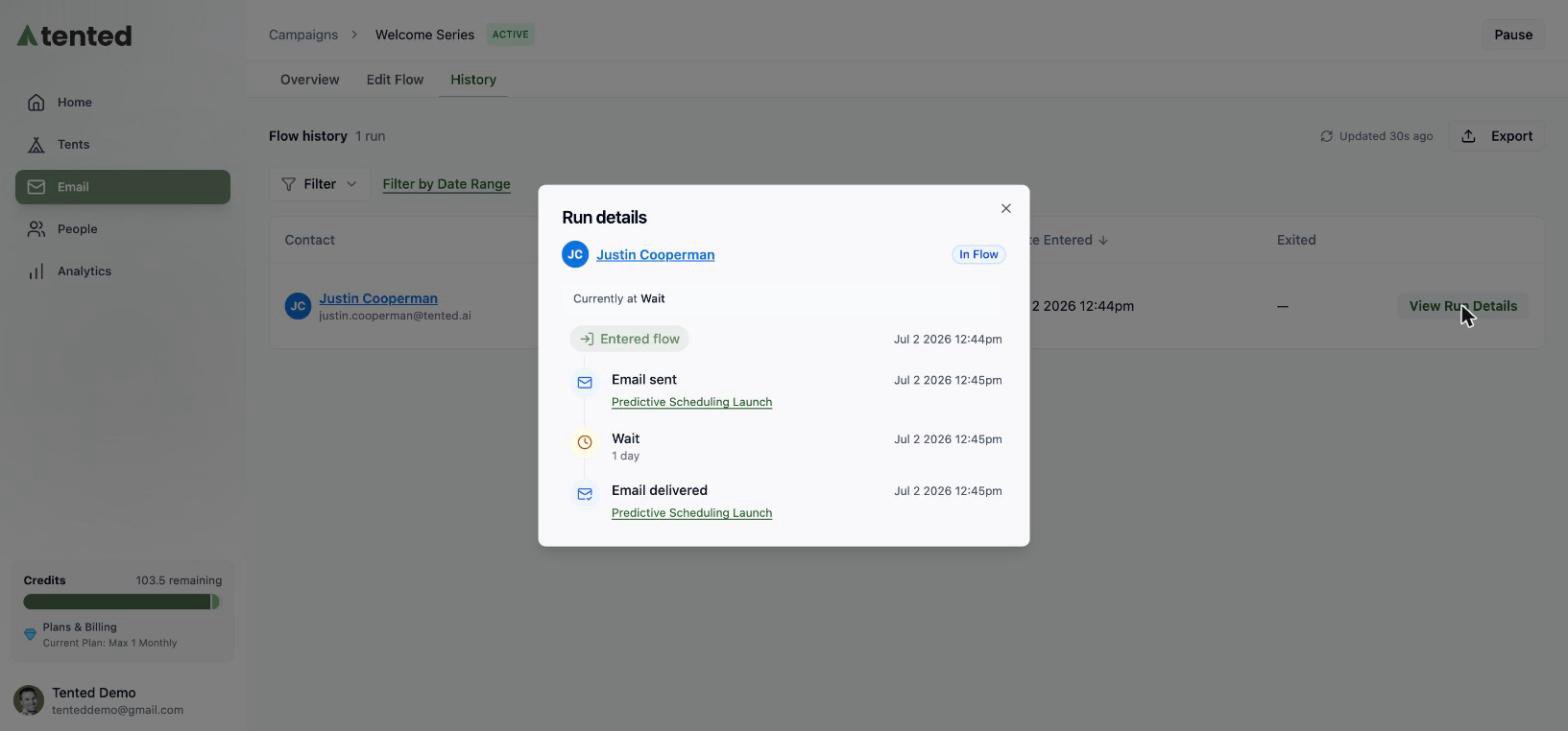
 Click **View Run Details** on any run to see that contact's exact path through the flow — a step-by-step timeline of what happened and when (entered flow, email sent, wait, email delivered), with the contact's current position highlighted.
 ## Flow or blast?
Reach for a **blast** when it's one message, one audience, one moment — a launch, a newsletter issue. Reach for a **flow** when the sending should happen *by itself* whenever someone qualifies — welcomes, nurtures, onboarding. Most teams end up with both.
## Flow or blast?
Reach for a **blast** when it's one message, one audience, one moment — a launch, a newsletter issue. Reach for a **flow** when the sending should happen *by itself* whenever someone qualifies — welcomes, nurtures, onboarding. Most teams end up with both.