> ## Documentation Index
> Fetch the complete documentation index at: https://docs.tented.ai/llms.txt
> Use this file to discover all available pages before exploring further.
# Email Templates
> Give every email a consistent, on-brand starting point
## Why templates?
If your team sends a lot of email, you probably don't want every message starting from a blank canvas. **Email templates** let you upload a designed HTML shell once — your header, footer, colors, and layout — and use it as the starting point whenever anyone creates a new email.
Find them under **Email > Templates**.
## Adding a template
1. Click **Add > Add Email Template**.
2. Name your template.
3. Upload your HTML file.
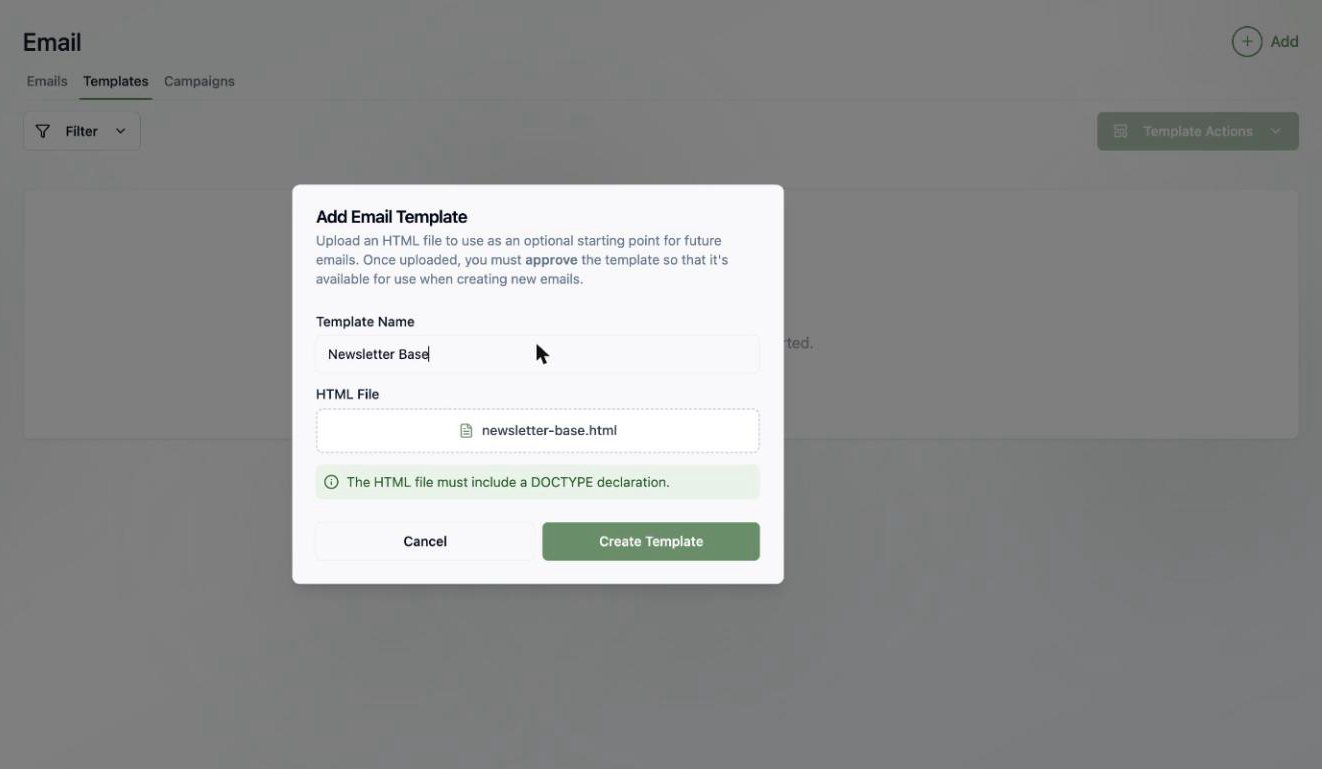 The HTML file must include a `` declaration. If you don't have a designed template handy, create an email you love in the [email editor](/email/creating-emails) first, grab its HTML from code mode, and upload that.
## Editing and approving
Your template opens in the same AI editor used for emails — chat to refine it, edit the code directly, and set optional **default headers** (from name, from address, reply-to, and a default subject) that flow into every email created from it.
The HTML file must include a `` declaration. If you don't have a designed template handy, create an email you love in the [email editor](/email/creating-emails) first, grab its HTML from code mode, and upload that.
## Editing and approving
Your template opens in the same AI editor used for emails — chat to refine it, edit the code directly, and set optional **default headers** (from name, from address, reply-to, and a default subject) that flow into every email created from it.
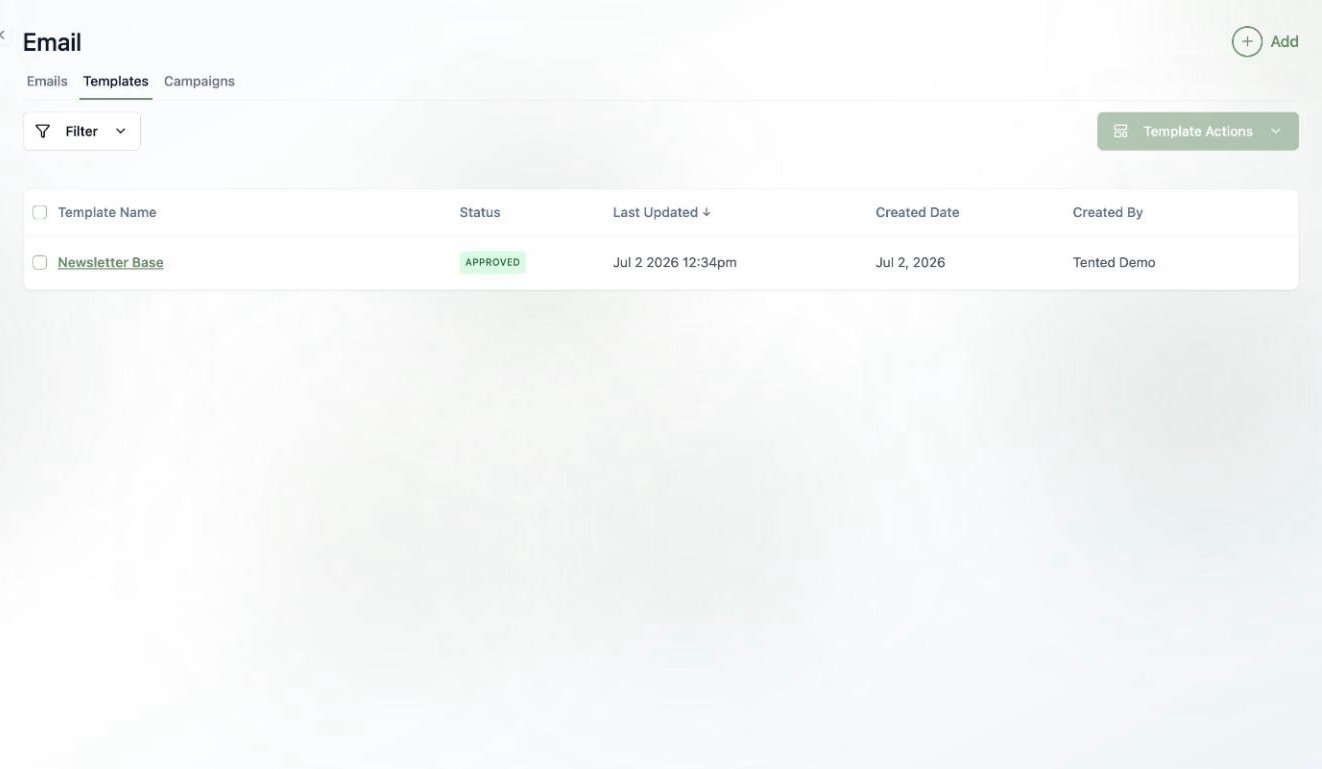
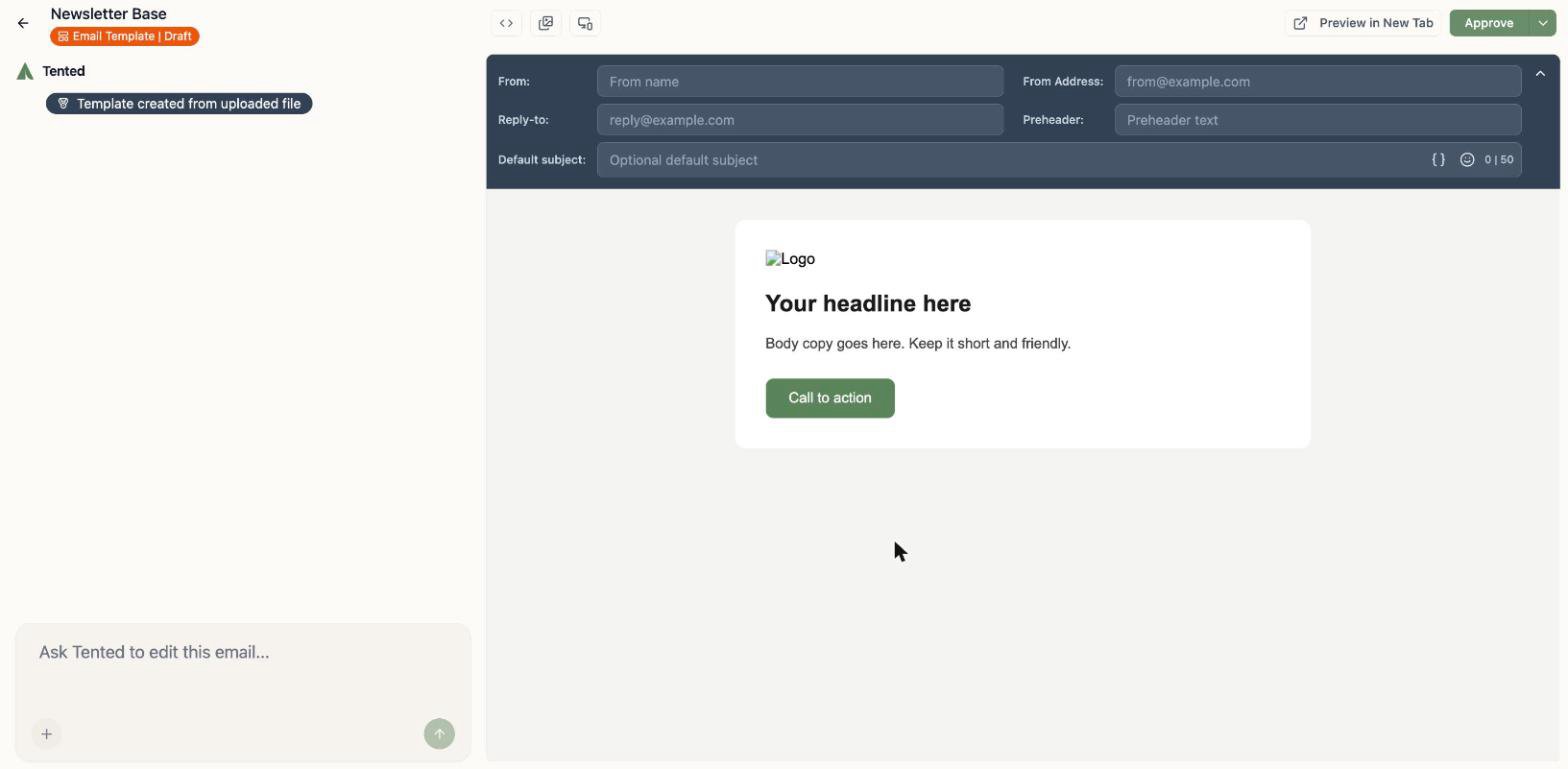 Templates follow the same **approval** model as emails: click **Approve** when it's ready, and only approved templates show up in the template picker when creating a new email.
 ## Using a template
When you create a new email (**Add > Create Email**), pick your template from the **Template** dropdown instead of starting blank. The new email inherits the template's layout and default headers — then you customize from there with chat, and the template stays untouched.
## What's next?
Send a one-time email to a list — scheduled, or right now.
## Using a template
When you create a new email (**Add > Create Email**), pick your template from the **Template** dropdown instead of starting blank. The new email inherits the template's layout and default headers — then you customize from there with chat, and the template stays untouched.
## What's next?
Send a one-time email to a list — scheduled, or right now.