> ## Documentation Index
> Fetch the complete documentation index at: https://docs.tented.ai/llms.txt
> Use this file to discover all available pages before exploring further.
# Tracking Email Performance
> See how an email performed across every blast and flow it was sent in
## One email, every send
Campaign dashboards tell you how a *send* went. The email's own detail page answers a different question: **how has this email performed across everything it's ever been sent in?**
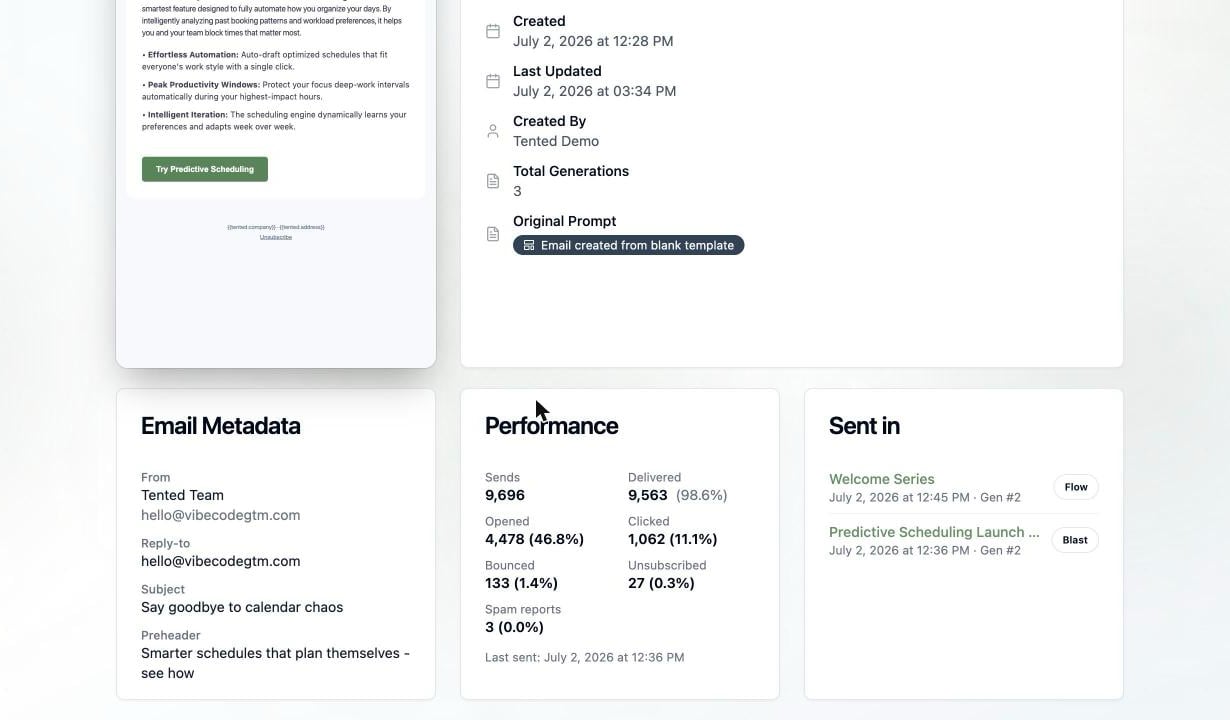
Open **Email > Emails** and click an email's name (not Edit) to land on its detail page. Alongside the preview and metadata you'll find two cards built from the email's full sending history:
 ## The Performance card
Lifetime totals for this email, rolled up across every blast and triggered-flow send:
| Metric | Rate shown as a percent of |
| ---------------- | -------------------------- |
| **Sends** | — |
| **Delivered** | Sends |
| **Opened** | Delivered |
| **Clicked** | Delivered |
| **Bounced** | Sends |
| **Unsubscribed** | Delivered |
| **Spam reports** | Delivered |
The same denominators apply everywhere results appear in Tented: delivery outcomes are measured against what was sent, engagement against what actually reached an inbox. A **Last sent** line at the bottom tells you how fresh the numbers are; an email that's never gone out shows *"This email hasn't been sent yet."*
[Sample emails](/email/sample-emails) don't count here — their opens and clicks are deliberately excluded from results, so testing your own email doesn't pollute the stats.
## The Sent in card
**Sent in** lists every campaign that delivered this email, newest first. Each row shows:
* The campaign name, linking straight to its results
* A **Blast** or **Flow** badge
* The send date and **Gen #N** — which approved generation of the email actually went out
That generation stamp matters: emails send their **approved version**, so if you've iterated since a campaign ran, Gen #2 in the list and Gen #5 in your editor are different emails. The [generation history](/email/creating-emails#generation-history) in the editor lets you view any past version.
## Drilling into a specific send
For per-campaign numbers and per-contact activity, click through to the campaign itself:
* **Blasts** open a [results dashboard](/email/email-blasts#watch-the-results-roll-in) where every metric is clickable — see exactly who opened, clicked, bounced, or unsubscribed, with timestamps, and export any bucket as a CSV.
* **Flows** show per-step stats on their [Overview tab](/email/triggered-flows#track-performance), plus a per-contact run history.
## What's next?
Stop guessing — test up to five variations and send the winner automatically.
## The Performance card
Lifetime totals for this email, rolled up across every blast and triggered-flow send:
| Metric | Rate shown as a percent of |
| ---------------- | -------------------------- |
| **Sends** | — |
| **Delivered** | Sends |
| **Opened** | Delivered |
| **Clicked** | Delivered |
| **Bounced** | Sends |
| **Unsubscribed** | Delivered |
| **Spam reports** | Delivered |
The same denominators apply everywhere results appear in Tented: delivery outcomes are measured against what was sent, engagement against what actually reached an inbox. A **Last sent** line at the bottom tells you how fresh the numbers are; an email that's never gone out shows *"This email hasn't been sent yet."*
[Sample emails](/email/sample-emails) don't count here — their opens and clicks are deliberately excluded from results, so testing your own email doesn't pollute the stats.
## The Sent in card
**Sent in** lists every campaign that delivered this email, newest first. Each row shows:
* The campaign name, linking straight to its results
* A **Blast** or **Flow** badge
* The send date and **Gen #N** — which approved generation of the email actually went out
That generation stamp matters: emails send their **approved version**, so if you've iterated since a campaign ran, Gen #2 in the list and Gen #5 in your editor are different emails. The [generation history](/email/creating-emails#generation-history) in the editor lets you view any past version.
## Drilling into a specific send
For per-campaign numbers and per-contact activity, click through to the campaign itself:
* **Blasts** open a [results dashboard](/email/email-blasts#watch-the-results-roll-in) where every metric is clickable — see exactly who opened, clicked, bounced, or unsubscribed, with timestamps, and export any bucket as a CSV.
* **Flows** show per-step stats on their [Overview tab](/email/triggered-flows#track-performance), plus a per-contact run history.
## What's next?
Stop guessing — test up to five variations and send the winner automatically.