> ## Documentation Index
> Fetch the complete documentation index at: https://docs.tented.ai/llms.txt
> Use this file to discover all available pages before exploring further.
# Email Blasts
> Send a one-time email to an audience — scheduled, or right now
## What's a blast?
An **email blast** is a one-time send to an audience: product launches, newsletters, event invites, announcements. You pick who gets it, what they get, and when — Tented handles delivery, unsubscribes, and the results dashboard.
First time sending? Make sure your sending domain is verified — see [Setting Up Email](/email/email-setup).
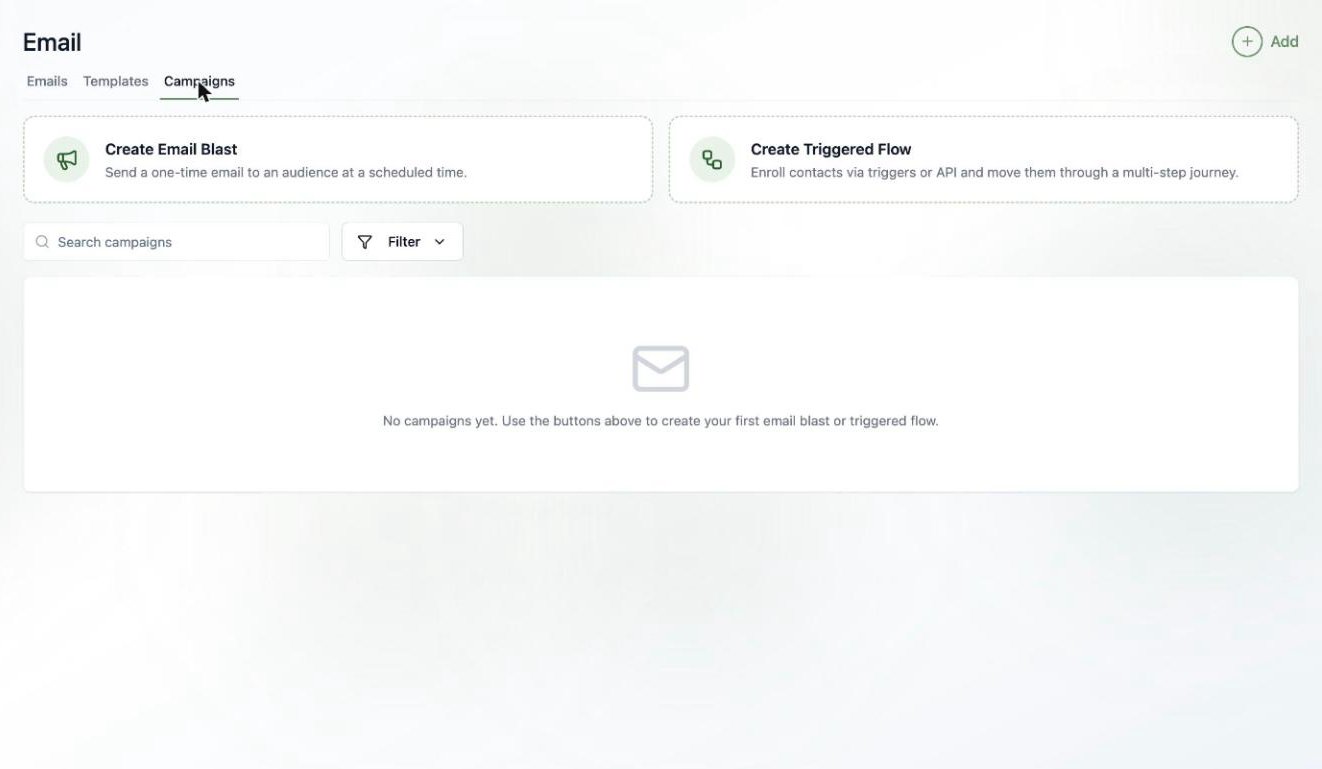
Head to **Email > Campaigns** and click **Create Email Blast**. Name your blast (this is just for your team — recipients never see it), and you're dropped into a three-step wizard: **Audience → Email → Schedule**. Your progress saves automatically as you go.
 ## Step 1: Pick the audience
Choose an existing [static or dynamic list](/people/working-with-lists), or build a one-off list just for this blast (it's deleted along with the blast, keeping your Lists page tidy).
## Step 1: Pick the audience
Choose an existing [static or dynamic list](/people/working-with-lists), or build a one-off list just for this blast (it's deleted along with the blast, keeping your Lists page tidy).
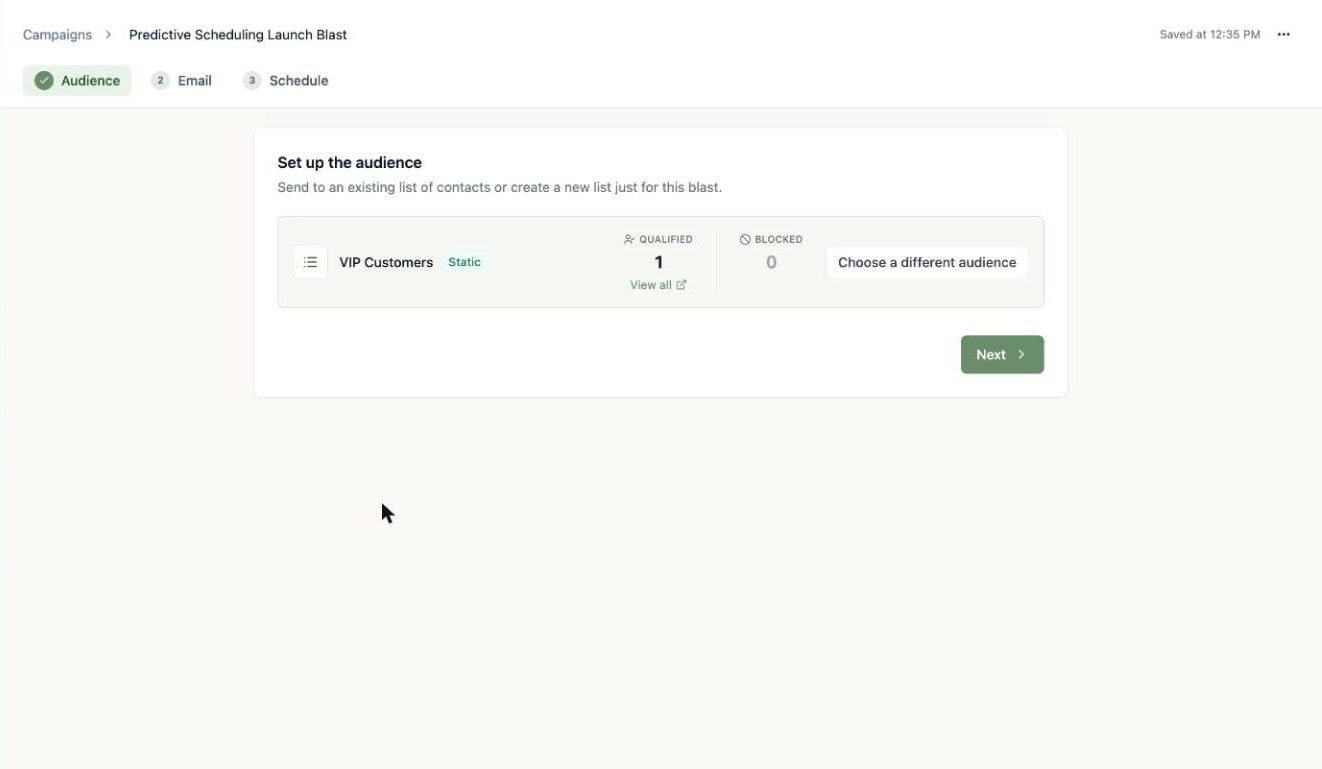
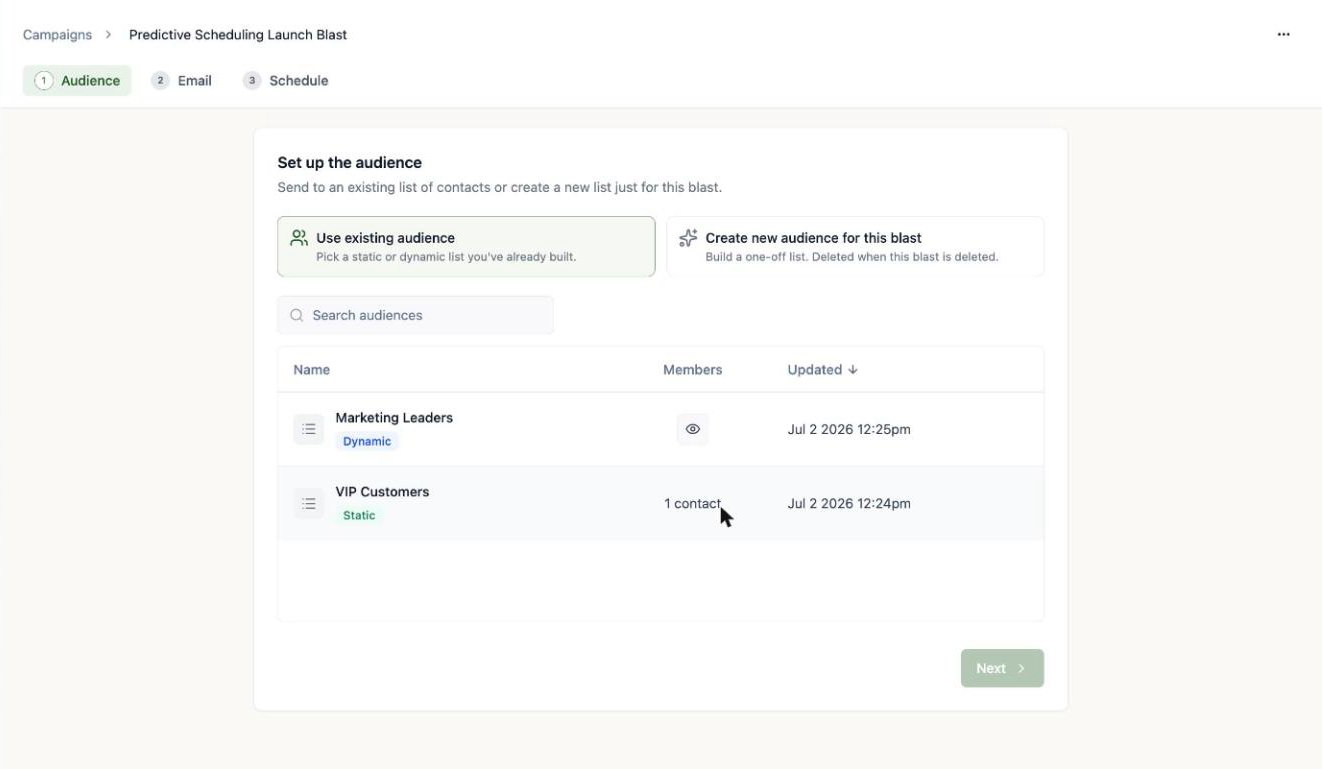 Once you pick a list, Tented shows you the **qualified** count (people who will actually receive the email) and the **blocked** count (people excluded because they've unsubscribed). Click **View all** to inspect exactly who qualifies.
 ## Step 2: Pick the email
Use an existing **approved** email, or compose a one-off email inline just for this blast.
## Step 2: Pick the email
Use an existing **approved** email, or compose a one-off email inline just for this blast.
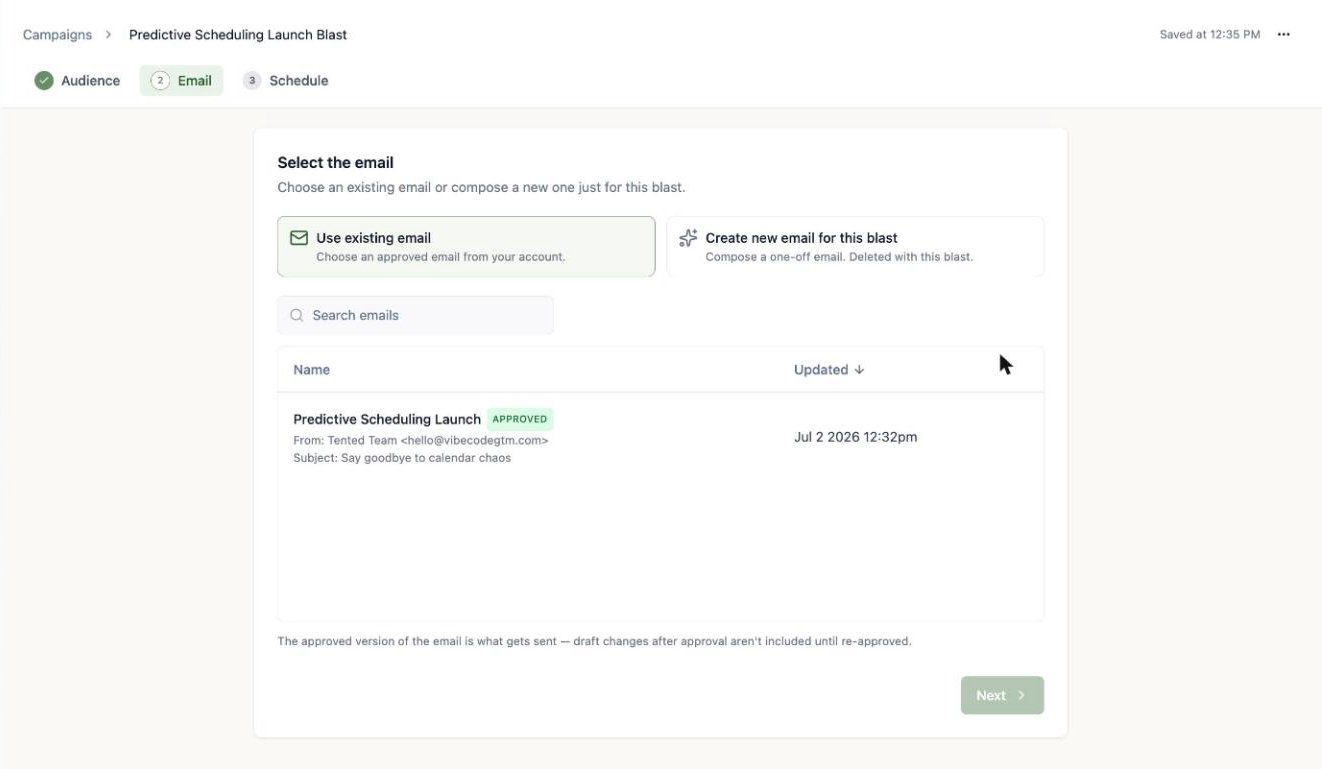 Blasts send the **approved version** of an email. If you've made draft edits since approving, they won't go out until you click **Approve Update** on the email.
## Step 3: Schedule it (or don't)
Two ways to launch:
* **Schedule send** — pick a day and time; the blast is approved now and sends automatically.
* **Send now** — confirm, and it goes to everyone qualified immediately. This can't be undone, so the confirmation shows you the exact recipient count first.
Blasts send the **approved version** of an email. If you've made draft edits since approving, they won't go out until you click **Approve Update** on the email.
## Step 3: Schedule it (or don't)
Two ways to launch:
* **Schedule send** — pick a day and time; the blast is approved now and sends automatically.
* **Send now** — confirm, and it goes to everyone qualified immediately. This can't be undone, so the confirmation shows you the exact recipient count first.
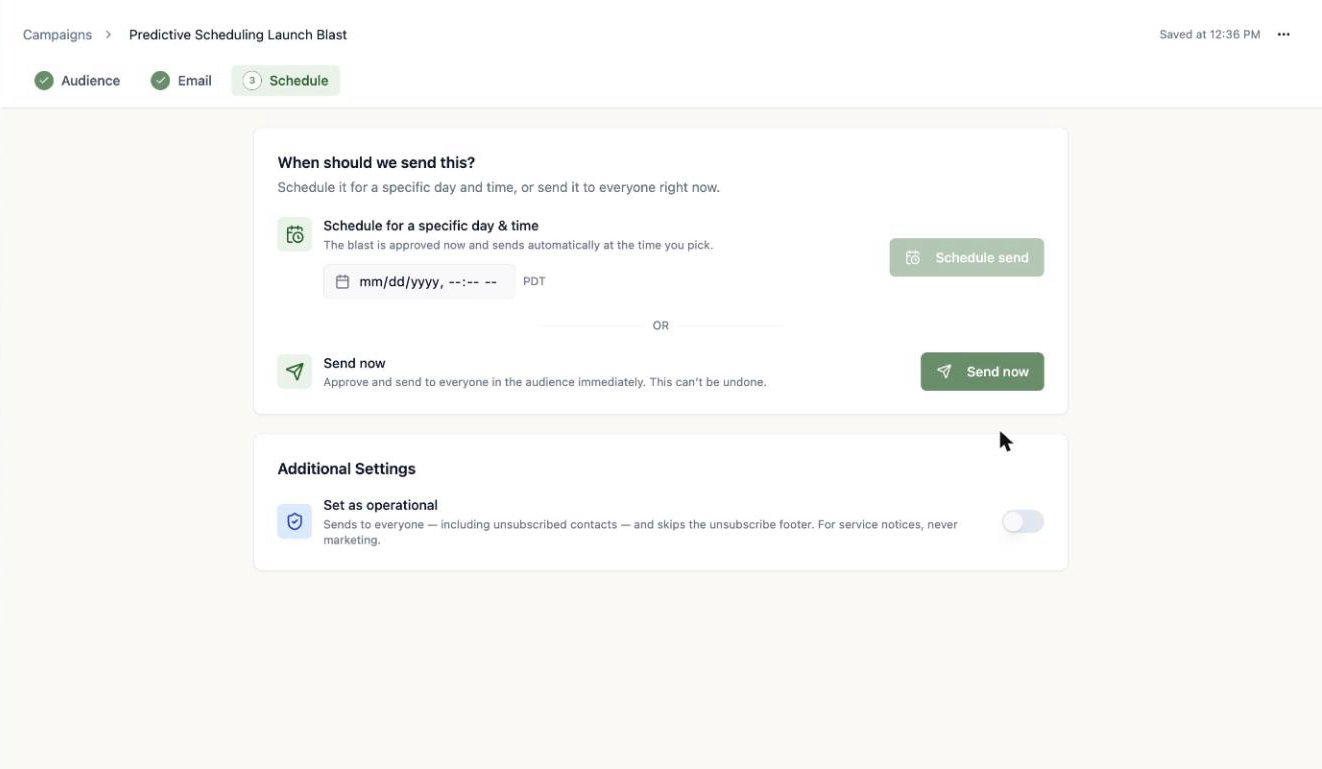 **Set as operational** is for service notices — password resets, security announcements, terms changes. Operational sends go to everyone *including* unsubscribed contacts and skip the unsubscribe footer. Never use it for marketing.
Scheduled the wrong thing? A scheduled blast can be **unscheduled** any time before it sends — it returns to draft (with your original send time remembered) so you can edit the audience or email and reschedule.
## Watch the results roll in
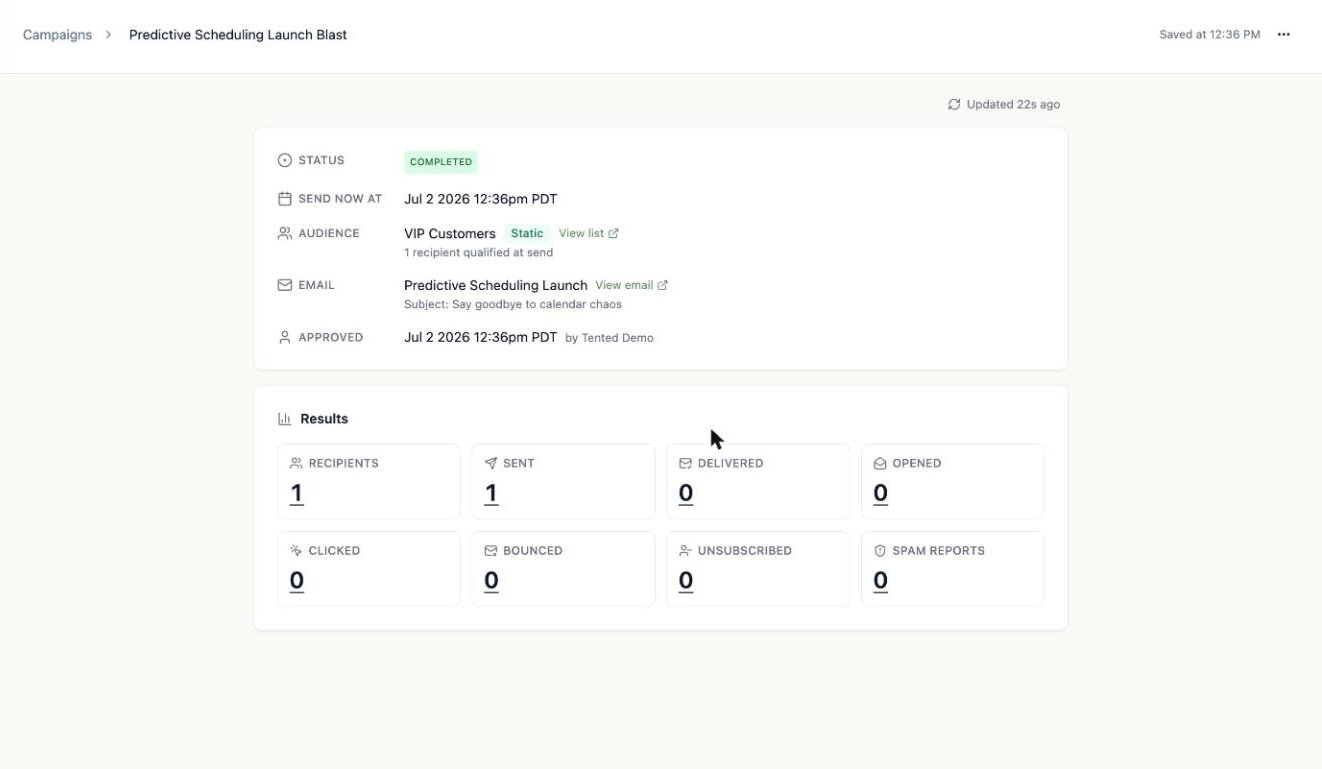
The moment a blast sends, its page becomes a live results dashboard: recipients, sent, delivered, opened, clicked, bounced, unsubscribed, and spam reports.
**Set as operational** is for service notices — password resets, security announcements, terms changes. Operational sends go to everyone *including* unsubscribed contacts and skip the unsubscribe footer. Never use it for marketing.
Scheduled the wrong thing? A scheduled blast can be **unscheduled** any time before it sends — it returns to draft (with your original send time remembered) so you can edit the audience or email and reschedule.
## Watch the results roll in
The moment a blast sends, its page becomes a live results dashboard: recipients, sent, delivered, opened, clicked, bounced, unsubscribed, and spam reports.
 ### Drill into any metric
Every number on the dashboard is clickable. Click a metric — say **Delivered** or **Bounced** — to open the **Activity** view: the exact contacts in that bucket, with timestamps (delivered at, opened at, and so on). A left-hand rail lets you jump between buckets, and there's a search box to find a specific person.
### Drill into any metric
Every number on the dashboard is clickable. Click a metric — say **Delivered** or **Bounced** — to open the **Activity** view: the exact contacts in that bucket, with timestamps (delivered at, opened at, and so on). A left-hand rail lets you jump between buckets, and there's a search box to find a specific person.
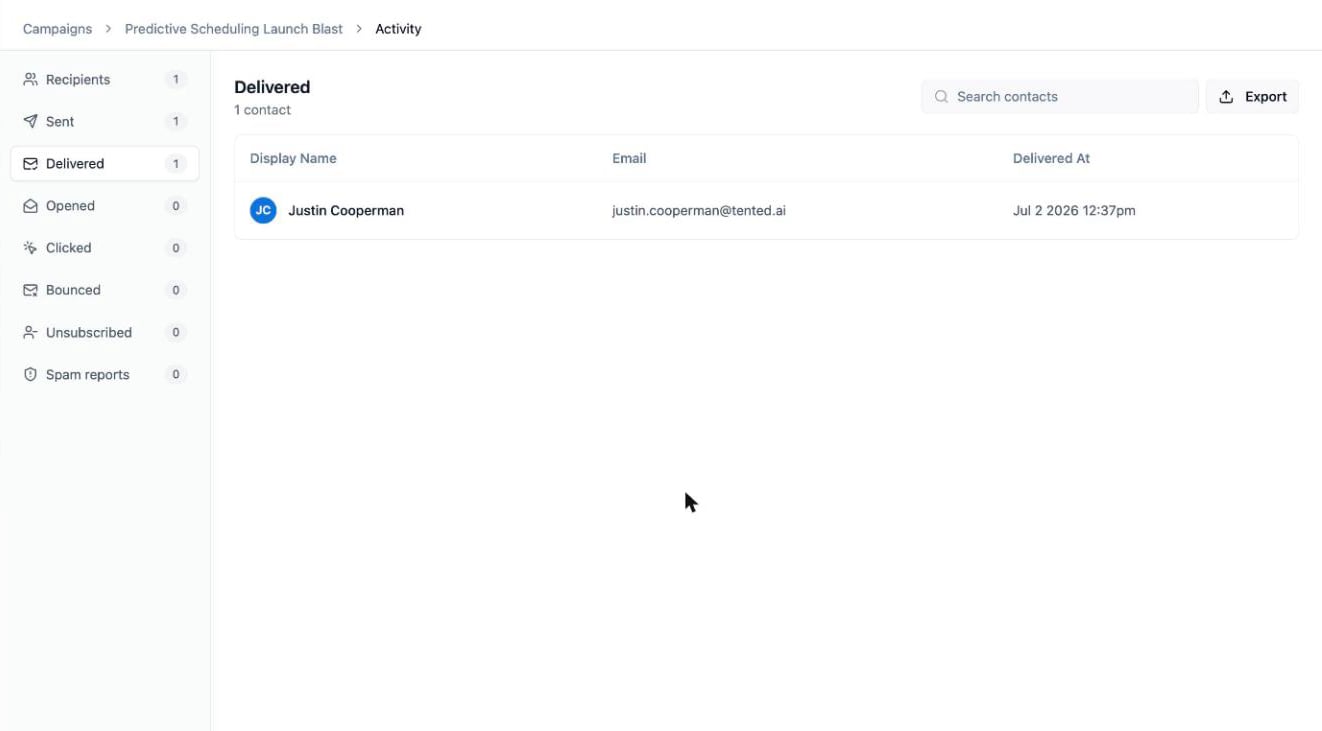 Click **Export** to download the contacts in the current bucket as a CSV — handy for pulling your bounced addresses for cleanup, or your openers for a follow-up.
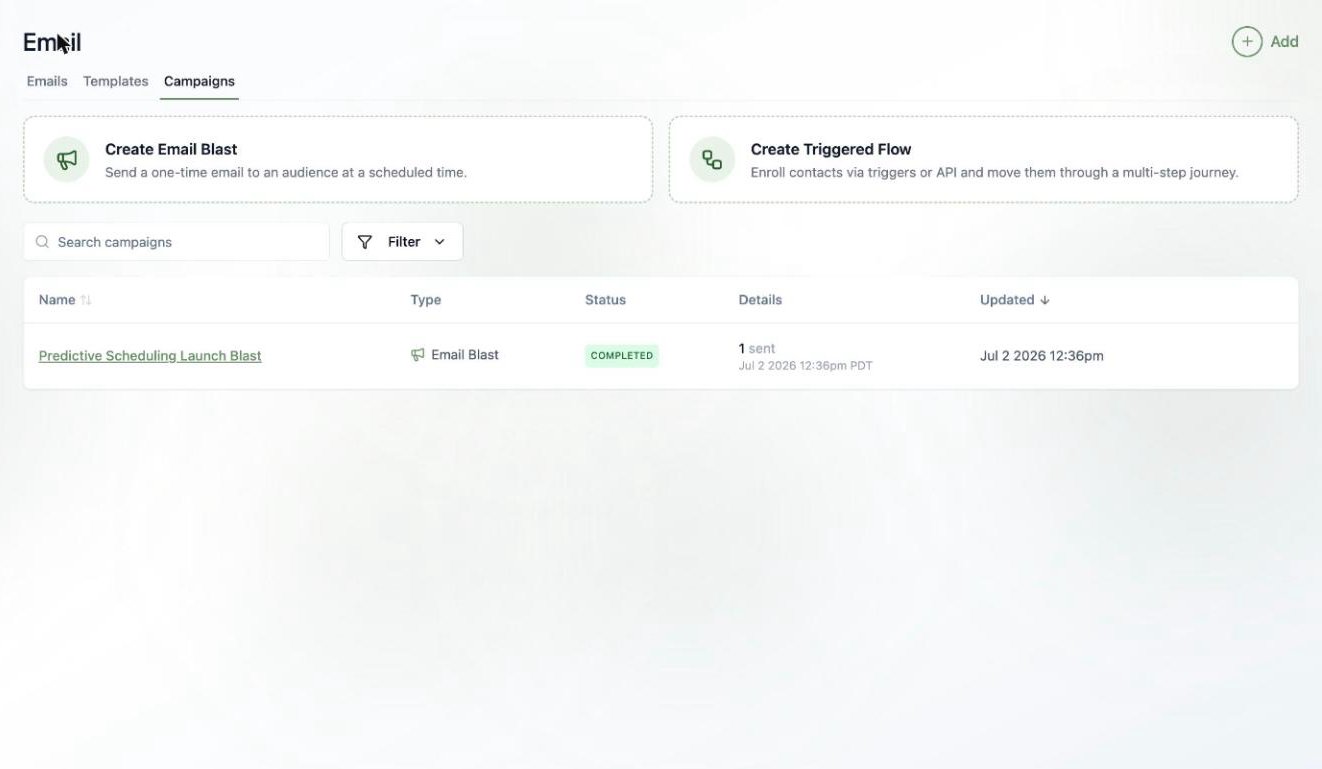
All your blasts (and flows) live together on the **Campaigns** tab, with status and headline results at a glance.
Click **Export** to download the contacts in the current bucket as a CSV — handy for pulling your bounced addresses for cleanup, or your openers for a follow-up.
All your blasts (and flows) live together on the **Campaigns** tab, with status and headline results at a glance.
 ## What's next?
Go beyond one-time sends — build multi-step journeys that run automatically.
## What's next?
Go beyond one-time sends — build multi-step journeys that run automatically.