> ## Documentation Index
> Fetch the complete documentation index at: https://docs.tented.ai/llms.txt
> Use this file to discover all available pages before exploring further.
# User Settings
> Configure your personal profile and notification preferences
## User Settings Overview
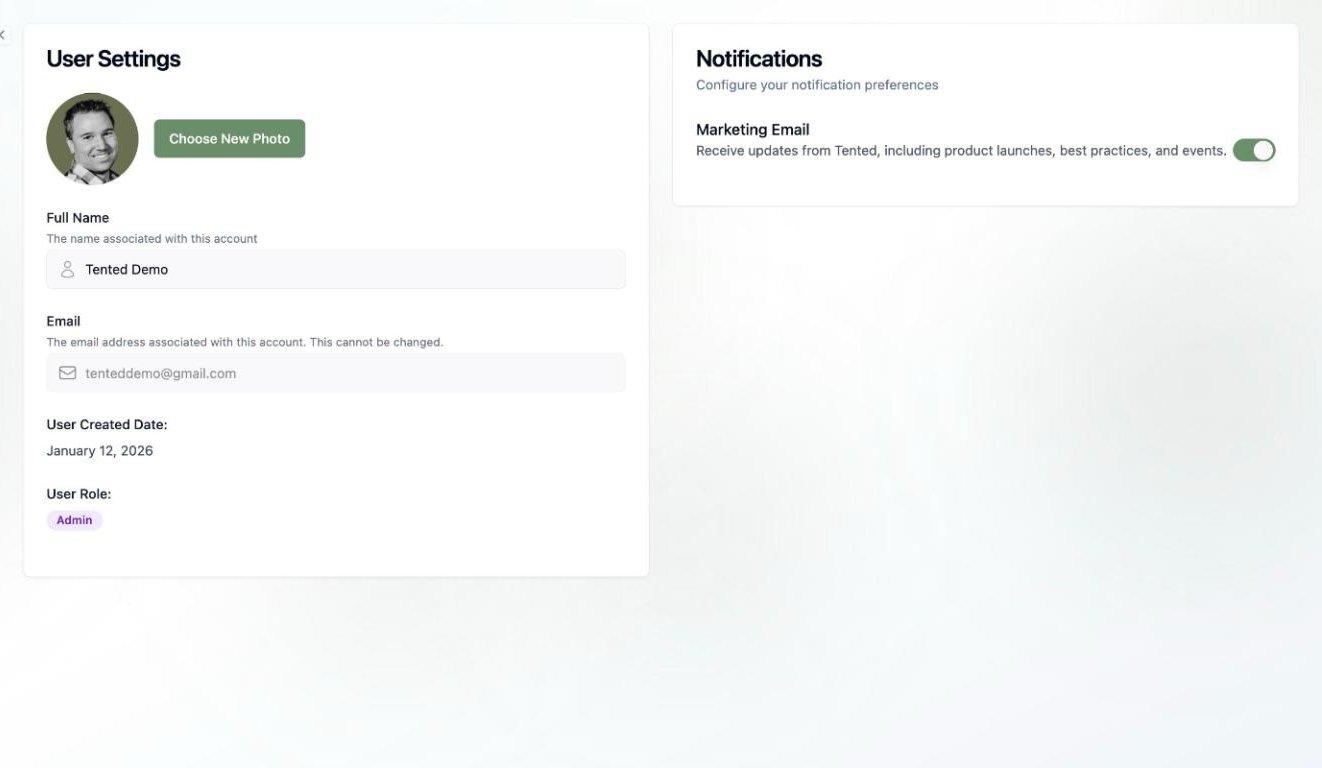
User Settings is your personal corner of Tented — separate from workspace-wide settings. Open it by clicking your **profile icon** in the bottom-left corner and selecting **User Settings**.
 ## Profile
* **Profile photo** — click **Choose New Photo** to upload one.
* **Full Name** — the name associated with your account, shown across the workspace.
* **Email** — the address you signed up with. This can't be changed.
* **User Created Date** — when your account was created.
* **User Role** — your current role badge ([Admin or Standard User](/configuring-tented/user-permissions)).
## Notifications
The **Notifications** panel controls your personal preferences:
* **Marketing Email** — toggle whether you receive product updates, best practices, and event announcements from Tented.
Looking for form-submission notifications? Those are configured per tent as [form automations](/working-with-tents/form-automations), not here.
Configure workspace-wide branding, company info, and more.
## Profile
* **Profile photo** — click **Choose New Photo** to upload one.
* **Full Name** — the name associated with your account, shown across the workspace.
* **Email** — the address you signed up with. This can't be changed.
* **User Created Date** — when your account was created.
* **User Role** — your current role badge ([Admin or Standard User](/configuring-tented/user-permissions)).
## Notifications
The **Notifications** panel controls your personal preferences:
* **Marketing Email** — toggle whether you receive product updates, best practices, and event announcements from Tented.
Looking for form-submission notifications? Those are configured per tent as [form automations](/working-with-tents/form-automations), not here.
Configure workspace-wide branding, company info, and more.