> ## Documentation Index
> Fetch the complete documentation index at: https://docs.tented.ai/llms.txt
> Use this file to discover all available pages before exploring further.
# Switching Workspaces
> Move between the Tented workspaces you belong to without signing out
## Workspaces Overview
Your Tented account (your email address) can belong to more than one workspace — for example, your own company's workspace plus a client workspace you've been [invited to](/configuring-tented/inviting-new-users). Each workspace keeps its own tents, contacts, emails, branding, team, and plan.
## Choosing a Workspace at Login
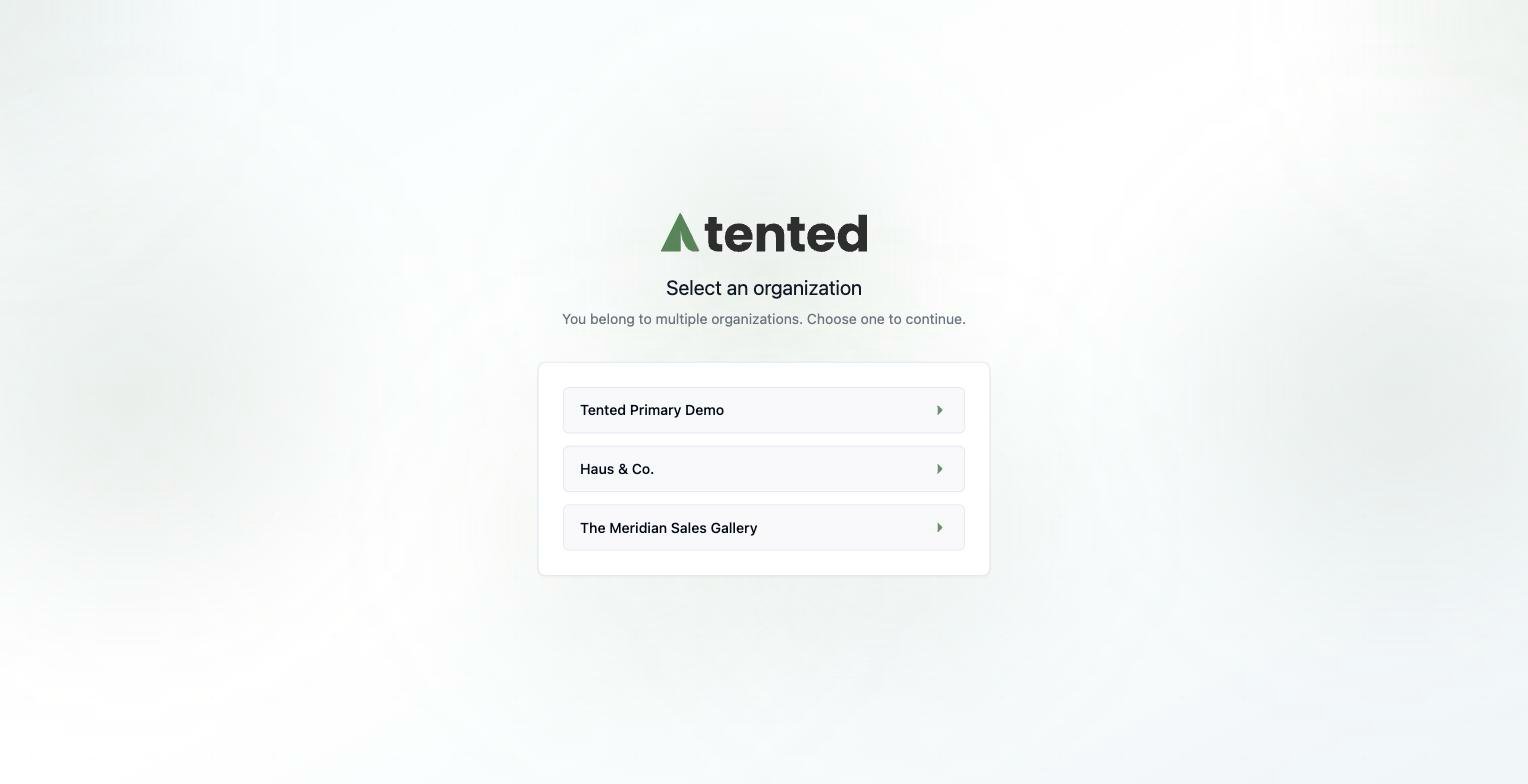
If your email belongs to multiple workspaces, Tented asks which one you want to use right after you log in. Pick a workspace from the list and you'll land in it.
 ## Switching While Logged In
If you belong to more than one workspace, you don't need to sign out to move between them:
Click your **profile icon** in the bottom-left corner of the sidebar, and select **Switch Workspace** from the menu (just above **Sign out**):
## Switching While Logged In
If you belong to more than one workspace, you don't need to sign out to move between them:
Click your **profile icon** in the bottom-left corner of the sidebar, and select **Switch Workspace** from the menu (just above **Sign out**):
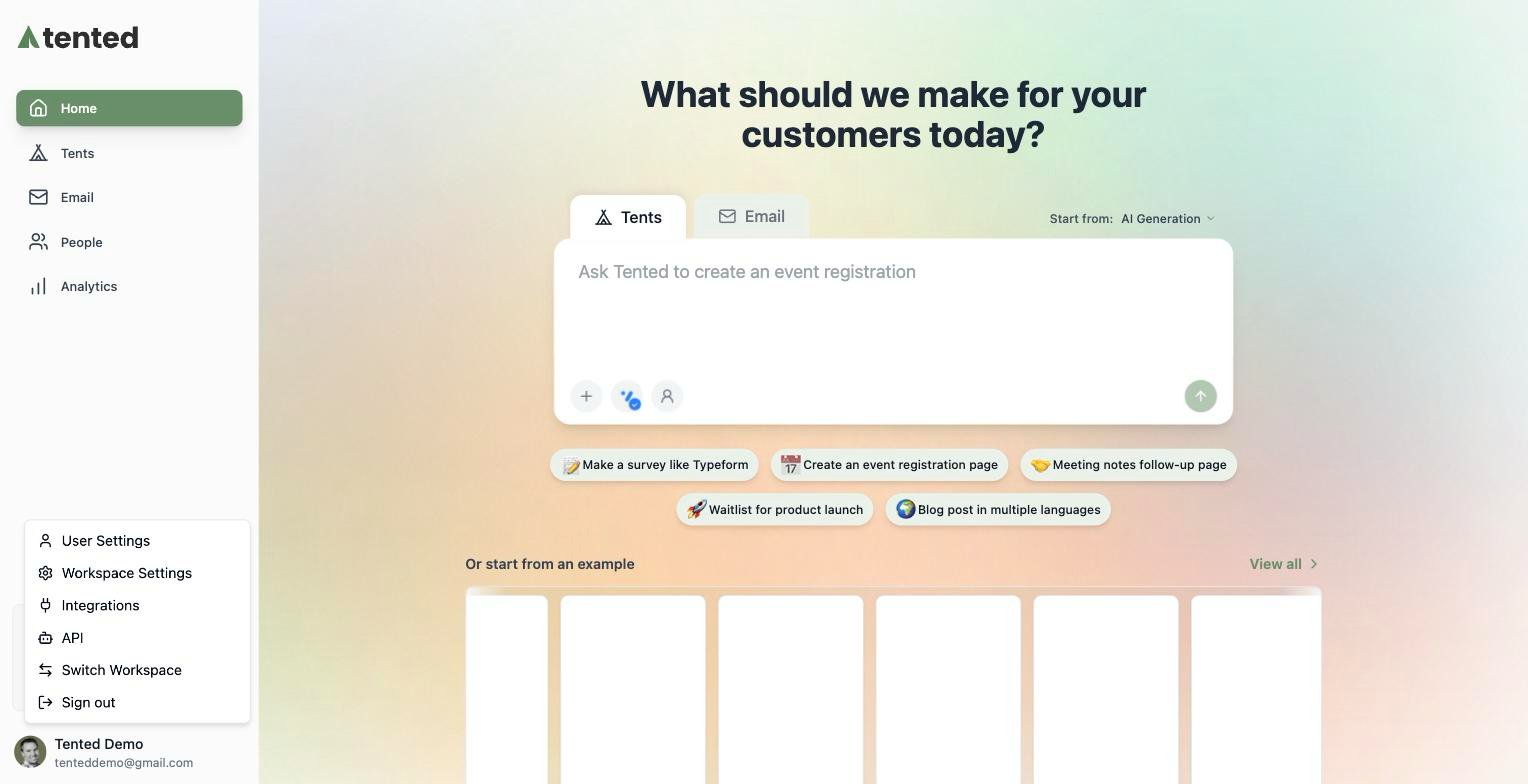 Then pick the workspace you want from the list. Your current workspace is marked **Current** and can't be re-selected:
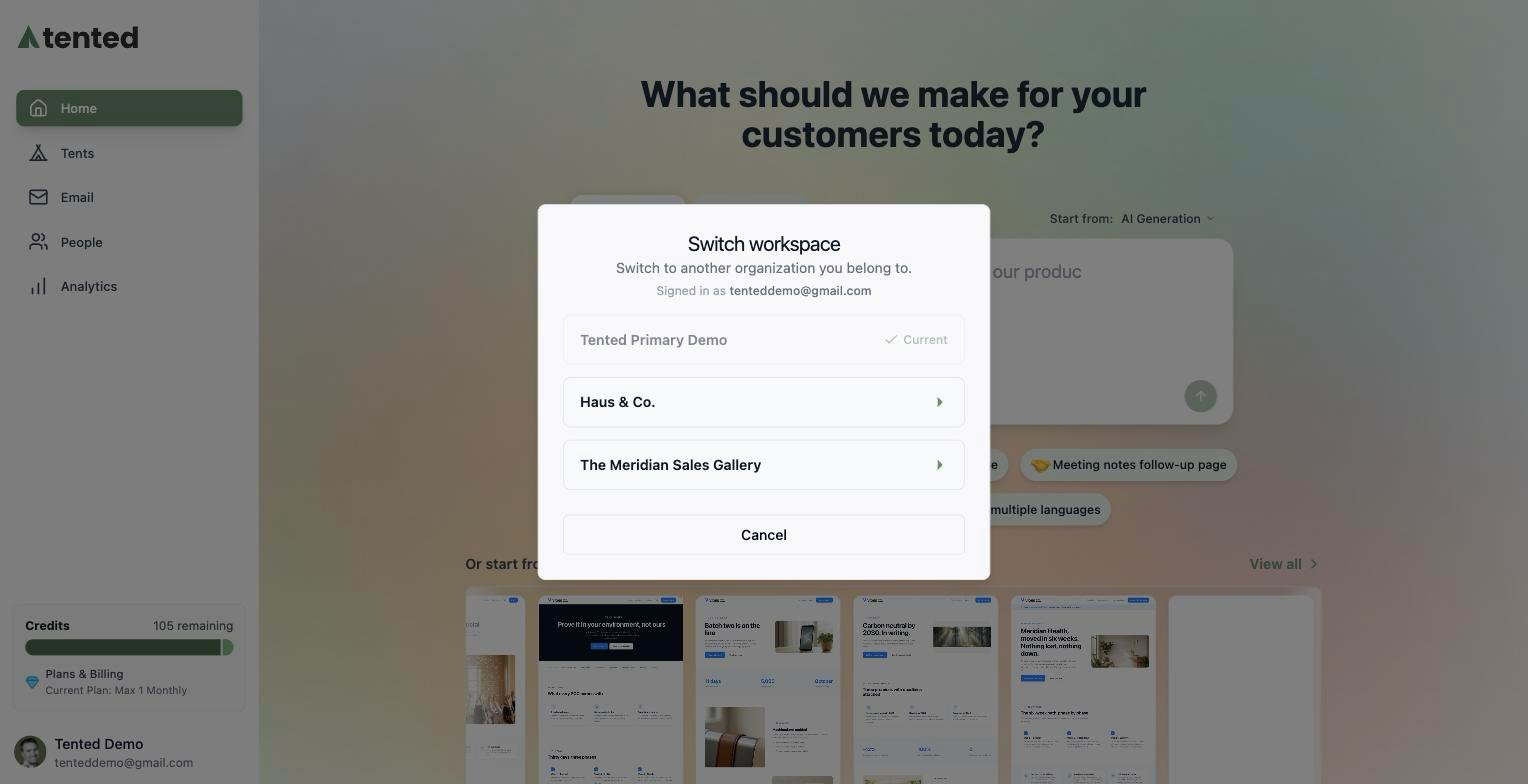 Tented switches your session to the selected workspace and reloads the app, so everything you see — tents, people, emails, analytics, and settings — belongs to that workspace.
**Switch Workspace** only appears when your email address belongs to more than one workspace, and only those workspaces appear in the list. If a workspace is missing, ask an admin of that workspace to [invite you](/configuring-tented/inviting-new-users); once you're invited it shows up automatically.
## Roles Are Per Workspace
Your [role](/configuring-tented/user-permissions) is set independently in each workspace — you can be an Admin in one and a Standard User in another. After switching, you have the role that workspace assigned to you.
Configure workspace-wide branding, company info, and more.
Tented switches your session to the selected workspace and reloads the app, so everything you see — tents, people, emails, analytics, and settings — belongs to that workspace.
**Switch Workspace** only appears when your email address belongs to more than one workspace, and only those workspaces appear in the list. If a workspace is missing, ask an admin of that workspace to [invite you](/configuring-tented/inviting-new-users); once you're invited it shows up automatically.
## Roles Are Per Workspace
Your [role](/configuring-tented/user-permissions) is set independently in each workspace — you can be an Admin in one and a Standard User in another. After switching, you have the role that workspace assigned to you.
Configure workspace-wide branding, company info, and more.