> ## Documentation Index
> Fetch the complete documentation index at: https://docs.tented.ai/llms.txt
> Use this file to discover all available pages before exploring further.
# Workspace Analytics
> Track tent traffic, email sends, and AI usage across your whole workspace
## The Analytics area
Click **Analytics** in the sidebar for a workspace-wide dashboard covering three things: how your published tents are performing, how much email you're sending, and how you're using AI credits.
This is the *workspace* view. For a single tent's numbers, use **View Tent Analytics** on its [Tent Details](/working-with-tents/viewing-tent-details) page; for a specific campaign, open the [blast](/email/email-blasts) or [flow](/email/triggered-flows).
## Traffic
At the top you'll find **Published Tents** and **Total Page Views** (last 7 days), plus a **Page Views by Day** chart. Below that, traffic is broken down every way you'd want:
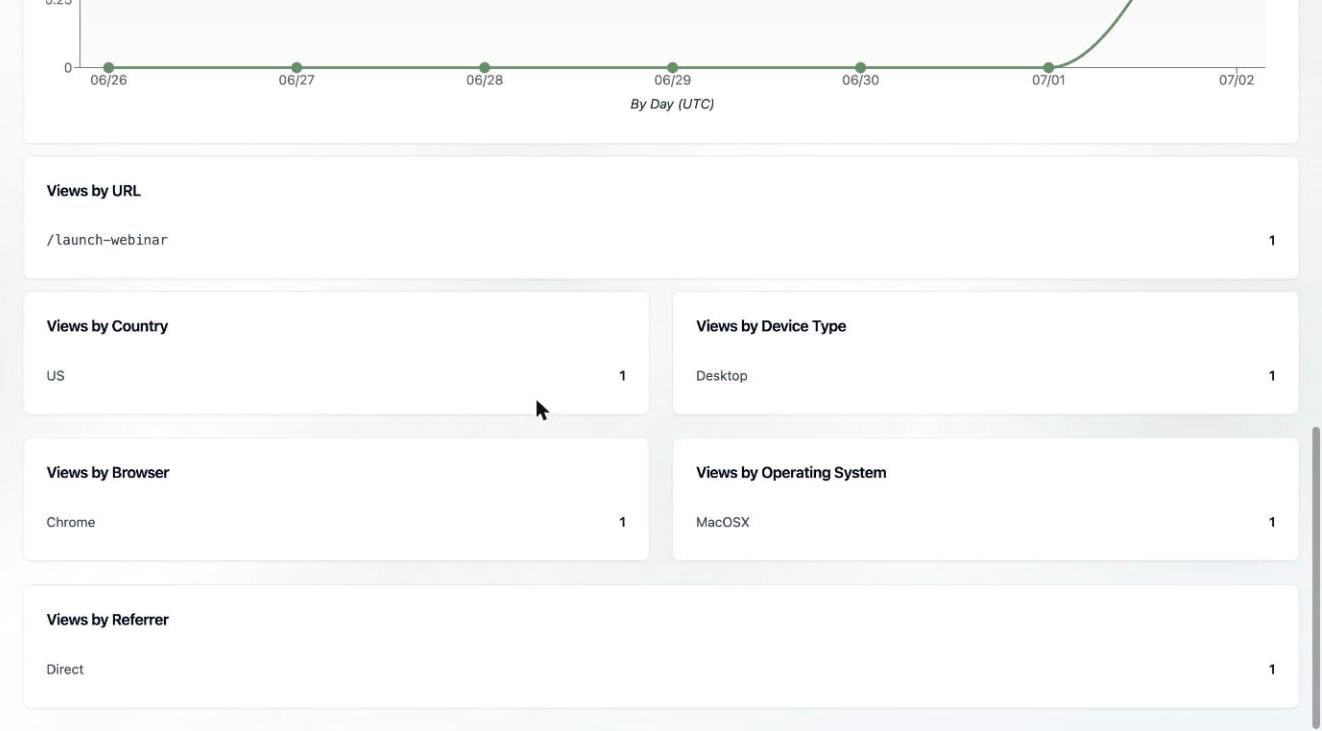 * **Views by URL** — which of your pages get the traffic
* **Views by Country**, **Device Type**, **Browser**, and **Operating System** — who's visiting and on what
* **Views by Referrer** — where they came from (Direct, a social network, a search engine, etc.)
## Email
* **Emails Sent** — total emails across [blasts](/email/email-blasts) and [flows](/email/triggered-flows), by month, so you can see your sending volume trend.
## AI usage
* **AI Generations** — initial, iterative, and image generations across tents and emails, by week.
* **Credit Usage** — the same activity expressed as credits (plan credits vs. free daily credits), by month. This is the best place to understand where your [credits](/billing-subscriptions/viewing-usage) go.
## Exporting
Every chart has a share icon in its corner — click it to download that chart as a PNG for a report or deck.
Check credits, sends, and limits against your plan.
* **Views by URL** — which of your pages get the traffic
* **Views by Country**, **Device Type**, **Browser**, and **Operating System** — who's visiting and on what
* **Views by Referrer** — where they came from (Direct, a social network, a search engine, etc.)
## Email
* **Emails Sent** — total emails across [blasts](/email/email-blasts) and [flows](/email/triggered-flows), by month, so you can see your sending volume trend.
## AI usage
* **AI Generations** — initial, iterative, and image generations across tents and emails, by week.
* **Credit Usage** — the same activity expressed as credits (plan credits vs. free daily credits), by month. This is the best place to understand where your [credits](/billing-subscriptions/viewing-usage) go.
## Exporting
Every chart has a share icon in its corner — click it to download that chart as a PNG for a report or deck.
Check credits, sends, and limits against your plan.